
Run AutoML Business Process
In the previous step you have activated a Cognitive Bot by configuring AutoML in the Manual Task. Once you run such Manual Task, Control Tower automatically launched instance of out-of-the-box AutoML Business Process. This BP has been auto-created with your original Manual Task inside of it for cases when manual processing will be still required.
Now let's work on AutoML Business Process configuration.
Configure AutoML BP
In the Business Processes list, select your newly created AutoML BP to perform the following steps:
On the Data tab, click Upload Data, and then map input column(-s) with answer types, if needed.
Set up AutoML BP parameters (Due Date, Streaming, etc.).
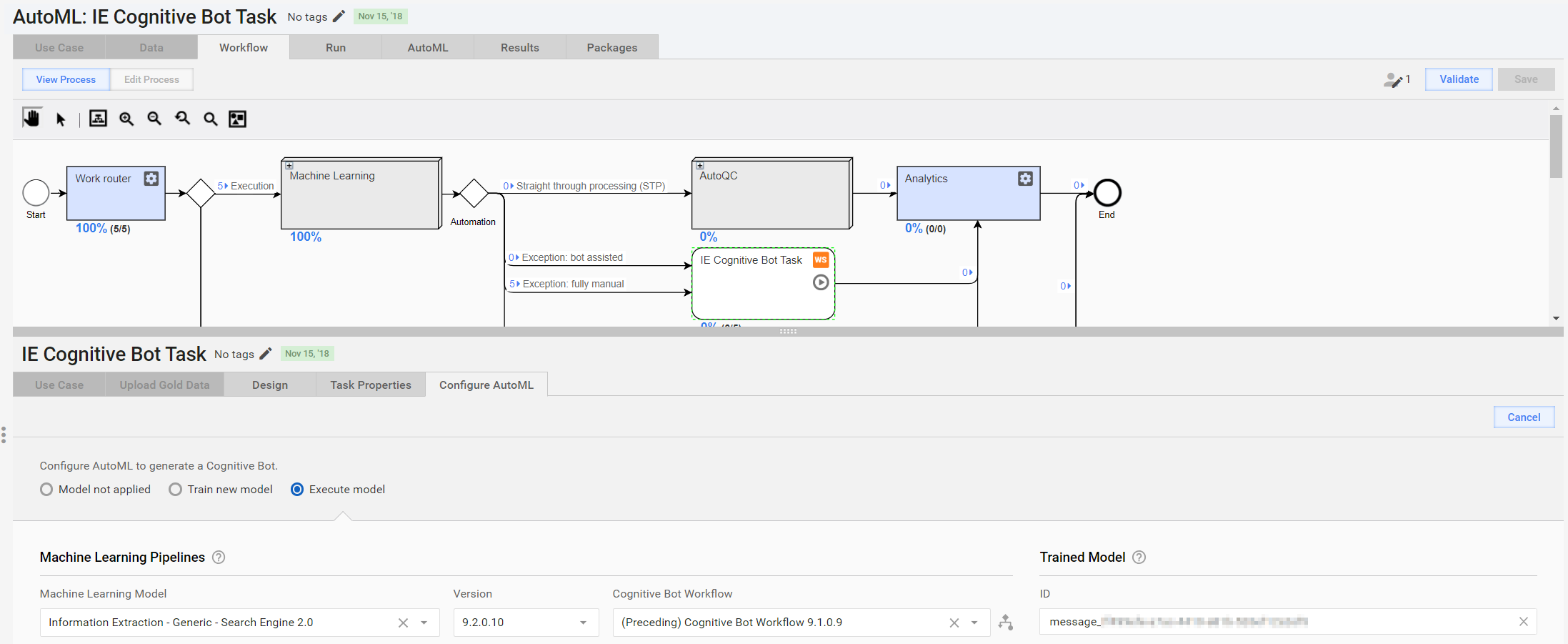
Set up model execution options. Navigate to the Workflow tab, and then select Manual Task > Configure AutoML > Execute Model.
note
By default, Machine Learning Model, Cognitive Bot Workflow, ID and Version are set according to the training configuration of the initial Manual Task.
- ID — Unique identifier of an experiment group of trained model (set on model training) in the following format:
[answer unique code]_runUUID. You can select other trained model ID from the list and Cognitive Bot will apply new selected trained model for execution. This list is not sorted by Machine Learning Model type. - Version — Version of the selected Machine Learning Model. The list consists of available Machine Learning Models versions. Default value is version used for the selected Machine Learning Model during training.
- Run your AutoML BP.
caution
Input column(-s) mapping may not work in AutoML Business Process after activating the Cognitive Bot in the original Manual Task. To avoid this, provide input data files with column names that match answer codes.
You can optionally edit AutoML BP bot steps, such as, to enable or disable Auto Quality Control (AutoQC), or set data formats, etc.
Repeat AutoML BP
If you have additional input data, you can reuse the AutoML business process by doing one of the following actions.
- Go to Manual Task, set new accuracy parameters, and then click on Apply Recommendation.
- Copy and run the new AutoML business process.
Monitor AutoML BP
You can monitor your AutoML BP progress on the BP diagram in the View Mode or on the Data tab.
Have a look at the following example. On the process diagram, 24 documents were uploaded as the input data with the following results:
- 18 documents were successfully extracted by the Cognitive Bot, and then normalized.
- 6 documents were routed to human workers because the Cognitive Bot failed to extract information.
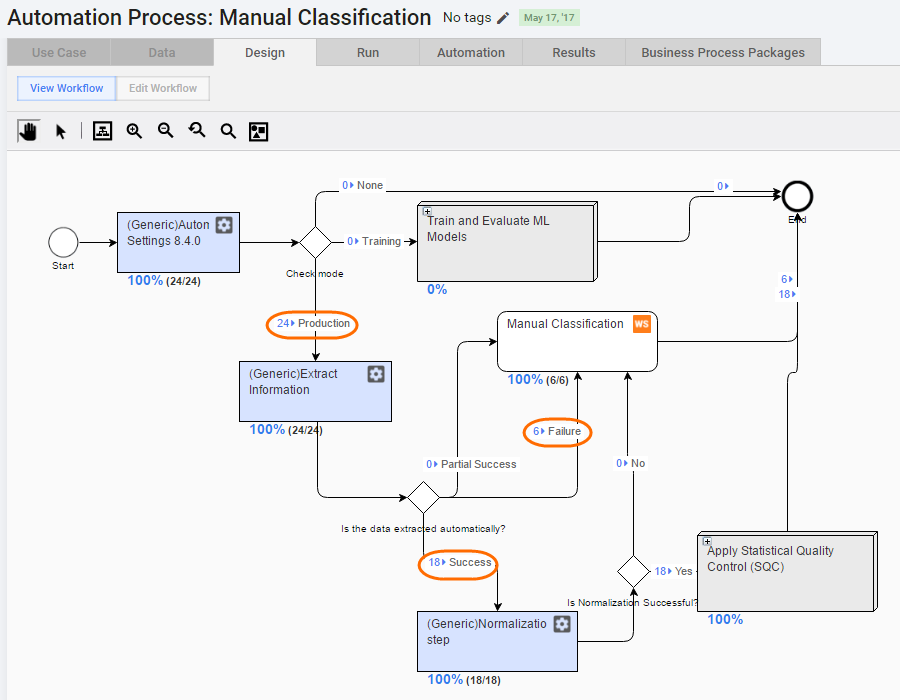
Note that you still need to complete some number of Manual Tasks in these cases:
- Automatic Extraction failed or was partially successful.
- Data Normalization failed.
- AutoQC is enabled.
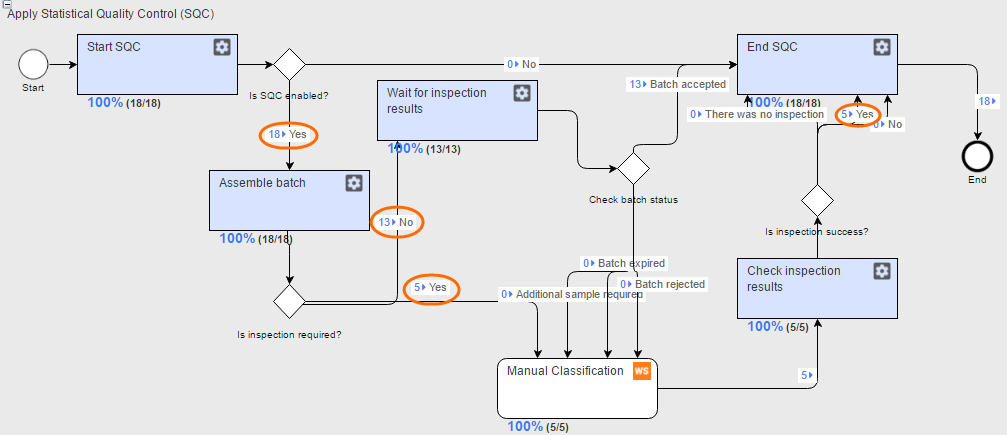
In the previous diagram, 18 documents were successfully extracted and normalized by the Cognitive Bot, and then routed to the AutoQC sub-process, of which:
- 5 documents were taken to inspection tasks for human workers to verify model results.
- 13 documents were put on-hold until the inspection results.
Human workers provided the same answers as the cognitive bot (Manual Classification step), and therefore the whole batch was approved and no additional inspection needed.
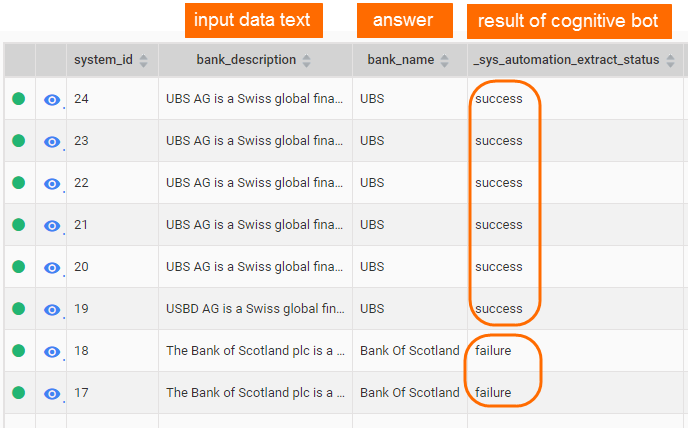
Finally, you get the resulting data partially generated by AutoML, partially submitted by human workers.
What's Next?
Afterwards, to improve the results, you can apply Post-Processing.