
Rules and templates
To manage Rules in Intelligent Automation Cloud Enterprise, go to Advanced > Rules. You can create, edit, delete, copy, and export/import Rules. Rules can also be created from templates (Advanced > Rule Templates).
Rule structure
To edit Rules in advanced mode, you need to learn the Drools language.
A typical rule file can contain one or several rules with the following structure:
Basic Rule Structure
rule "name"
    attributes
    when
        LHS - conditional part
    then
        RHS - executional block
end
Rule types
The Intelligent Automation Cloud has the following Rule Types:
- Adjudication. Adjudication Rules use a majority rule algorithm that you can set to determine how many Workers you want to have to agree in order to reach a consensus.
important
For IA Cloud Enterprise v10.2, the Adjudication rule (1+0) can be used only. Other Adjudication rules are obsolete and will be removed in Control Tower UI in further releases.
- Composite. Composite Rules - Advanced Options control Task progression and escalation through Business Process.
- Task Comparator. Obsolete starting from v.2.0.
- Task Distribution. This Rule is used as a Workforce parameter to make possible to complete the Tasks in a custom order.
Task Distribution Rule example
package com.freedomoss.requester;

#list any import classes here.
import com.freedomoss.objective.model.RuleContext;
import com.freedomoss.objective.model.DistributionRuleContext;
import com.freedomoss.requester.service.mes.TaskDistributionStrategyContext;
import com.freedomoss.requester.service.mes.TaskDistributionStrategyEnum;
import com.freedomoss.requester.service.mes.ITaskDistributionStrategy;
import com.freedomoss.requester.service.mes.impl.TaskDistributionStrategyFactory;
import com.freedomoss.requester.service.mes.impl.AdvancedStrategy
import com.freedomoss.requester.model.AwsHit;
import com.freedomoss.workfusion.model.mes.Workforce;
import com.freedomoss.workfusion.model.mes.Crowd;

import com.freedomoss.model.HitSubmissionDataItem;
import com.freedomoss.model.HitSubmissionDataItemValue;

import org.slf4j.Logger;
import java.util.ArrayList;
import java.util.List;
import java.util.Set;
import java.util.Map;
import java.util.HashMap;
import java.util.Iterator;

#declare any global variables here
global DistributionRuleContext source
global Logger log
global Map params

rule "Distribute"
auto-focus true
no-loop
  when
      $ctx: DistributionRuleContext();
  then
      $ctx.setDistribution(getTasksDistribution($ctx.getDistributionContext()));
end


function Map<Crowd, List<AwsHit>> getTasksDistribution(TaskDistributionStrategyContext context) {
Map<Crowd, List<AwsHit>> result = new HashMap<Crowd, List<AwsHit>>();
Workforce workforce = context.getWorkforce();

List<Crowd> crowds = workforce.getEnabledCrowds();
for (Crowd crowd: crowds){
  result.put(crowd, new ArrayList<AwsHit>());
}

List<AwsHit> hits = context.getHits();
Map<Long, List<HitSubmissionDataItem>> hitDataItemsMap = context.getHitDataItemsMap();
for (AwsHit hit: context.getHits()) {
  for(HitSubmissionDataItem item: hitDataItemsMap.get(hit.getId())) {
    for(HitSubmissionDataItemValue val:item.getValues()){
      System.out.println("================== VALUES language: "+val.getName()+"   =====================");
    }
    HitSubmissionDataItemValue languageObj = item.getValue("language");
    if(languageObj != null){
      String language = languageObj.getItemValue();
      if ("en".equals(language)){
        Crowd crowd = crowds.get(0);
        result.get(crowd).add(hit);
      } else {
        Crowd crowd = crowds.get(1);
        result.get(crowd).add(hit);
      }
    }
  }
}

return result;
}
Rule parameters overview
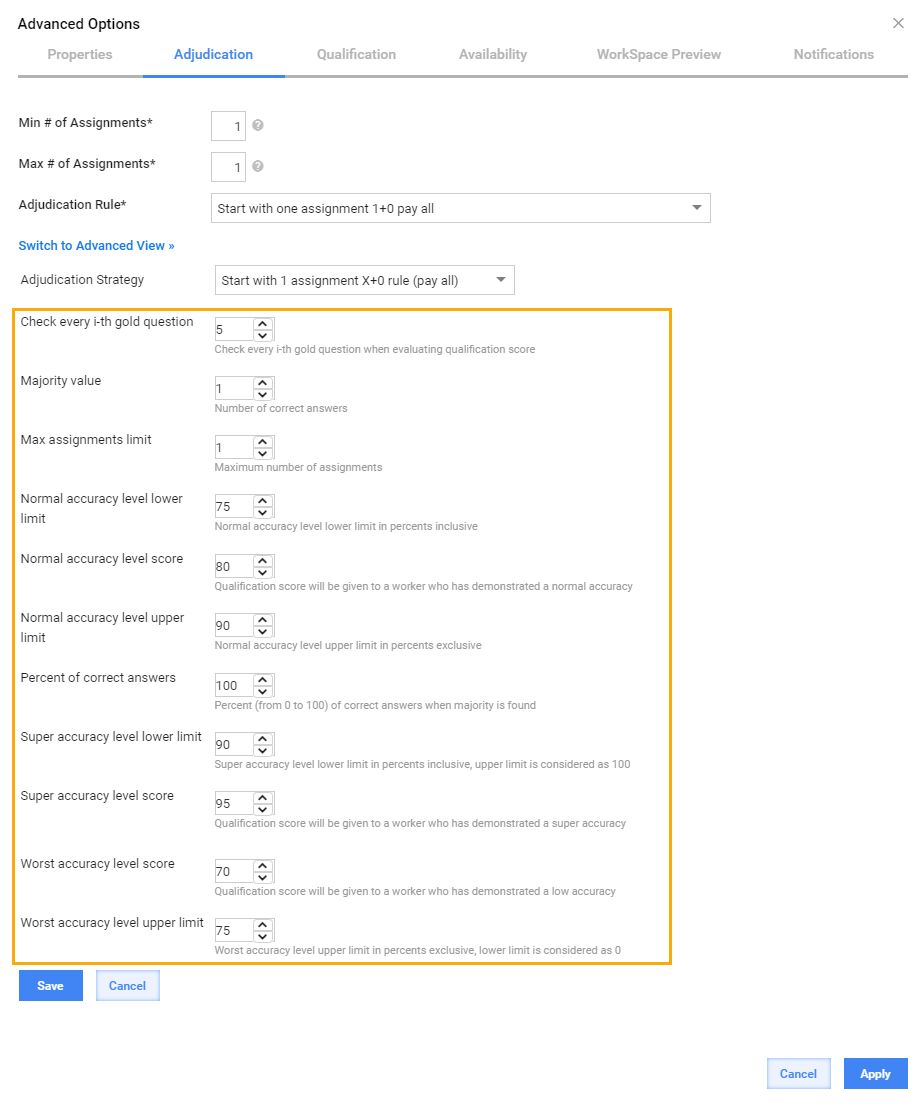
All of the Rules in the Intelligent Automation Cloud have rule parameters associated with them.
These parameters allow non technical users of the platform to configure and customize the behavior of the rules. Rule Parameters are created in Rule Templates > Edit Template > Params tab.
Create Rule
To create a new Rule, complete the following steps.
- Go to Advanced > Rules.
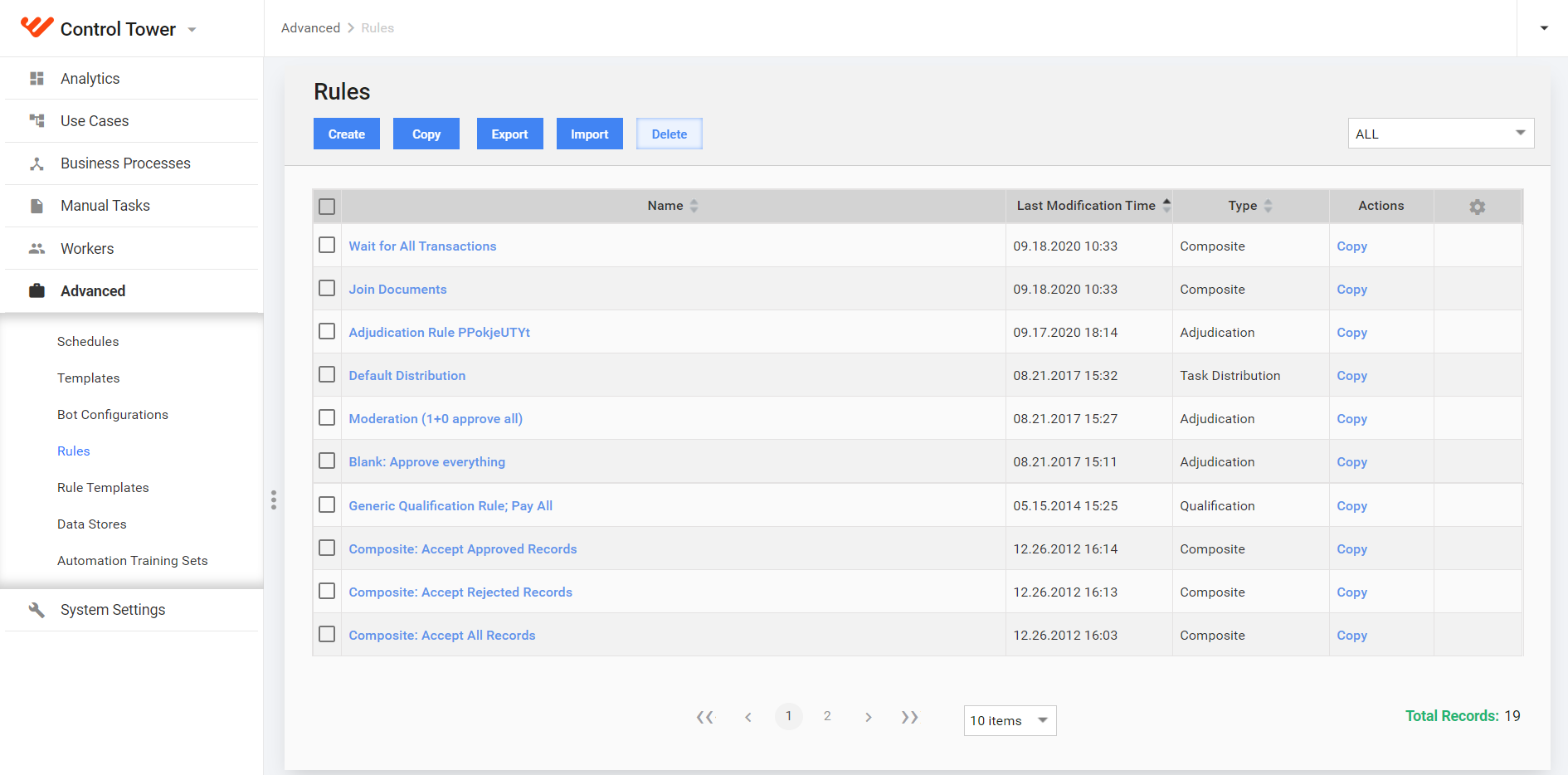
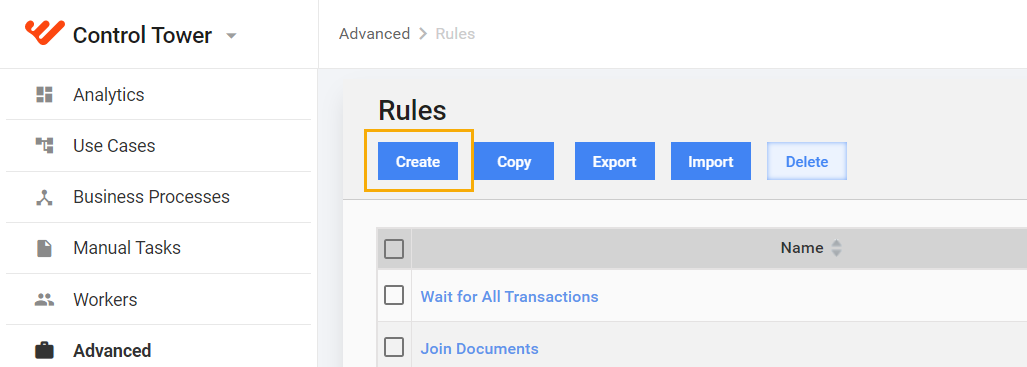
Click on the Create button.
Enter a unique Rule Name.
Select Rule Type from the appropriate dropdown.
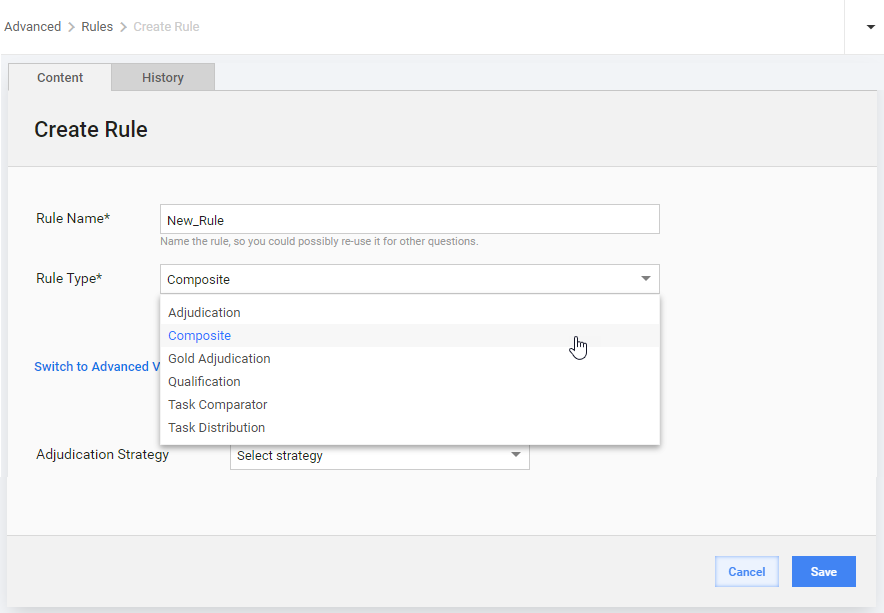
- Select a Rule Template from the Adjudication Strategy dropdown.
- Optional: If you want to create a Rule from scratch (without selecting a template), click the Switch to Advanced View link and write a custom Drools code.
- Click on the Save button in the bottom right corner.
Create Rule Template
Rule Templates are intended for re-using code when creating new Rules and for creating Rule Parameters.
To create a new Rule Template, do as follows.
- Go to Advanced > Rule Templates.
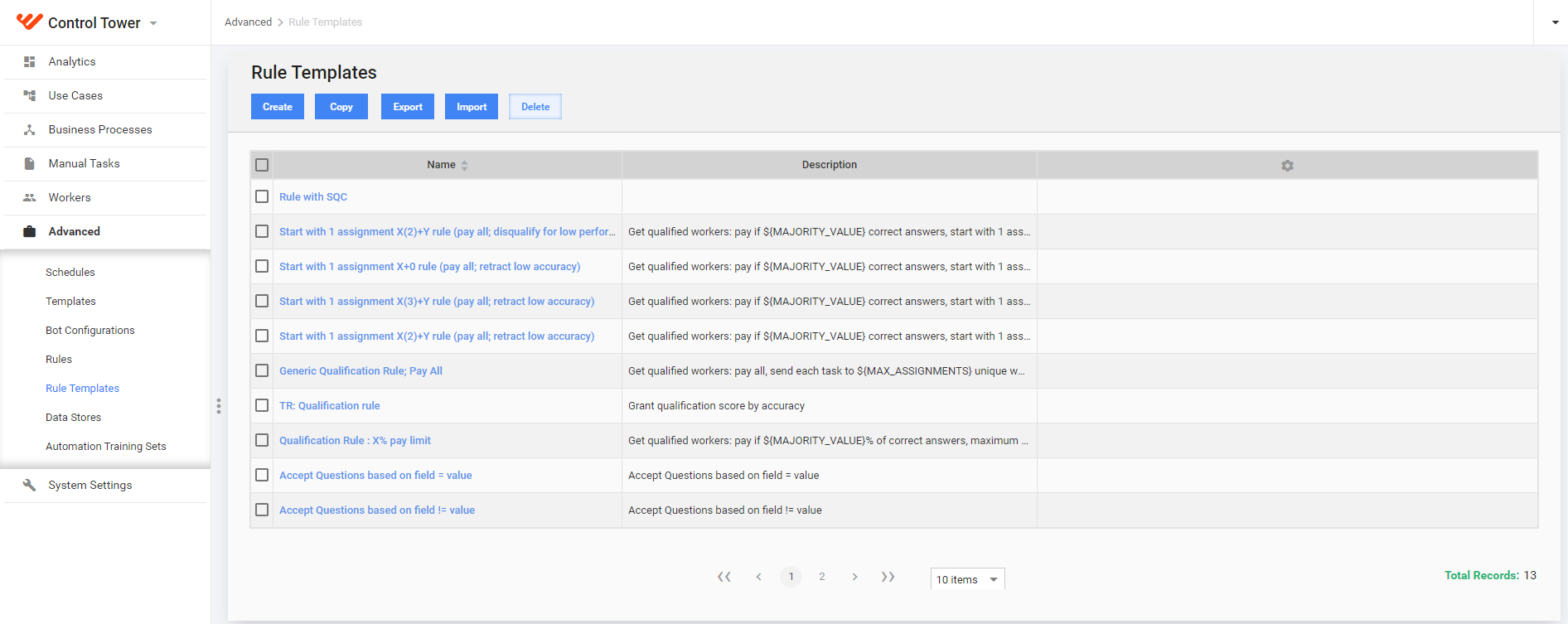
Click on the Create button.
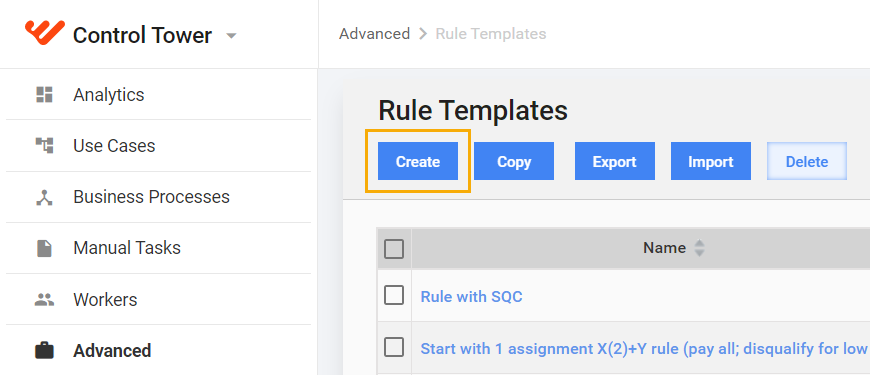
Enter a unique Rule Template Name.
Add Description.
Write a custom Drools code in the Code Editor.
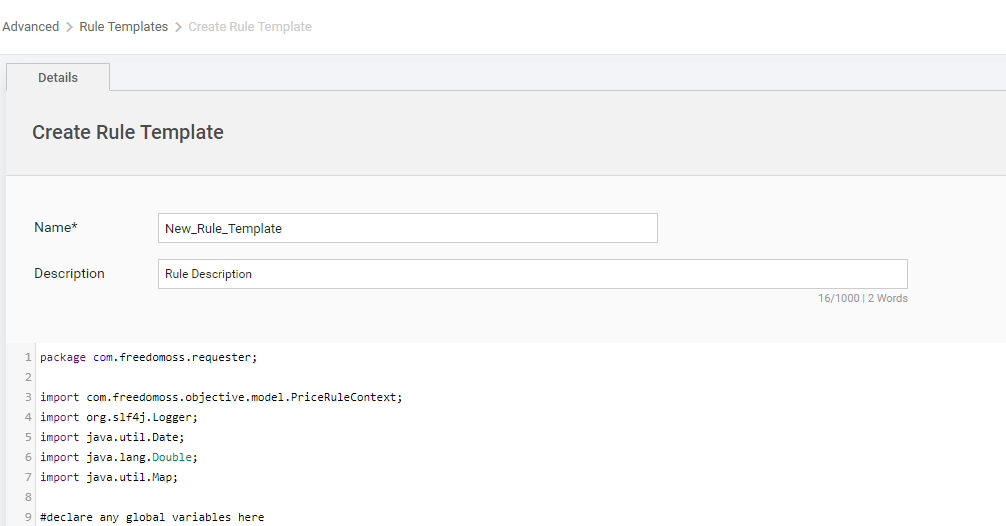
- Click on the Save button.
Add Rule parameters
Rule Parameters allow non technical users of the platform to configure and customize the behavior of the rules.
To add Rule Parameters, complete the following steps.
- Go to Advanced > Rule Templates.
- Click on an appropriate Rule in the Name column.
- Switch to the Params tab.
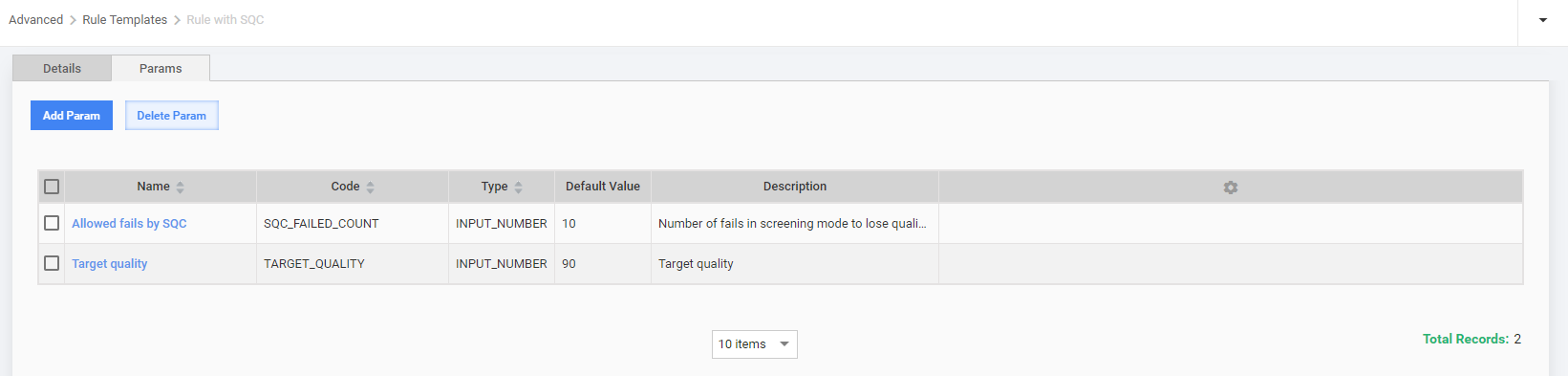
Click on the Add Param button. The Edit Param dialog is displayed under the grid.
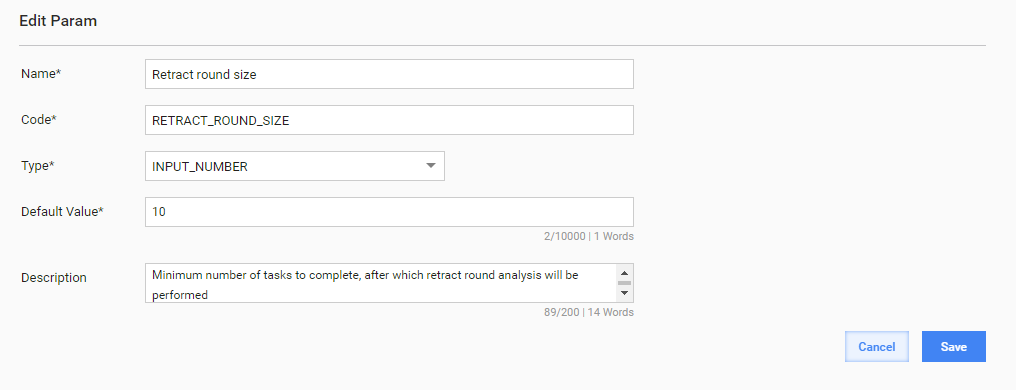
Enter the name parameter in the Name field (will be displayed for the user).
Enter the unique code parameter in the Code field (this code will be used in the Rule code). Example of using parameters in rule code:
{{RETRACT_ROUND_SIZE}}.Select the Type parameter (control type: number, text, or text area).
Enter the Default Value parameter.
Add Description.
Press Save.