
Process individual assignment
The procedure of working with assignments is as follows.
- Accept an assignment by clicking on it in the list of assignments.
- Process the assignment.
- Submit the assignment. On finishing, you are automatically redirected to the next assignment in the queue. You can also skip the assignment or return it to the queue.
Getting started
Once you pass to an assignment from the queue or using the direct link, the assignment opens in the next window. It gets unavailable for other users and is marked as In progress.
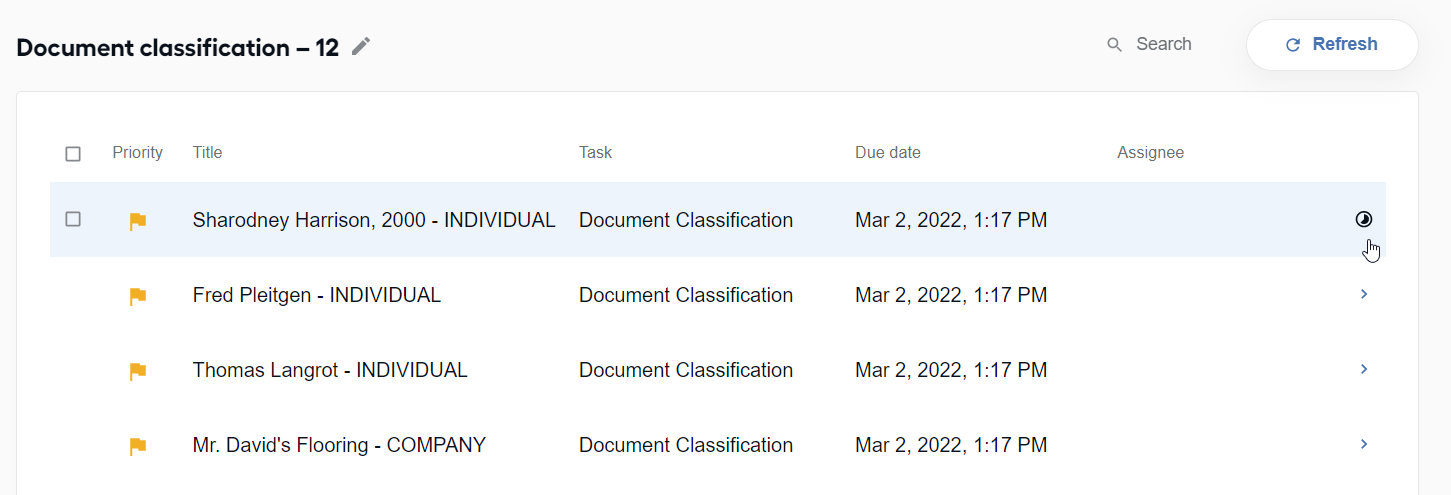
If you close the tab, you can return to this assignment later directly or within the queue. Mind that after thirty minutes since you have accepted the assignment, the assignment is returned to the queue.
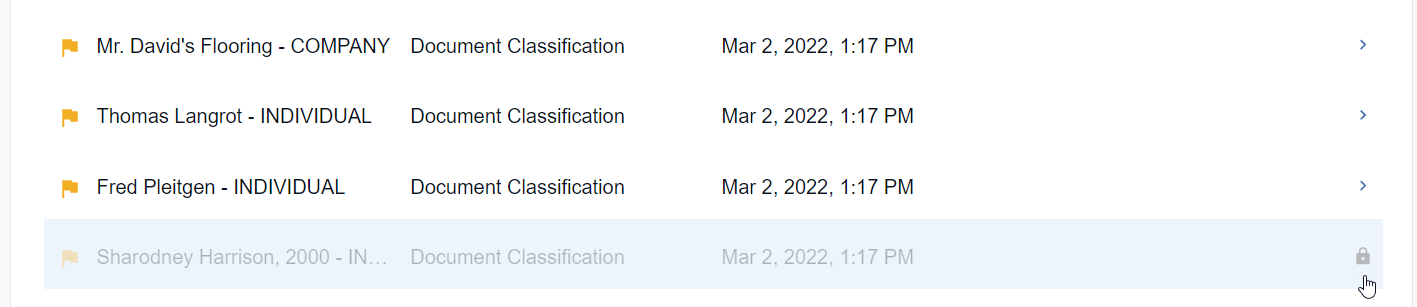
In case another user has already selected an assignment, it becomes unavailable for you and is marked as In use in the queue.
If you haven't updated the page for a long time and there are assignments in use on it, when clicking on such an assignment, you see the Assignment in progress popup.
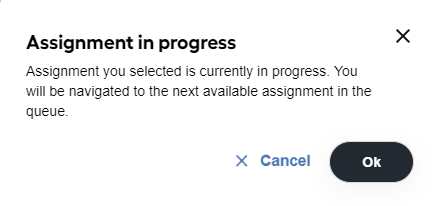
- Click OK to view the next available assignment in the queue.
- Click Cancel to stay on the list of assignments within the selected queue.
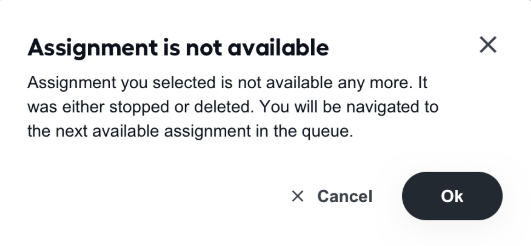
When you click on the assignment that has been stopped/paused/deleted from the list, the Assignment is not available message appears. Click OK to proceed to the next assignment in the queue.
Process assignment
Once you open an assignment, you enter the processing mode and start labeling the document. For more information, refer to TOD - Tagging Over Document.
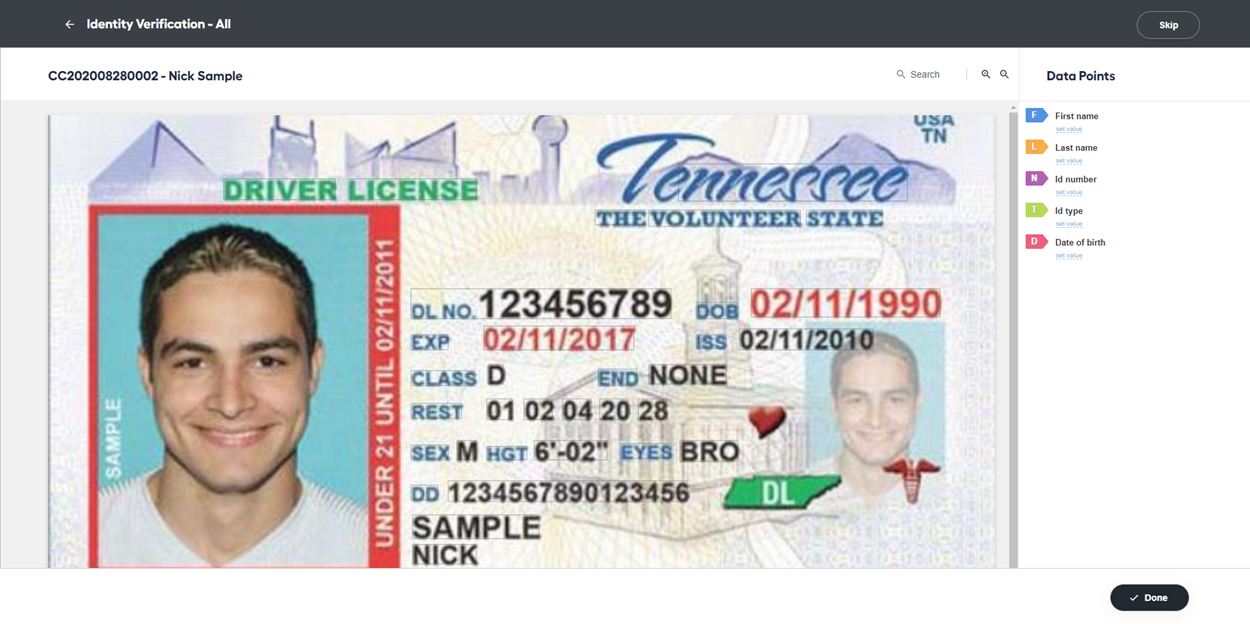
You are expected to process the selected assignment within thirty minutes after acceptance. Otherwise, the assignment is returned to the assignments list. Two minutes before the timeout, the notification message appears in the right top corner of the screen.
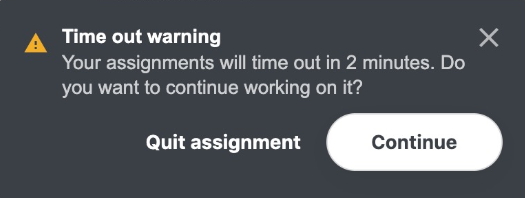
You have two available options.
- Select Continue to prolong the execution time to thirty minutes more and finish your assignment.
- Select Quit assignment to return the assignment to the queue. You are redirected to the assignments list with the selected queue. Mind that it is better to return the assignment than to submit a wrong or incomplete one. If you ignore the notification (or click the Close button on the popup), the assignment is returned to the queue in two minutes automatically, and you are redirected to the list within the selected queue.
Submit assignment
When you have provided all the required answers, check yourself and submit the assignment. To do that, press the Done button on the assignment page.
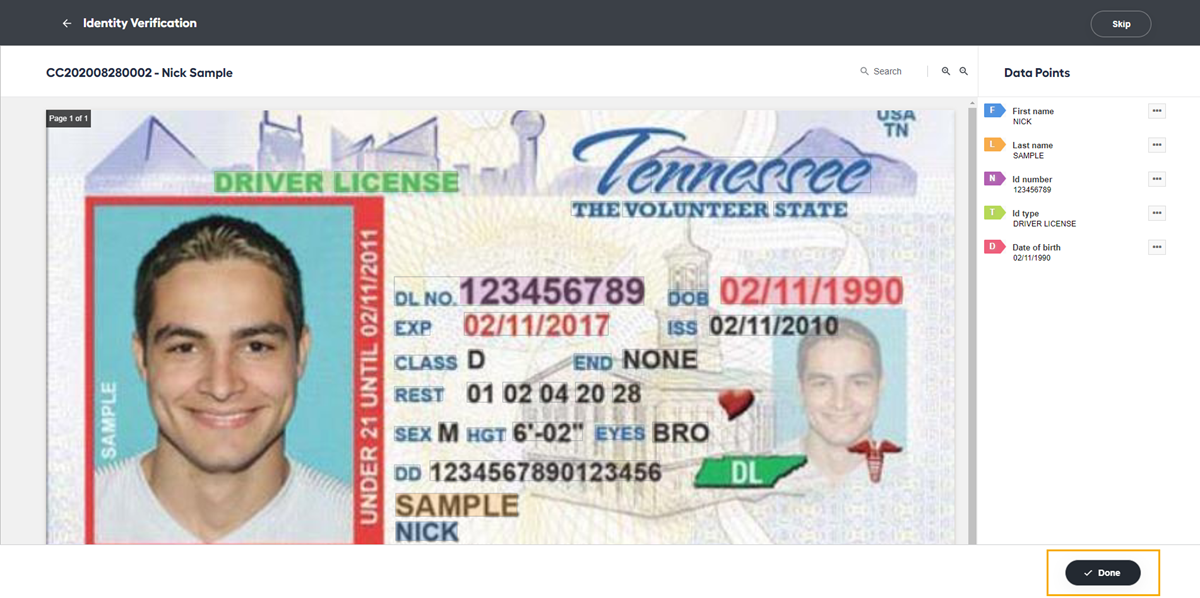
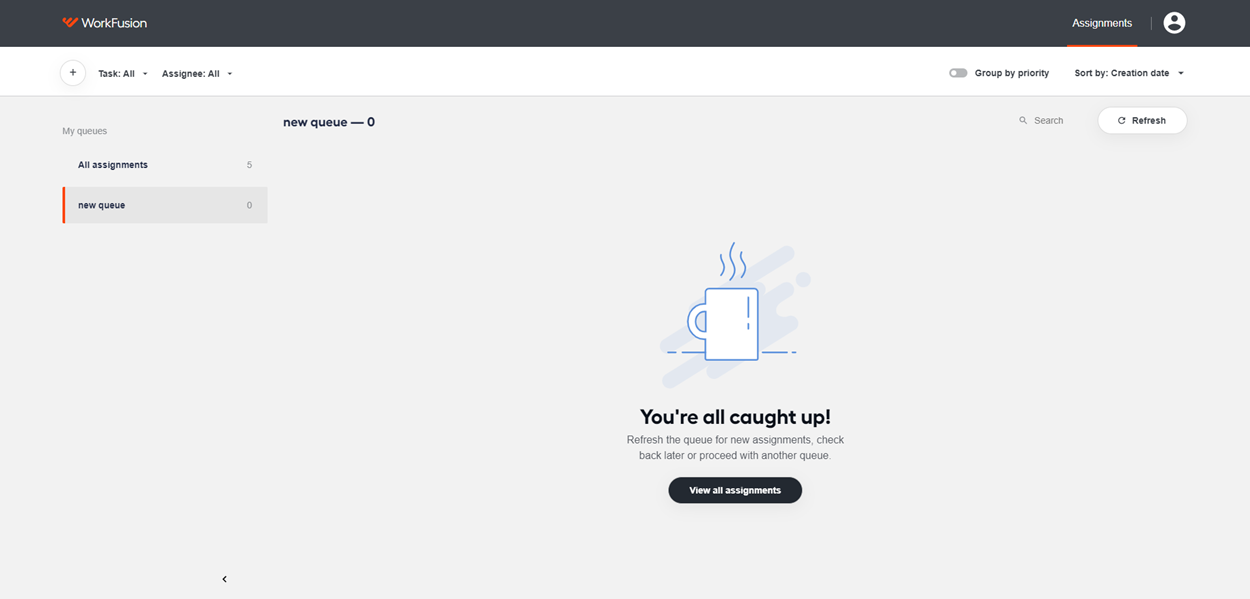
By clicking on Done, you automatically proceed to the next assignment from the queue. If there are no more assignments available in the queue, the "You're all caught up" message appears.
Skip assignment
You can skip an assignment or return it to the queue. Find both options on the top panel on the Assignment page.
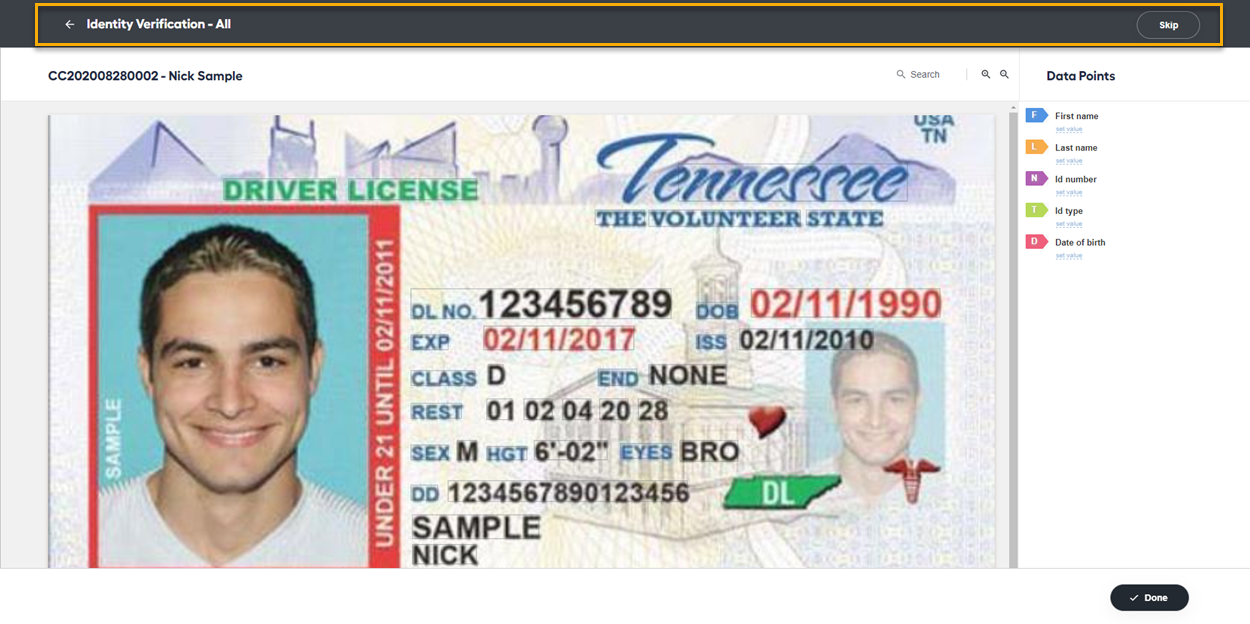
- In the top right corner, click on the Skip button to pass to the next assignment in the queue. The skipped assignment is returned to the list of assignments and becomes available for other users.
- In the top left corner, click on the Back to queue button to return the assignment back to the queue. The Quit assignment message appears.
- Click Quit. The assignment is returned to the queue and is available for other users.
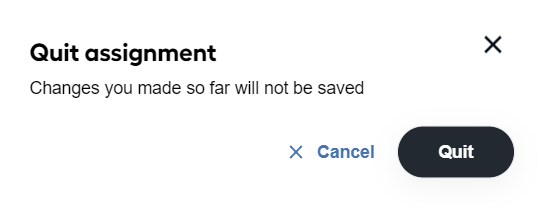
- In case you select Cancel, you stay on the current assignment.
- Click Quit. The assignment is returned to the queue and is available for other users.
important
For you not to lose the made progress on the assignment, the Quit assignment message appears if you close the browser tab with your assignment, refresh it, or click the Back tab in your browser.
caution
In case of any exceptions when processing assignments, you are redirected to All assignments