
Questions and Answers
Questions
The Questions section can contain question text together with Data Elements.
Data Elements are taken from the column names of the input data file. If the column headers do not match the variables within the Manual Task design, a warning message is displayed alerting you which column names need to be remapped. For details, see the Upload Data topic.
Data Elements have the following template: ${question.data['data_element_name']}.
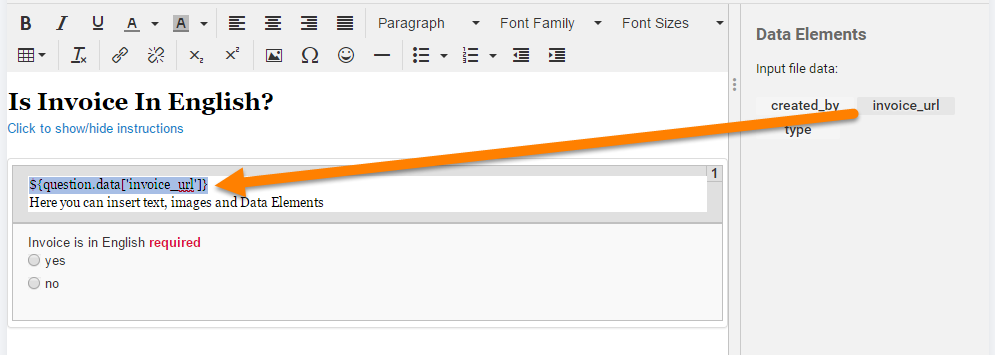
In the Questions section, you can perform the following actions:
- Type Rich Text
- Type Data Elements
- Delete Data Elements
On the side panel, you can only insert Data Elements at the current cursor position.
Do not type or paste Data Elements into the Title or Instructions sections. The preview will not be accessible.
Answers
To add an Answer, follow the instruction below:
- On the Design tab, click inside the Answer section. On the side panel, you will see the Answers list.
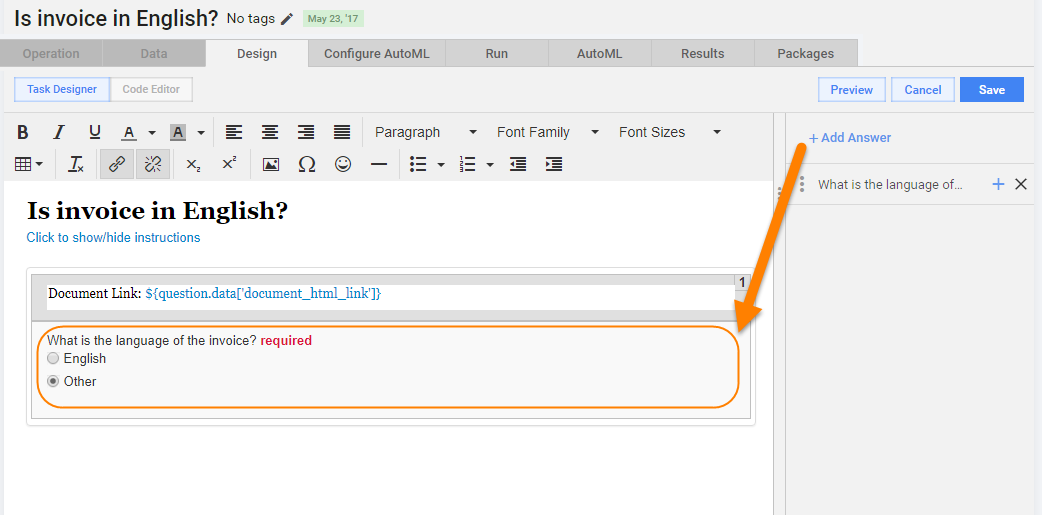
- Click the Add Answer button. The Add Answer window pops up.
- Fill the Answer input fields and click the Save button. When the Answer is saved, you can preview it and edit if needed.
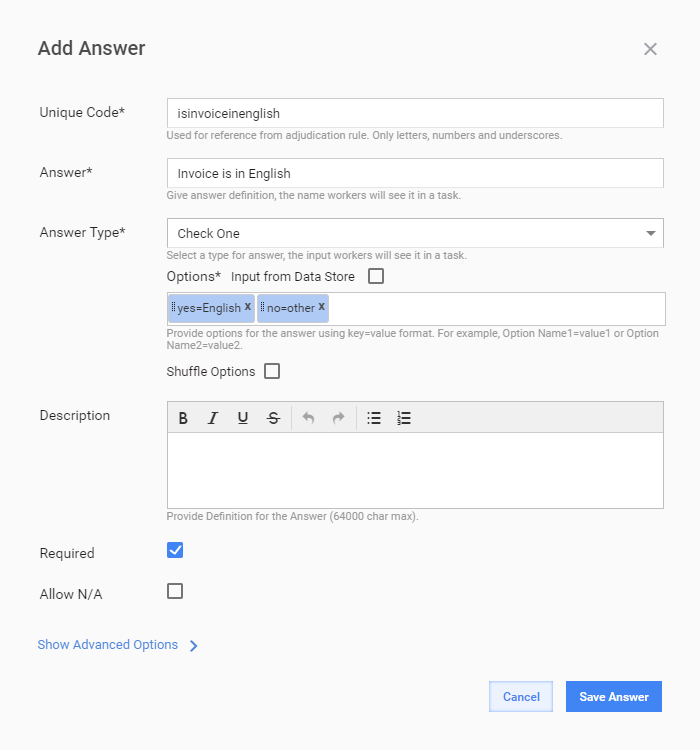
Answer Input Fields
Code
This field is used as the header for the output data file. Enter a unique text string. Only letters, numbers, and underscores are allowed.
Answer
This field is a label above the Answer field. Workers see it as the Answer definition.
Answer Type
The drop-down box allows you to select a data input control to be displayed in the user interface.
See the Answer Types topic for detailed information on the design and logic of each control.
Options
The field makes it possible to set multi-variant answers in the key-value format, for instance, Option_Name1=Value1. You can populate the Options field with dynamic expressions.
To enter an option, press Enter or TAB. You can also reorder the option items by dragging them or delete them.
Options can also contain different information, depending on the Answer Type, for example:
- Long Text: number of rows
- Masked Text: possibility to define a mask for the Answer
- Map: enable or disable the street view
Shuffle Options
Select the checkbox to shuffle the order in which the options are presented to workers.
Input form Data Store
Select the checkbox to import Answer options from a Data Store.
Description
This field allows you to describe in detail what's required from a worker. The information is displayed underneath the Answer field. It supports Dynamic HTML and HTML snippets.
Required
Selecting the checkbox activates automatic validation checks ensuring that workers cannot submit a task without providing the Answer.
Allow N/A
Select the checkbox to add an alternative answer option like "I do not know".
Advanced Options
To access advanced settings, click Show Advanced Options.
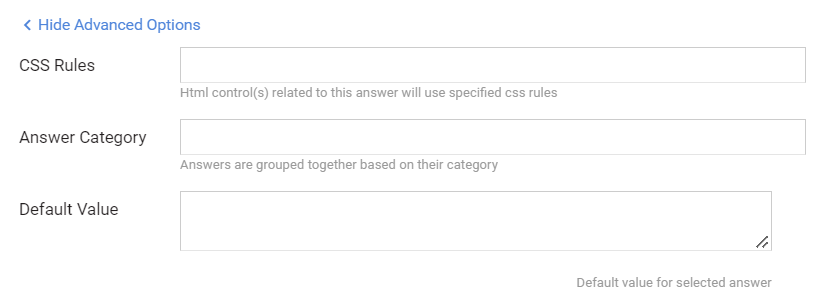
CSS Rules
To add a CSS rule, perform the following actions:
- To customize the Answer look and feel, enter a name for your custom CSS class.
- After saving the Answer, switch to the Code Editor and add your CSS code for the class in the
<style>section.
For Sub Answers, the field should contain expand:on(Parent_Answer_Option_Value).
See the CSS Rules for Answers and Sub-Answers topic containing CSS Rules examples.
Default Value
The value is inserted by default and can be modified by workers. You can take the default value from the input data file using the following expression format: ${question.data.column_name}.
Do Not Use in Adjudication (SA)
important
The Adjudication-related functionality is obsolete starting from v10.2. To be removed from the UI in further versions.
Select the checkbox to omit the Answer from calculating the adjudication (majority determination). The option is useful when the answer is used for comments or similar free-form Answer types.
Note that you can add multiple answers or even no Answers at all if your task does not require this.
To modify the order of Answers, drag them up and down. To delete an Answer, click the close icon (x) to the right of the respective element.
Dynamic Expressions in Answer Options
The Select One, Select Multi, Check One, and Check Multi Answer Types support dynamic expressions of the following type:
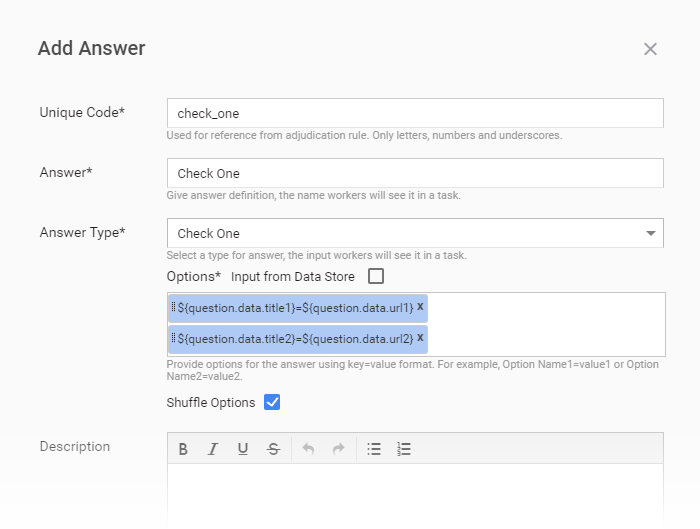
${question.data.A}=${question.data.B}
${question.data.A}=1; 2=${question.data.A}
PREFIX${question.data.A}SUFFIX${question.data.B}=${question.data.C} // PREFIX, SUFFIX - any strings
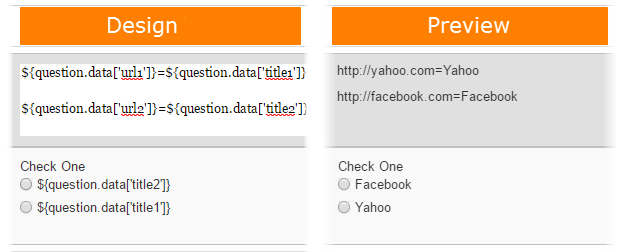
In the example above, A and B are column names from the input data file. On the Preview and endpoints, these expressions are substituted by the values from corresponding columns.
Dynamic expressions are useful in case these answers should have multiple values: no need to enter them manually.
Example:
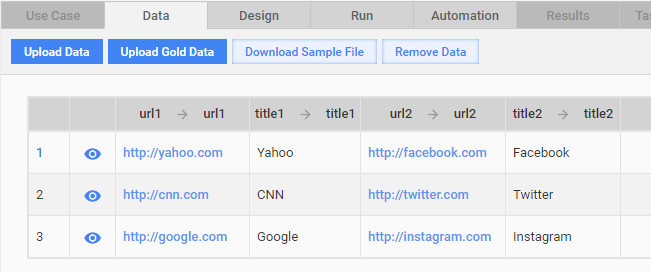
Input File or Data Store |
What Worker sees | What Worker selects | Result |
|---|---|---|---|
| Title: Yahoo, Facebook; URL: http://yahoo.com , http://google.com |
Yahoo, Facebook | Yahoo | http://yahoo.com |
To use these columns in Answers, add the following dynamic expressions to the Options list:
The following figure displays dynamic expressions in the Design tab and on the Preview page:
Sub Answers
Answers with multiple options can have Sub Answers. A Sub Answer is displayed to a worker only when a particular option from the parent Answer was selected.
Example:
Question: "Count the objects and select their amount from the list" Parent Answer options: 1=1 2=2 3=3 4=4 Other=5 Sub Answer: If 5 was selected from the main question, then display a text input (Sub Answer).
To add a Sub Answer to an existing Answer, perform the following steps:
On the Design tab, click inside the Answer section. On the side panel, you will see the Answers list.
Move the mouse over the Answer's corresponding row.
Click the plus icon "+" as shown below.
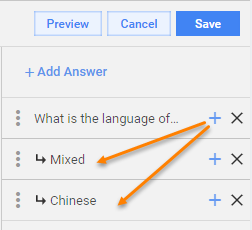
The Answer input fields are displayed.
Expand the Show Advanced Options section.
In the CSS Rule field, insert the following string: expand:on(Parent_Answer_Option_Value), where Parent_Answer_Option_Value is any option of the parent Answer.
Example:
The parent Answer has the Check One type with the following Options: black=1 white=2 other=3
To display the Sub Answer when the third option (other) is selected in the parent Answer, go to the CSS Rule field of the Sub Answer and add the following: expand:on(3).
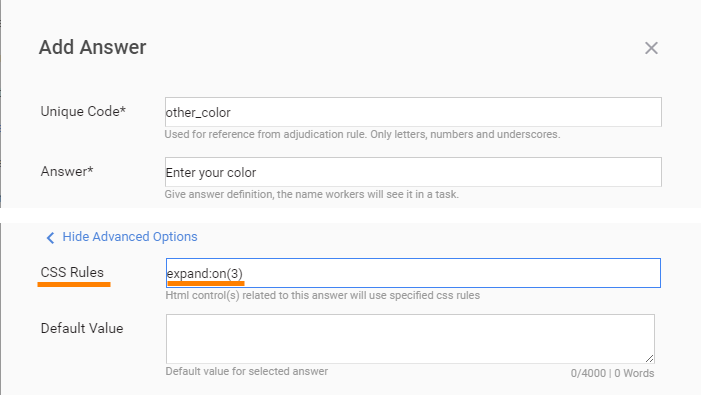
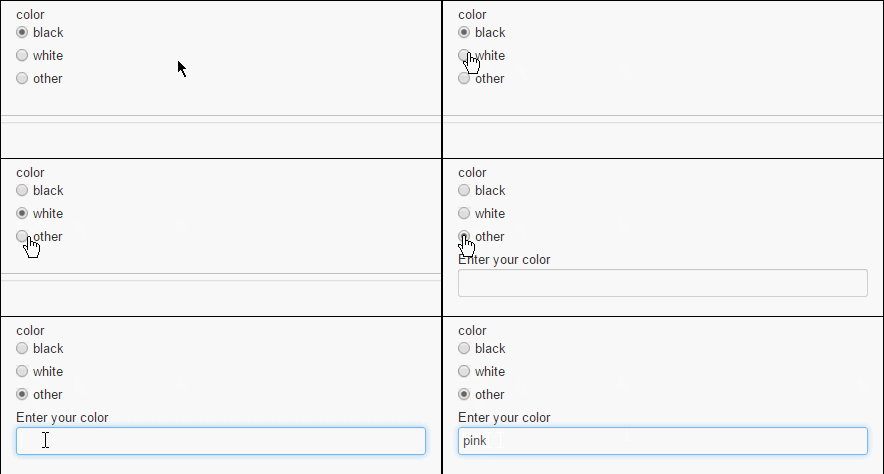
Click Save when all pertinent fields are filled in.
Each Answer field added is displayed in a table format under the parent answer node. You can edit, reorder, and delete Sub Answers. There can be multiple levels of Sub Answers.
Validation rules
Validation in Answers is active by default, and users cannot enter incorrect values. For example, email, date, number, so on.
When the validate parameter is set to false, users can enter any data in any field. To disable the validation, add the following parameter in the Code Editor:
<@form validate=false>
Save the Manual Task to apply the changes.