
Avoid these mistakes
Let's study the document
i. Check out some samples of the documents and corresponding instructions and then review the typical tagging mistakes. Download samples.
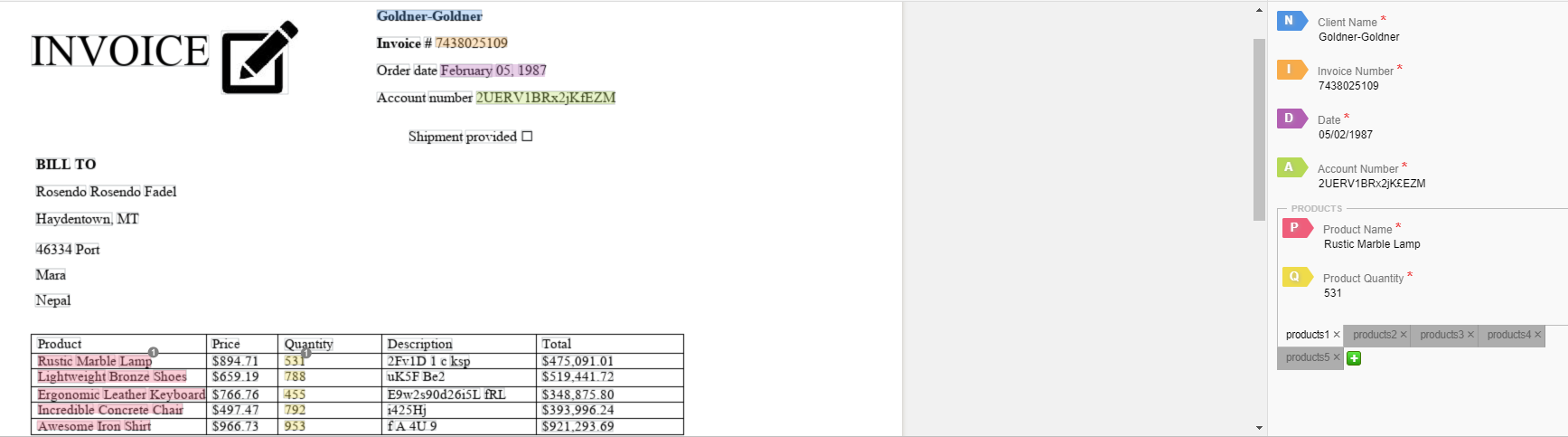
ii. Let's consider typical mistakes in these examples:
Extra data tagged
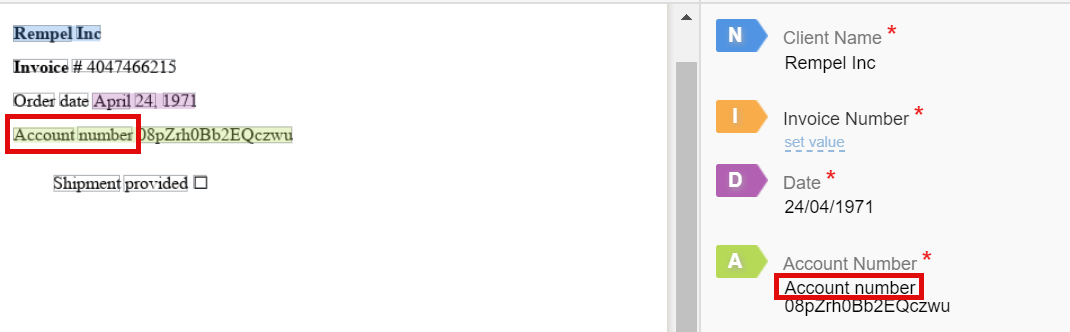
Here only the
08pZrh0Bb2EQczwuvalue for Account Number has to be tagged. But the keyword "Account Number" is constant and not part of the value and should not be tagged. The same rule is applied when tagging amounts: $1000— only numerals should be tagged, without the currency sign, etc.Tags are confused
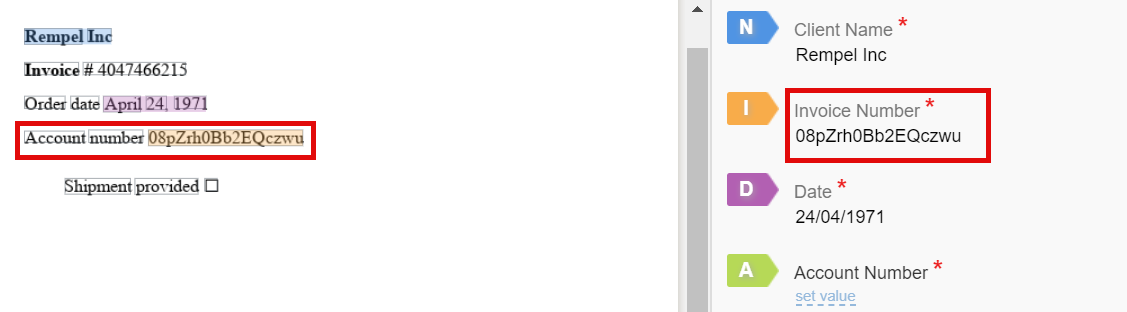
Correct and required data were selected, but as the wrong field. In this example, the tagged
08pZrh0Bb2EQczwuvalue is wrongly selected as Invoice Number when it should be Account Number.Not full value tagged
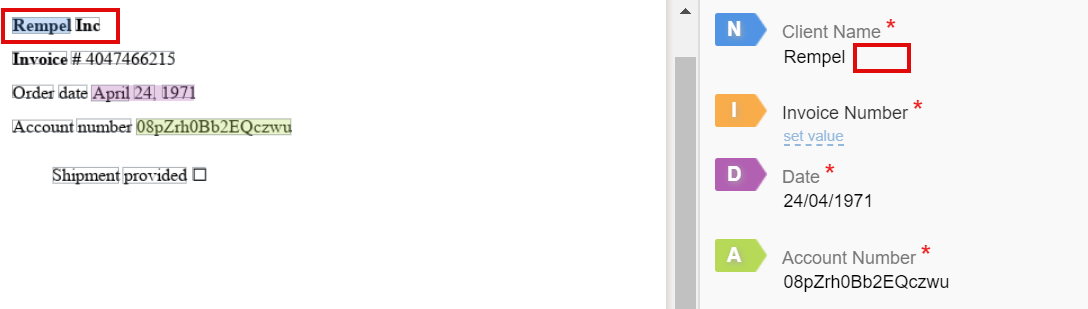
Here the company name is tagged without a legal ending. In most cases, this influences business logic and helps the model to define the value and end of the string. So the correct value should be Rempel Inc.
Value missed

Invoice Number is marked as N/A in the panel with fields. But it actually is present in the document. When values are omitted like this, it decreases the number of samples for each field for model training, and thus affects statistics and model performance.
Value typed in manually
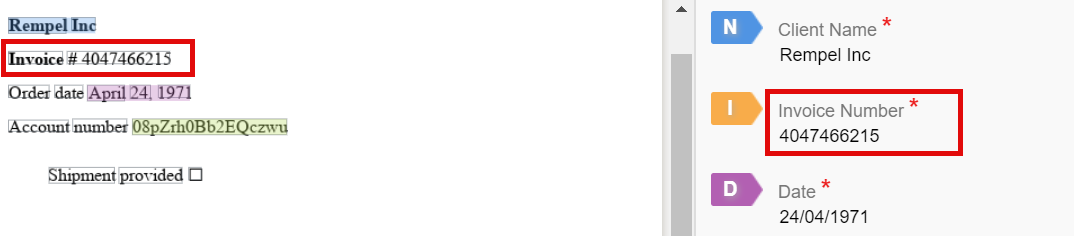
In the fields panel, here is the correct value for Invoice Number, but it is not highlighted in the document itself, so it's not actually tagged. In this case, the business value is reproduced, but there is no sample for the model to train on. This happens because if the machine does not see data-value, it reads tagged strings highlighted in the HTML document.
Field formats
There can be different types of fields, depending on the value of the field: amount, date, company name, etc. That will be accordingly displayed on the fields panel. For more information, refer to Start tagging | Field formats.
Group of answers
There is a specific answer type called Group of Answers where a selection of values should be tagged for one field. This is typical for multiple products in the invoice, etc.
Correct tagging
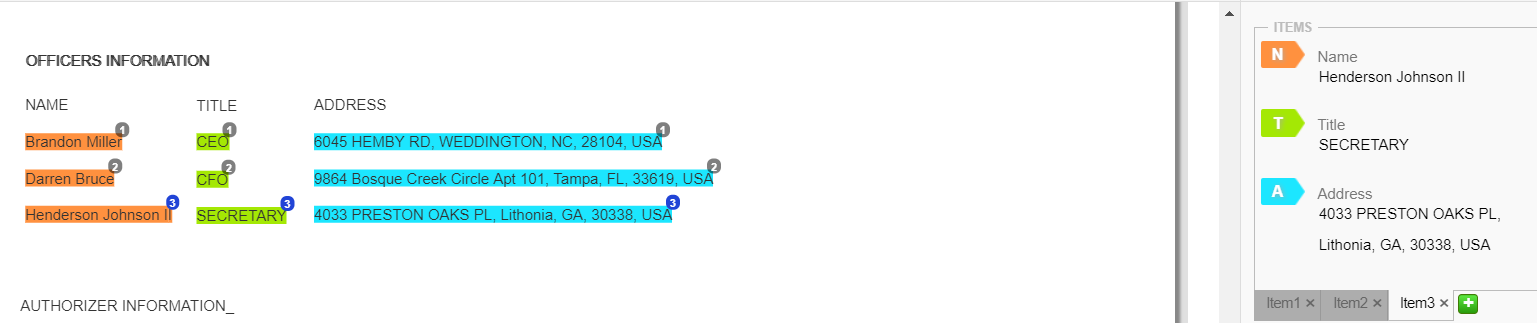
All the values are tagged correctly: The title and the address are arranged to the corresponding name and all the numbers above the tags are the same. Lines are tagged one after another, so the data on tabs are allocated correctly and the tabs order is correct.
Incorrect tagging
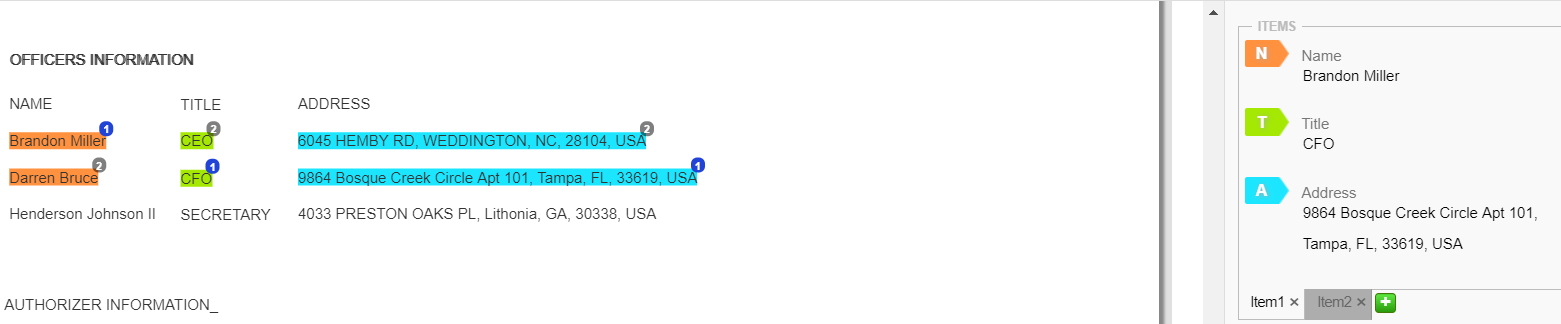
Values for title and address are tagged for incorrect names, so the data on each tab is incorrect. For correct tagging, all the values in one line need to have the same number above the tag.
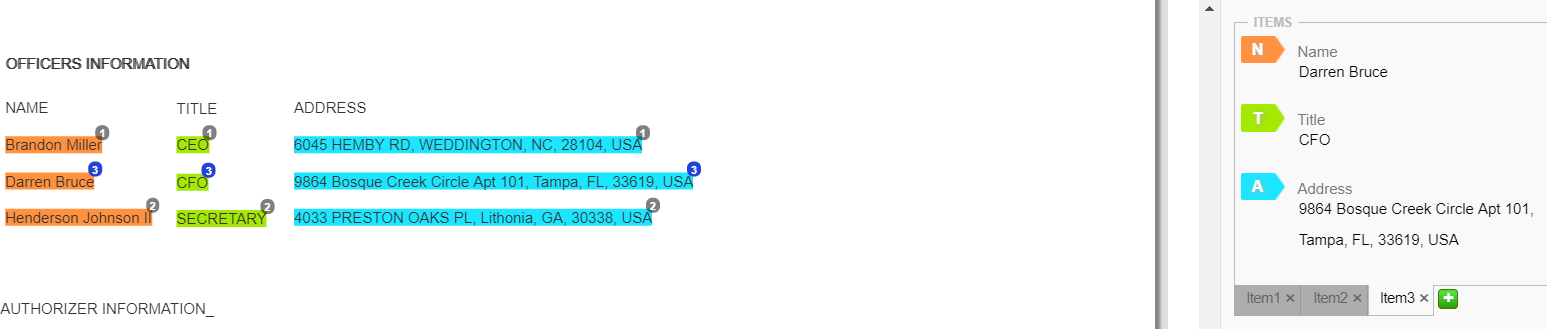
Lines are tagged in the wrong order, so the order of the tabs is incorrect. Values in the second line should have number "2" above the tag and in the third line, number "3".
It's time to see the results
Let's see how Intelligent Automation can solve our hypothetical bank's issue after the successful collaboration of the Subject Matter Expert and Data Analyst.