
Schedule Business Process
Besides running your business processes manually, you can start them according to a schedule.
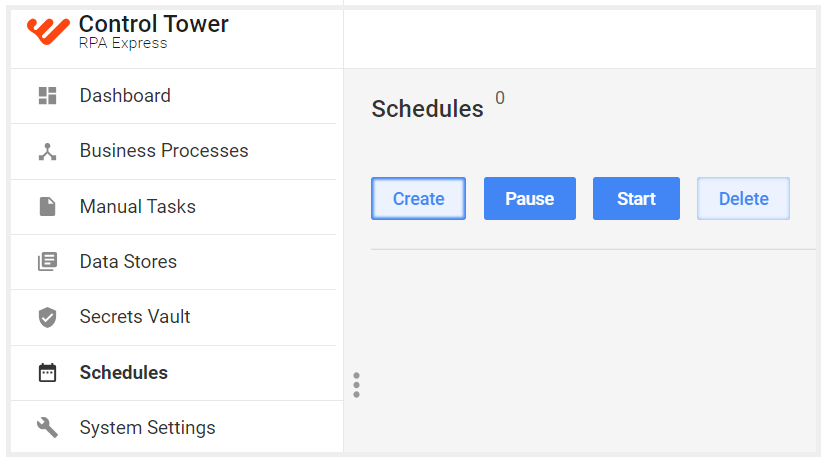
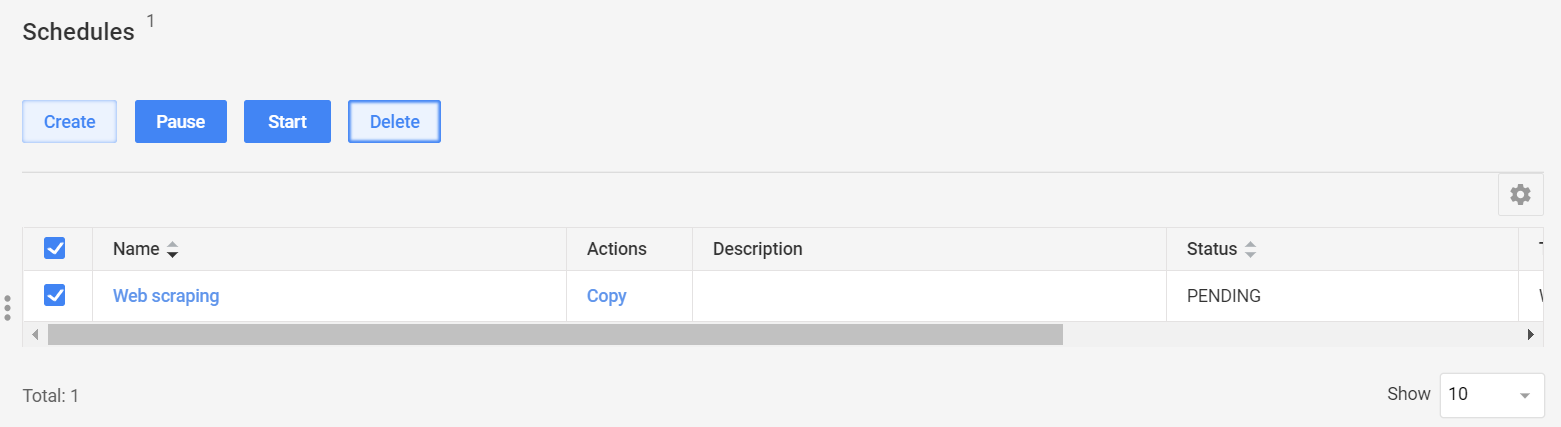
To create a schedule, go to the Schedules tab and press Create. Be careful not to create multiple processes with the same name as it might cause confusion when scheduling.
note
Using the scheduler, you can run not only business processes, but also standalone bot tasks, so be careful when selecting the required item from the dropdown list.
In the Schedule editor, select the business process you need to run.
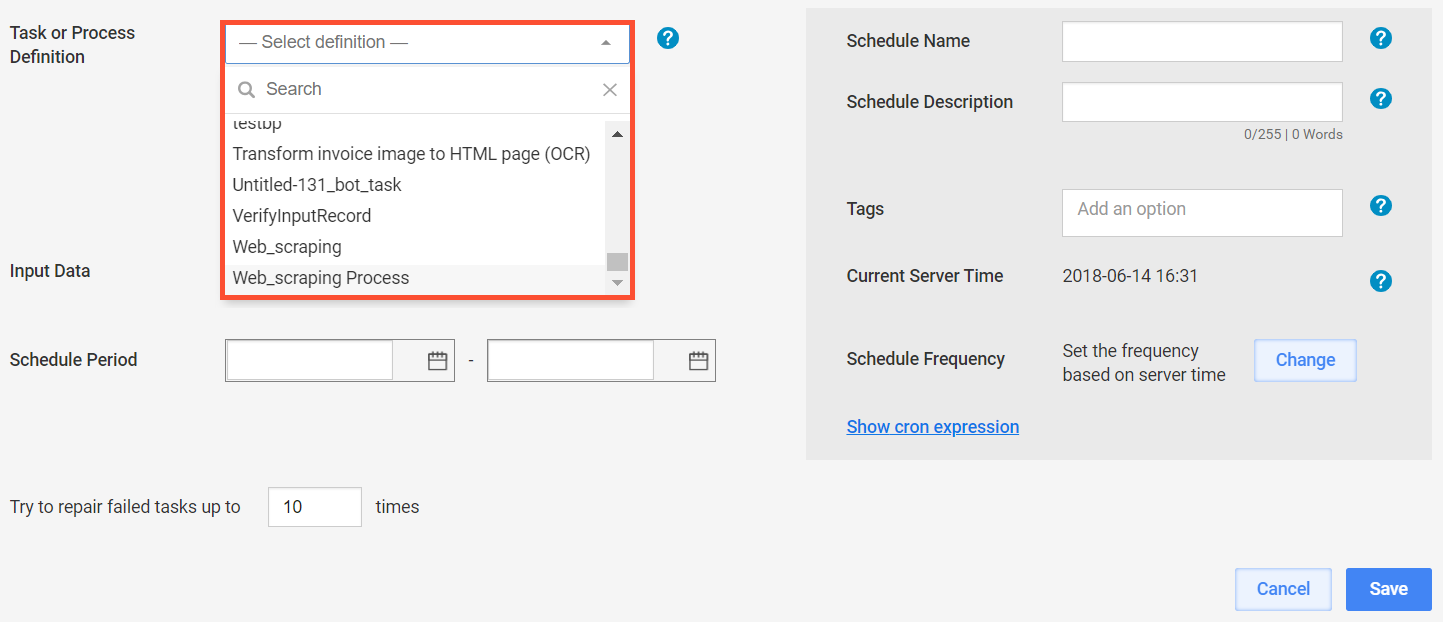
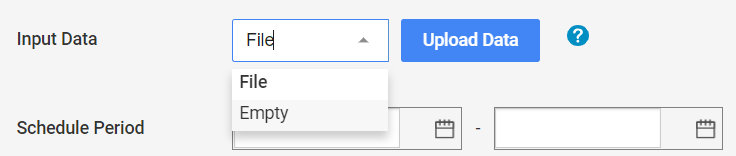
To use Input data, upload the data file. Otherwise, select Empty (in this case the scheduler uses the data from the recorder variables).
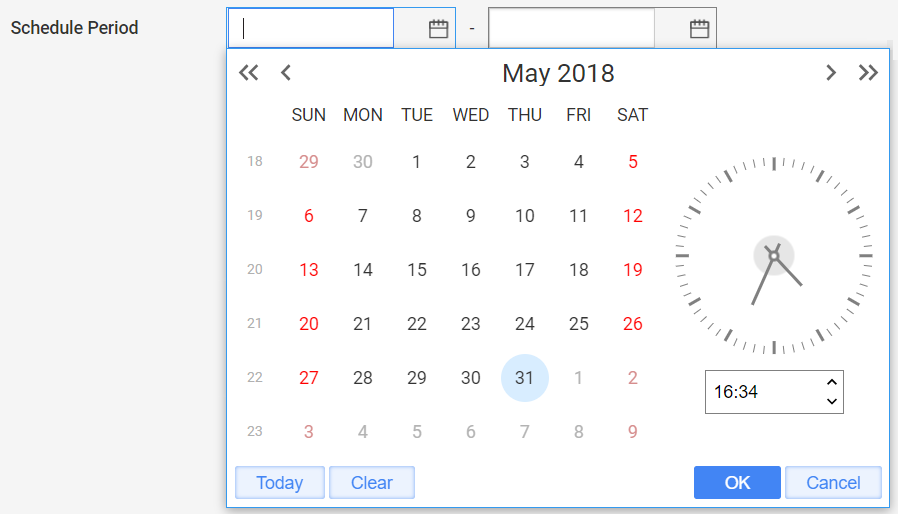
Set the schedule period.
note
The server time of the Scheduler is set to GMT, and all schedules are triggered according to GMT.
Set the run parameters, if required.
Add the title of the schedule, description, and tags (if required).
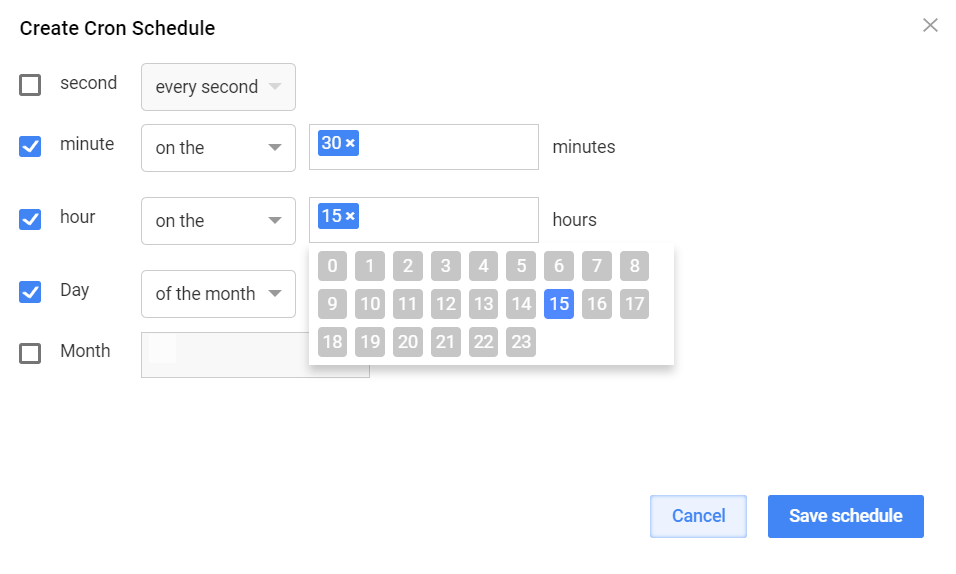
To set schedule frequency, type in or select the values from the dropdown menus. You can set the process to start at a particular time or in certain time intervals.
note
The schedule will be triggered according to the schedule frequency only within the schedule period.
Click Save.
Once the schedule is saved, you cannot edit it. If you need to edit a saved schedule, copy it and edit the copy.
You can pause and start a running schedule, and delete a schedule at any stage.
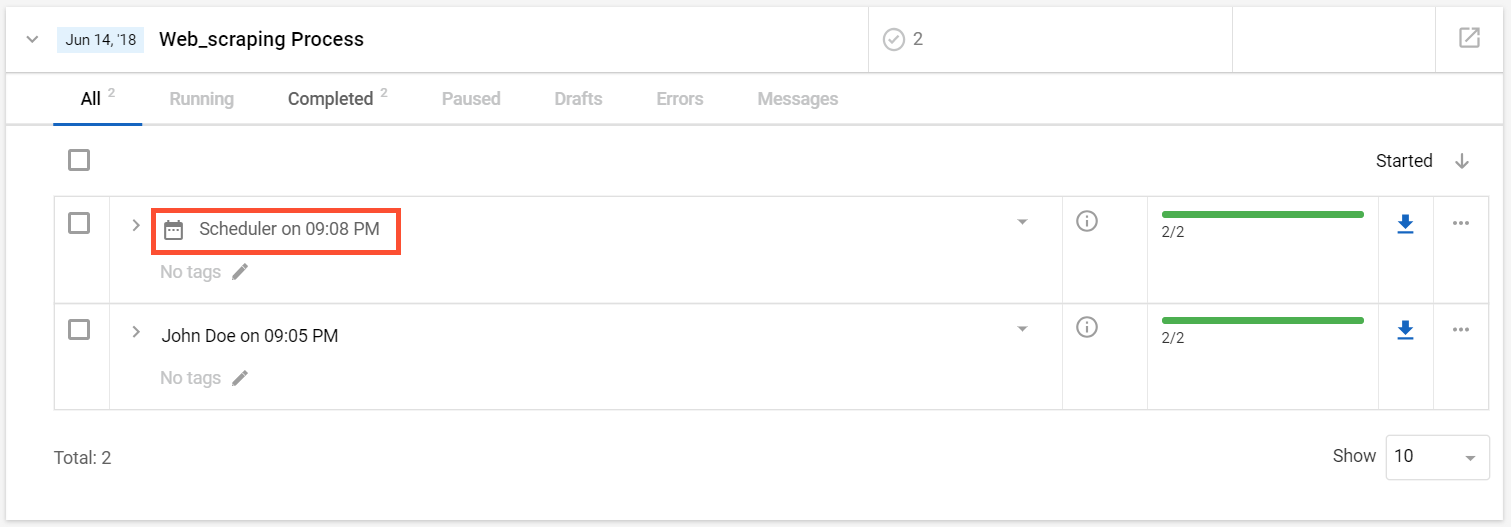
When the Scheduler starts a business process, it creates a separate instance of this process. You can see all instances in the View all business processes tab.
caution
When you delete a business process from the list of business processes, its instance is kept in Control Tower.