
Retrain IE Cognitive Bot ML model
Triggers for AutoML to start ML model training
- A Manual Task is completed.
- The Min docs limit is reached. The limit depends on the ML model selected and is about 20 documents. This means that once workers submit 20 tasks in WorkSpace, the model training starts.
- The Min delta limit is reached—the number of new documents to retrain the model. Once the training set is updated with the required number of documents, retraining starts automatically.
- Force training means applying the Evaluate Automation action notwithstanding limitations.
Run Manual Task
When you have set up a Manual Task and automation options, run the task to launch the model training process.
- On the Run tab, click Run This Task.
- Navigate to Results.
Now, you have two options:
If you selected an existing training set on the previous step, stop the task by selecting Actions > Stop Task.
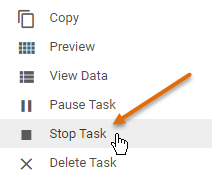
If you have a new training set, submit all documents as a worker in the WorkSpace application.
As a result, the task is completed, and the ML model training starts.
Create training set
After workers finish tasks in WorkSpace, all processed documents supplement a training set for the model. Manually processed documents are added to an automatically created training set in the following cases:
- A model was trained on the task or instance other than the one where the model execution was initiated on. Once a worker processes at least one document and the task status is Completed, a training set is created automatically with processed documents.
- A model was trained on the task, and the training set used for the model training was added manually, with model execution initiated for the same task. Once a worker processes at least one document and the task status is Completed, a training set is created automatically with processed documents.
- A task is created by copying a task from one of two previous cases without changing the task name.
The automatically created training set has the same name as the manual task definition name with the following changes:
- Uppercase is changed to lowercase.
- Special characters are removed.
- Spaces are substituted with underscores.
To view the retraining status, go to the View All Tasks page.
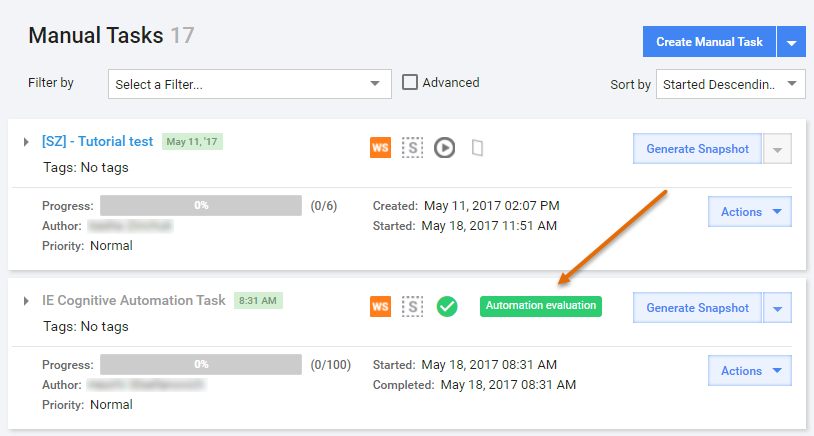
When the Automation training starts, you see the Automation Evaluation label next to your Manual Task.
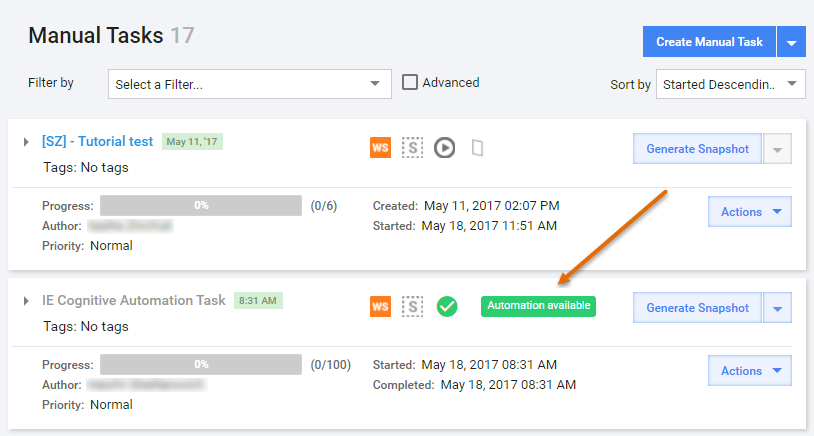
When the Automation training completes, you will see the Automation Available label next to your manual task.
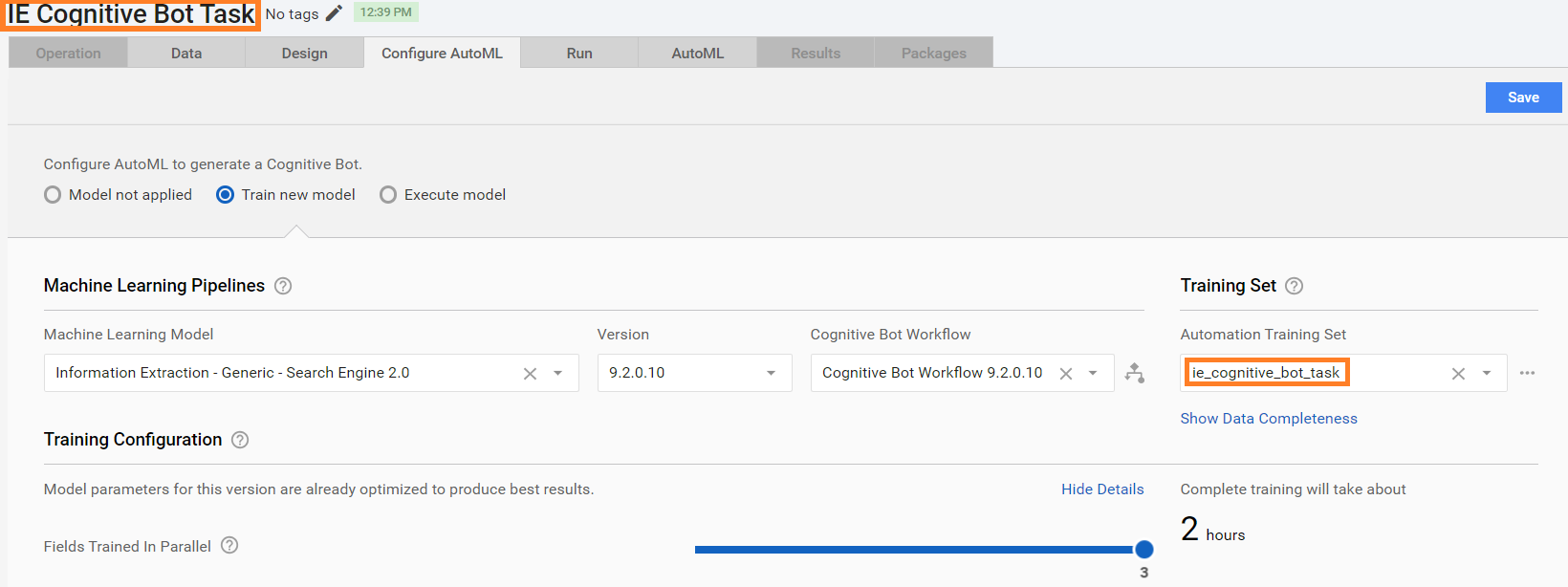
To find the automatically created training set, go to Configure AutoML > Train new model. The following example shows an automatically created automation training set.
Retrain model
An ML model is constantly improving the quality and continues training on all answers provided on the manual steps (when the machine fails to extract information or during the AutoQC sub-process).
When a new retrained model provides better results than the original one, you will see the Cognitive Bot Ready label on the View All Tasks page.
To automate your manual task with improved quality, do as follows.
Go to Results > AutoML. You will see a new Automation chart with better parameters (for example, increased Automation rate for the same Minimal acceptable accuracy).
Pick a dot on the chart or select the Accuracy Threshold.
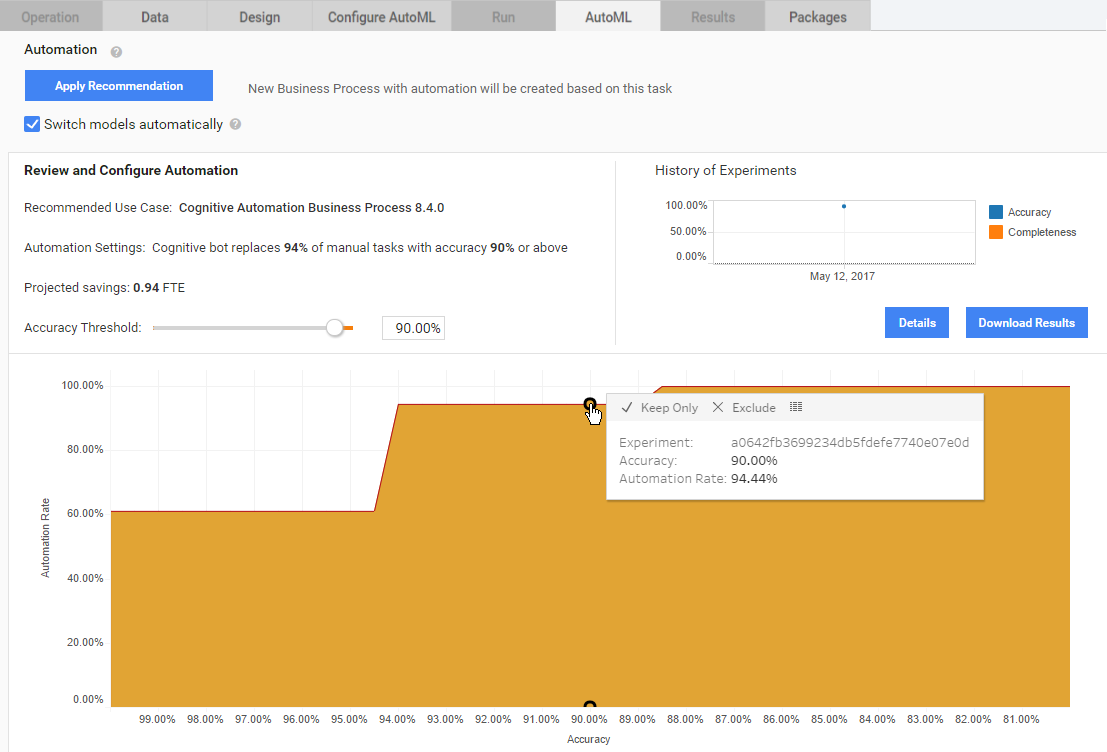
- Accuracy Threshold: the minimum accuracy required from the automatically extracted data. The parameter determines the quality of output data and is calculated by ML model algorithms after comparing it with gold data patterns.
- Automation Rate: the percent of Records that can be extracted automatically with the given Minimal acceptable accuracy; percent of Manual Tasks replaced by automation.
(Optional) Enable or disable ML model switching by selecting Switch models automatically.
Click Apply Recommendation.
The automation Business Process creation wizard opens. Configure and re-run the AutoML Business Process.