
Collaborative Business Process editing
When two or more users are editing the same Business Process (BP) or different Runs of the same BP, WorkFusion engine detects this situation and performs the following actions:
- displays all users that are viewing or editing current BP
- adds indication for each Task or Rule being edited by other users
- automatically updates BP steps when they are saved by other users
- notifies users about changes in BP structure
- prompts for conflict resolving if needed: update process or ignore changes made by other users
- displays changes made by other users and shows differences
This feature helps to understand who is editing the same process, preserve all useful changes, and resolve conflicts when several users have changed the same BP step or BP structure (rules, outcomes, added/deleted steps).
Displaying all BP editors
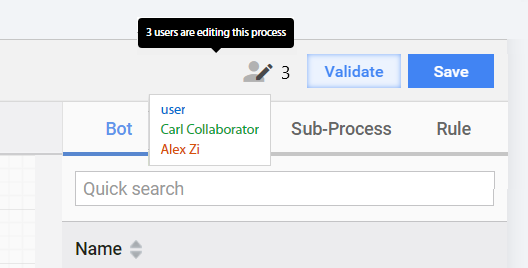
In the top right corner, you can see the number of users that are currently editing the process. Hover over the user icon to see all user names in a drop-down list.
Other users edit BP steps
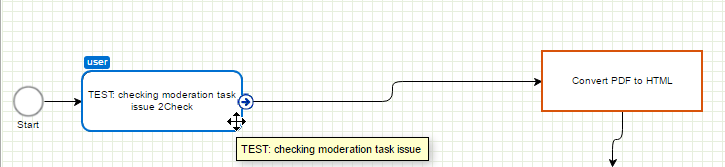
WorkFusion shows an indication when any other user is editing:
- Manual steps in the BP designer or in a separate Task designer
- Bot steps in the BP designer or in a separate Task designer
- Composite Rules
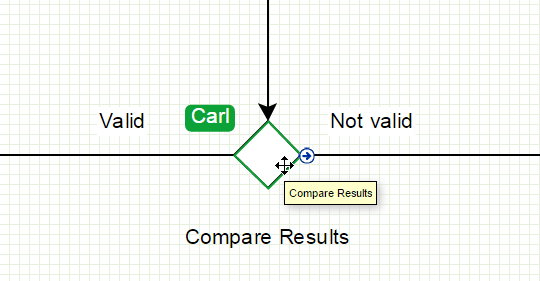
The step is outlined with a color corresponding to a user. When you hover over a step, you can see the list of users currently editing this step.
Runtime update
Case 1: Manual and Bot Tasks
When another user performed the following actions:
- Edited step A by changing its name, design, options, and so on and saved it or replaced step A with step B from the library by dragging it over step A.
- Saved the BP.
The result is as follows: step A is automatically updated or replaced by step B for all users that are not editing step A at the moment.
Case 2: Rules
When another user performed the following actions:
- Edited Rule X by changing its name, Outcome, or Condition, but did NOT add or remove Outcomes and saved it.
- Saved the BP.
The result is as follows: Rule X is automatically updated for all users that are not editing Rule X at the moment.
Indiciating recently edited steps
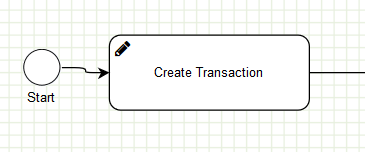
If you have edited a BP step and saved this step, but haven't saved the BP yet, this particular step will be marked with a pencil icon.
Realtime notification about process updates
If other user modified BP structure (added/removed/moved step,rule, or outcome) and saved the BP, you will see the following action panel:
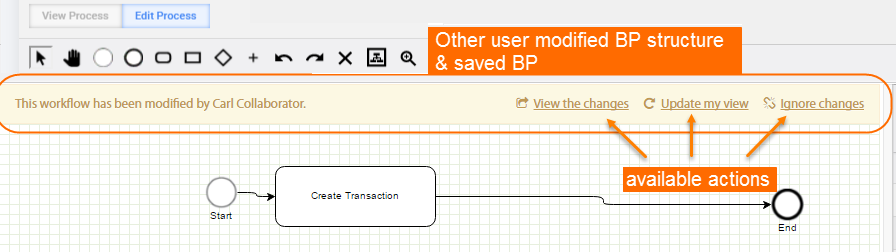
This action panel displays the name of the user who modified BP and contains 3 actions:
- View the changes: open a modified BP version in view mode in a new browser window.
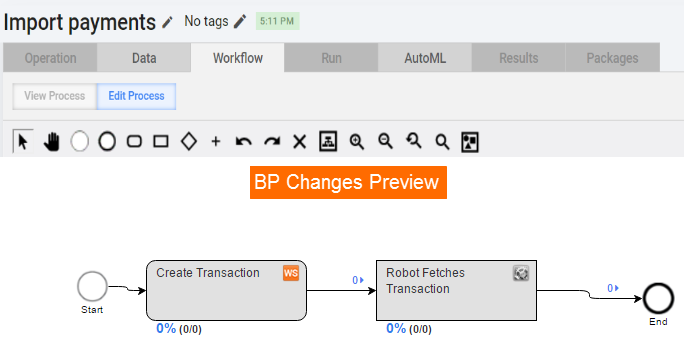
- Update my view: all changes made by other user will be applied to the BP.
- Ignore changes: keep working on your BP version without applying any changes from other users.
You can keep editing BP without taking any action. In this case you will need to resolve conflicts when you save the BP.
Conflict resolving
The conflict resolving dialog is shown in two cases:
- When you save a step or rule (instant conflict).
- When you save a BP (deferred conflict).
When you have edited a BP structure, step, or Rule and tried to save it, you can get the following Conflict messages:
Another user has edited this BP.
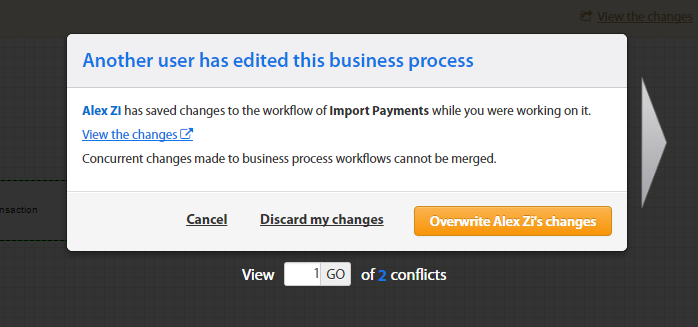
You have the following options:
- View the changes: this step will be opened in view mode in a new browser window;
- Discard my changes: keep other user's changes and save the BP;
- Overwrite other user changes: ignore other user's changes and save your version of the BP.
Another user has edited this Manual task (Bot Task or business rule).
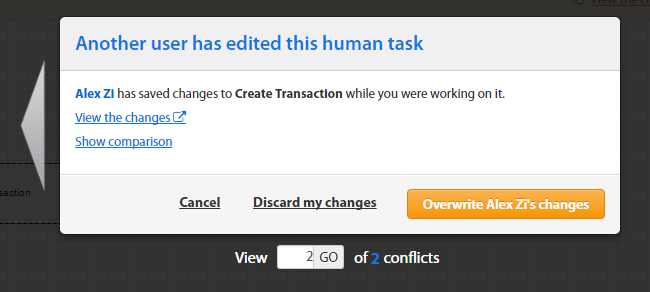
In this case, you have the same options as for the BP structure conflict plus a new one:
- Show comparison: view differences in your task or Rule and another user's version to make a decision which version needs to be saved.
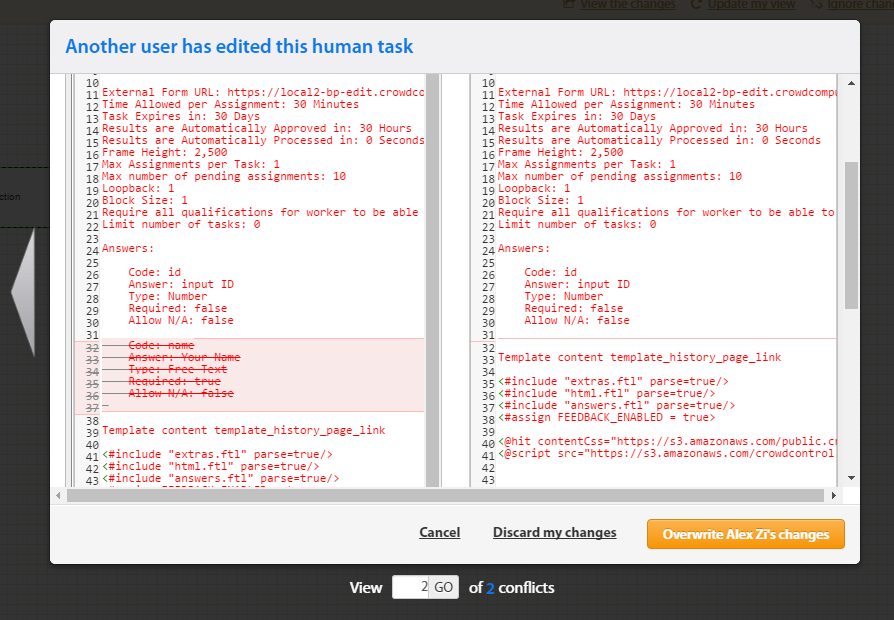
The same is applicable to Rules:
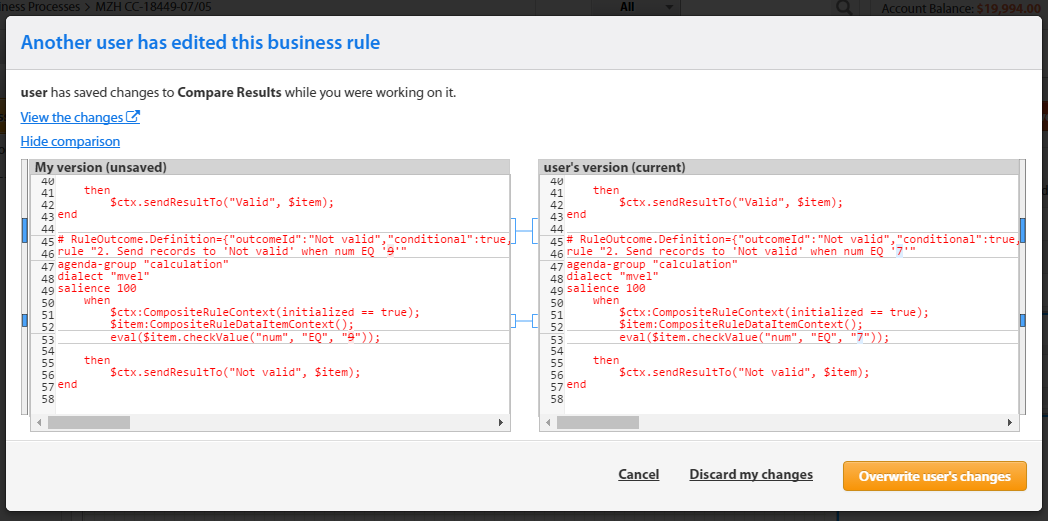
- Show comparison: view differences in your task or Rule and another user's version to make a decision which version needs to be saved.
There can be one conflict for BP structure, and multiple conflicts for several BP steps or rules. You can switch from one conflict to another by clicking arrows on the left and right side.
To save a BP having conflicts, follow the steps below:
- Resolve all conflicts either by overwriting or by discarding.
- Click the Save button again.