Invoice registration in SAP
Example overview
Problem statement
There are situations when a company has a bunch of invoices with a similar format which they need to post into some external system like SAP. Usually, it takes much time to open each invoice, extract needed information, and enter it into SAP. This sample shows how to extract both searchable and image-only PDFs using OCR and XPath.
The difference between searchable and image-only PDFs is that text in searchable PDF documents can be selected, copied, and marked up. So, instead of using OCR, you can open it with the Mozilla Firefox browser and copy the required information using XPaths.
Existing manual process
A worker needs to open each PDF manually, copy required information, log in to SAP, find the MIRO transaction, and post the previously copied data into the system, which usually takes about 15 minutes for one invoice.
Automation solution
Instead of extracting all the required information in invoices manually, the bot scrapes it using optical character recognition in image-only PDFs, and XPaths–in searchable PDFs. Then, the bot posts this information to your SAP system.
Reusable components
In this example, there are two reusable components:
- Log in to the SAP GUI desktop client.
- Fill in an invoice form and post it in SAP.
Example overview video
Preconditions
Before you start working, ensure all the requirements are met:
- Install:
- SAP GUI v. 7.40-7.50 connected to the environment
- Work.AI Developer
- Adobe Acrobat Reader (recommended version 19.012)
- Mozilla Firefox
- Download the example.
Getting started
To get started, perform the following actions:
- Extract the sample folder and drop it into your default workspace in Recorder:
C:/Users/username/workfusion-workspace/rpae_project. - Open the sample in Recorder.
- Go to Window > Preferences, expand WorkFusion Recorder, and select the Secrets Vault tab.
- Press the Add button and enter your secret entry values:
- Alias:
SAP_creds. - Key: your SAP username.
- Value: your SAP password.
- Alias:
- Click Apply and Close.
- Copy input files from the Invoices folder to an appropriate folder and edit the following variables:
folder_path: the path to the input files with invoices in the PDF format.sap_path: the path tosaplogon.exe.tax_code: code of the tax in your SAP GUI.
- Set the default zoom level for Adobe Acrobat Reader to 100%.
- Click Play recording.
Script overview
On a high level, the script consists of the following actions.
- Open an image PDF invoice, recognize required information using OCR, and put it into string variables.
- Open and log in to the SAP GUI desktop client.
- Find the MIRO transaction and enter the company code.
- Enter the previously recognized data to the required fields.
- Post the first invoice.
- Open a searchable PDF invoice with Mozilla Firefox and extract data using XPaths.
- Enter the data in the required fields.
- Post the second invoice into the system.
Let's explore these steps in detail.
Environment
- Windows OS that meets System Requirements
- SAP GUI v. 7.40-7.50 connected to some environment
- SAP GUI should be configured as described here
- Screen resolution should be one of these:
- 1920 x 1080
- 1600 x 900
- 1366 x 768
- 1280 x 1024
- 1024 x 768
- Mozilla Firefox
- Adobe Acrobat Reader (recommended version 19.012)
Script variables
| Variable name | Type | Description | Default value |
|---|---|---|---|
folder_path | String | Path to the folder with input files or invoices (needs to be set up before running the script) | |
ok_code | String | Transaction code | MIRO |
company_code | String | Company code | |
amount_with_tax | String | Amount of money in the invoice, including tax | |
currency | String | Invoice currency | |
amount | String | Amount of money in the invoice without tax | |
tax | String | Amount of tax in the invoice | |
tax_code | String | Tax code in your SAP GUI | U1 |
purchase_order | String | Invoice purchase order | |
login | Secret | SAP username (needs to be set up before running the script) | |
password | Secret | SAP password (needs to be set up before running the script) | |
quantity | String | Quantity of items in the invoice | |
invoice_date | String | Current date converted to a string | |
transaction_type | String | Required to choose the correct transaction type | Invoice |
sap_path | String | Path to saplogon.exe (needs to be set up before running the script) | C:/Program Files (x86)/SAP/FrontEnd/SAPgui/saplogon.exe |
Script workflow
Open invoice and OCR it
Description: The group opens the invoice, recognizes the text with OCR, and puts it to specific variables.
The bot opens the first invoice (Launch Application) and switches to it with the Window action, so it appears on the screen.

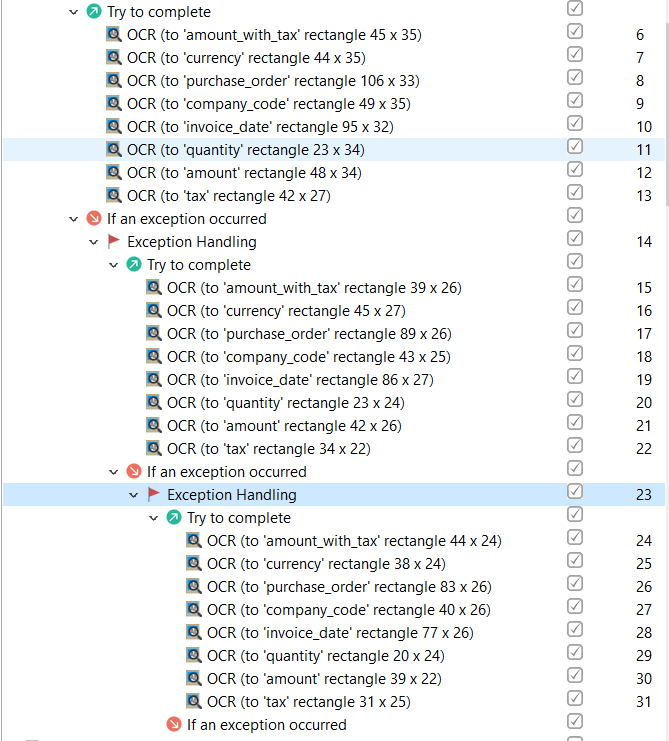
The bot extracts the needed data using OCR. Exception handlings are added so the bot can extract data on different screen resolutions.
Log in to SAP GUI (reusable)
Description: The group opens SAP GUI and logs into it.
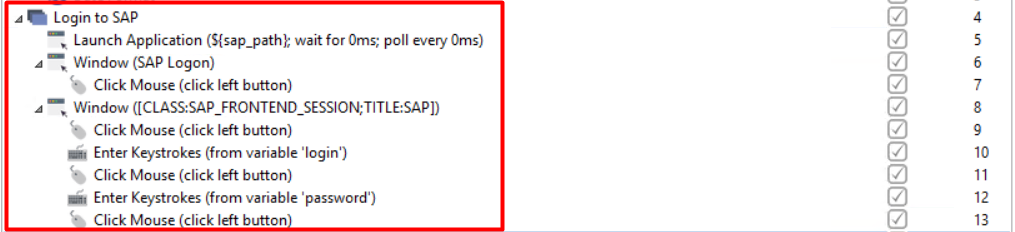
To reuse the group, make sure you added the required SAP GUI credentials in Secrets Vault in the Recorder's preferences. If you add another secret entry, change the following variables:
login: SAP GUI username (Secrets Vault > Key).password: SAP GUI password (Secrets Vault > Value).
The bot launches SAP GUI using Launch Application, clicks the Log on button (Click Mouse) in a specific window, and pastes the credentials into the required fields (Enter Keystrokes).
Create and post incoming invoice
Description: The group allows opening the MIRO transaction for a specific company, filling in all the required invoice fields extracted previously with OCR, and posting into the system.
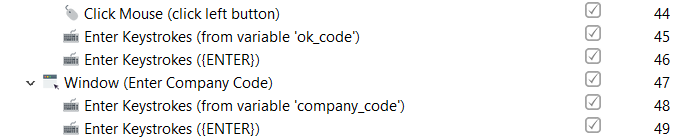
Create and post an incoming invoice (reusable). The bot opens the MIRO transaction for a company from the first invoice, which code was extracted with the help of OCR. The Window, Click Mouse, and Enter Keystrokes actions are used.
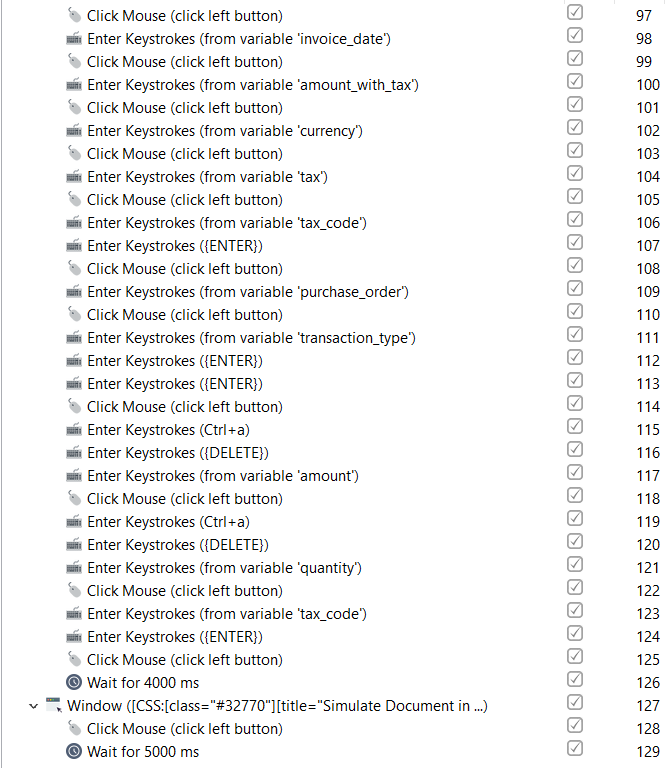
The bot fills in all the required invoice fields (Invoice date, Amount, Purchase Order, Tax), clicks the Simulate button, and waits for the Simulate window to open. The Window, Click Mouse, Enter Keystrokes, and Wait actions are used.
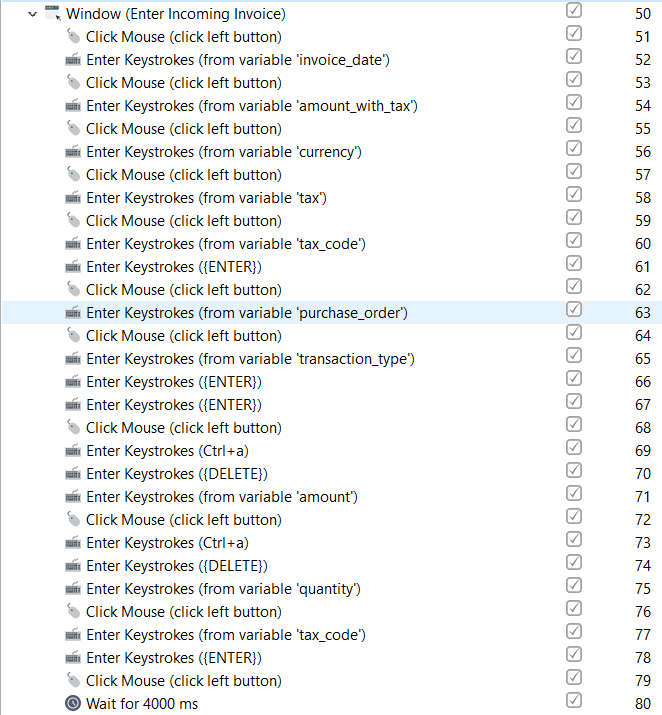
The bot posts the invoice into the SAP system. The Window and Click Mouse actions are used.

Open the second invoice with Mozilla and extract XPaths
Description: The group opens the second invoice in Mozilla Firefox and extracts information to specific variables using XPaths.
The bot replaces "\" with "/" (Replace Text) so that the file can be opened with Mozilla Firefox.
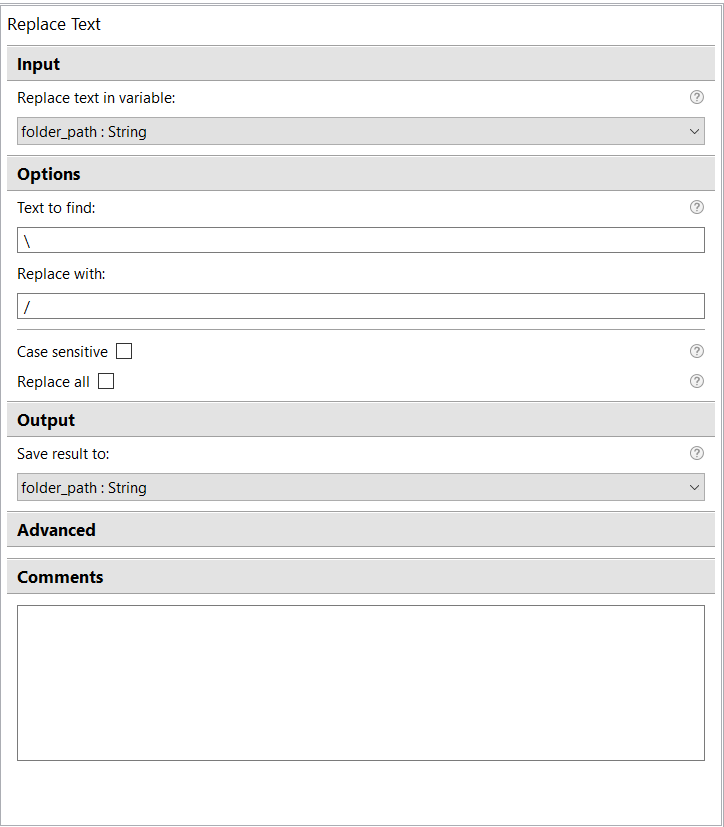
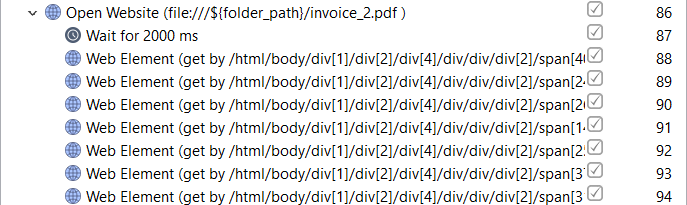
The bot opens the second invoice via the Open website action, extracts the needed data using XPaths via the Web Element action, and saves it to specific variables.
Create and post the second invoice
Description: The group creates and posts the second invoice using the previously extracted data.
The bot fills in all required fields for the second invoice and posts it. The Enter Keystrokes, Click Mouse, and Wait actions are used.