Configure Classification Model rules
Classification Model rules define how the Model processes a hit. When a name is run against hit providers, they return the hit data. Based on the configured rules and threshold, each hit is given a hit score that determines whether it should be treated as False Positive or escalated.
Rules
Apply rules in the NSS Classification Model to determine if a hit should be marked False Positive. Rules require the following fields:
Name: name of an individual or organization
Location: country of present and past affiliation, ownership, or citizenship
Date: date and year of birth for an individual or date and year of a foundation for organizations
Type: hit type; individual (PERSON) or organization (ENTITY)
Gender: gender of the individual
If a field in the hit data from providers matches the input data, the Model marks it as Matched. Otherwise, the field is marked Mismatched. The Model marks it as Not Available if no data is provided on either side.
Thresholds
For each hit, the Model provides a hit score. You can define thresholds on the minimum hit score needed for escalation.
You can also define thresholds on the Location and Date fields to include neighboring countries and their respective types.
Default configuration
Decision matrix
The decision matrix below describes the default rule configuration of the NSS Classification Model for Name, Location, and Date, in which a hit is marked as False Positive. For all other cases, the hit is escalated for further review.
| Name | Location | Date | Resolution |
|---|---|---|---|
| Mismatched | Mismatched | Mismatched | False Positive |
| Mismatched | Matched | Matched | False Positive |
| Mismatched | Mismatched | Matched | False Positive |
| Mismatched | Not Available | Not Available | False Positive |
| Mismatched | Not Available | Mismatched | False Positive |
| Mismatched | Mismatched | Not Available | False Positive |
Thresholds
See the default threshold values in the table below:
| Threshold | Default value |
|---|---|
| Name matching similarity | 0.8 |
| Date matching threshold | 365 |
To configure values to your needs, see Tuning Model.
Stopwords
Stopwords are common words like "the," "and," or "is" that are typically excluded from the text analysis as they do not carry a significant meaning.
By default, the following categories of stopwords are filled in:
- Geographical: stopwords related to geographic terms
- Financial: stopwords related to financial terms
- Company: stopwords related to company-specific terms
- Miscellaneous: general stopwords that are not domain-specific
To add more stopwords and set up custom ones specific to your domain, see Tuning Model.
Tuning Model
To fine-tune the Model, perform the following steps:
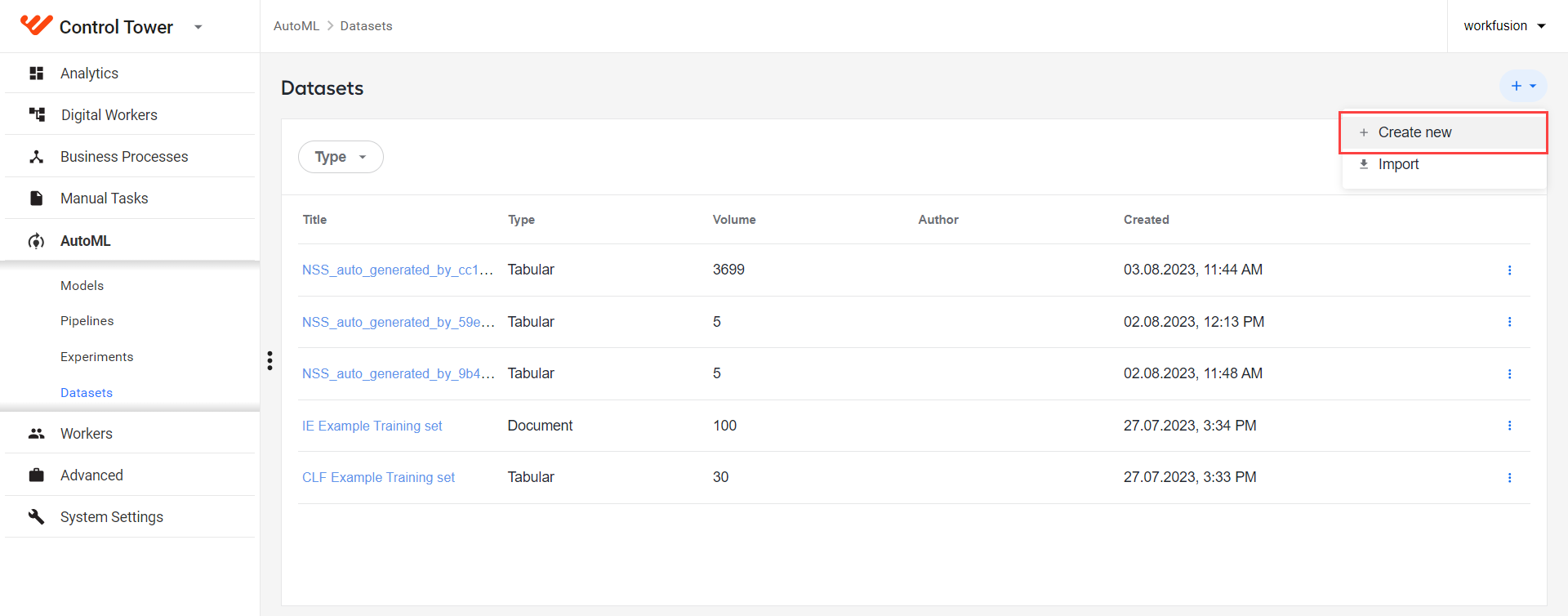
In Control Tower, go to AutoML > Datasets and create an empty dataset.
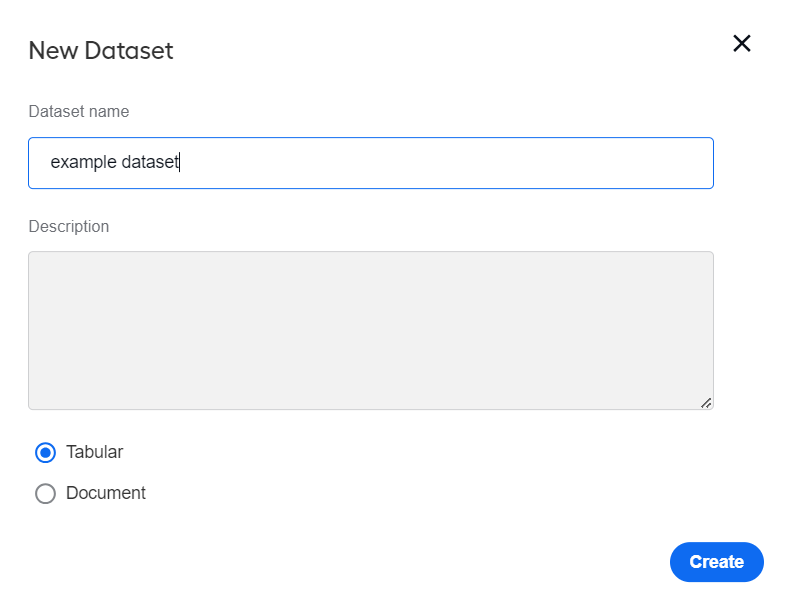
Name the new dataset and select the Tabular type.
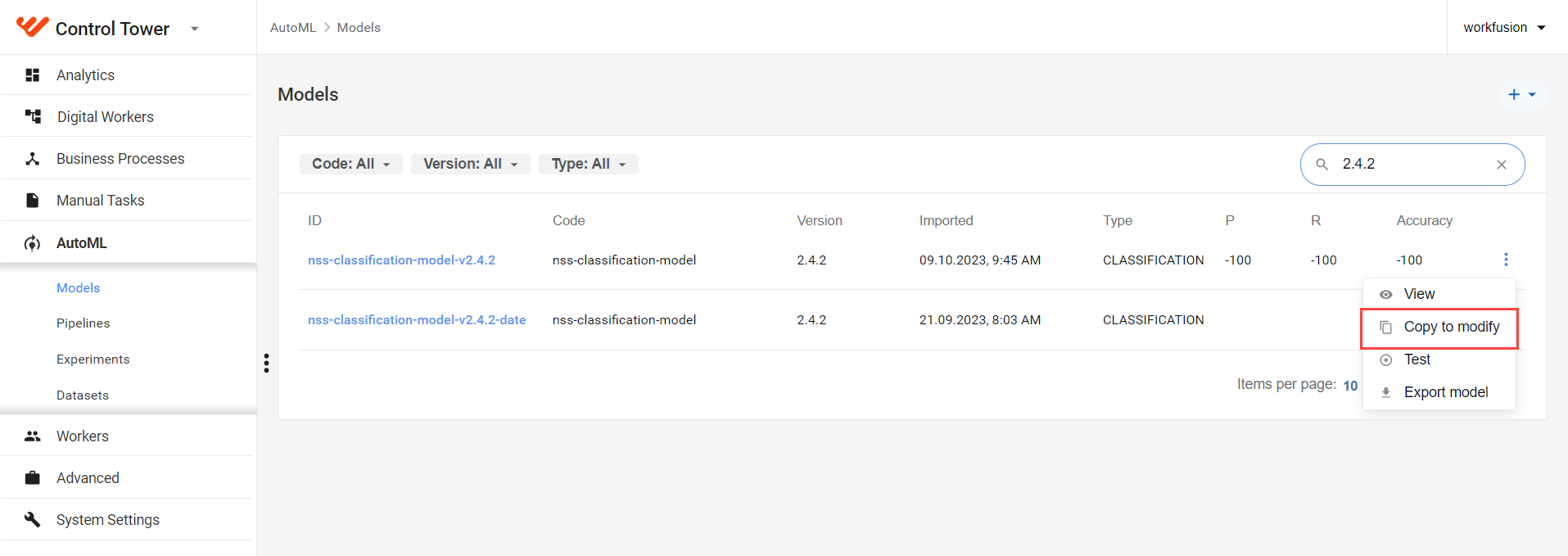
In AutoML > Models, choose NSS Classification Model version 2.4.2 and click Copy to modify.
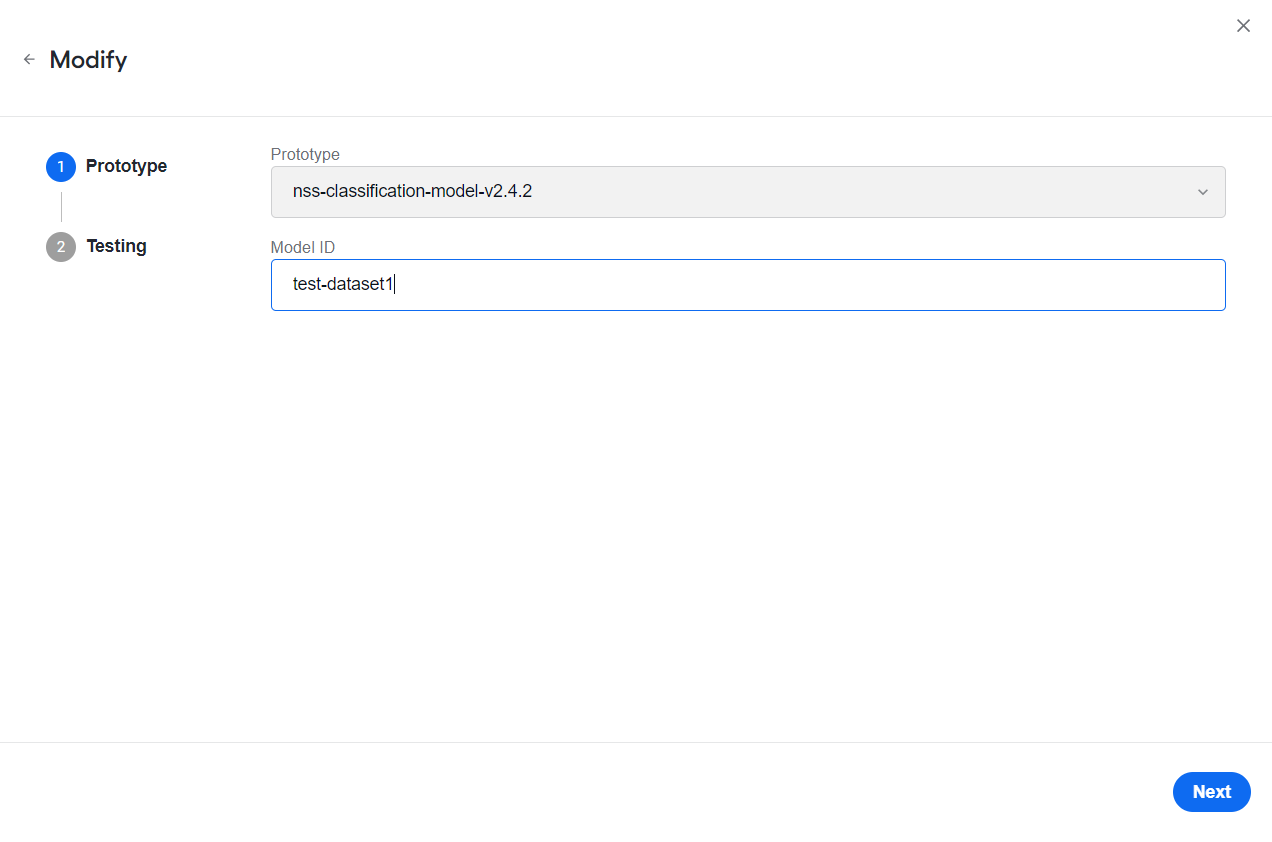
In the Prototype step, in the Model ID field, specify a new Model ID and click Next.
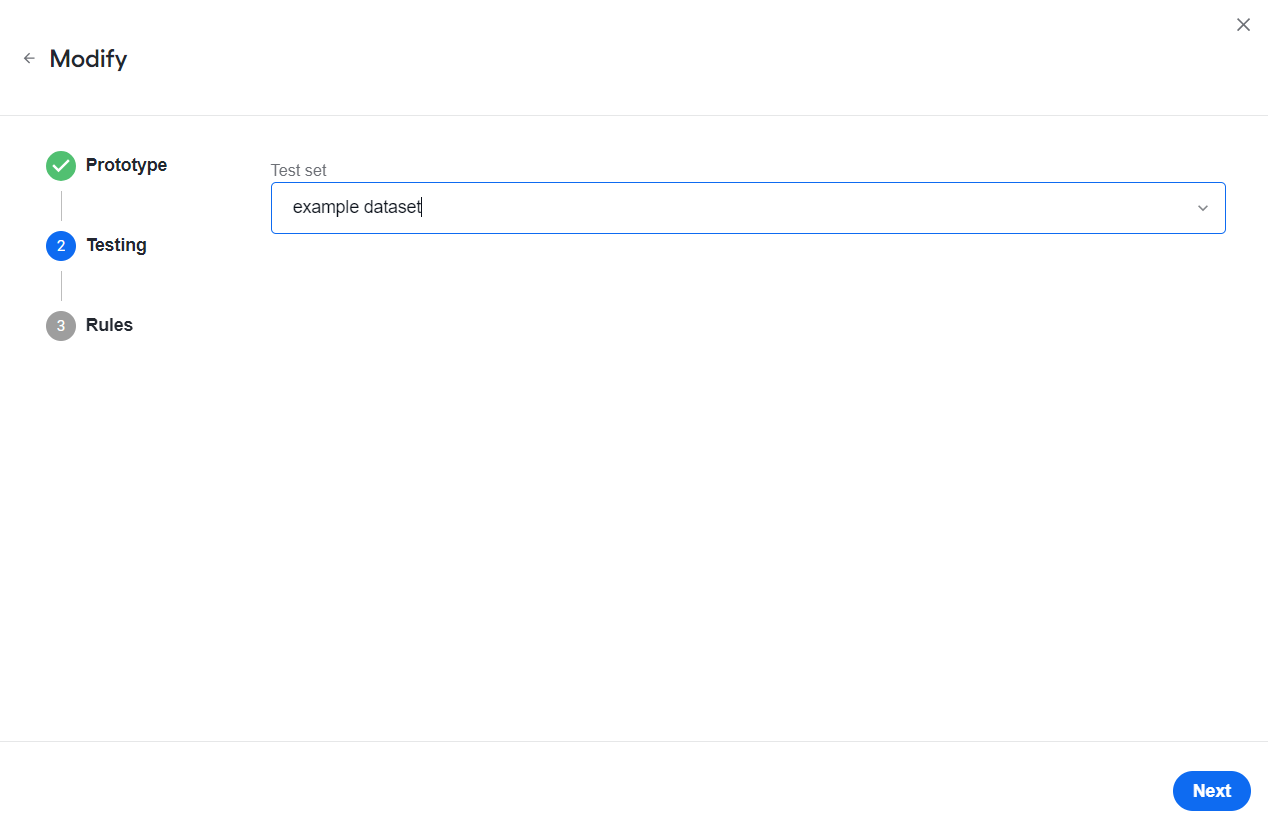
In the Testing step, choose the dataset you created and click Next.
In the Rules step, set up the Model rules.
- Decision Matrix
- Thresholds
- Stopwords
You can define rules based on the Name, Location, Date, Type, and Gender by selecting the appropriate fields. For the default configuration, see Decision matrix.
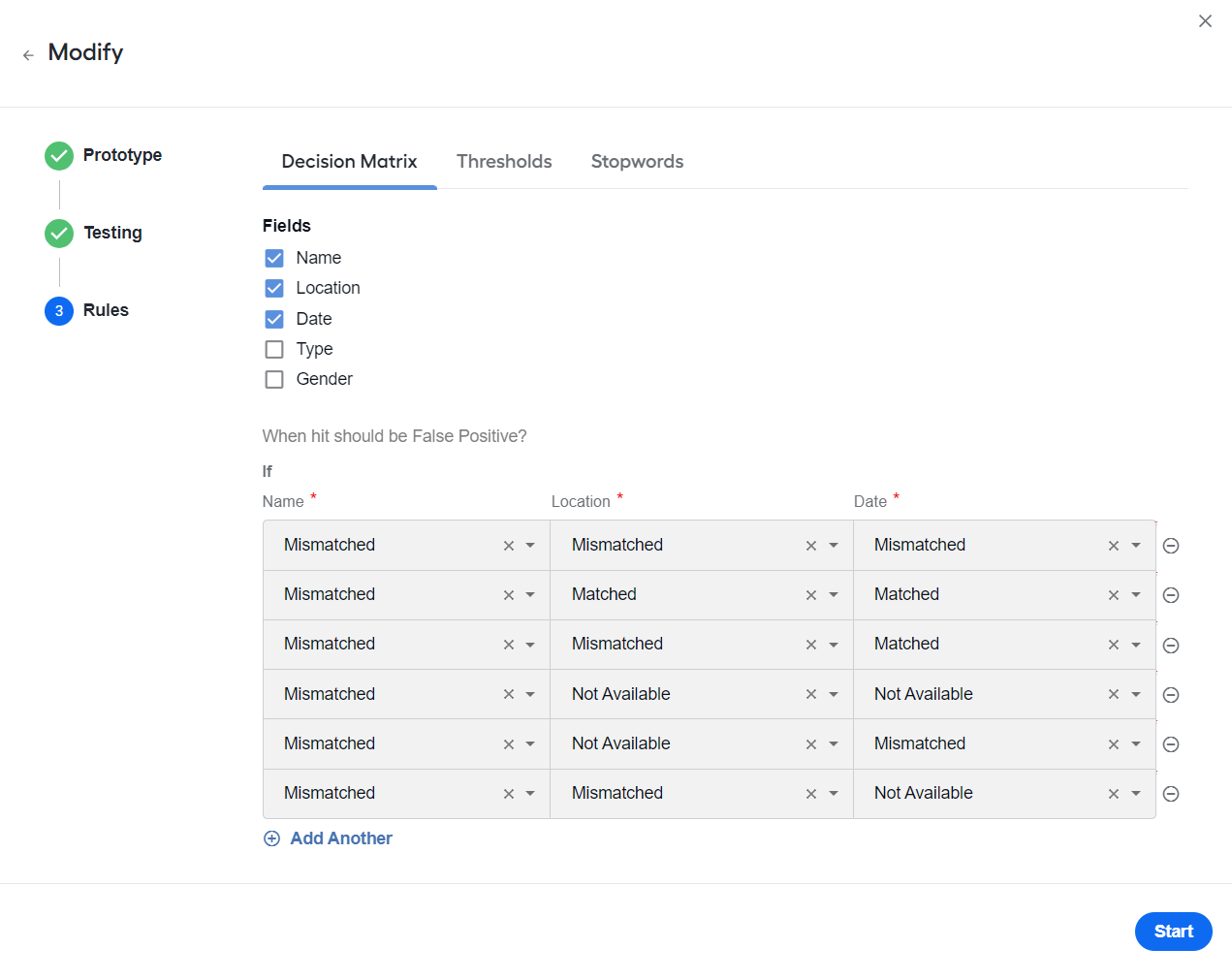
To add a new field, first, remove all existing rules.
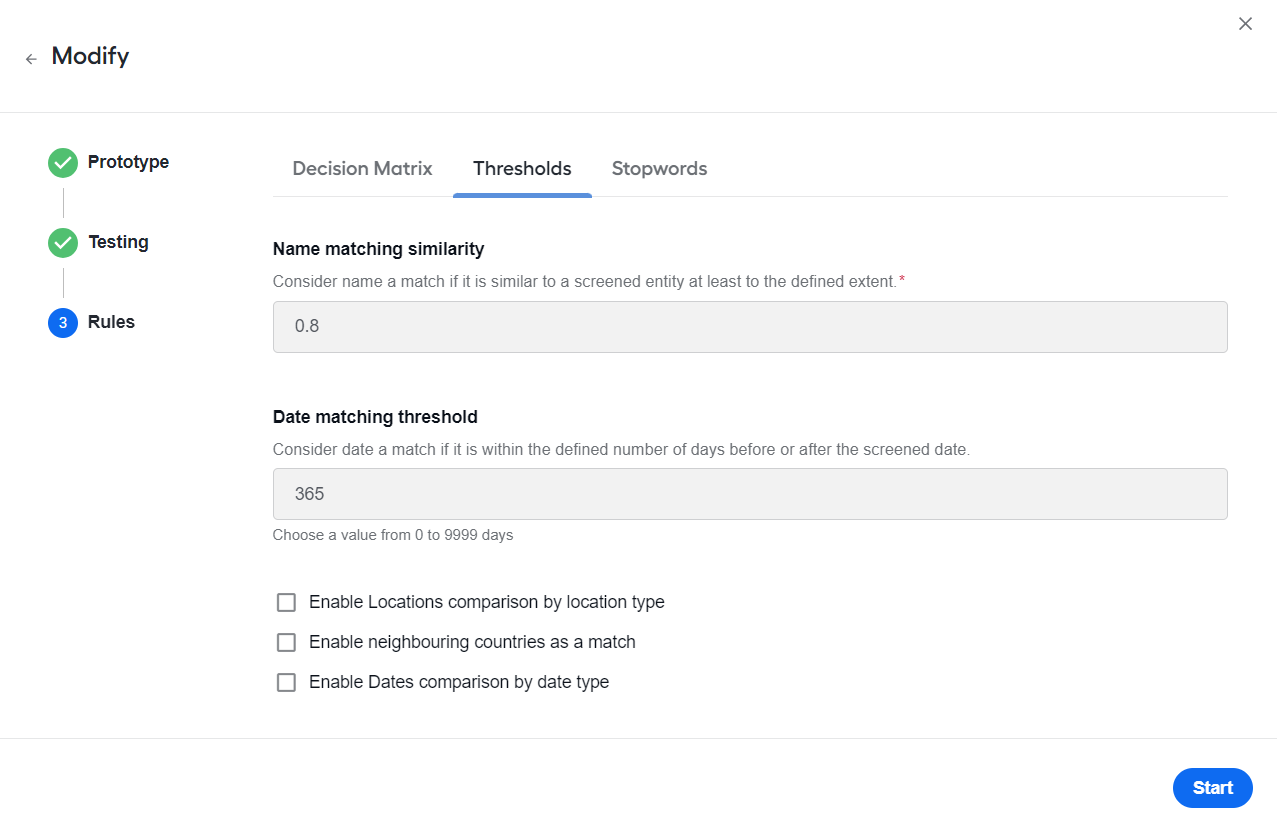
Name matching similarity. NSS considers a name to be a match if it is similar to a screened entity at least to the defined value.
Date matching threshold. The value represents the maximum allowed difference in days between two dates to be considered a match.
If both dates are provided in the
MM/dd/YYYYformat and the number of days between them is less than or equal to the configured threshold, the dates are considered a match.If at least one of the dates is not in the
MM/dd/YYYYformat, the dates are considered a match regardless of the day difference.For default values, refer to Thresholds.
Enable Locations comparison by location type
Enable neighbouring countries as a match
Enable Dates comparison by date type
Enter stopwords in the relevant input fields, separating them by commas, spaces, or line breaks, depending on the specified input format. You can add and remove stopwords in the following categories:
- Geographical
- Financial
- Company
- Miscellaneous
- Client specific
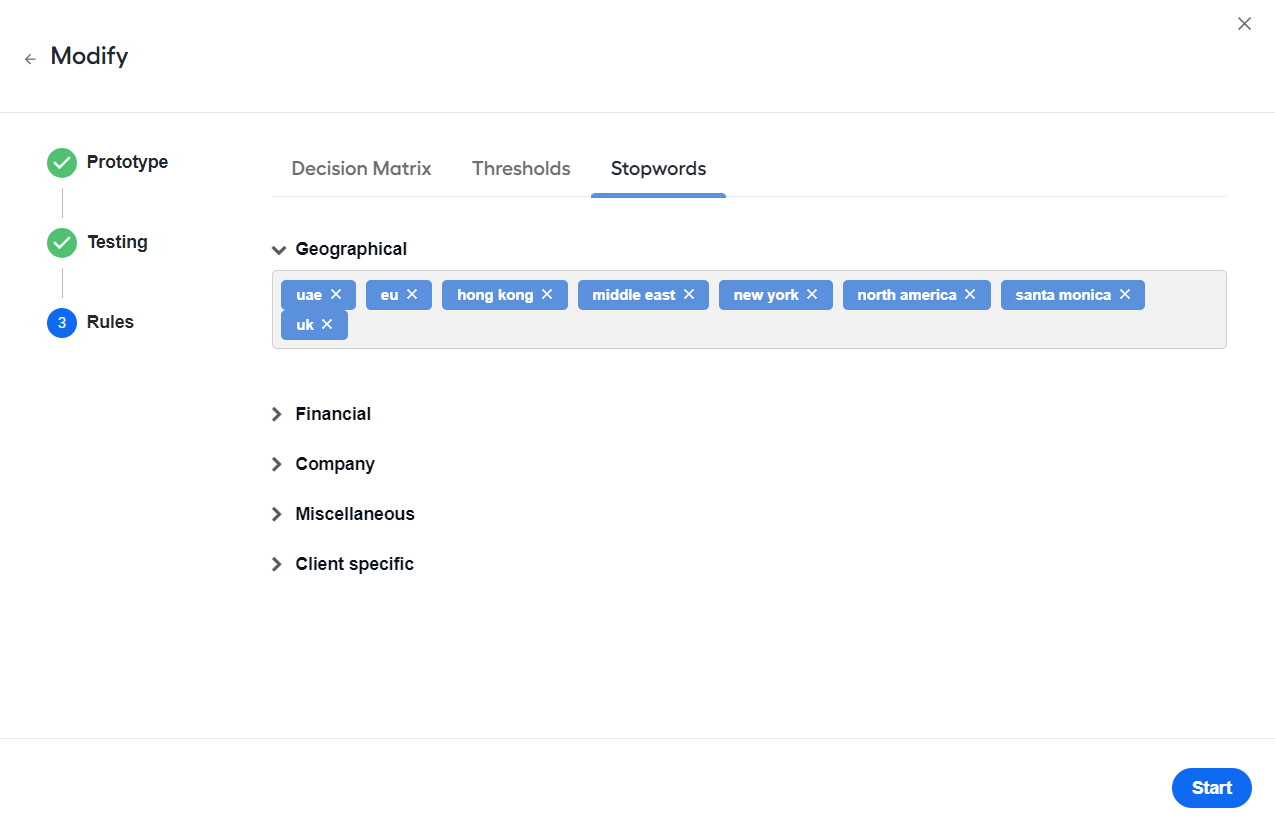
Consider the specific domain and context of your classification task when selecting stopwords. Mind that adding or removing stopwords can significantly affect the performance of the NSS Classification Model.
Click Start.
In AutoML > Models, check that the new Model is created.
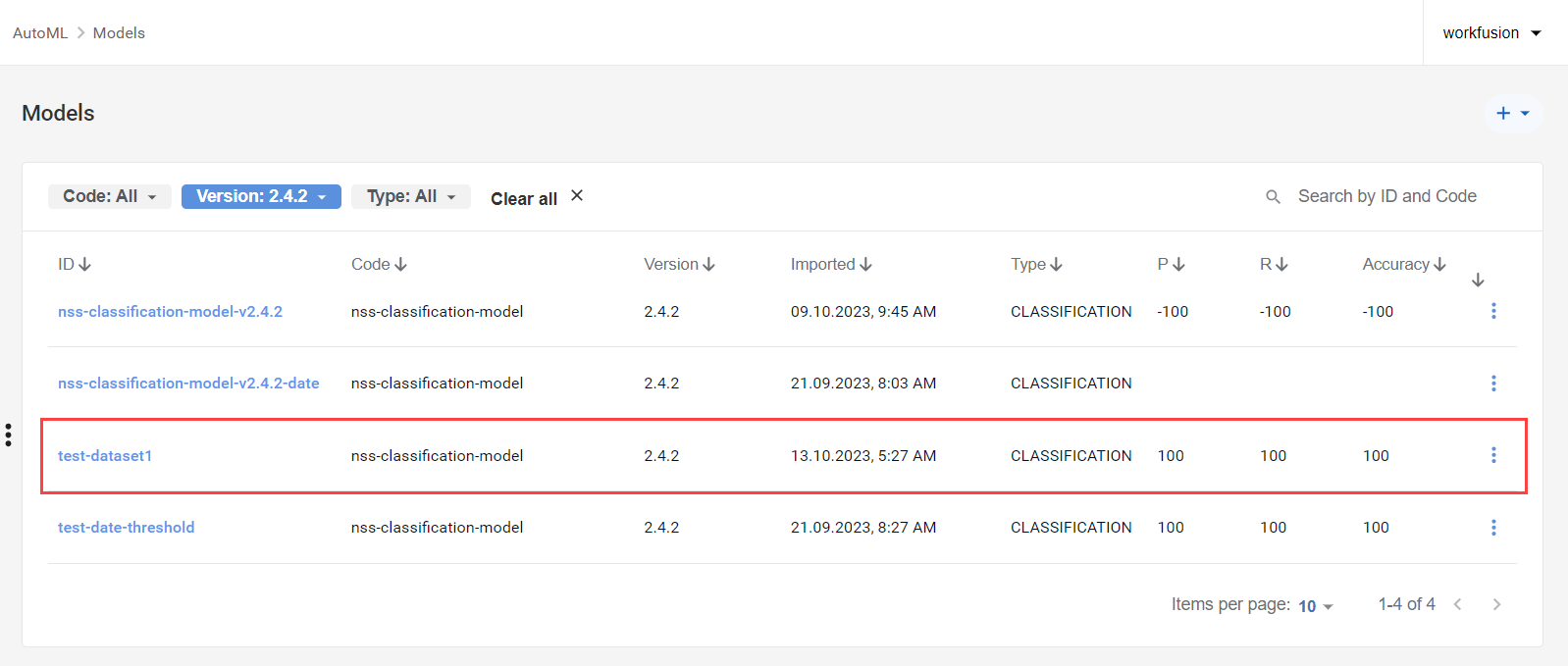
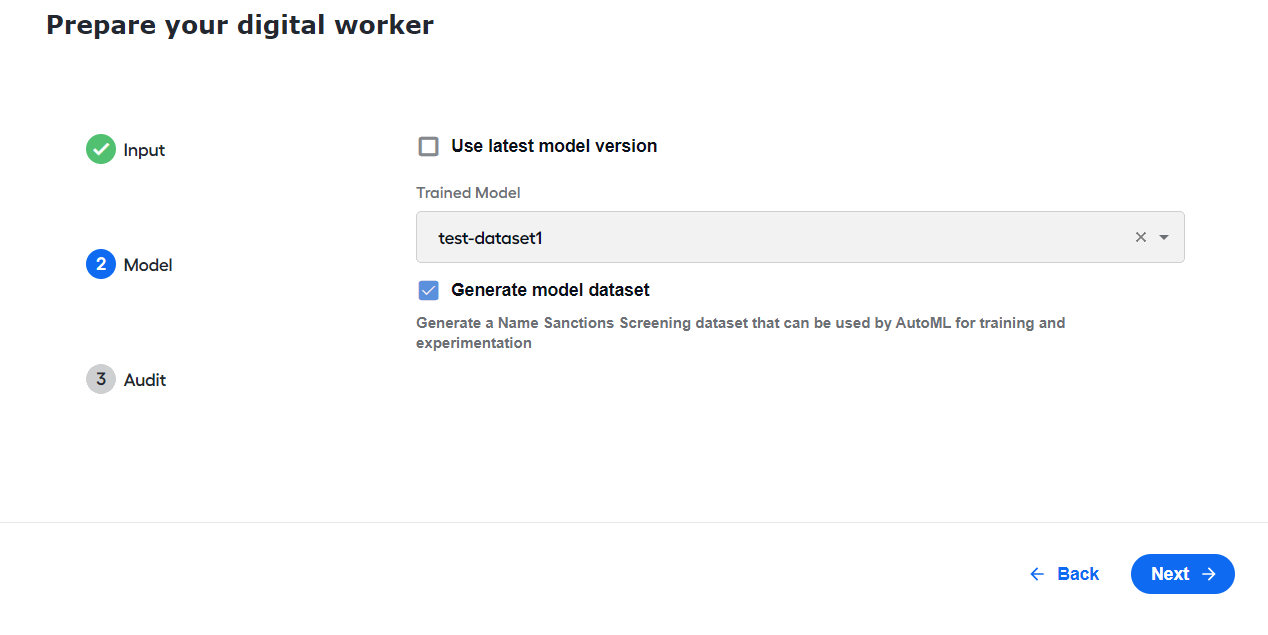
Go to NSS skill settings, and in the Model step, in the NSS Classification Model box, choose the newly created Model to run your Business Process.