Configure classification model
Classification model rules and thresholds define how a model processes a hit. When a name is run against data providers, they return hit data. Based on the configured rules and thresholds, each hit is given a hit score that determines whether it should be treated as a false positive or escalated.
Supported models
See supported models in the table below.
| NSS classification model | Name matcher |
|---|---|
| v4.6.8 | v2.0.9 |
Rules
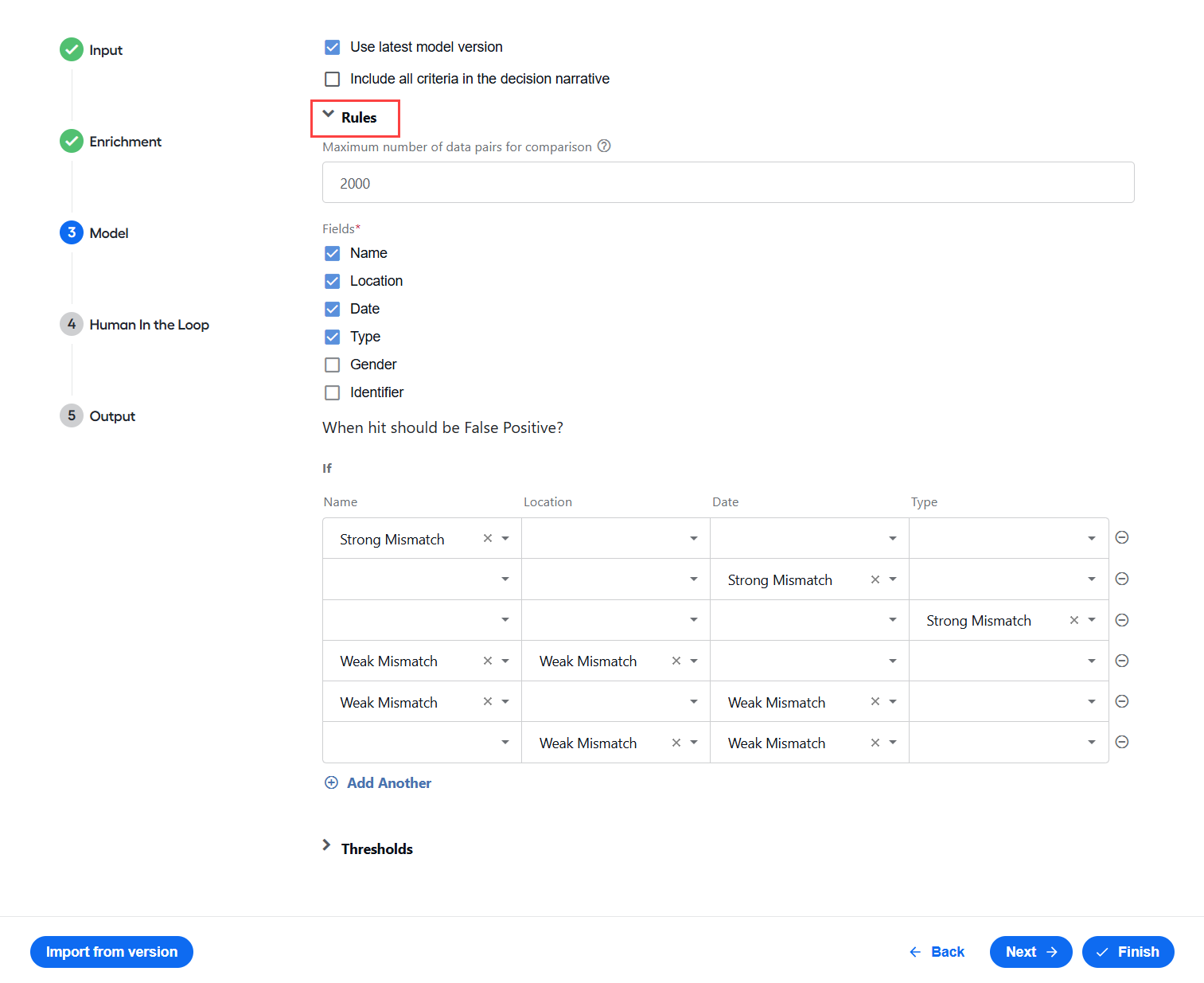
The NSS classification model applies rules to determine whether a hit is a false positive. You can set the rules when configuring Evelyn. For instructions, see Install and configure | Configure model.
Available rule fields
You can set the model to apply the rules based on the following fields:
Name: name of an individual or organization
Location: country of present and past affiliation, ownership, or citizenship
Date: date and year of birth for an individual or founding date and year for organizations
Type: hit type; individual (PERSON) or organization (ENTITY)
Gender: gender of an individual
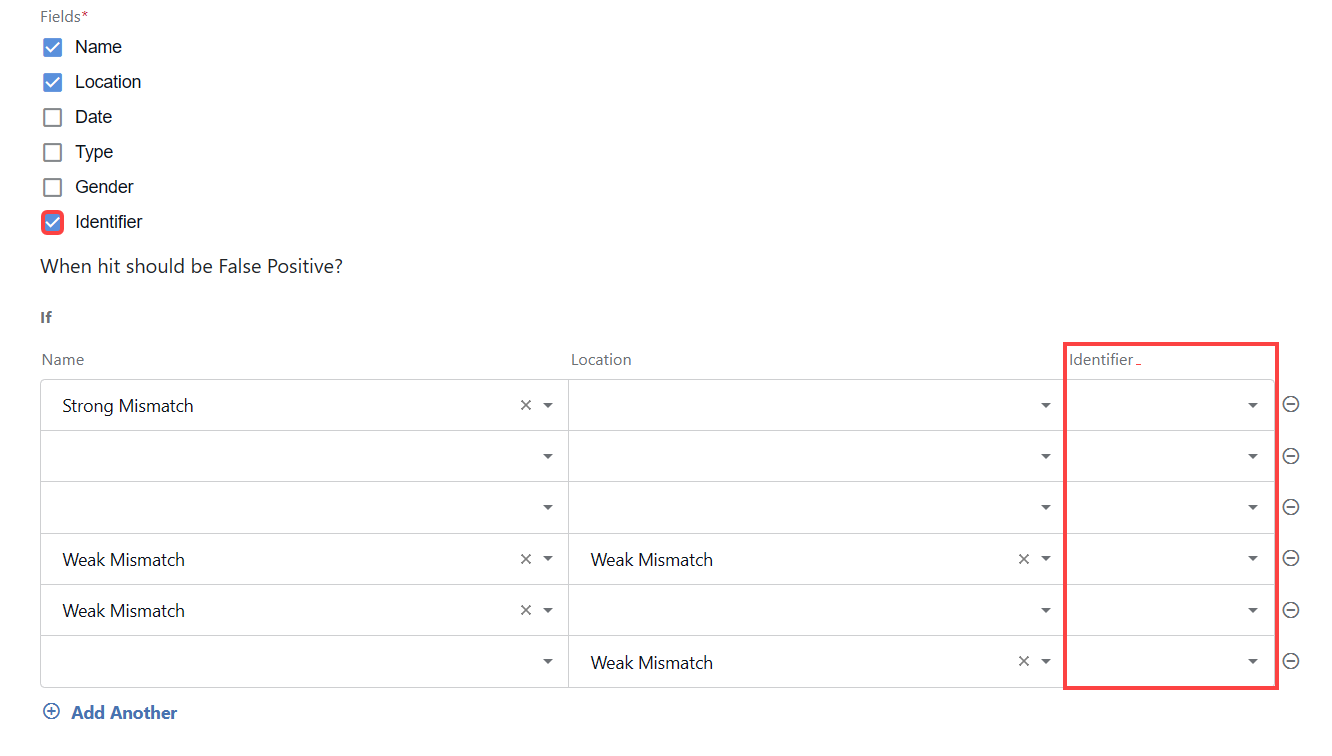
Identifier: data that cannot be stored in other standard fields, such as Name, Location, Date, Type, and Gender. Identifiers can include IDs, passport numbers, tax numbers, BIC and SWIFT codes, and so on.
You can select Missing data for a comparison field in the rules matrix. The rule matches when the field has no value in the input data, the hit data, or both. When the rule matches, the hit is resolved as False positive.
For example, if you select Missing data for Date, the rule matches when the date is missing from either side of the comparison or from both sides.
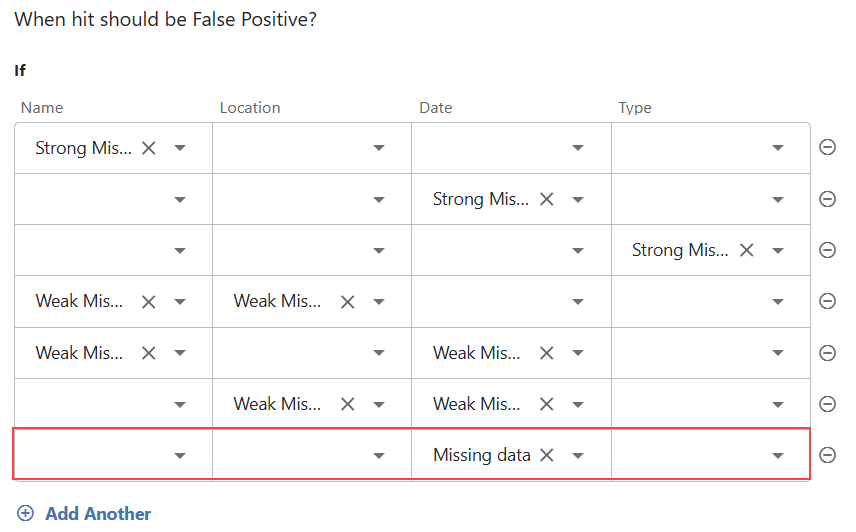
Do not select Missing data for Name. Evelyn returns a runtime error if the name is missing from either side of the comparison.
Identifier rules
Evelyn supports identifiers in the input data where ScreenedData and WLEData can store multiple pieces of identifiers as key-value pairs.
Below is a sample format file:
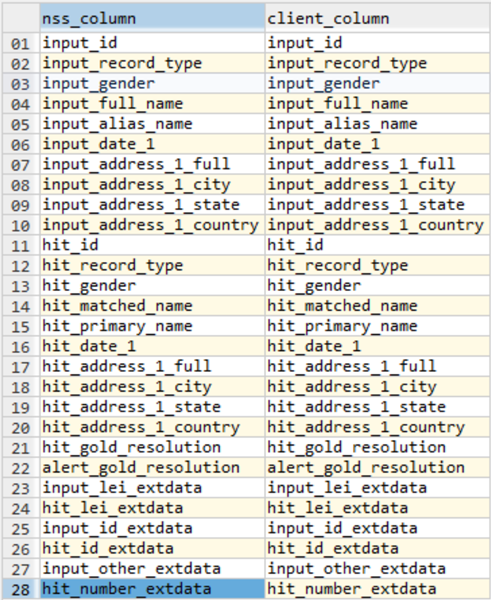
The input file can have the following content:

After parsing, there are the following pairs for the identifiers:
ScreenedData:[“lei”:”12344”, “id”:”12345sdj234”, “other”:”some123id”]WLEData:[“lei”:”12344”, “id”:”some123id”, “number”:”0001234567890”]
Comparison results for the Identifier field are as follows:
Not Compared: similar to existing fields.
Bad Info: similar to existing fields.
All Match: all individual results are considered a match.
All Mismatch: all individual results are considered a mismatch.
At Least 1 Mismatch: individual results contain at least one match and one mismatch.
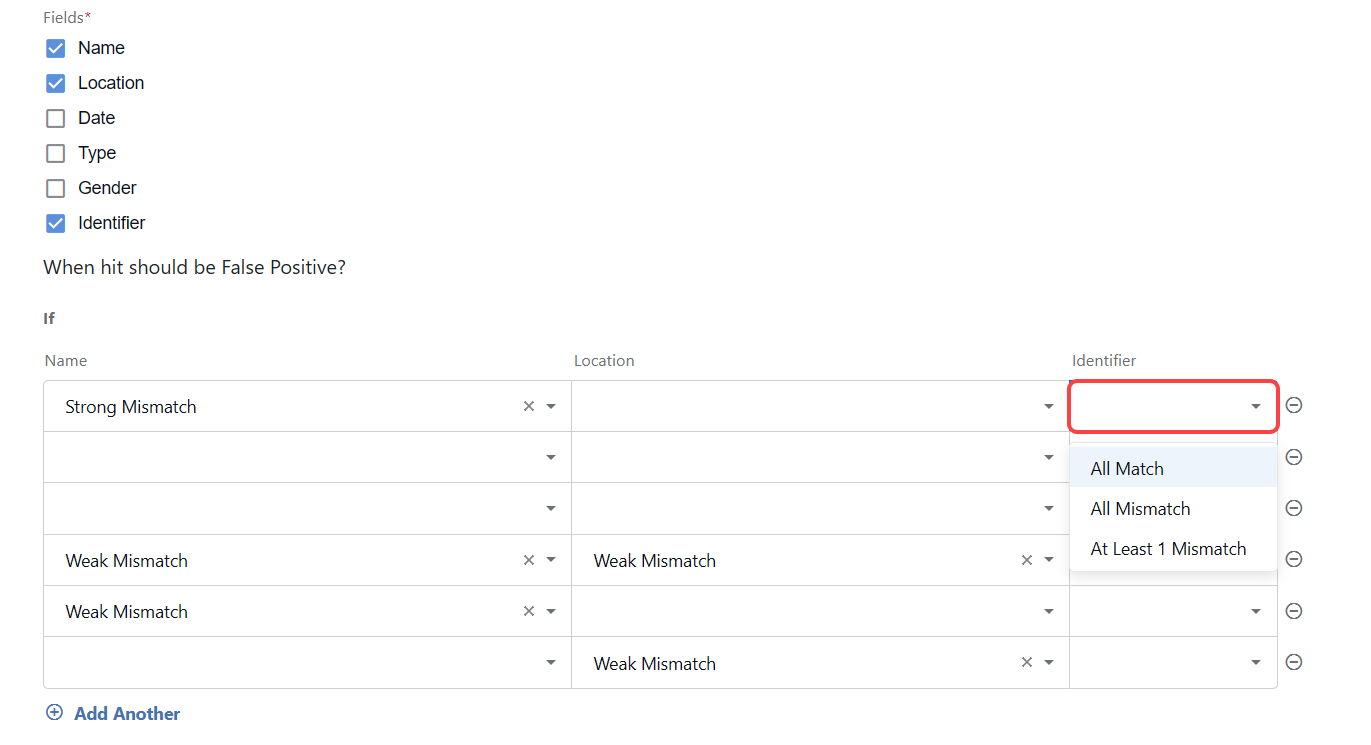
The model decision-making logic is as follows:
- If Identifier is not selected, the model returns Not Compared.
- If Identifier is selected but
ScreenedDataorWLEDatado not contain any identifiers, the model returns Bad Info. - Before comparing, all the values are normalized.
- If both
ScreenedDataandWLEDatahave identifiers with the same key, the model compares normalized values and returns a match or a mismatch, for example:ScreenedData.Additional_informationcontains{“Passport”:”PS374817”};WLEData.Additional_informationcontains{“Passport”:”PS374817”}. → The model returns a match.ScreenedData.Additional_informationcontains{“Passport”:”PS374817”};WLEData.Additional_informationcontains{“Passport”:”PS989796”}. → The model returns a mismatch.
- If an identifier with the same key exists on both sides, the model takes the value from the
ScreenedDataside and tries to find a matching value inWLEData, for example:ScreenedData.Additional_informationcontains{“Passport”:”PS374817”};WLEData.Additional_informationcontains{“PersonalID”:”PS374817”}. → The model returns a match.ScreenedData.Additional_informationcontains{“Passport”:”PS374817”};WLEData.Additional_informationcontains{“PersonalID”:”PS454647”}. → The model returns Not Compared.
- After iterating through all the identifier pairs, the model makes a decision as described above.
During the comparison, the model applies normalization:
- If a value consists of digits only, normalization removes all leading and trailing zeros, for example,
0001230→123. - If a value consists of letters and digits, normalization removes all leading and trailing zeros, for example,
000aaa000→aaa. - If a value has a specific format where letters are followed by digits, normalization removes leading zeros from the digit part, for example,
abc000123→abc123.
Thresholds
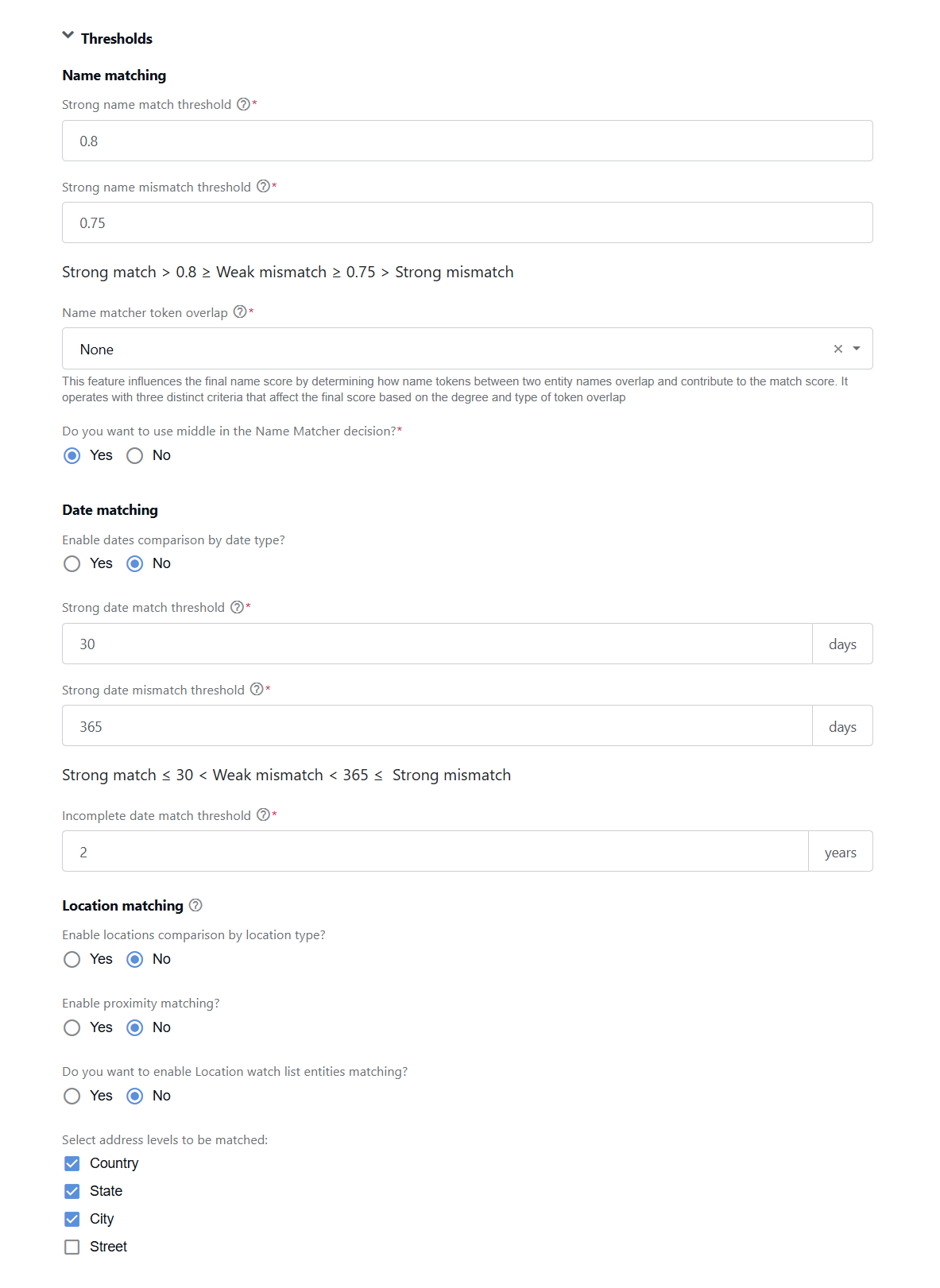
For each hit, the model provides a hit score. You can define thresholds for the minimum hit score required for escalation when configuring Evelyn. For instructions, see Install and configure | Configure model.
Name matching
Use the following settings to control how Evelyn compares names and applies similarity thresholds to the resulting name score.
Strong name match threshold. NSS considers a name to be a strong match if it is similar to a screened entity at or above the defined value.
Strong name mismatch threshold. NSS considers a name to be a strong mismatch if it differs from a screened entity by at least the defined value.
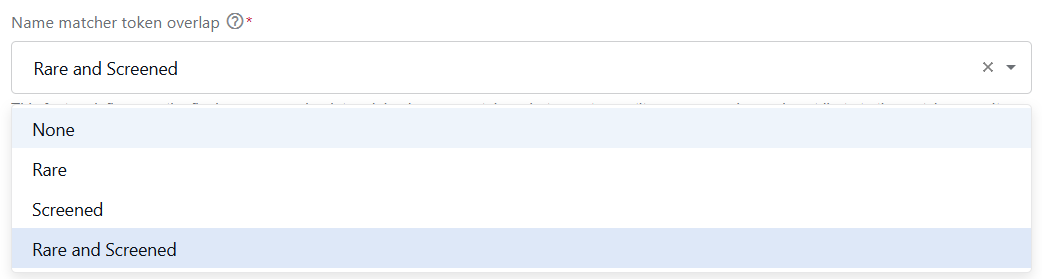
Name matcher token overlap. NSS affects the final name score by evaluating the overlap between tokens in the two entity names.
None. No specific token overlap criteria are applied. The final name score is determined by other matching methods or defaults, with no additional influence on the final score.
Rare increases the name score when uncommon or unique tokens overlap between the two names. Recommended for scenarios where unique identifiers in names are critical for matching, assigning greater weight to these overlaps in the final score.
Screened adjusts the name score based on the presence of tokens from the screened name within the WLE name. Useful for partial or variant matches where the screened name is expected to be part of a larger WLE name.
Rare and Screened requires both at least one rare token overlap and the presence of all tokens from the screened name in the WLE name. Recommended for high-risk workflows where stricter matching helps reduce false positives.
Do you want to use middle in the Name Matcher decision?. Includes model results where the middle name is used in name matching. Select No to compare names using only the first and last names.
Model results with the middle name included in name matching
"name_score": 0.8
"name_match": 2
"name_match_source": "unified_name_matcher"
"input_name": "John Doe"
"hit_name": "John Patrick Doe"
Model results without the middle name included from name matching
"name_score": 1
"name_match": 2
"name_match_source": "unified_name_matcher"
"input_name": "John Doe"
"hit_name": "John Patrick Doe"
Date matching
Use the following settings to control how Evelyn compares complete and incomplete dates and evaluates the differences between them.
Enable dates comparison by date type?. Enables comparison logic based on specific date types.
Strong date match threshold. Considers a date to be a strong match if the difference between dates is less than or equal to the specified number of days.
Strong date mismatch threshold. Considers a date to be a strong mismatch if the difference between dates is at least the specified number of days.
If both dates are in the
MM/dd/YYYYformat and the number of days between them is less than or equal to the configured threshold, they are evaluated based on the strong match or mismatch settings.If at least one of the dates is not in the
MM/dd/YYYYformat, the dates are considered a match regardless of the difference.Incomplete date match threshold. Applies when one or both dates include only the year. The default threshold is 2 years. If the difference between two dates is less than or equal to the threshold, the comparison result is considered a strong match; otherwise, a strong mismatch.
Location matching
Use the following settings to control how Evelyn compares locations, including location types, geographic proximity, and location watchlist entities.
Enable locations comparison by location type?. Enables matching logic based on specific location types.
Enable proximity matching?. Defines how close two locations must be to be considered a match.

In the Proximity threshold field, set the distance.
In the Distance unit dropdown, select kilometers (km) or miles (mi).
Do you want to enable Location watch list entities matching?. Enables matching between screened data and WLEs of the Location type based on address fields.
Select address levels to be matched. Available when you select Location in the rules matrix.
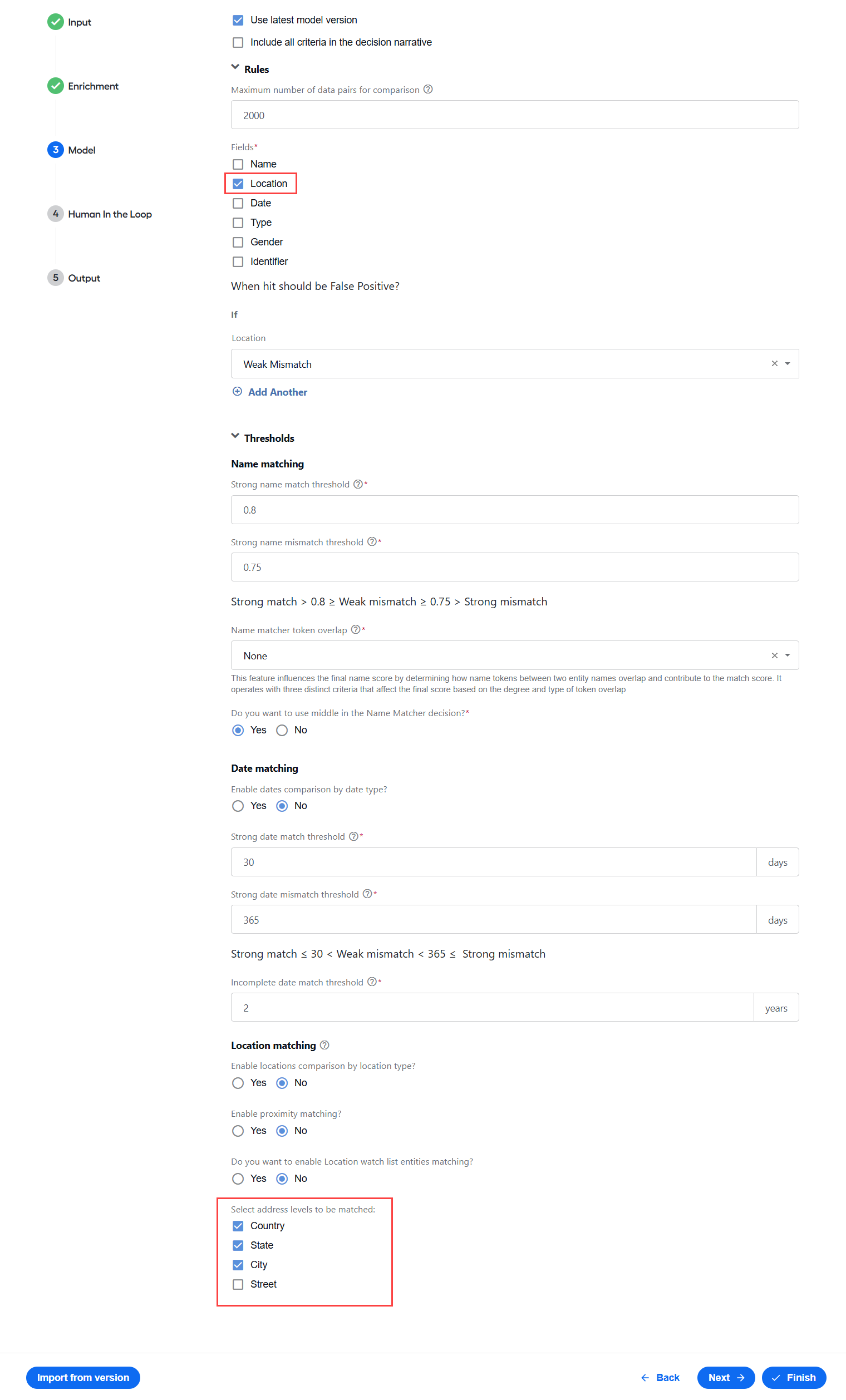
Select address components (Country, State, City, or Street) to determine whether two addresses match or mismatch. Address components that are present in the input or hit data but are not selected do not affect the decision. For example, if you select only City and both addresses contain a country and a city, Evelyn compares the city values and ignores the country values.
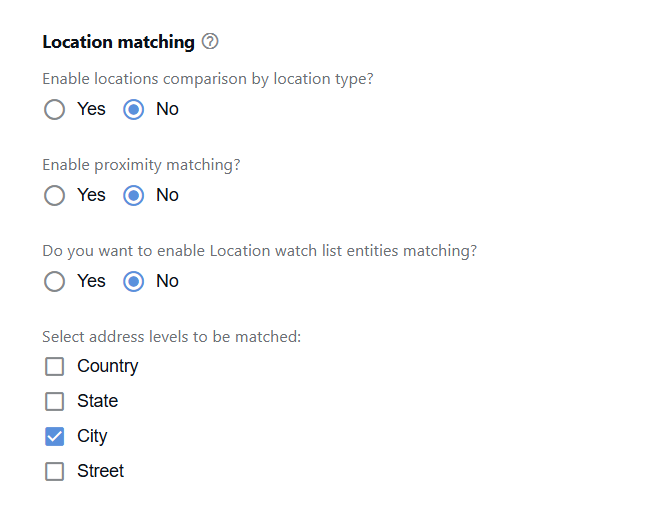
If a selected component is missing from either the input address or the hit address, Evelyn returns Need more information and routes the case to manual review.
Component selection applies only to addresses supplied as separate components, whether one or several components are present. If an address is supplied as a single full address string, component selection has no effect and Evelyn compares the address as a whole.
Model decisions
For each rule field, the NSS classification model returns one of the following decisions:
Not Compared when Evelyn is configured to ignore a particular field in the decision-making process.
Bad Info when either an Input Entity Data field, or Watch List Entity Data one, or both are empty or invalid and cannot be compared.
Strong match when the comparison score is below the configured thresholds for a match.
Weak mismatch when the comparison score is between the configured thresholds for a strong match and a strong mismatch.
Strong mismatch when the comparison score is equal to or above the strong match threshold.
- A valid Location decision is always a Strong match or Weak mismatch.
- A valid Type decision is always a Strong mismatch or Strong match.
Default model configuration
Default rules
The decision matrix below describes the default rule configuration of the NSS classification model for Name, Location, and Date when a hit is marked as a false positive. In all other cases, the hit is escalated for further review.
| Name | Location | Date | Type | Resolution |
|---|---|---|---|---|
| Strong mismatch | False positive | |||
| Strong mismatch | False positive | |||
| Strong mismatch | False positive | |||
| Weak mismatch | Weak mismatch | False positive | ||
| Weak mismatch | Weak mismatch | False positive | ||
| Weak mismatch | Weak mismatch | False positive |
If any field decision is Strong mismatch or any two field decisions are Weak mismatch, the hit is marked a false positive.
If the comparison results are between the weak and strong factors, the model produces a Weak Mismatch outcome.
Default thresholds
See the default threshold values in the table below:
| Threshold | Default value |
|---|---|
| Strong name match threshold | 0.8 |
| Strong name mismatch threshold | 0.75 |
| Strong date match threshold | 30 |
| Strong date mismatch threshold | 365 |
Model narrative
If the model's final decision is False Positive, the narrative can include:
- Only the rule factors that trigger the model to make a specific decision
- All factors for a strong match and a weak mismatch
If you want the model's decision narrative to include all factors for a strong match and a weak mismatch, select Include all criteria in the decision narrative during configuration.
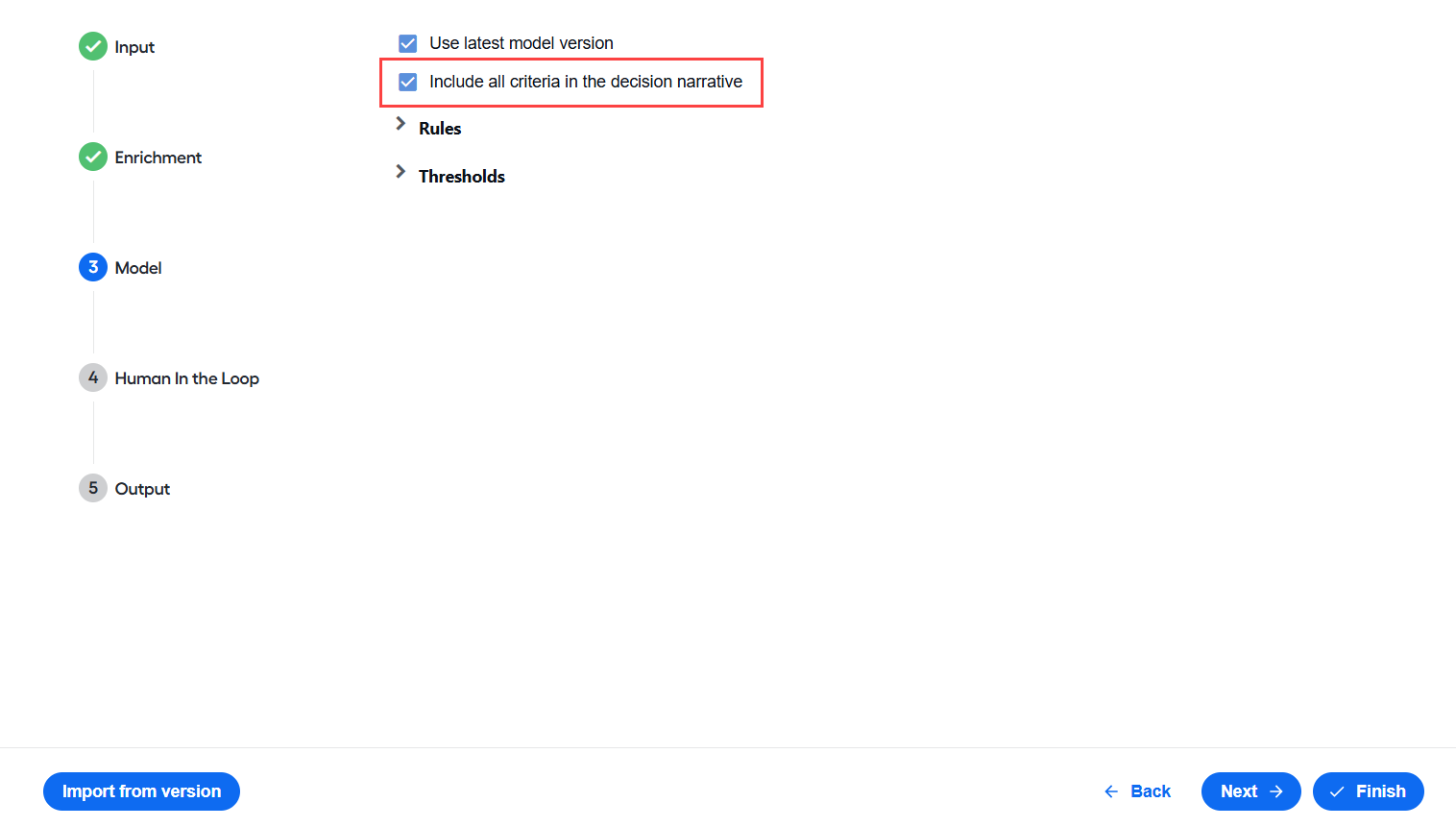
For instance, let's assume that the rule setup on the configuration screen is as follows:
If the model's false positive decision is triggered based on the value in the first row, the following lines appear in the model narrative:
False Positive.
Strong name mismatch (“{input_name}“, “{wle_name}“).
If the model's final decision is Need more information, the narrative contains one Strong match and Week mismatch factors (if any):
Please review manually. Not enough information to disposition.
Strong name match (“{input_name}“, “{wle_name}“).