Run screening
Once the Name Sanctions Screening (NSS) skill is installed, and the configuration is complete, you can initiate screening in one of the following ways:
- Start a Business Process (BP) from Control Tower
- Call the NSS REST API
Start Business Process from Control Tower
To start the core BP, do the following:
In the Control Tower menu, in the Digital Workers section, click View All and go to the Name Sanctions Screening group.
Open the variation you wish to use and select the core Names Screening vX.X.X BP definition.
On the Data tab, you don't need to upload a data file. The input data is either sourced from a CSV file in the S3 location or a screening system, depending on the NSS configuration.
Go to the Run tab and start the BP.
Once all entities within the input file are processed, the BP automatically ends and uploads a report to the S3 MinIO site.
Name Screening Ticker Lookup Business Process
The NSS skill contains the Name Screening Ticker Lookup BP designed to maintain accurate and current ticker information within the NSS internal storage by fetching data from https://www.sec.gov/, which is a reliable source for financial information. The BP ensures that the internal storage of ticker information for various financial instruments is kept up-to-date and guarantees compliance with regulatory requirements.
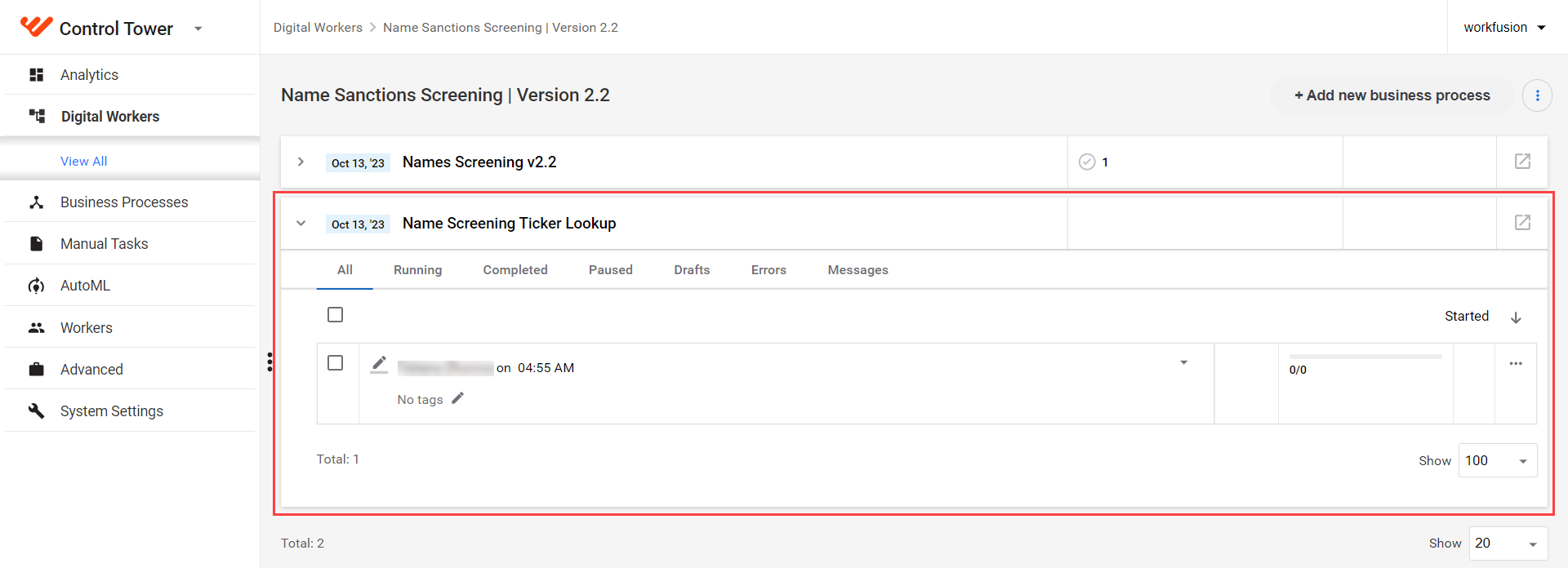
To view the BP, do as follows:
In the Name Sanctions Screening group, find the variation you wish to use and click Version X.X.X.. In the list of available BP definitions, select the Name Screening Ticker Lookup BP.
In the Business Process window, go to the Workflow tab.
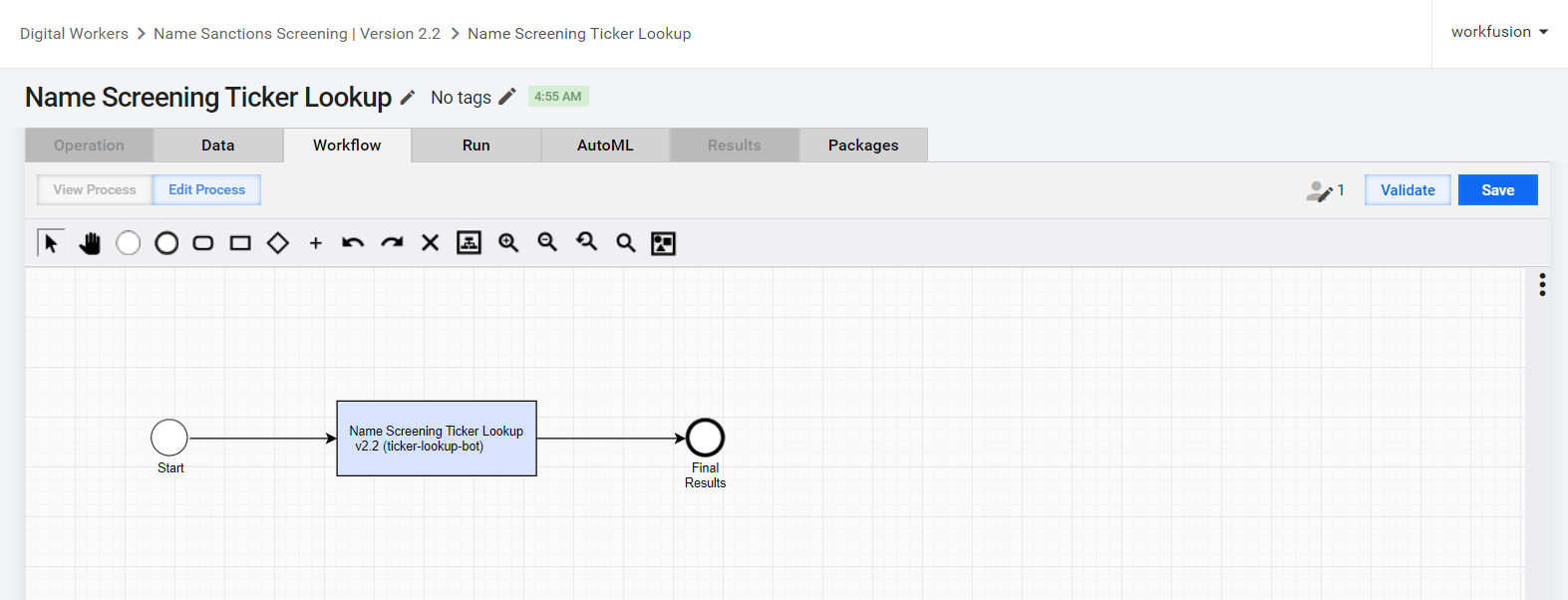
You can configure to update ticker information with the desired frequency, depending on your specific needs: daily, weekly, or monthly. To set up the schedule, refer to the Schedule Business Process instruction.
To minimize disruption to the production environment, we recommend scheduling the Name Screening Ticker Lookup BP outside of regular production working hours so it does not interfere with the execution of critical BPs.
Call NSS REST API
You can invoke NSS by calling the WorkFusion REST API. To do it, set up an AI Agent variation as it requires the BP associated with a configured variation.
The Historical Data (CSV) provider is not supported by REST API.
To configure REST endpoints, perform the following steps:
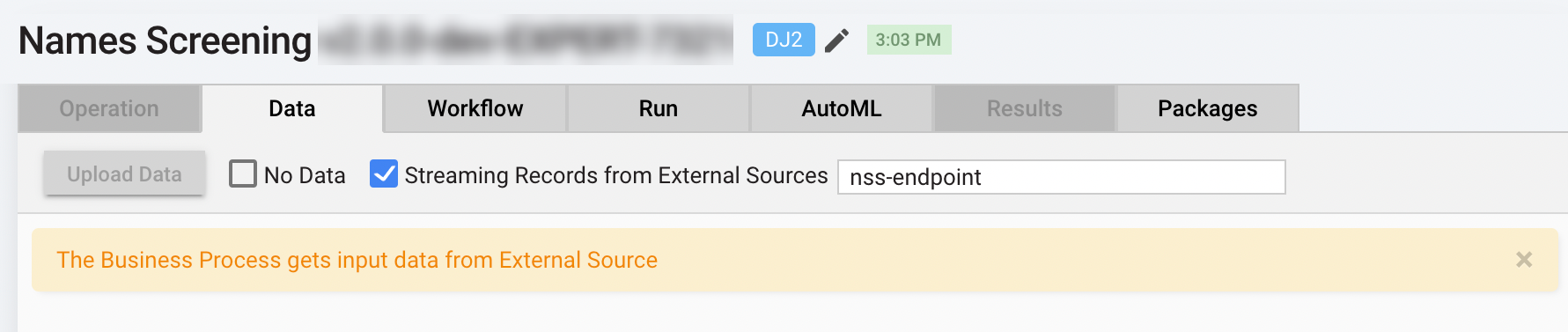
Open the core BP definition and, on the Data tab, select Streaming Records from External Sources, and specify your custom signal ID.
On the Run tab, click the Run This Process button. Once the BP starts, go to the Run tab and click Show API... to find available generated endpoints.
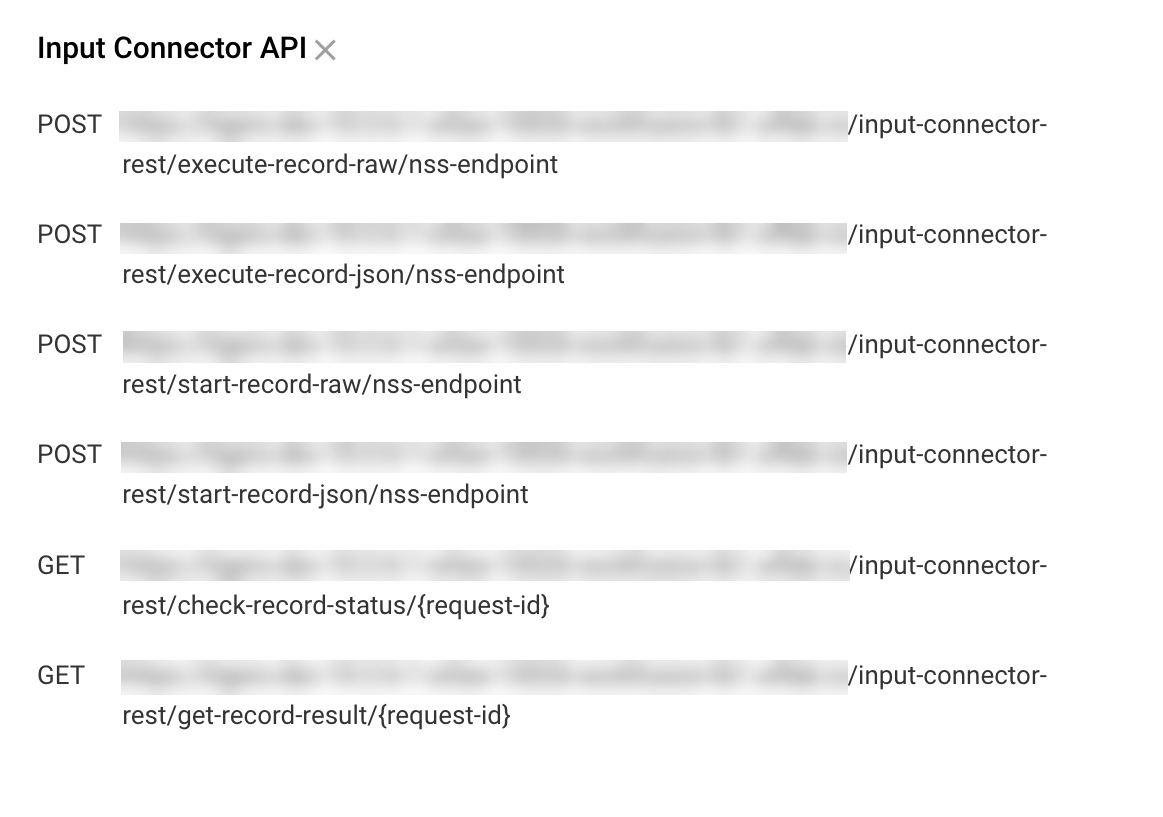
For NSS, only asynchronous invocation is supported. In this case, use only the following endpoints:
/start-record-raw: to start a BP./check-record-status: to check the status of the running transaction./get-record-result: to get the result data of the completed transaction.
- Running AI Agents via REST API to learn about invoking transactions and getting access to their token.
- Evelyn API to see the detailed description of endpoints.
- Process transactions with REST connector
REST API request
The NSS skill supports the following JSON structure for triggering screening. The structure depends on a selected screening system.
A request can have the hits element.
Full alert screening JSON template
{
    "input_id": String (required),
    "input_full_name": String (required),
    "input_record_type": String,
    "input_gender": String,
    "input_address": [
        {
            "type": String,
            "country": String,
            "state": String,
            "city": String
        },
        ...
    ],
    "input_date": [
        {
            "type": String,
            "year": String,
            "month": String,
            "day": String
        },
        ...
    ],
    "hits": [
        {
            "hit_id": String (required),
            "hit_matched_name": String (required),
            "hit_record_type": String,
            "hit_gender": String,
            "hit_address": [
                {
                    "type": String,
                    "country": String,
                    "state": String,
                    "city": String
                },
                ...
            ],
            "hit_date": [
                {
                    "type": String,
                    "year": String,
                    "month": String,
                    "day": String
                },
                ...
            ]
        }
    ]
}
Dow Jones Risk & Compliance, World-Check One JSON template
The request JSON structure should contain only input elements. If the hits element is present, it is ignored.
{
  "input_id": String (required),
    "input_full_name": String (required),
    "input_record_type": String,
    "input_gender": String,
    "input_address": [
        {
            "type": String,
            "country": String,
            "state": String,
            "city": String
        },
        ...
    ],
    "input_date": [
        {
            "type": String,
            "year": String,
            "month": String,
            "day": String
        },
        ...
    ]
}
Firco Trust Case Manager API JSON template
Once the screening with Firco Trust System is initiated, all existing messages are processed via a BP.
Firco Trust Bunit and Units coming from a REST request have higher priority than the AI Digital Worker configuration.
{
  firco_trust_b_unit: String,
  firco_trust_unit: ["unit_1", "unit_2"]
}
REST API response
After successfull running, a BP sends a response. The response JSON structure can be different, depending on a selected screening system.
If you enable QC or HTML reports when configuring the AI Digital Worker, hyperlinks to the reports are available in a REST response.
Full alert screening JSON template
{
    "input_id": String,
    "alert_resolution": String,
    "alert_explanation": String,
    "html_report_link": String,
    "qc_report_link": String,
    "hits": [
        {
            "hit_id": String,
            "hit_resolution": String,
            "hit_explanation": String
        }
    ]
}
Dow Jones Risk & Compliance, World-Check One JSON template
{
    "input_id": String,
    "alert_resolution": String,
    "alert_explanation": String,
    "html_report_link": String,
    "qc_report_link": String,
    "hits": [
        {
            "hit_id": String,
            "hit_resolution": String,
            "hit_explanation": String
        }
    ]
}
Firco Trust Case Manager API JSON template
{
    "report_link": []
}
Review screening results
For NSS 2.2+, you can review Manual Tasks in Workspace if you performed the required setup when configuring the AI Digital Worker.
You can also view the results of the BP execution in Quality Check or HTML reports.