Run screening
Once the Name Sanctions Screening (NSS) AI Agent is installed and the configuration is complete, you can initiate screening in one of the following ways:
- Start a Business Process (BP) from Control Tower
- Call the NSS REST API
- Start a BP from REST API with a CSV file
Start Business Process from Control Tower
Core NSS Business Process
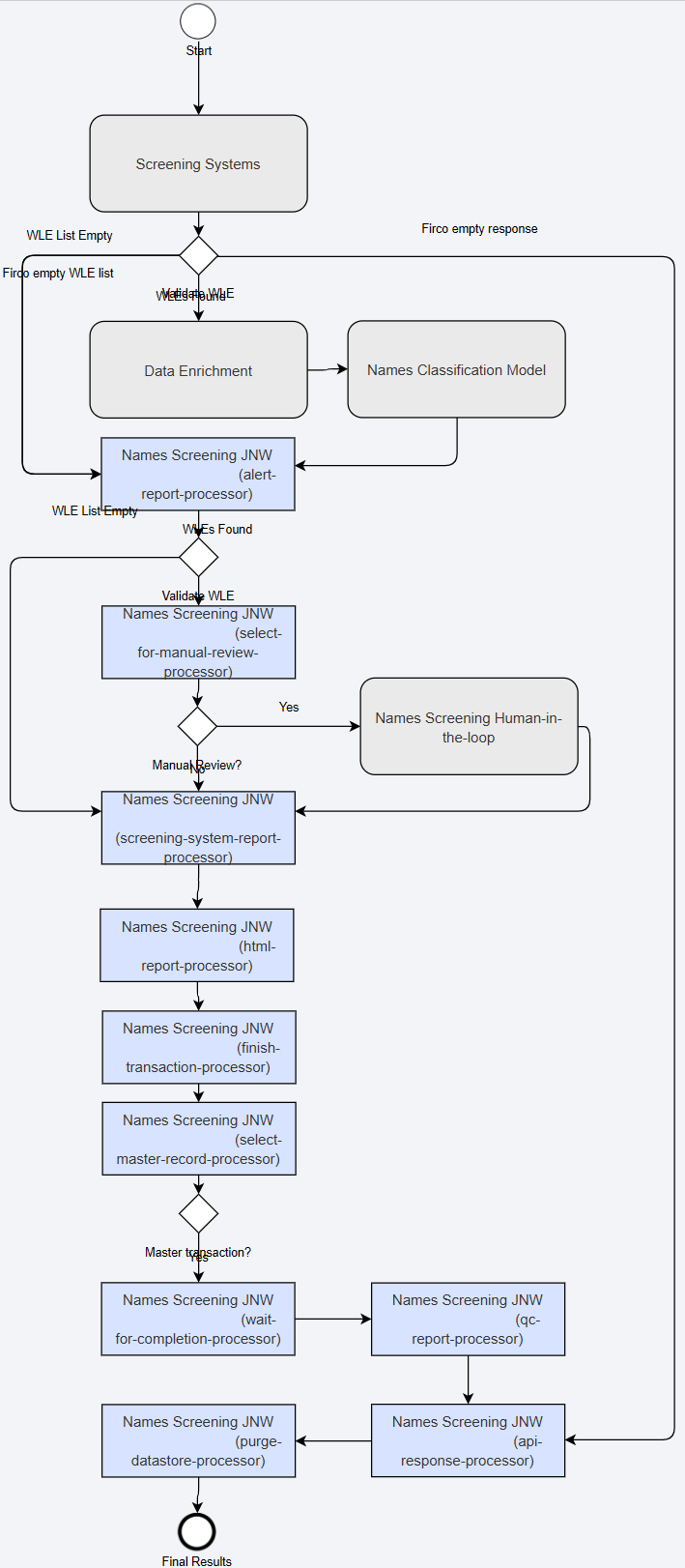
The figure below is a sample NSS BP core workflow:
To start the core BP, do the following:
In the Control Tower main menu, go to Digital Workers, click View All, and find the Name Sanctions Screening group.
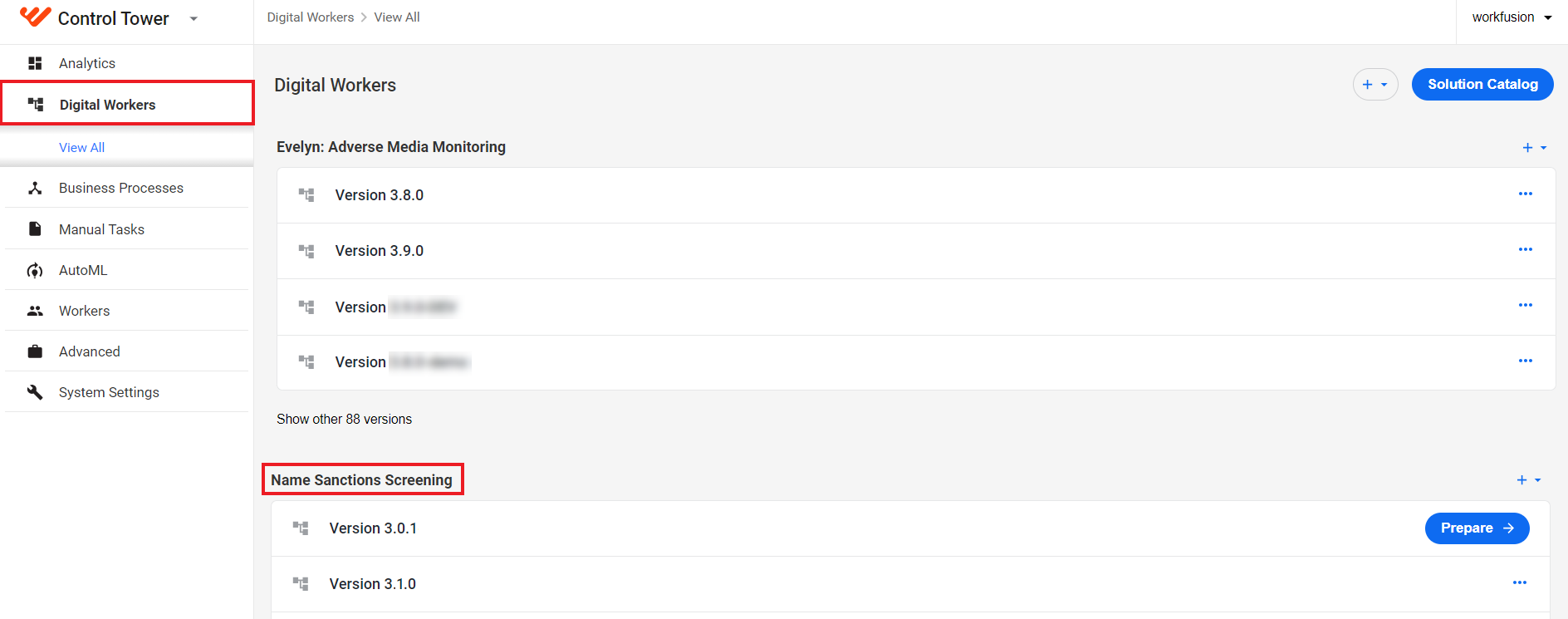
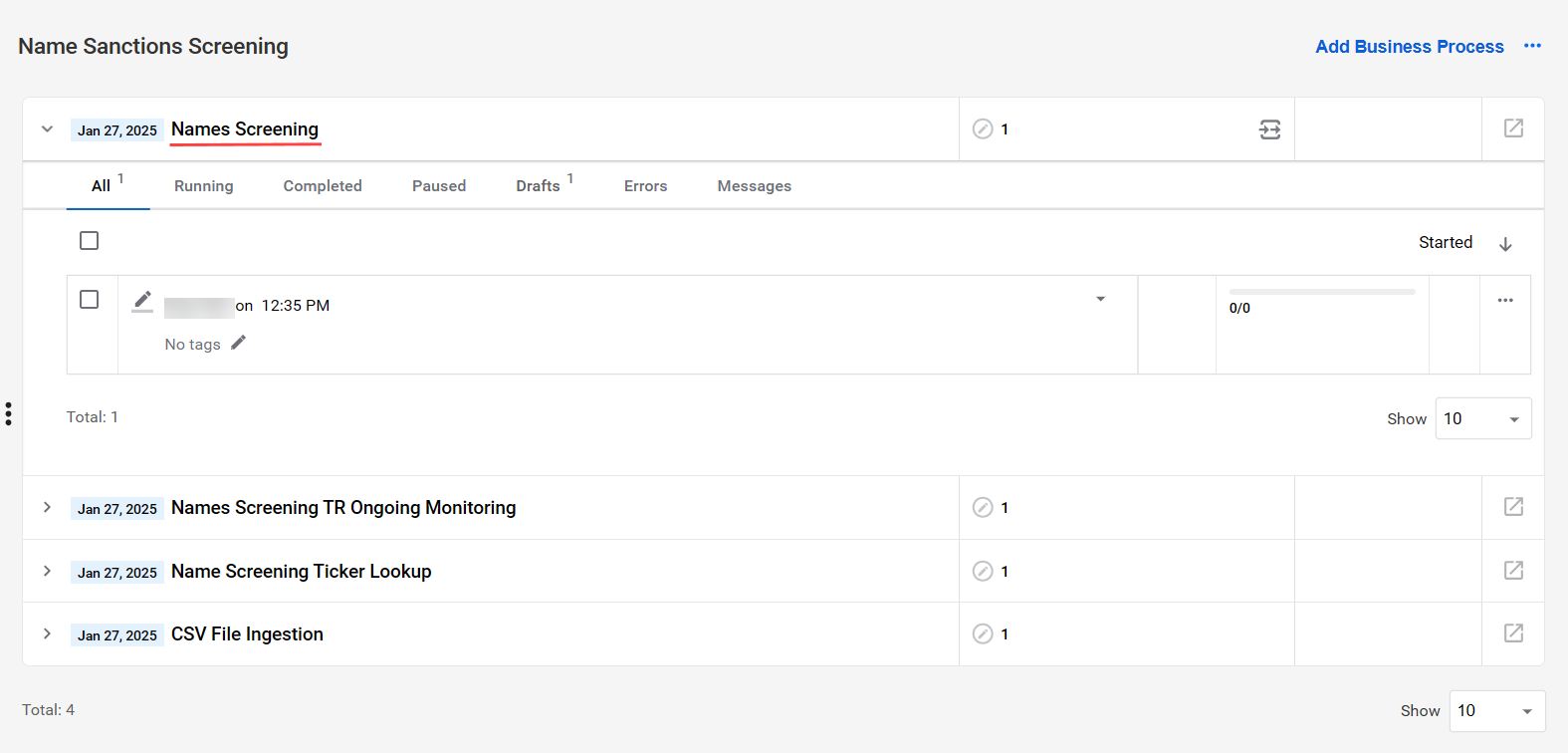
In the group, click the variation you wish to use. On the variation details page, open the core Names Screening vX.X.X BP definition.
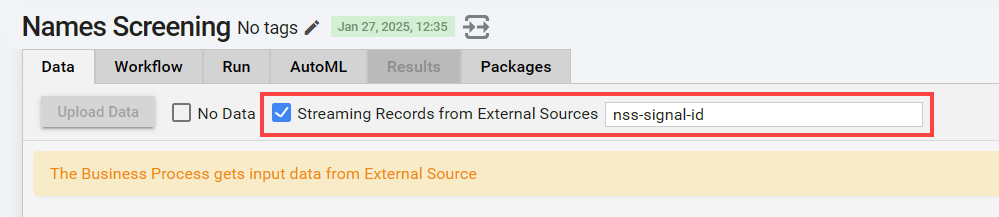
On the Data tab, select Streaming Records from External Sources and specify a signal ID.
Go to the Run tab and start the BP.
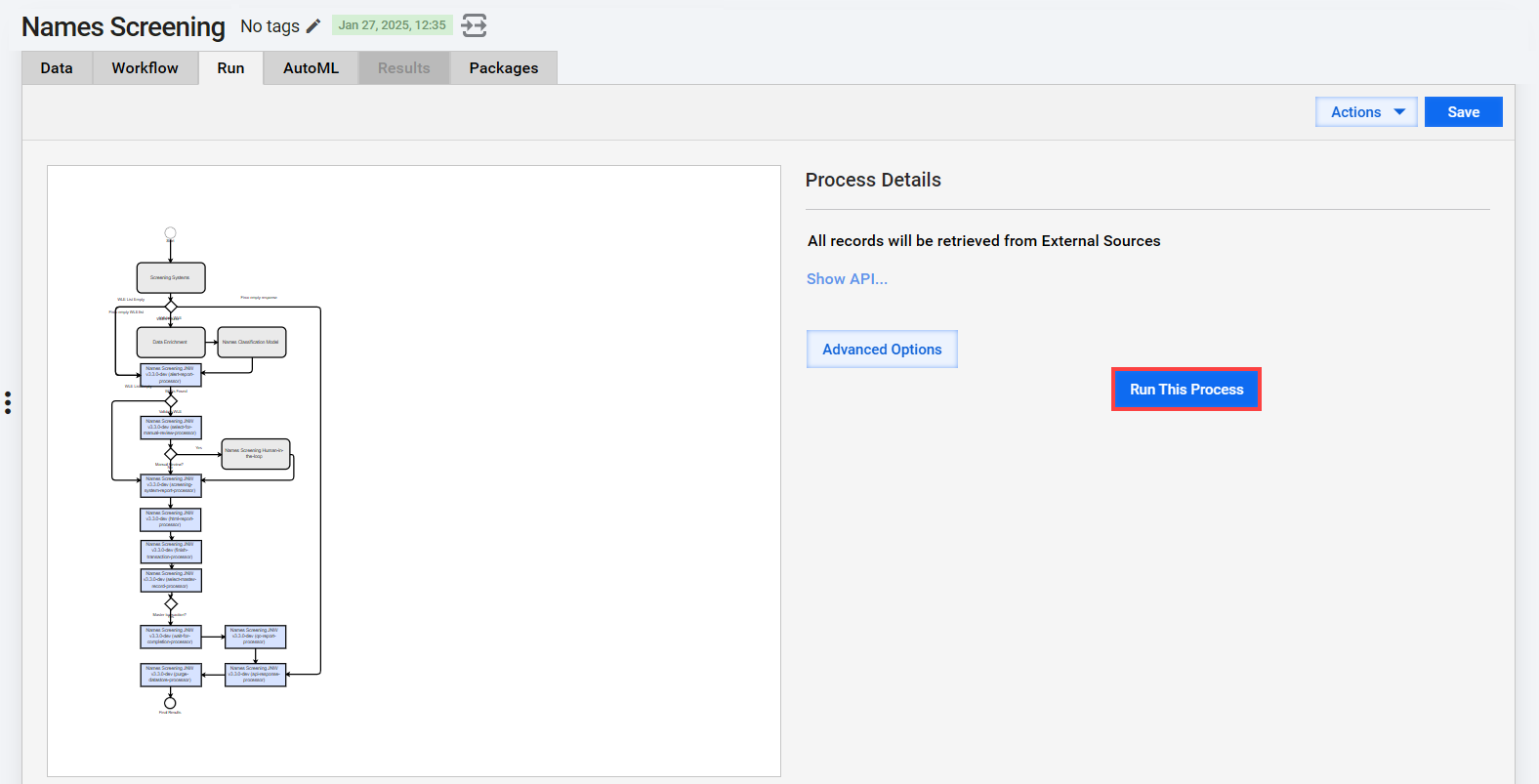
Once all entities from the input file are processed, the BP automatically ends and uploads a report to S3 MinIO.
On the Results tab, you can view the following data:
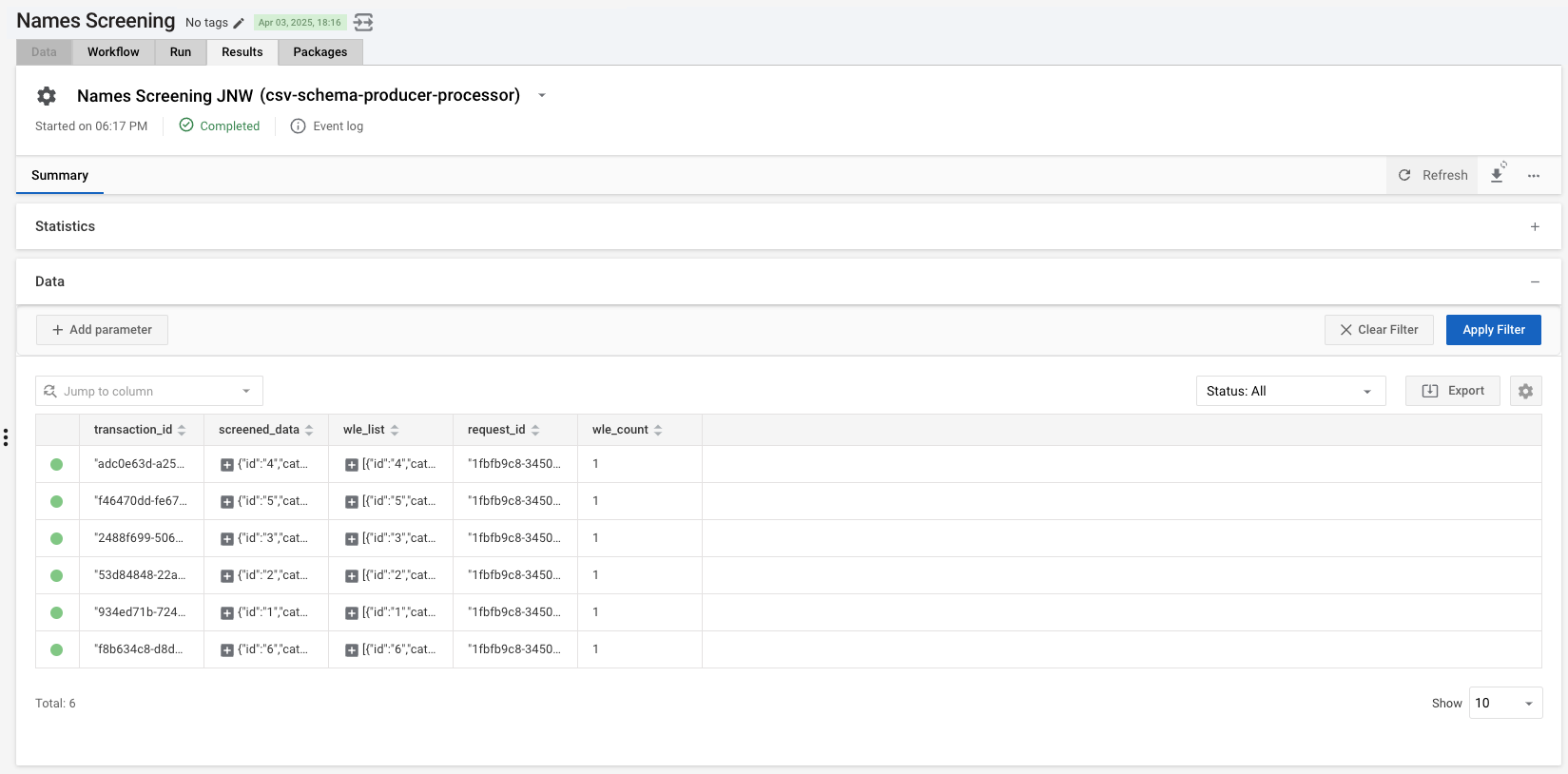
transaction_id: transaction UUIDscreened_data: input data received for screeningwle_list: watchlist entity information received from a screening systemrequest_id: external request identifierwle_count: number of watchlist entities found per transaction
For more details, refer to Learn about input and output data.
You can set the NSS Core BP to run on schedule. To configure the schedule, refer to the Schedule Business Process topic.
Name Screening Ticker Lookup Business Process
Evelyn contains the Name Screening Ticker Lookup BP designed to maintain accurate and current ticker data within the NSS internal storage by fetching it from https://www.sec.gov/, which is a reliable source for financial information. The BP ensures that the internal storage of ticker data for various financial instruments is kept up to date and guarantees compliance with regulatory requirements.
To run the BP, complete the following steps:
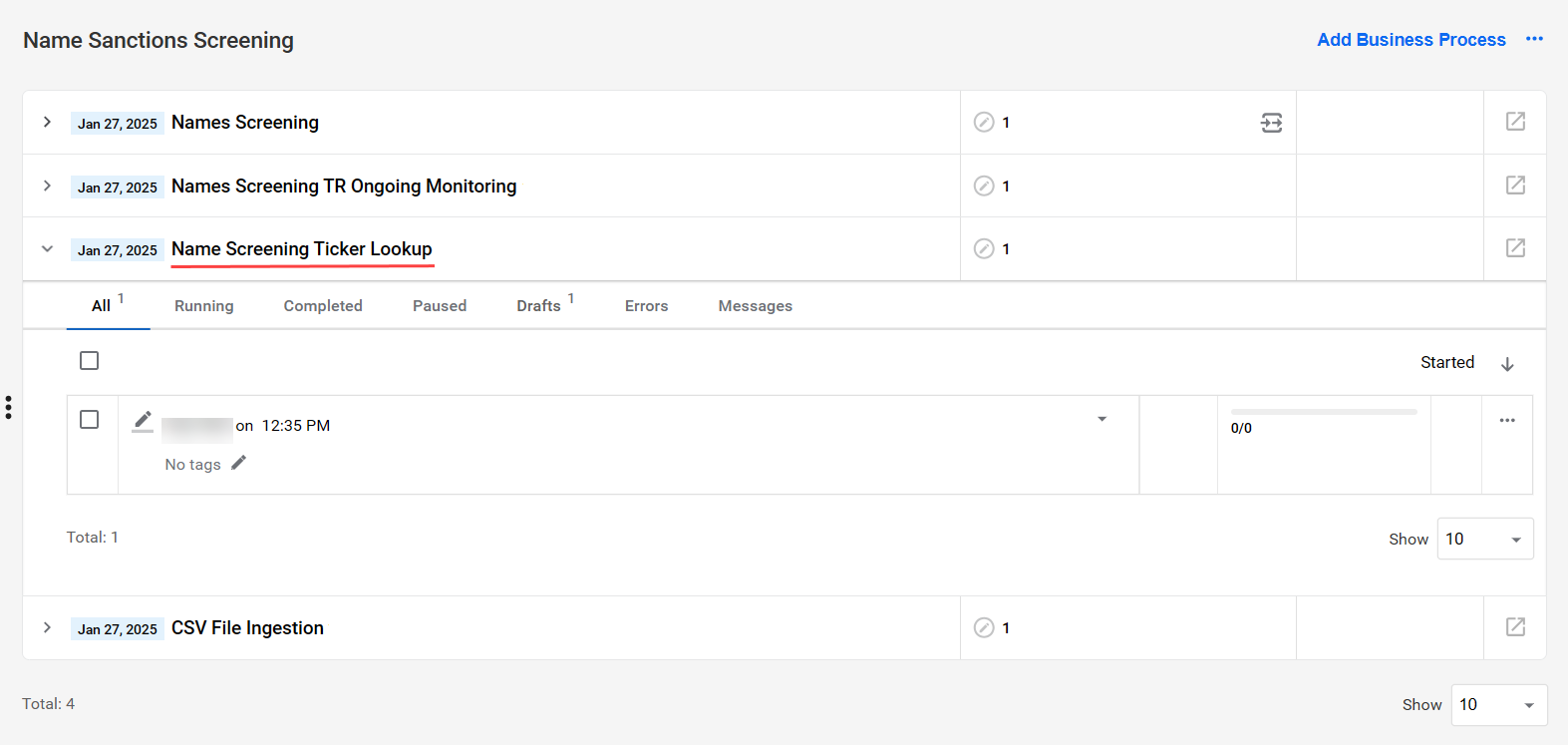
On the Digital Workers page, in the Name Sanctions Screening group, click the required BP variation.
In the list of available BP definitions, open the Name Screening Ticker Lookup BP definition.
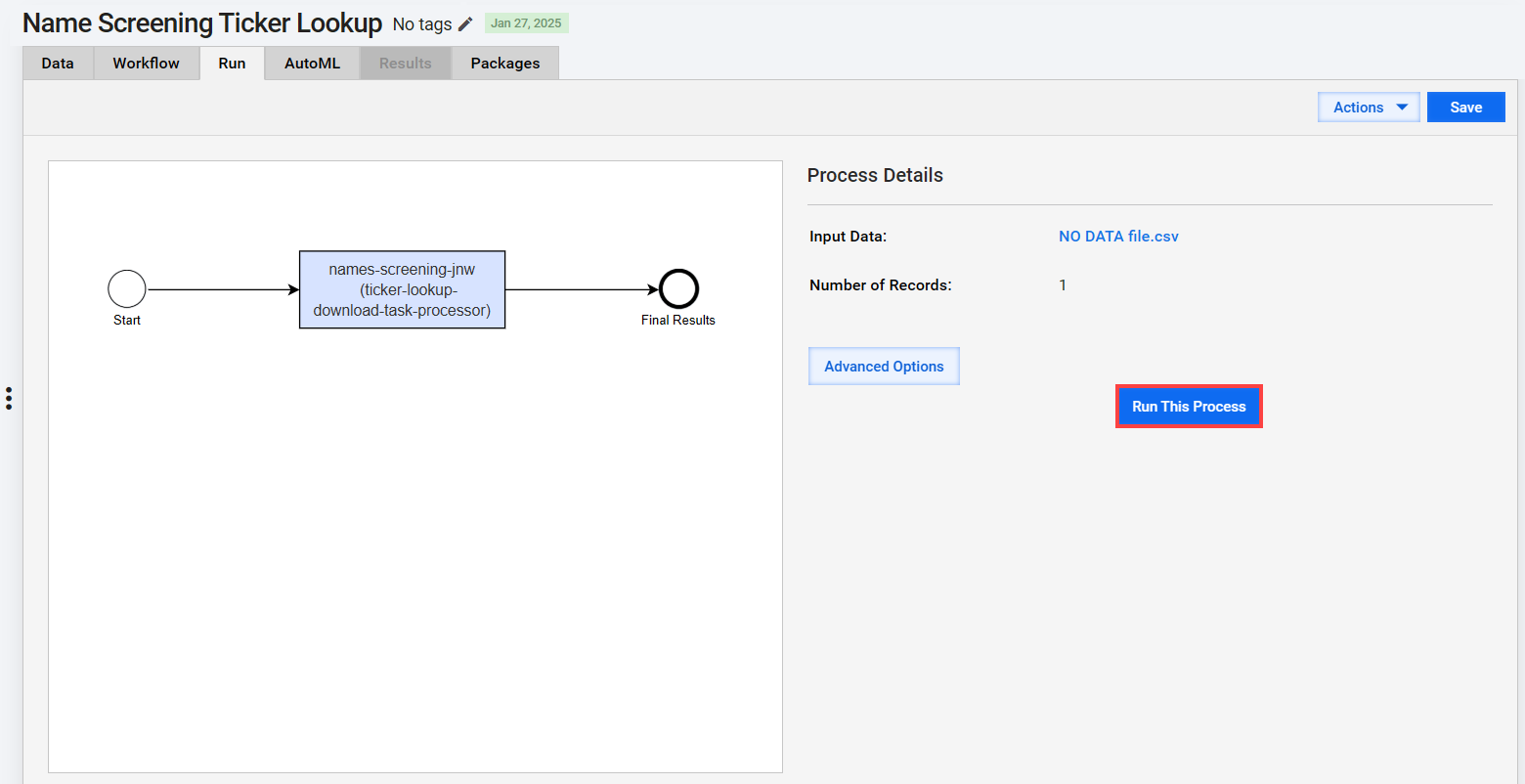
In the Business Process window, navigate to the Run tab and start the BP.
 tip
tipTo set the BP to update ticker information with your preferred frequency, schedule the BP execution.
You can also set up email notifications for BP executions. If you enabled email notifications, after running the BP, execution results are sent to the specified email addresses.
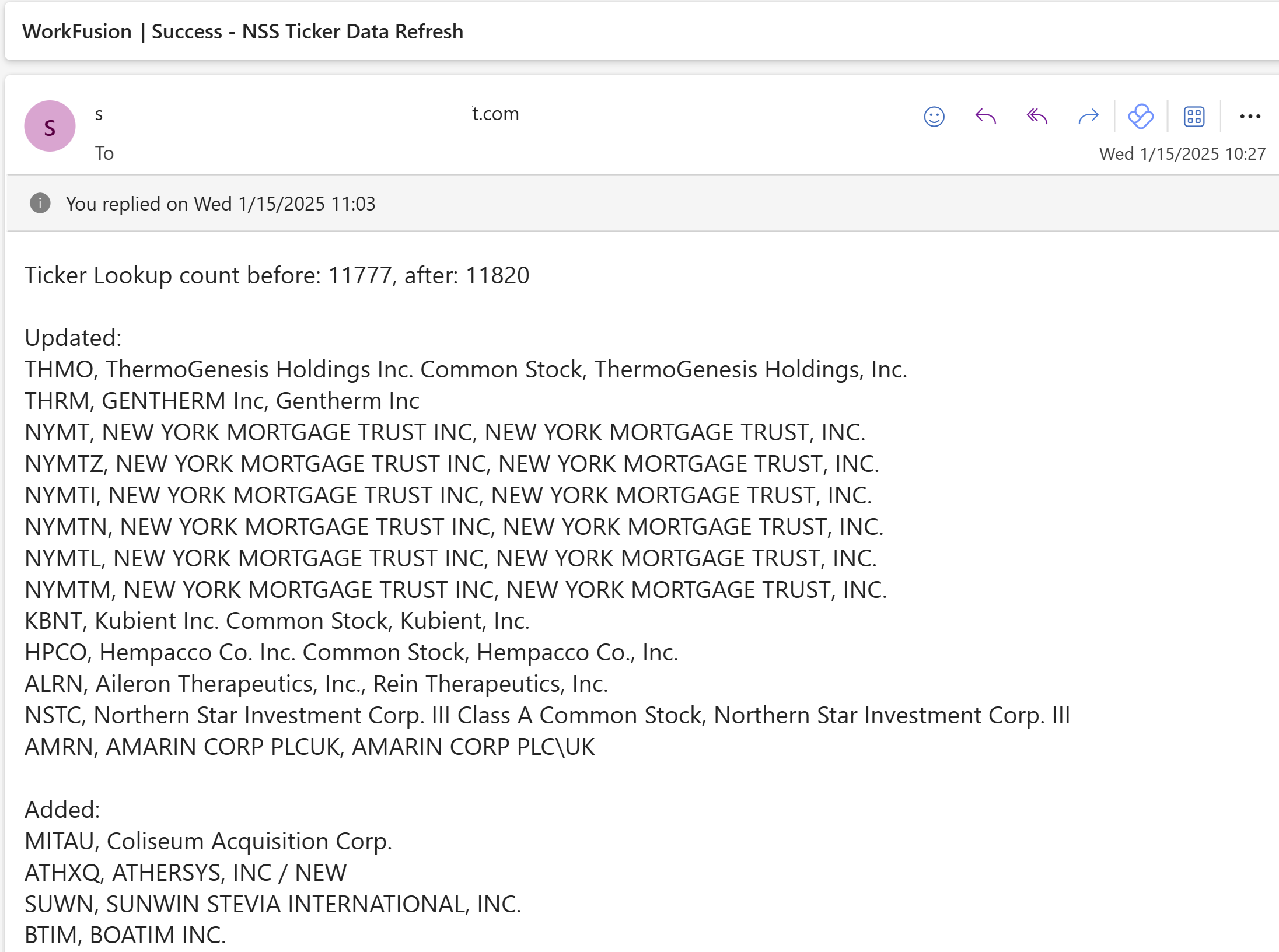
To minimize disruption to the production environment, it is recommended to schedule the Name Screening Ticker Lookup BP outside of regular production working hours so it does not interfere with the execution of critical BPs.
The Name Screening Ticker Lookup BP propagates its execution results to logs. If a ticker is updated or added to the Data Store, the BP produces the following log entry:
Ticker Lookup count before 12345, after 12347

Updated:
ABC, Old ABC Name, New ABC Name

Added:
DEF - DEF Name
If no updates are made, the BP produces the following log entry:
Ticker Lookup no differences
Names Screening TR Ongoing Monitoring Business Process
The Business Process allows the screening to be automatically executed based on monitored events. It is used if you select the Proactively using event-based monitoring option when configuring the NSS input settings.
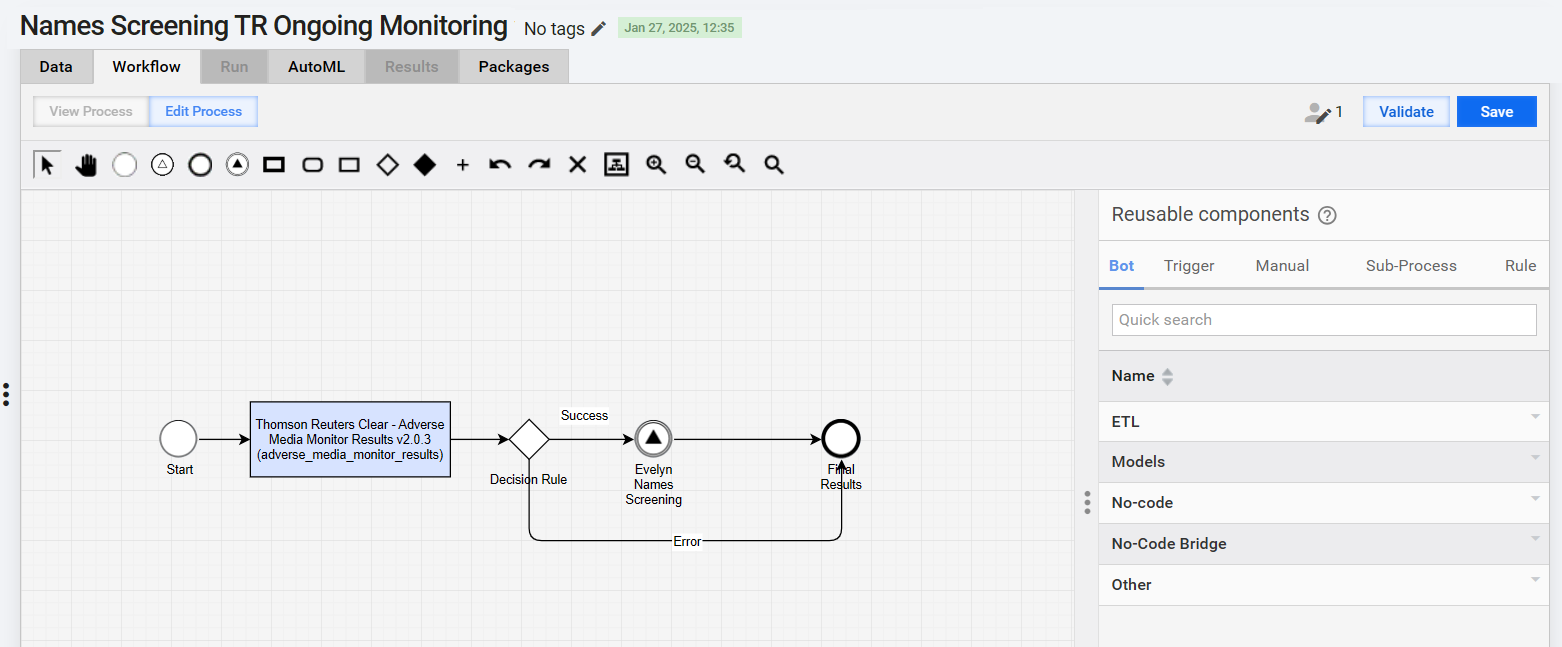
The Business Process uses the Monitor Results Polling Connector to proactively get results from the data provider (currently, only Thomson Reuters CLEAR) and then asynchronously call the core NSS BP to process the results.
To view the BP, do as follows:
On the Digital Workers page, in the Name Sanctions Screening group, click the required BP variation.
In the list of available BP definitions, open the Names Screening TR Ongoing Monitoring BP definition.
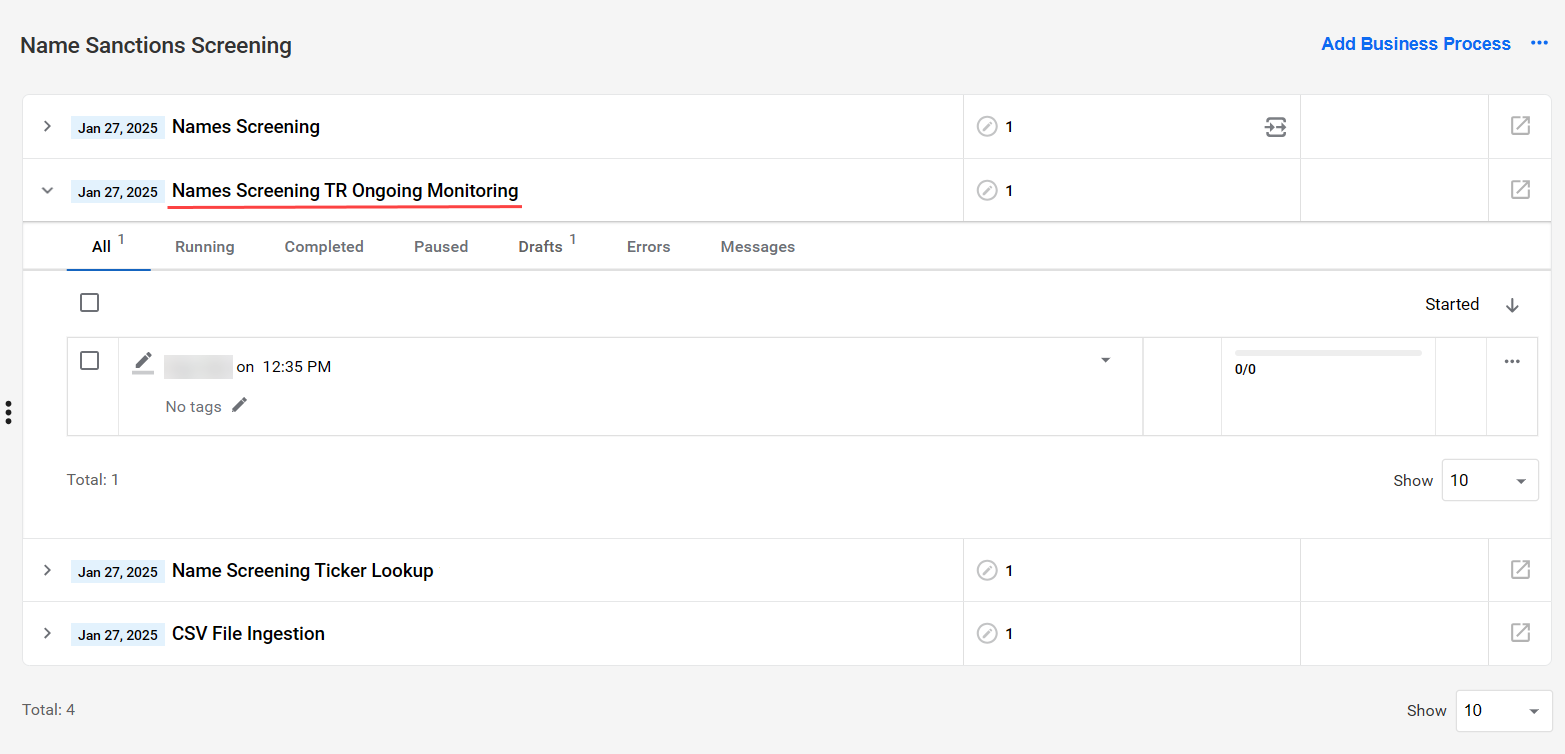
In the Business Process window, go to the Workflow tab.
Call NSS REST API
You can invoke NSS by calling the WorkFusion REST API. To do it, set up an AI Agent variation to source data from WorkFusion API.
To configure REST endpoints, perform the following steps:
Open the required core BP definition. On the Data tab, select Streaming Records from External Sources. If needed, you can specify a custom signal ID.

On the Run tab, click the Run This Process button. Once the BP starts, go to the Run tab and click Show API... to find available generated endpoints.
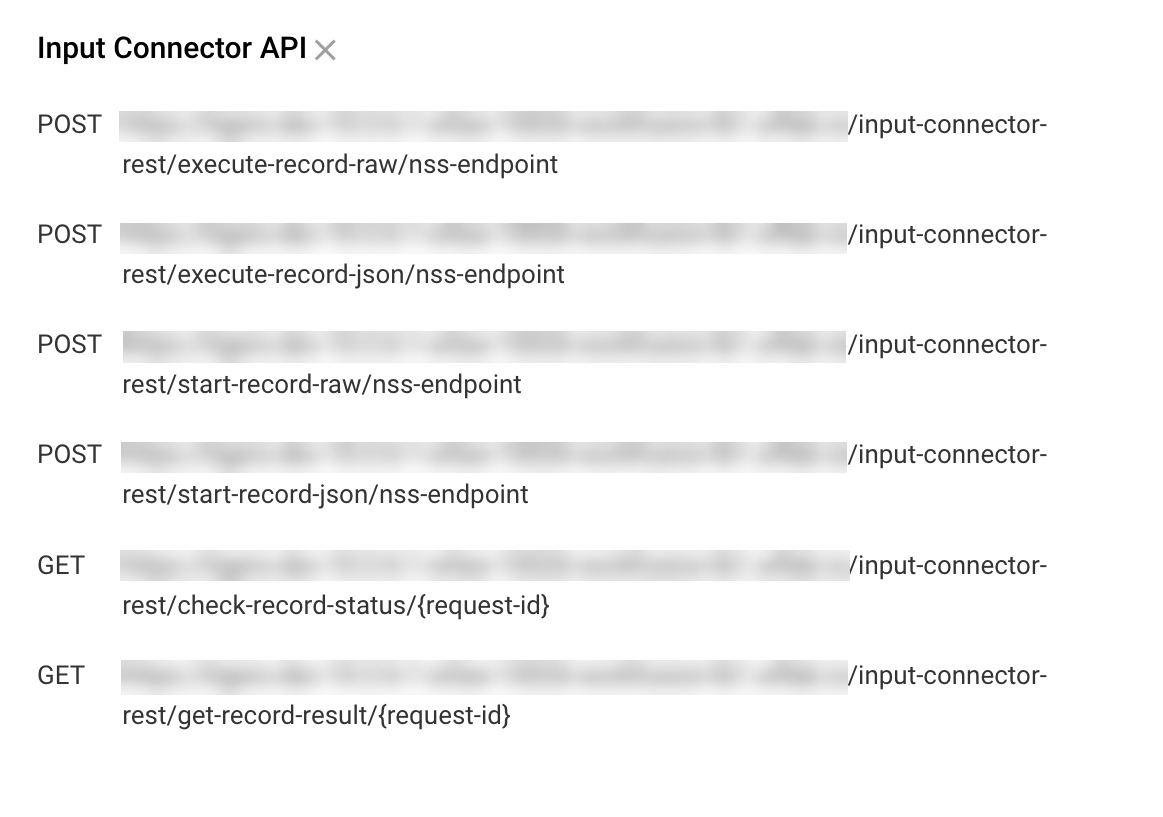
For NSS, only asynchronous invocation is supported. In this case, use only the following endpoints:
/start-record-rawto start a BP./check-record-statusto check the status of the running transaction./get-record-resultto get the result data of the completed transaction.
- Running AI Agents via REST API to learn about invoking transactions and getting access to their token.
- Evelyn API to see the detailed description of endpoints.
- Process transactions with REST connector
REST API request
Evelyn supports the following JSON structure for triggering screening. The structure depends on the selected screening system.
Additionally, a JSON request might include the following elements:
hitsconfiguration
Full alert screening JSON template
{
    "input_id": String (required),
    "input_full_name": String (required),
    "input_aliases": [
      alias1, alias2 ...
    ],
    "input_record_type": String,
    "input_gender": String,
    "input_address": [
        {
            "type": String,
            "country": String,
            "state": String,
            "city": String,
            "address": String
        },
        ...
    ],
    "input_date": [
        {
            "type": String,
            "year": String,
            "month": String,
            "day": String
        },
        ...
    ],
    "hits": [
        {
            "hit_id": String (required),
            "hit_matched_name": String (required),
            "hit_aliases": [
              alias1, alias2 ...
            ],
            "hit_record_type": String,
            "hit_gender": String,
            "hit_address": [
                {
                    "type": String,
                    "country": String,
                    "state": String,
                    "city": String,
                    "address": String
                },
                ...
            ],
            "hit_date": [
                {
                    "type": String,
                    "year": String,
                    "month": String,
                    "day": String
                },
                ...
            ]
        }
    ],
    "configuration":
    {
        "mt_assignee": String,
        "mt_title": String,
        "mt_force": String,
        "mt_filter_sla": String,
        ...
    }
}
Dow Jones Risk & Compliance, World-Check One, Thomson Reuters JSON template
The request JSON structure should contain only input elements. If the hits element is present, it is ignored.
{
  "input_id": String (required),
    "input_full_name": String (required),
    "input_aliases": [
      alias1, alias2 ...
    ],
    "input_record_type": String,
    "input_gender": String,
    "input_address": [
        {
            "type": String,
            "country": String,
            "state": String,
            "city": String,
            "address": String
        },
        ...
    ],
    "input_date": [
        {
            "type": String,
            "year": String,
            "month": String,
            "day": String
        },
        ...
    ],
    "configuration":
    {
        "mt_assignee": String,
        "mt_title": String,
        "mt_force": String,
        "filter_attribute_1": String,
        ...
    }
}
Firco Trust Case Manager API JSON template
Once the screening with Firco Trust System is initiated, all existing messages are processed via a BP.
Firco Trust business units and units coming from a REST request have a higher priority than the AI Agent configuration.
{
  firco_trust_b_unit: String,
  firco_trust_unit: ["unit_1", "unit_2"]
}
REST API response
After a successful run, the BP sends a response. The response JSON structure can be different, depending on the selected screening system.
If you enable Quality Check (QC) or HTML reports when configuring the AI Agent, the REST response will include hyperlinks to the reports.
Full alert screening JSON template
{
    "input_id": String,
    "alert_resolution": String,
    "alert_explanation": String,
    "html_report_link": String,
    "qc_report_link": String,
    "hits": [
        {
            "hit_id": String,
            "hit_resolution": String,
            "hit_explanation": String
        }
    ]
}
Dow Jones Risk & Compliance, World-Check One JSON template
{
    "input_id": String,
    "alert_resolution": String,
    "alert_explanation": String,
    "html_report_link": String,
    "qc_report_link": String,
    "hits": [
        {
            "hit_id": String,
            "hit_resolution": String,
            "hit_explanation": String
        }
    ]
}
Firco Trust Case Manager API JSON template
{
    "report_link": []
}
Example of REST API response with hit decision scores
{
    "input_id": "1",
    "alert_resolution": "Needs further review",
    "alert_explanation": "This case can not be evaluated as false positive because there is a hit required additional review",
    "hits": [
        {
            "hit_id": "1",
            "hit_resolution": "False positive",
            "hit_explanation": "False Positive.\nStrong name mismatch (\"THE NEW BROWN FAMILY TRUST\", \"ABCD TEST T\"). ",
            "hit_score": "0.69"
        },
        {
            "hit_id": "2",
            "hit_resolution": "Need more information",
            "hit_explanation": "Please review manually. Not enough information to disposition.\nStrong name match (\"THE NEW BROWN FAMILY TRUST\", \"NEW BROWN FAMILY\"). \nWeak location mismatch (\"Los angeles, Ca, Usa\", \"VA USA\"). ",
            "hit_score": "1.0"
        }
    ],
    "html_report_link": "https://link.to.html_report.html",
    "qc_report_link": "https://link.to.qc_report.csv"
}
REST API configuration map
You can send a JSON configuration as part of REST requests to override the AI Agent's configuration associated with processing Manual Tasks (MT).
Default parameters
The following parameters, if sent, are processed by Evelyn to configure manual review assignments:
mt_assigneesets an assignee for an assignment in Workspace. For details, see Define task assignees.mt_prioritysets the assignment priority. For details, see Set assignment priority.mt_titlesets the assignment title. For details, see Adjust assignment title.mt_forceforces a request to go to the manual review step.- If the parameter is set to
true, the request goes to the manual review step regardless of the AI Agent's configuration. - If set to
false, the manual review step is skipped regardless of the AI Agent's configuration.
- If the parameter is set to
Additional parameters
In addition to the default ones, you can send any other parameters as part of the configuration map, including to create filter attributes.
Sample request
In the example, mt_filter_sla can be used to create filter attributes.
{
    "input_id": "183800066.6686744",
    "input_full_name": "PINKAL PATEL",
    "input_record_type": "INDIVIDUAL",
    "input_gender": "",
    "input_address":
    [
        {
            "type": "",
            "country": "USA",
            "state": "CT",
            "city": "BERLIN"
        }
    ],
    "input_date":
    [
        {
            "type": "DOB",
            "year": "1976",
            "month": "07",
            "day": "05"
        }
    ],
    "hits":
    [
        {
            "hit_id": "149868084",
            "hit_matched_name": "PINKAL P PATEL",
            "hit_record_type": "INDIVIDUAL",
            "hit_gender": "",
            "hit_address":[],
            "hit_date":[]
        }
    ],
    "configuration":
    {
        "mt_assignee": "aharhots1",
        "mt_title": "PINKAL PATEL - WKSFN2342",
        "mt_force": "true",
        "mt_filter_sla": "01/01/2024"
    }
}
Start Business Process from REST API with CSV file
To start the core NSS BP from REST API with a CSV file, make sure you selected WorkFusion API as the input source when configuring Evelyn.
Before running the BP, open the required process definition and navigate to the Data tab. Then, click Upload Data and upload a CSV file.
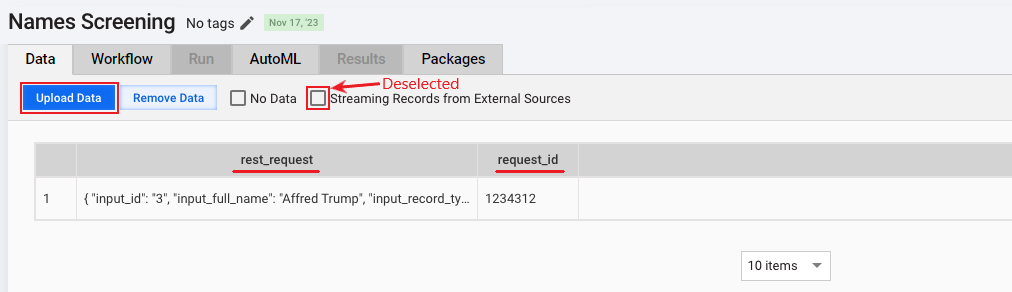
The CSV file must include the two required column headers:
request_idrepresenting the unique ID used for internal NSS processing.rest_requestcontaining the request to be parsed in NSS. It needs to be provided as JSON and must contain all required screening details.Sample JSON
"{
  ""input_id"": ""3"",
  ""input_full_name"": ""Affred Trump"",
  ""input_record_type"": ""person"",
  ""input_gender"": ""male"",
  ""input_address"": [
    {
      ""type"": ""citizenship"",
      ""country"": ""USA"",
      ""state"": ""NY"",
      ""city"": ""New York""
    }
  ],
  ""input_date"": [
    {
      ""type"": ""DOB"",
      ""year"": ""1949"",
      ""month"": ""06"",
      ""day"": ""14""
    }
  ],
  ""hits"": [
    {
      ""hit_id"": ""3_1"",
      ""hit_matched_name"": ""DoNald Trump"",
      ""hit_record_type"": ""INDIVIDUAL"",
      ""hit_gender"": ""male"",
      ""hit_address"": [
        {
          ""type"": ""citizenship"",
          ""country"": ""USA"",
          ""state"": ""NY"",
          ""city"": ""New York""
        }
      ],
      ""hit_date"": [
        {
          ""type"": ""DOB"",
          ""year"": ""1949"",
          ""month"": ""06"",
          ""day"": ""14""
        }
      ]
    }
  ]
}"
When you use REST API with a CSV file as a request source, Evelyn generates Quality Check and HTML reports as configured. One report is generated per REST request with all associated hits.
Track NSS API request status
To support REST request tracking, Evelyn is enhanced with the capability to update a dedicated Data Store when an MT is created, saved, or completed.
The tracking feature works only if you meet the following requirements:
Selected WorkFusion REST API as the input source during the AI Agent's configuration.
Created a Secrets Vault entry using the following parameters:
- Alias:
workspace_url - Key: URL to Workspace
- Value: leave empty
If no Secrets Vault entry is found during NSS processing, the request status contains an error and prompts you to create a Secrets Vault entry.
- Alias:
Evelyn updates the dedicated uc_B_AML_PEP_request_status_v3_0 Data Store with the current request progress in the following cases:
When an MT is ready for review.
The current request ID in the Data Store is updated with the
READY_FOR_MTstatus. The message contains a link to the MT corresponding to the current alert.After the MT is resolved.
The current request ID in the Data Store is updated with the
MT_COMPLETEDstatus. The message is empty until record processing is in progress.After NSS processing is finished.
The current request ID in the Data Store is updated with the
FINISHEDstatus. The message is updated with the NSS REST output contract.
For more details, see Understand NSS data flow | Tracking request status table.
View and submit assignment in Workspace
Before reviewing assignments, make sure you have required Workspace permissions and a secret entry for the Workspace URL in Secrets Vault.
Once Evelyn triggers the human-in-the-loop capability, the respective Manual Task becomes available in Workspace as an assignment in the assignment list.

The assignment page displays the following details:
Input data
Hits
Original model decisions
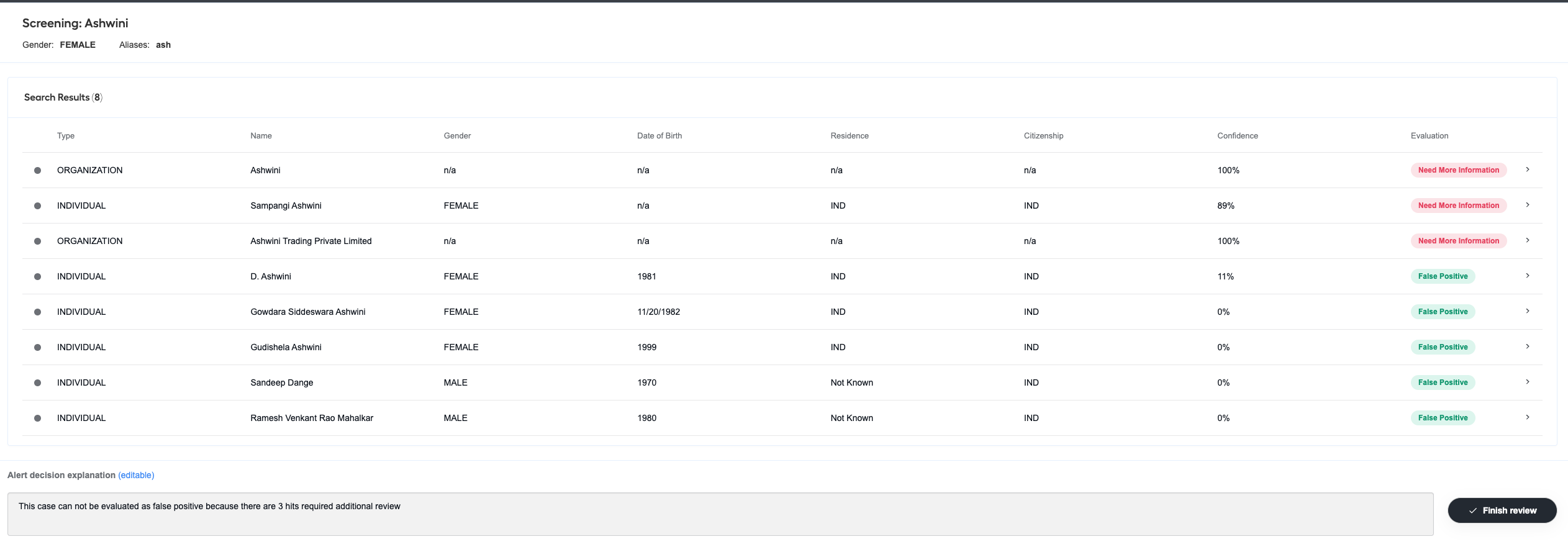
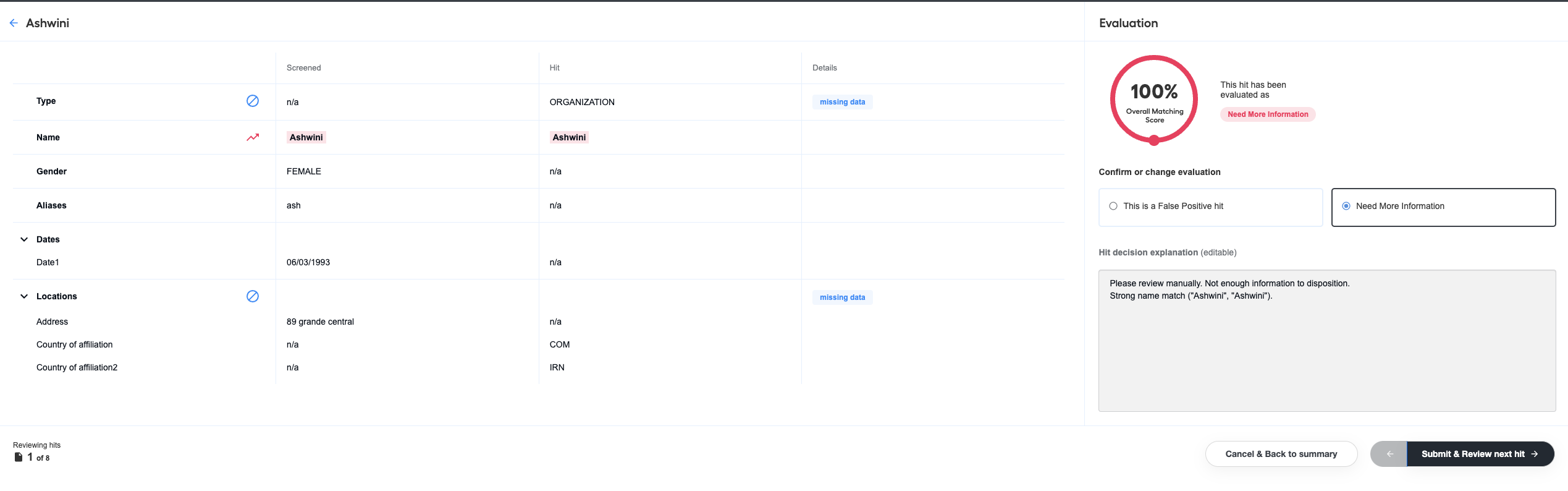
On the page, click any hit to drill down to its details page, review all information related to the hit, and verify or modify the original model decision and the explanation.
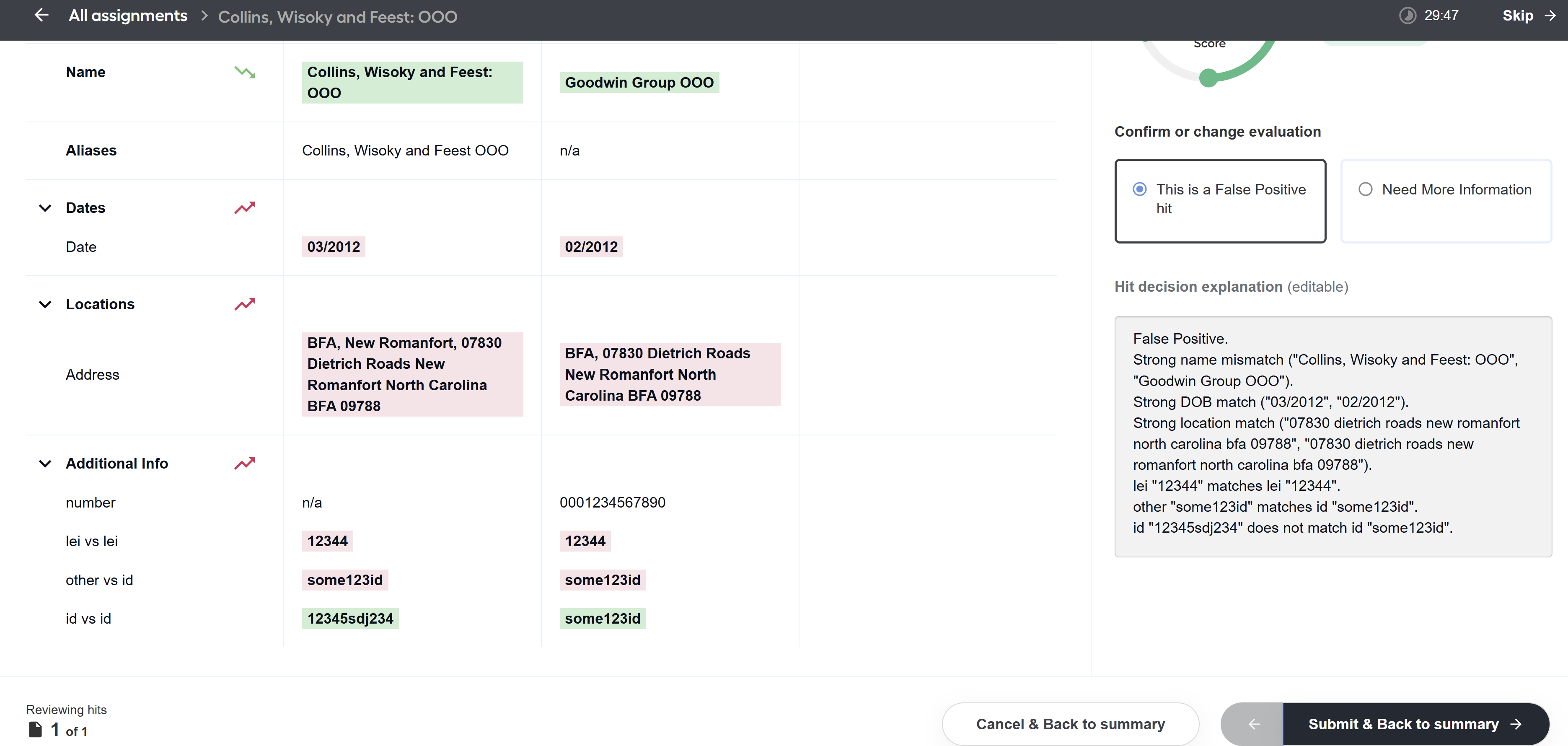
Manual Tasks display comparison results for each pair of entities. Comparison result values are color-coded according to the model decision. For example, red corresponds to a match and green to a mismatch.
After you review all hits, you can submit the assignment, and its results are fed back to the BP. Upon submission, the reviewer's decision and explanation are also updated in the NSS analytics.
Review screening results
You can review screening results in either of the two ways:
Review assignments in Workspace if you set up the Human in the Loop step when configuring the AI Agent.
View the results of the BP execution in the Quality Check or HTML reports.