Install and configure
The guide provides instructions on installing and configuring the Tara AI Agent.
Check requirements
WorkFusion uses the following options to install and run Tara for transaction screening:
- On your premise
- In your cloud
- In a private cloud hosted by WorkFusion
Hardware
The requirements are for the on-prem installation type.
The servers must conform to the following standards:
| Server | Recommended OS | CPU (Cores) | RAM (GB) | HDD (GB) |
|---|---|---|---|---|
| Master | RHEL/CentOS 8.10 | 8 | 32 | 750 |
| BEP Agent | RHEL/CentOS 8.10 | 8 | 32 | 150 |
| Superset Analytics | RHEL/CentOS 8.5 | 2 | 4 | 50 |
| MS SQL | Microsoft Windows Server 2019 | 4 | 16 | 500 |
For the architecture deployment, refer to Install AI Agents | View architecture deployment.
Software
- IA Cloud v10.2.7, Work.AI v10.2.8 or 10.2.9
- ODF 2
- Python 3
Performance
The performance metrics are for the on-prem installation type.
The PSS skill leverages BEP servers that can be horizontally scaled for higher volumes.
Below is a sample of the volumes that can be expected when using the provided version and configuration. The system shows stable performance and resource consumption during the whole test without unexpected spikes and errors or any critical errors and warnings in logs.
Testing results on Tara v3.1.13
Configuration:
| Environment topology | Tested platform version | Number of RPA Bots | Number of OCR Workers | Machine Learning (ML) Worker configuration | Control Tower Worker configuration |
|---|---|---|---|---|---|
| 3 BEP Agents | 10.2.9.1 | 5 | 7 | 1 CPU / 4 GB memory | 0.4 CPU / 2 GB memory |
Results:
| Number of Agents | Number of alerts | Processing time |
|---|---|---|
| 3 | 20,000 | 1 hr 1 min |
Here, one payment alert = five hits.
Install
See the Install AI Agents guide.
Configure
You can configure or update the AI Agent configuration in one of the following ways:
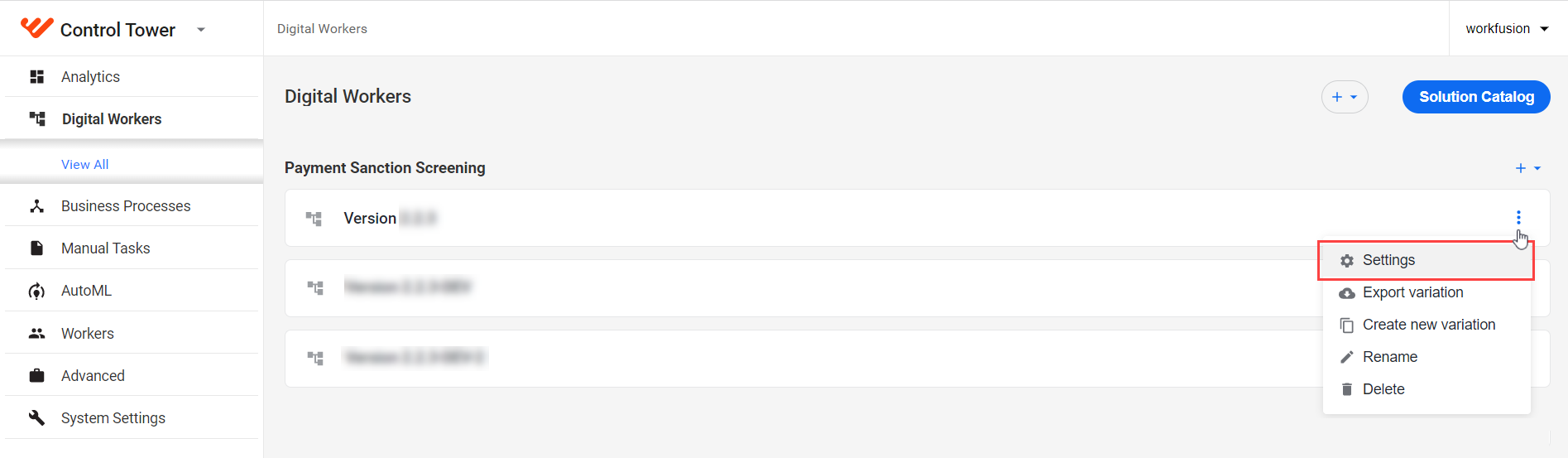
Go to the Digital Workers tab, select your Business Model, click the Actions menu, and select Settings.
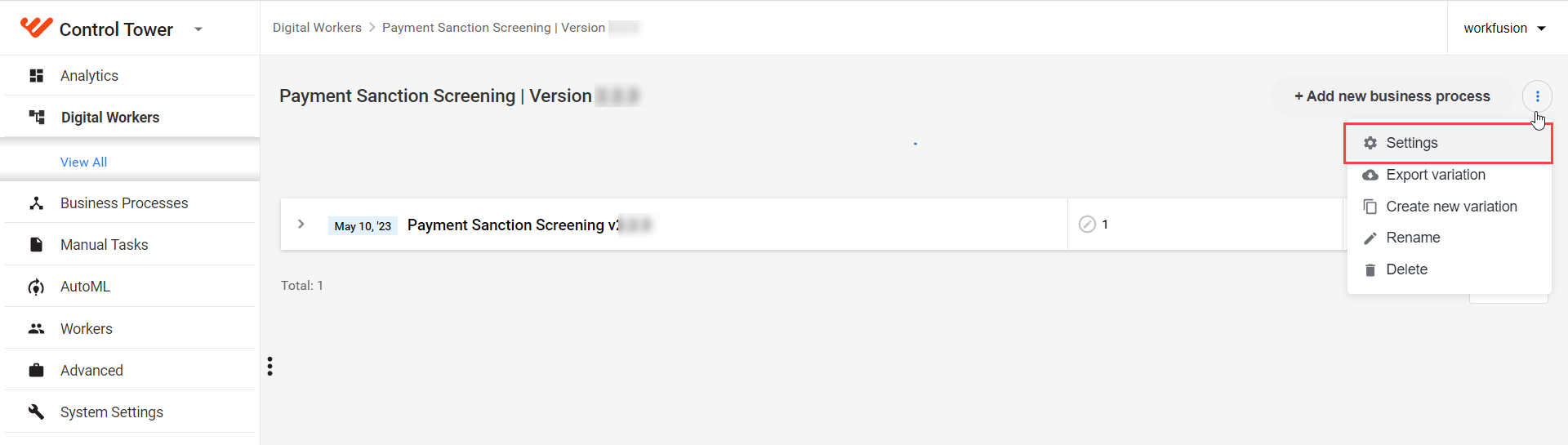
Go to the Digital Workers tab and click your Business Model. On the Business Processes tab, click the Actions menu and select Settings.
Configure the following settings:
Use the Next or Back buttons to navigate between configuration screens. Click Finish to save the changes.
Input
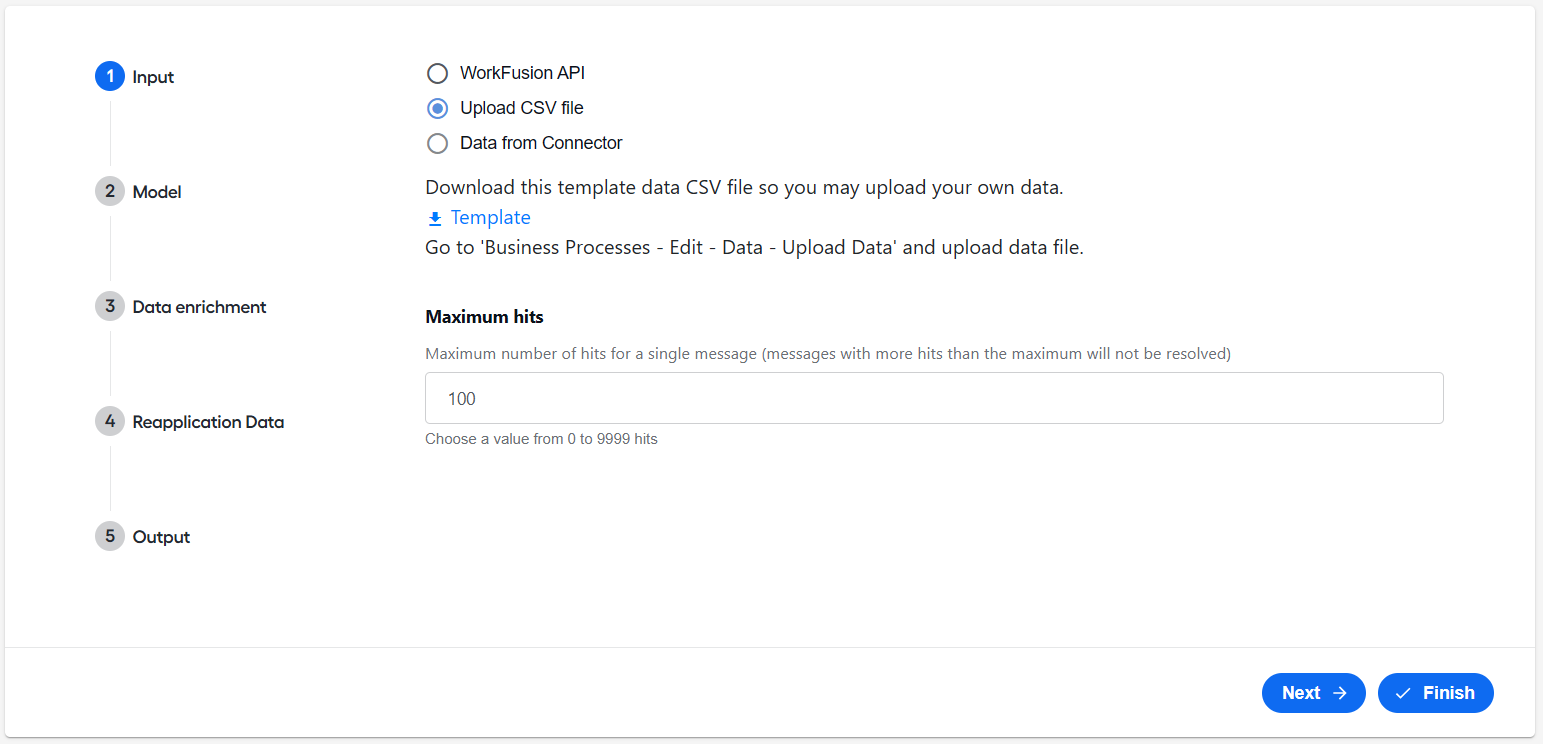
In the Input section, specify the way to supply data to your BP.
Choose one of the following options:
In the Maximum hits field, define the maximum number of hits per alert. Alerts exceeding this threshold will not be resolved.
Model
In the Model section, configure the model settings:
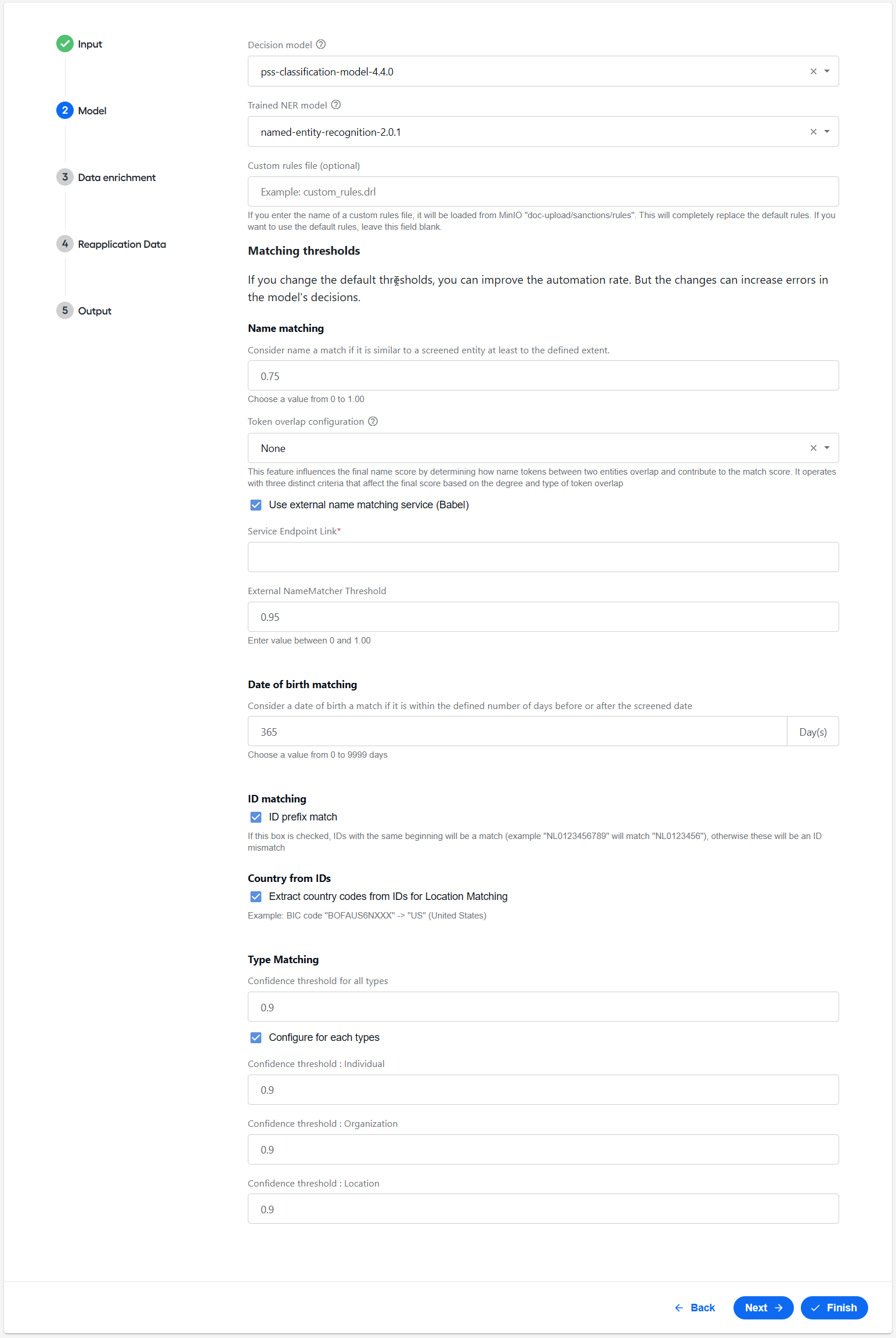
In the Decision model drop-down list, select a compatible model. If none is selected, the default (latest) one is used.
In the Trained NER model drop-down list, select a Named Entity Recognition (NER) model. If none is selected, the default (latest) one is used.
In the Custom rules file (optional) field, provide a unique name for a custom rule file located in a designated directory to prevent overwriting during updates. When configured, the file is used instead of the default rules. You can have multiple versions of the custom rule file.
infoThe default rule file is stored in a versioned directory, such as
doc-upload/sanctions/{$tara_version}/rules/rules_v1.drl. Modifying the default file is not recommended.In the Matching thresholds section > the Name matching field, enter a value between 0 and 1.00. Consider names a match if they are similar to a screened entity at least to the defined extent.
Scores closer to 0 indicate less similarity, while scores closer to 1.00 indicate more similarity. Below the threshold, names are considered different, resulting in a mismatch. Above the threshold, names are considered similar and referred to as a match.
The default value is 0.75. For example, a name with a predicted match score of 0.75 or higher is considered matching or partially matching.
noteIncreasing the threshold value might reduce name matches, potentially increasing automation and error rates.
In the Token overlap configuration drop-down list, select one of the following options:
None (default) does not apply specific token overlap criteria, resulting in the final name score determined by other matching methods or defaults.
Rare boosts the name score for rare or unique token overlaps, favoring matches where unique identifiers are critical. For example,
"SBERBANK ZRT"versus"CORPORATE UNIVERSITY OF SBER BANK"results in a name match if selected.Screened prioritizes matches where the screened name is contained within the Watch List Entity (WLE) name. For example,
"Doors LLC"versus"Wood Doors Installation Services LLC"results in a match if selected.
Select Use external name matching service (Babel) to enable the Babel street name matcher that overrides the default name matcher score.
- In the Service Endpoint Link field, specify the REST endpoint for the external service.
In the External Name Matcher Threshold field, set a number between 0 and 1 for invoking the external service. For example, if the default matcher's score is between 0.75 and 0.95, the external service is used. Scores from the external service will override the default matcher if lower.
warningSetting the external name matcher threshold to 1.0 is not recommended.
In the Date of birth matching field, enter a value between 0 and 9999. Dates within this range are considered matching.
The default value is 365. Thus, if Tara identifies birth dates that are within 365 days of each other, it considers them a match. When two birth dates are more than the specified number of days apart, they are considered a mismatch.
In the ID matching section, select ID prefix match to match IDs with the same prefix. For example,
"NL0123456789"matches"NL0123456".In the Country from IDs section, the Extract country codes from IDs for Location Matching option is selected by default for Tara to extract country codes from known ID types. For example, in
IT26S0306933090100000003191,ITis extracted for Italy. To disable the feature, deselect the option.In the Type Matching field, set a confidence threshold for a NER predicted type. Enter a value between 0 and 1.00. NER types below this confidence are marked as
NON-ENTITY. The default value is 0.9.To configure the thresholds per message type, select the Configure for each types option. You can define thresholds for the Individual, Organization, and Location types.
Data enrichment
In Data enrichment > Address verifier, specify external data sources to retrieve additional data. Select Google Web Services and provide a valid access token:
In the Google Maps API Key field, enter your Google Maps API key for address verification. For more details on getting a key for a Google Cloud account, see Using the Google Maps Platform.
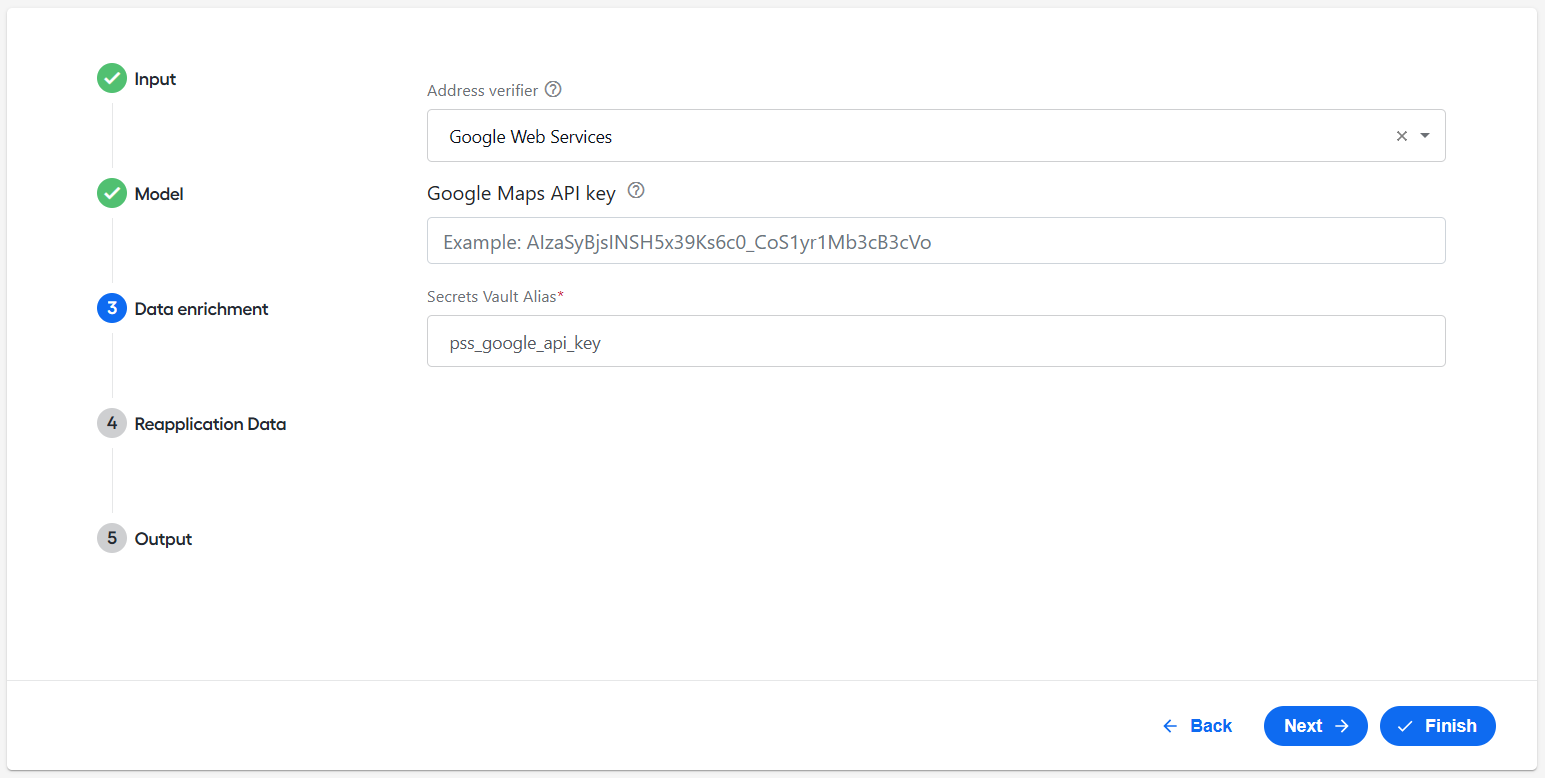
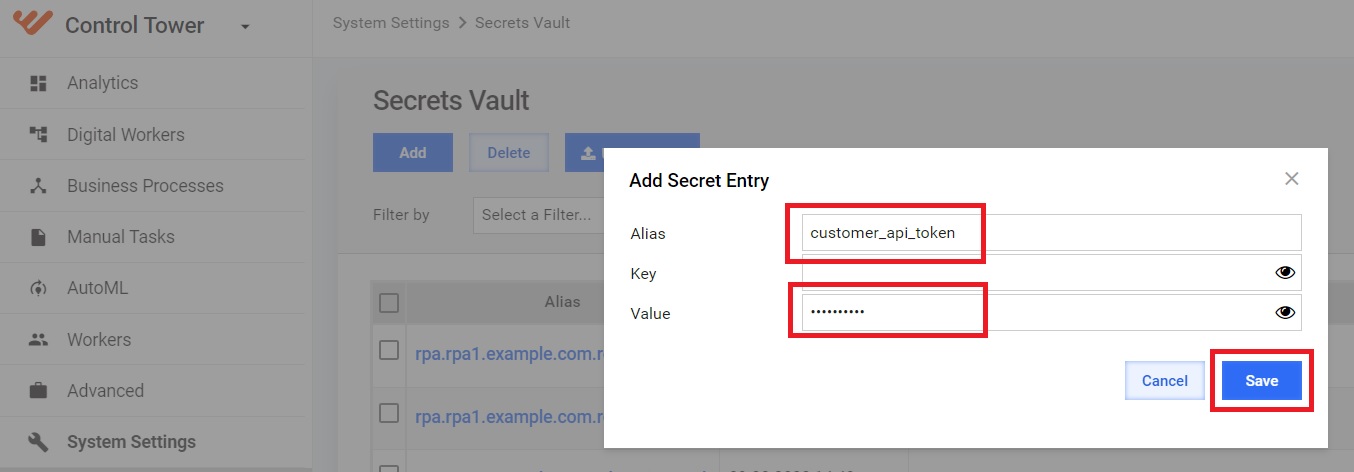
In the Secrets Vault Alias field, provide the alias that identifies your secure entry.
Reapplication data
In Reapplication Data > Enable DR Processing, select yes to enable the decision reapplication flow. By default, the feature is disabled.
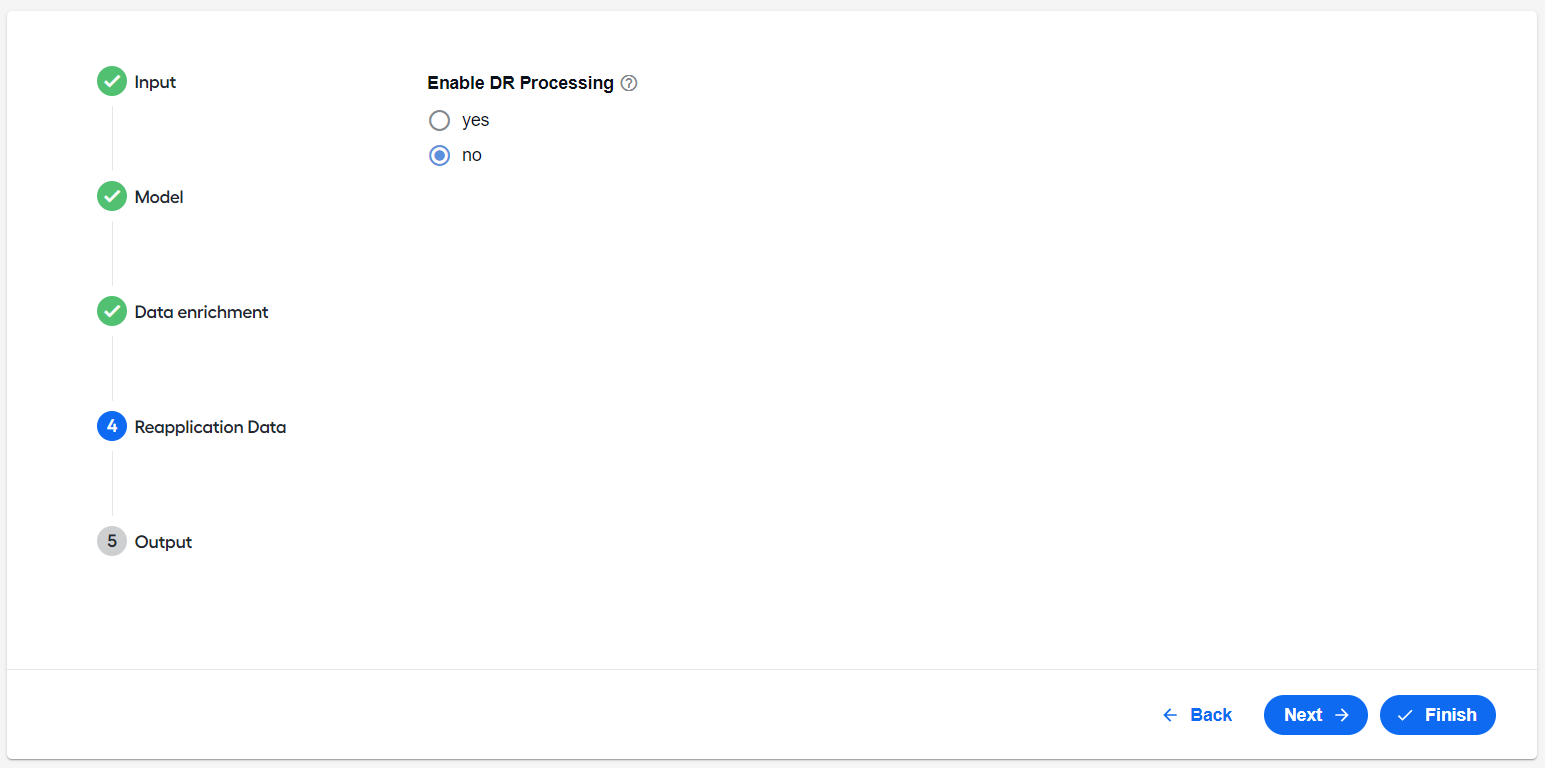
When enabled, configure the following settings:
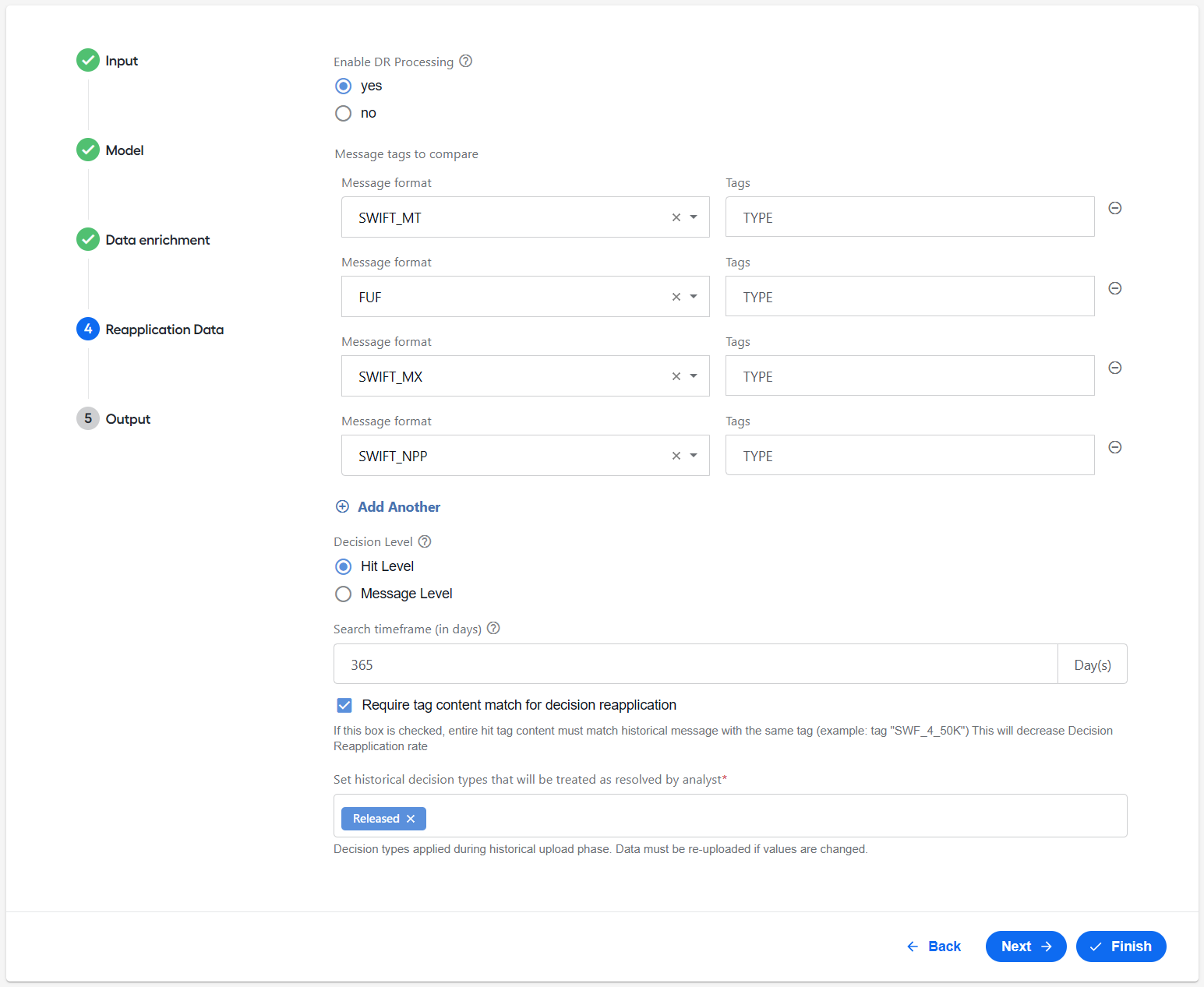
Add message tags.
In the Message Format drop-down list, specify the message type to target for decision reapplication. The supported formats include FUF, SWIFT_MT, ISO20022(SWIFT_MX), and SWIFT_NPP.
In the Tags field (optional), enter tag names from an alert as comma-separated values that are used to compare against historical data together with hashed hit content. TYPE is recommended.
To add additional message types, click Add another.
Select the Decision Level option. Specify the level on which the decision reapplication will be applied:
- Hit Level resolves individual hits matching historical decisions.
- Message Level resolves the entire message if all hits match historical decisions.
In the Search timeframe (in days) field, specify the maximum number of past days to search for historical data. Older decisions will not be considered for reapplication. If a value is missing, the default value of 365 days is applied.
Select the Require tag content match for decision reapplication option to enforce strict tag content matching for decision reapplication. Enabling this decreases reapplication rates.
Set historical decision types to be treated as resolved by an analyst. Specify codes from historical files to mark alerts as RESOLVE (released) during historical data uploads. Reload historical alerts to apply changes.
For more details on the feature, see Business Process overview | Ingest Historical Decisions for Reapplication Business Process and Apply continuous learning.
Output
In the Output section, enable generating HTML or quality control (QC) reports after a BP run.
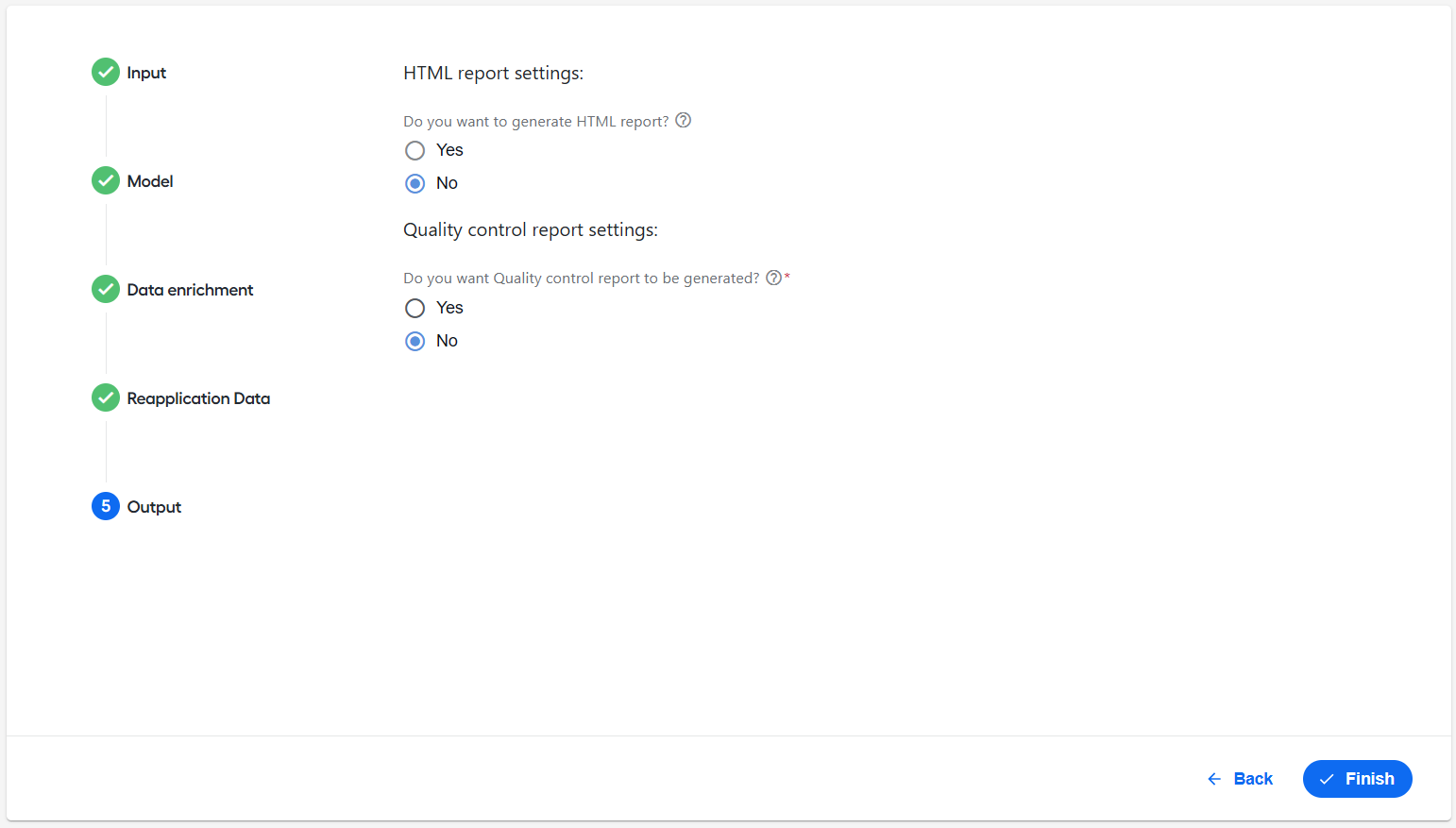
To enable generating HTML reports, select Yes for Do you want to generate HTML report?.
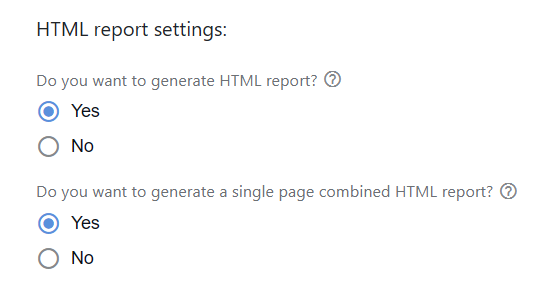
- Do you want to generate a single page combined HTML report?. Select Yes to generate a single report file for all sanctioned hits. Otherwise, select No to generate separate files for each sanctions hit.
For more details on how to find a generated report, see Run screening | View results.
To enable generating QC reports, select Yes for Do you want Quality control report to be generated?. A QC report provides a snapshot of all the data fields of messages and their corresponding hits in the CSV format. If enabled, you can run the PSS QC report BP manually or on schedule.
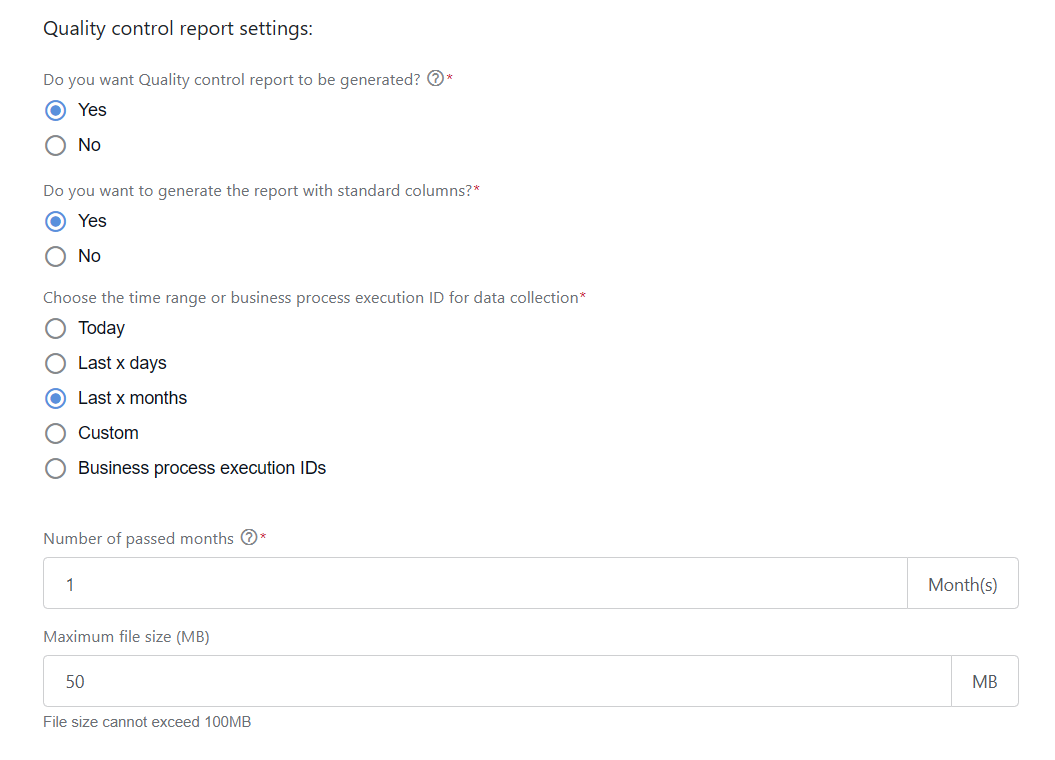
Do you want to generate the report with standard columns?. Select Yes to generate a report using standard columns provided in the file in S3, for example,
doc-upload/payment_sanctions_screening/QC_Reports/qc_report_template.csv. For reference, see the sample template:qc_report_template.csv.If you select No, upload a custom
qc_report_template_custom.csvfile to the same S3 location as above. In the file, you can use a truncated version of the original template file, selecting the columns required for your reporting purposes.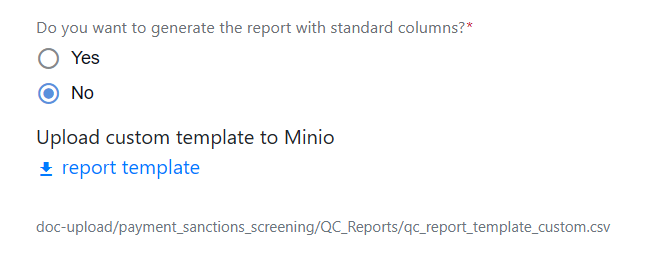
Choose the time range or business process execution ID for data collection. Select one of the following options:
Today. Collect data from 12 AM to the current time.
Last x days. Specify a range that includes the current date. In the Number of passed days field, enter a value between 1 and 31.
Last x months. Specify a range that includes the current date. In the Number of passed months field, enter a value between 1 and 12.
Custom. In the From and To calendar widgets, define a date range.
Business process execution IDs. In the UUIDs field, enter one or more BP run UUIDS to limit results to specific executions.
In the Maximum file size (MB) field, set the maximum file size (up to 100 MB). If exceeded, multiple files are created.
Customize configuration settings
During the AI Agent configuration phase, a BP starts with reading the settings from the configuration.json file that contains all parameters required to load data and control a data flow.
Sample configuration.json
{
  "input": {
    "source": "file",
    "message_datastore_name": "pss_request_processing_v1",
    "ml_thresholds_datastore_name": "pss_payment_transfer_thresholds_v1",
    "filter_datastore_name": "pss_payment_transfer_filtering_rules_v1",
    "fuf_tag_datastore_name": "pss_fuf_tags_list_v1",
    "swift_tag_datastore_name": "pss_swift_tags_list_v1",
    "iso20022_tag_datastore_name": "pss_iso20022_tags_list_v1",
    "maximumHits": 100
  },
  "model": {
    "model_id": "",
    "ner_model_id": "",
    "go_forward_on_failure": "false",
    "default_model_Id": "pss-classification-model-v4.3.4",
    "default_ner_model_Id": "named-entity-recognition-1.6.16",
    "nameMatchThreshold": 0.75,
    "dobMatchThreshold": 365,
    "typeConfidenceThreshold": 0.9,
    "individualConfidenceThreshold": 0.9,
    "organizationConfidenceThreshold": 0.9,
    "locationConfidenceThreshold": 0.9,
    "vesselConfidenceThreshold": 0.9,
    "aircraftConfidenceThreshold": 0.9,
    "matchIfRareTokenOverlap": "none",
    "idPrefixMatch": false,
    "extractCountryFromId": true
  },
  "useExternalNameMatchingServiceBabel": false,
  "configureForEachTypes": false,
  "qcReport": {
    "StandardColumns": "yes",
    "searchBy": "TODAY",
    "splitReportBy": "SIZE",
    "maxVolume": 50
  },
  "output": {
    "generate_report": false,
    "onePageReport": false
  },
  "decisionReapplication": {
    "isEnabled": false,
    "tagsToCompare": "",
    "numDaysToLookBack": "365",
    "level": "hit",
    "matchTagContent": false,
    "resolveType": "Released",
    "setupDataGrid": [
      {
        "drMessageType": "swift_mt",
        "tagsToCompare": "TYPE"
      },
      {
        "drMessageType": "fuf",
        "tagsToCompare": "TYPE"
      },
      {
        "drMessageType": "swift_mx",
        "tagsToCompare": "TYPE"
      },
      {
        "drMessageType": "swift_npp",
        "tagsToCompare": "TYPE"
      }
    ]
  },
  "container": {}
}
Default configuration parameters
You can customize some settings, some are hidden from the user interface and cannot be changed.
The default configuration parameters are listed below.
Input parameters
message_datastore_namecontains processing data, including new and updated messages during BP execution.ml_thresholds_datastore_namecontains the mapping of decision codes, such as definitions, confidence thresholds, and decisions.fuf_tag_datastore_namecontains the FUF dictionary of entity attributes and their associated types.swift_tag_datastore_namecontains the SWIFT dictionary of entity attributes and their associated types.iso20022_tag_datastore_namecontains the ISO20022 dictionary of entity attributes and their associated types.maximumHitsrefers to the maximum number of hits per alert. Alerts exceeding this limit are auto-dispositioned as no decision.
Model parameters
model_idis the ML model for processing input data to determine possible false positive hits. If not provided, thedefault_model_Idvalue is used.ner_model_idis the NER ML model for processing input data to determine possible entity types. If not provided, thedefault_ner_model_Idvalue is used.go_forward_on_failureis required to run AutoML Bridge.default_model_Idis the model version that comes with the bundle during the release.default_ner_model_Idis the model version that comes with the bundle during the release.nameMatchThresholdcontrols the outcome of the name matcher score and name match and mismatch decision.dobMatchThresholdcontrols the outcome of the date of birth (DOB) matcher and DOB match and mismatch decision.filter_datastore_namecontains alert filtering rules and adjudicates only alerts that match the defined rules. If not defined, all data is processed by the model.useExternalNameMatchingServiceBabelenables the Babel name matcher for cross-verification of name matcher results, when set totrue.typeConfidenceThresholdsets the confidence level for NER-predicted types. NER prediction is trusted when the confidence score exceeds or equals the threshold. The default value is 0.9.configureForEachTypessets the type confidence score for each type separately. The default value isfalse.matchIfRareTokenOverlapinfluences the name matcher score calculation. The default value isnone. When set totrue, a hit on a rare token increases the score, lowering the error and automation rates.idPrefixMatchinfluences the ID matching logic based on prefix similarity. The default value isnone.extractCountryFromIdextracts country data from IDs for location matching. The default value istrue.
HTML report output parameters
generate_reportgenerates HTML reports stored on the MinIO server. The default value isfalse.onePageReportdetermines whether reports should be single-page or multi-page.
QC report parameters
StandardColumnsuses the default report template. The default value isyes. Otherwise, provide a custom file.searchByspecifies the search scope. The default value isTODAY.splitReportBylimits the report size. The maximum file size value (maxVolume) is 50 MB.
CLDS parameters
isEnabledenables the data reapplication functionality, when set totrue.drMessageTypeandtagsToComparetarget specific message types and tags to be included in the CLDS processing. The supported formats are SWIFT_MT, SWIFT_MX, SWIFT_NPP, and FUF.numDaysToLookBackdefines the range to search historical data for matching records. The default values is 365 days.levelspecifies a decision reapplication level. The default value ishit.matchTagContentdetermines if content must match between tags. The default value isfalse.resolveTypesets a historical decision type that should be treated as resolved. The default value isReleased.
Data Stores
All Data Stores used in the Transaction Screening processes are built during the bundle import stage. Their names cannot be changed.
| Data Store | Description |
|---|---|
| pss_request_processing_v1 | Stores all requests, processing updates, and decisions. |
| pss_payment_transfer_filtering_rules_v1 | Contains filtering rules, if any. Empty by default. |
| pss_alerts_analytics_v1 | Contains per alert analytics. |
| pss_messages_analytics_v1 | Contains per message analytics. |
| pss_fuf_tags_list_v1 | Contains FUF tags versus type data dictionary. Used when parsing FUF messages. |
| pss_iso20022_tags_list_v1 | Contains ISO20022 tags versus type data dictionary. Used when parsing ISO20022 messages. |
| pss_swift_tags_list_v1 | Contains SWIFT tags versus type data dictionary. Used when parsing SWIFT messages. |
| pss_de_analytics_v1 | Contains analytics of data enrichment service calls for Open Corporates and Geocoder. |
| pss_reapplication_data_v1 | Contains historical data for decision reapplication on the alert level. |
| pss_reapplication_hashcodes_v1 | Contains historical data for decision reapplication on the hit level. |
| pss_request_processing_test_v20_4000 and similar test files | Contains synthetic data generated for testing. |
Dictionaries
The pss_swift_tags_list_v1, pss_fuf_tags_list_v1, and pss_iso20022_tags_list_v1 dictionaries are used for assigning TagType and parsing tagContent. A dictionary has limited entries, so the tagType value is usually FREETEXT. You can update a dictionary and add a particular field parser if needed. Currently, treat it as a framework with limited functionality. If any tag is empty, it cannot have a hit on its value. Thus, empty tagContent is considered as invalid input.
If the
Typetag isFREETEXT, the tag content is passed to the NER model. NER marks each token with a predicted type (IND, ORG, LOC, OTHER). Then, a predicted name is calculated based on a provided hit text or sanctioned name.If the
Typetag isNAME, the model treats the tag content as an entity name.If the
Typetag isNAMEADDRESSofADDRESS, the model finds an address and parses it to determine a country.
Customize models
In Tara v3.x, the model does not make the final decision, and some of the existing settings, such as Resolve when, Escalate when, and Other, do not have an effect. All final decisions are made by the rule engine.
To customize a model, complete the following steps:
Go to AutoML > Datasets and create a test dataset. Memorize its name as you need it in further steps. You can use the sample file with one record to upload to your dataset. For instructions, refer to the Manage datasets topic.
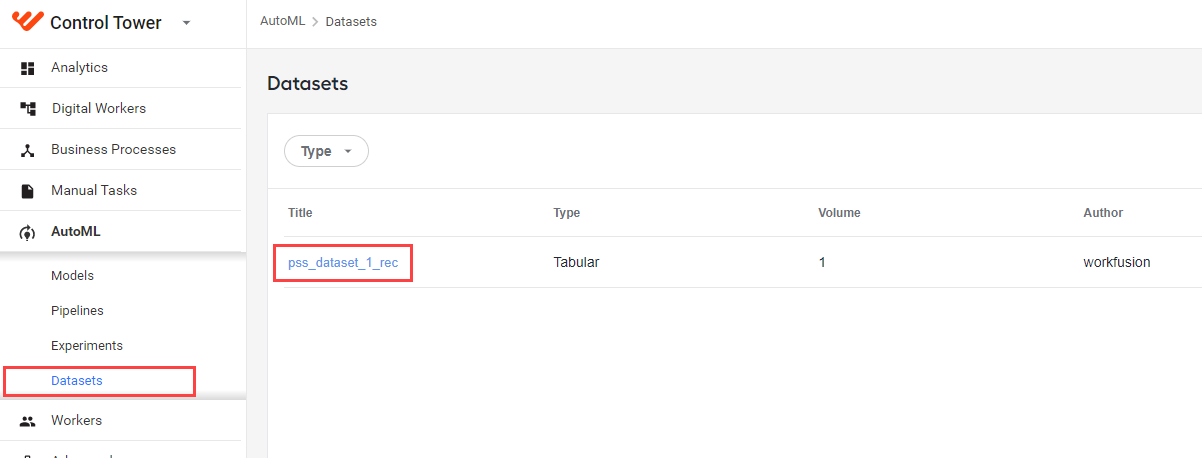
Go to AutoML > Models and find your model in the list.
Click the model's Actions menu and select Copy to modify.
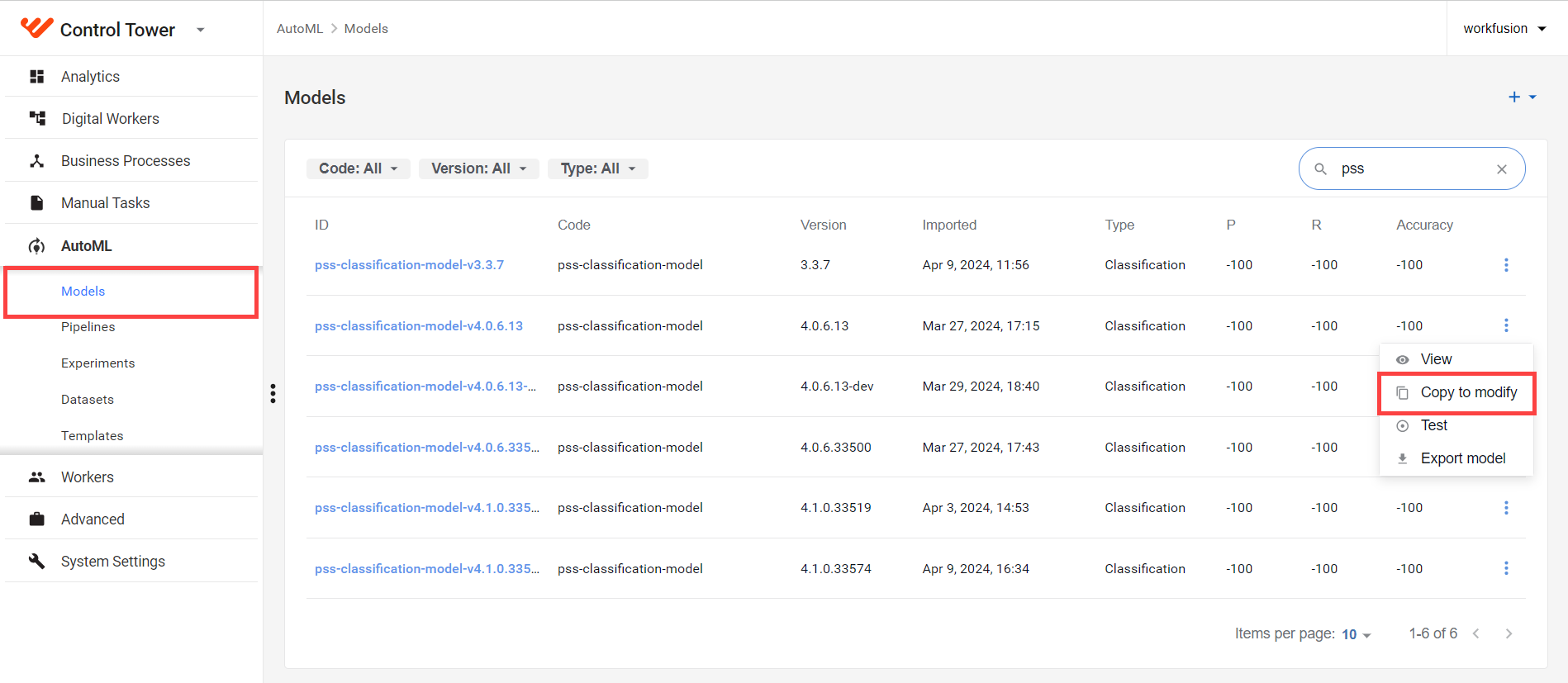
On the Modify window > Prototype > Model ID, specify a new name of the model variant and click Next to continue. Mind that the name must start with pss-classification-model.

On the Testing tab, select the dataset from step 1 and click Next to continue.

On the Rules tab > Blacklist entities, define blacklisted entities.
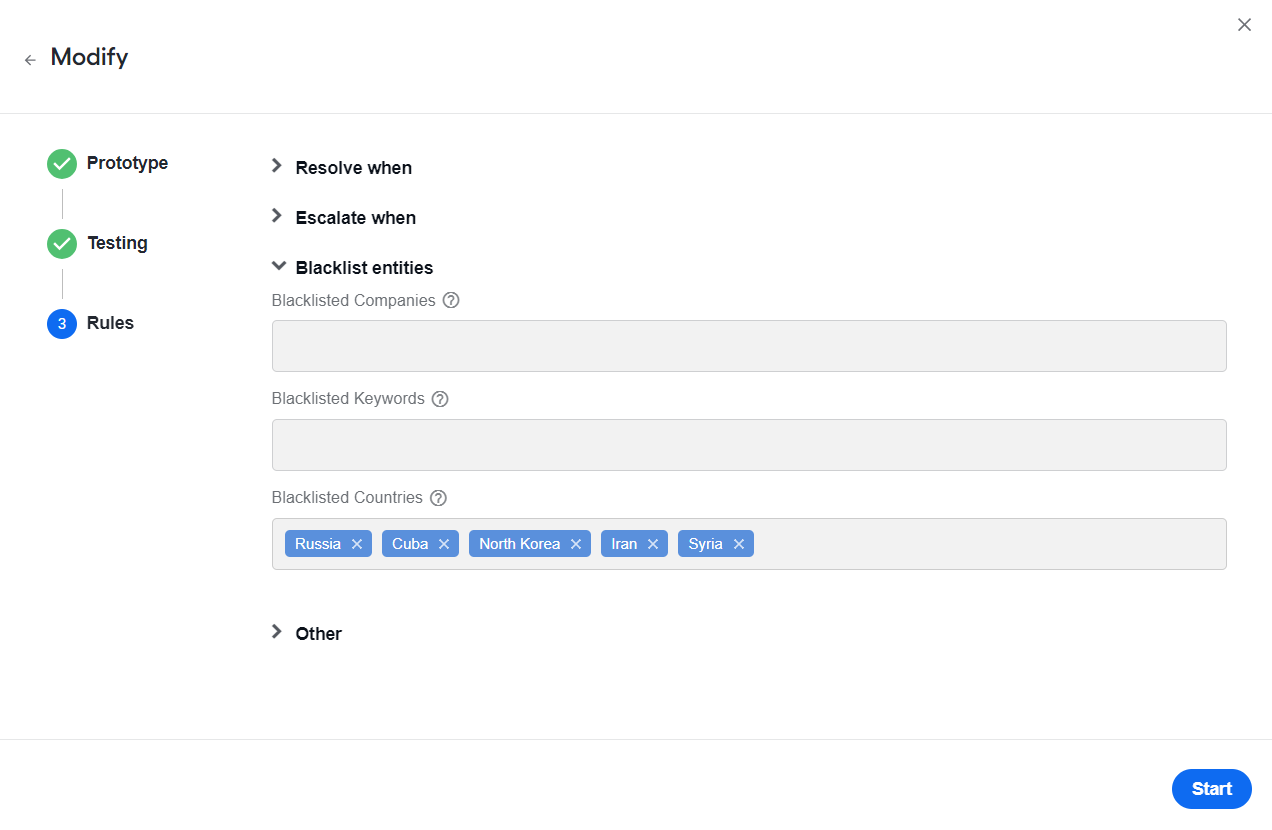
Currently, the following countries are added to the blacklist by default:
- Iran (IRN)
- Cuba (CUB)
- Syria (SYR)
- North Korea (PRK)
- Russia (RUS)
If a screened entity is located in Blacklisted Countries, no decision is returned.
You can add additional blacklisted entities manually. Mind that the fewer entries are blacklisted, the higher the automation rate is.
Click Start to build a new model.
Go to AutoML > Models. The model appears in the list, and you can choose it during the AI Agent configuration.
Add message type
The existing message types are as follows:
- SWF
- GDS
- ACH
- FED
- BBG
- CAM
- IAT
- MEX
- RSGLB
- RSUSA
- EGIFTS
- CHIPS
- ISO_20022
- PAYMENT_TRANSFER
The procedure works only for messages received in the Fircosoft FUF or SWIFT RAW formats.
To add a message type for processing, do as follows:
In the
data-model-apisources, go to theMessageType.javafile and define a new type. Release any changes to the data model API with the updated version. Use the updated version in the project as a dependency.In the dictionary, add details of the entities that belong to the new message type, for example,
pss_fuf_tags_list.csv. The file defines the entity type for the entity attribute and maps message types to the entity attributes. Knowing the entity type greatly improves accuracy of the ML model execution. If the entity type cannot be found, it becomesFREETEXT.
See sample dictionary entries below.
Message type (msgtype) | Attribute name (attrname) | Entity name (entityname) | Type (type) | Description (description) |
|---|---|---|---|---|
| GDS | Colf_Cunry | CollectFrom | Country | Collect from Country Name |
| GDS | Colf_Name | CollectFrom | Name | Collect from Name |
| SWF | SWF_4_30 | Requested Execution Date | Date | date |
| ACH | IAT-ODFIN | Originating | Company | ORIGINATING DFI NAME |
If you add new attribute types to the Type dictionary column, update the AttributeType.java file to match the values of new attribute types. The existing attribute types are as follows:
NAMEINDIVIDUALNAMEADDRESSADDRESSCITYSTATEZIPPOSTALCODECOMPANYCOUNTRYCOUNTRYCODECITYCODENUMBERAMOUNTIDDATEVESSELFREETEXTCODE
Update filtering rules
To adjudicate a specific subset of the data, create a filtering Data Store and set the rules. If a record complies with any defined rules, it is processed by the model.
Mind that:
- Filtering rules apply on the hit level.
- Each row must contain at least one condition.
- If a rule has many conditions, add more rows with the same rule name.
- Allowed values have comma-separated values of the field name. The field can also contain predefined values such as
EMPTYandNOT_EMPTY.
To work with filtering rules, do as follows:
Go to Advanced > Data Stores and select the pss_payment_transfer_filtering_rules_v1 Data Store.
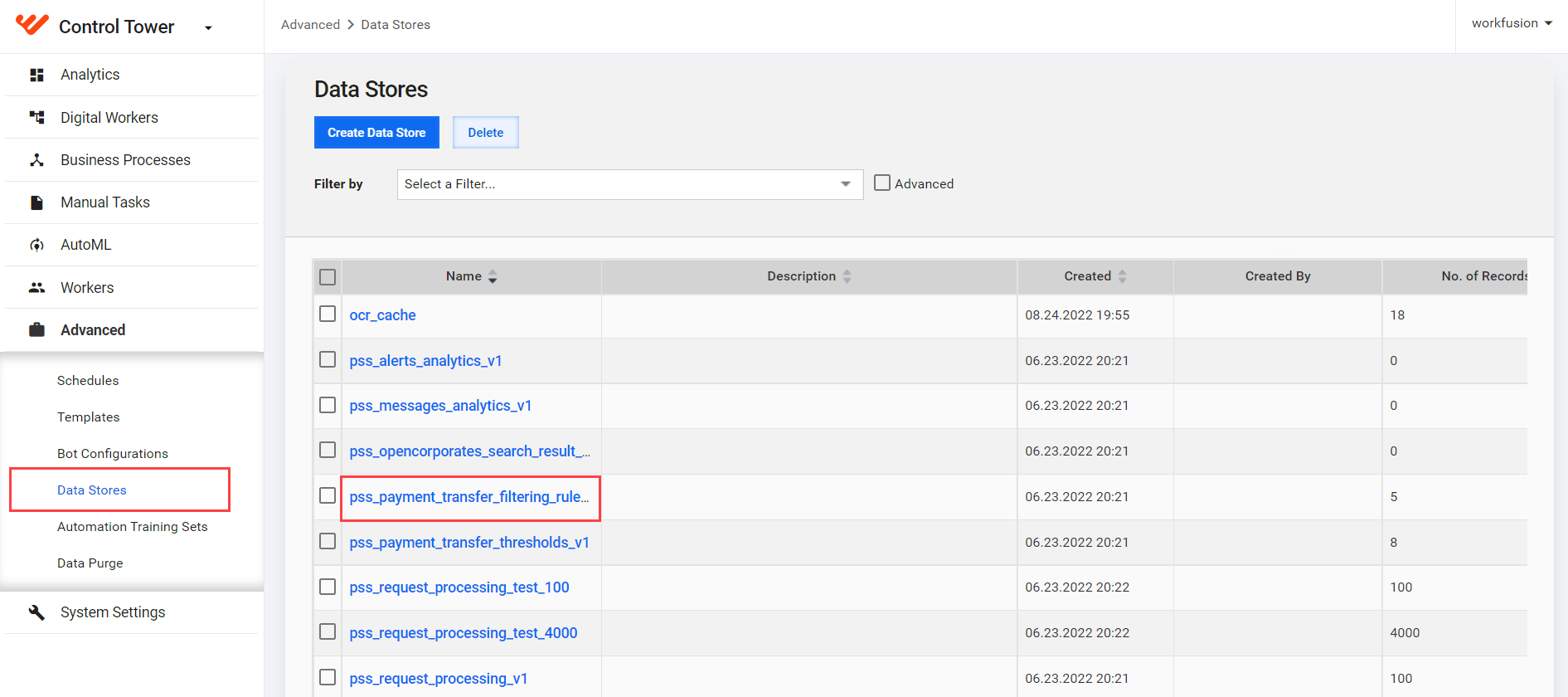
Add, modify, or delete the rules as described in the guide.
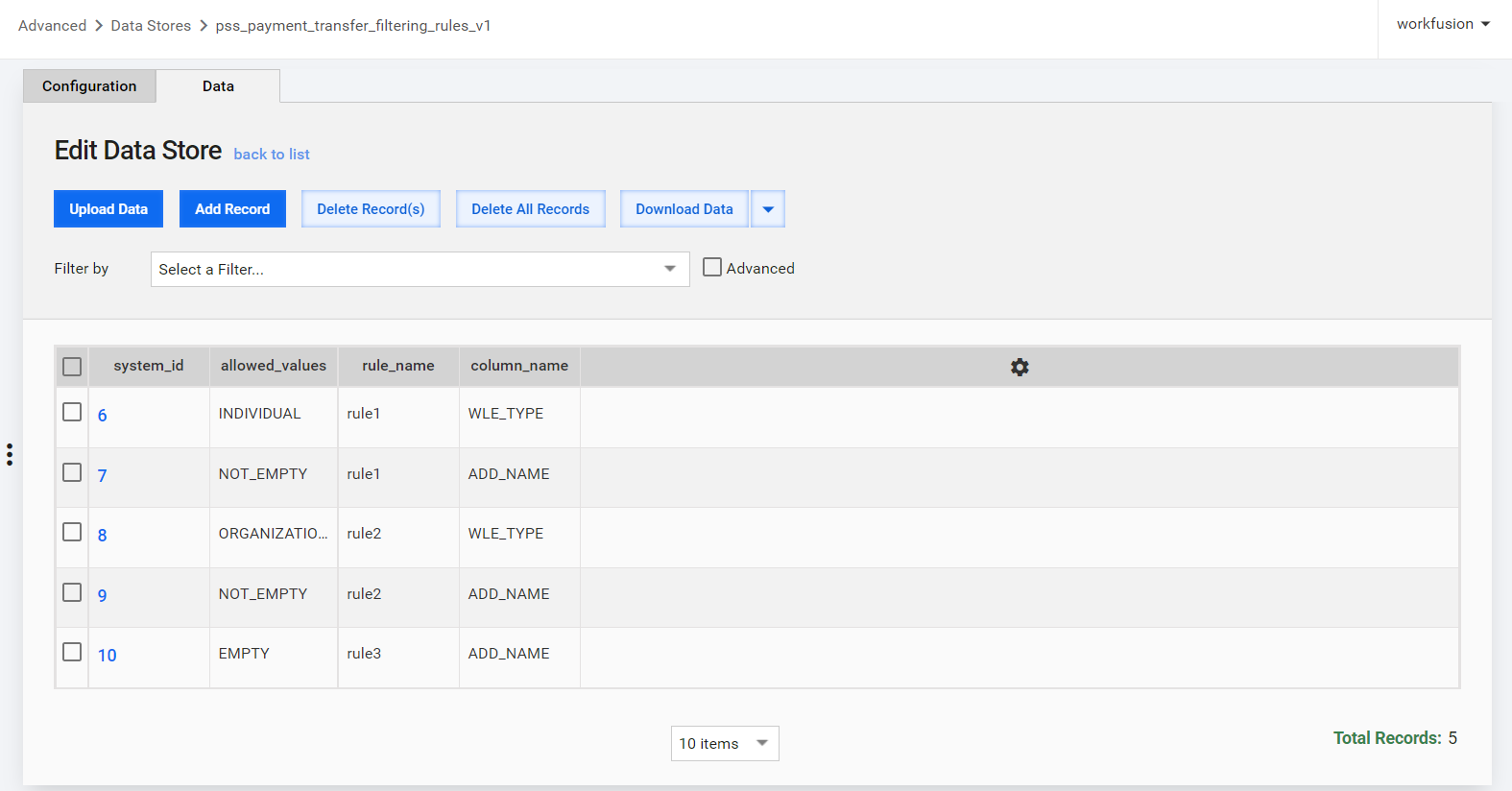
Follow the instructions below to abide by the rule logic. See the sample rules for reference.
Apply filter support tool
The filter support tool is implemented for support purposes. The primary functionality of the tool is to enable the insertion of custom rules to either include or exclude hits in a message based on the presence of keywords or text within a field in the hit:
INCLUDE: the alert hit will be processed by Tara and might be resolved as false positive.EXCLUDE: the alert hit will not be processed by Tara, and the ML model decision will always be escalate or no decision for the hit.
The rules are inserted into a dedicated Data Store in Control Tower.
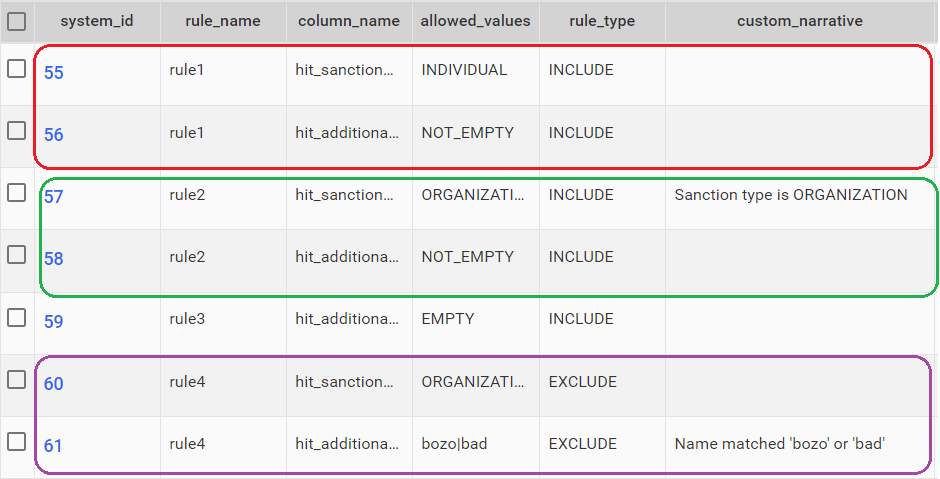
The rule_type column has only two values: INCLUDE or EXCLUDE.
The first rule (shown in red) enforces the inclusion of all hits where the
hit_sanctiondata_typefield isINDIVIDUALandhit_additional_data_namefield is not empty. Here,NOT_EMPTYis a keyword supported by the rule logic.The second rule (shown in green) similarly enforces the inclusion of all hits where the sanction data type is
ORGANIZATIONand thehit_additional_data_namefield is not empty.The third rule (shown in purple) is an example of an
EXCLUDErule that enforces to exclude all hits wherehit_screendata_typeisORGANIZATION, and the screened data name contains the words bozo or bad. The allowed_values column supports regular expressions, allowing you to match the text in a column name (data field) to be included or excluded.
If any rule is triggered by a hit in a message, that hit is either included or excluded based on the rule type. Additionally, the exclusion rules take precedence over inclusion ones. As shown in the example above, if rule4 is triggered by a hit, it overrides rule2 and filters out the hit.
The Data Store columns are as follows:
system_id: auto-generated.
allowed_values: any regular expressions, text, or specific keywords (
EMPTYorNOT_EMPTY).rule_name: the name of the rule. Rows that are part of the same rule must have the same rule name. These conditions are treated as logical AND.
column_name: the name of the column (data field) that the rule is enforced on. The column name can be one of the columns in the input data or
GLOBALif the rule applies to all columns.
See the list of valid column names
typecontentcontentformataccountholder_nameaccountholder_typehit_tagcontenthit_tagnamehit_tagtypehit_hitstartindexhit_hitendindexhit_hittexthit_screeneddata_typehit_screeneddata_namehit_screeneddata_dobhit_screeneddata_addresshit_screeneddata_countryhit_screeneddata_cityhit_screeneddata_statehit_screeneddata_postalhit_screeneddata_idhit_additionaldata_typehit_additionaldata_namehit_additionaldata_dobhit_additionaldata_addresshit_additionaldata_countryhit_additionaldata_cityhit_additionaldata_statehit_additionaldata_postalhit_additionaldata_idhit_sanctiondata_namehit_sanctiondata_primarynamehit_sanctiondata_typehit_sanctiondata_dobhit_sanctiondata_cityhit_sanctiondata_countryhit_sanctiondata_statehit_sanctiondata_sourceentryidhit_sanctiondata_sourcehit_sanctiondata_listtypehit_sanctiondata_additionalinfohit_sanctiondata_alsoknownas_namehit_sanctiondata_alsoknownas_typehit_sanctiondata_addresshit_sanctiondata_postal
rule_type: can have two values (
INCLUDEorEXCLUDE). Each rule type with the same name forms a group of rules. If rule_type has a different name, it forms a separate group of rules. Within a specific group of rules, each line is treated as logical AND. Across different groups of rules, logical OR is applied.When a conflict occurs between
INCLUDEandEXCLUDE,EXCLUDEalways takes precedence.custom_narrative: custom text appended to the end of the decision narrative. If a hit is filtered out by an exclusion rule, its custom narrative (if any) is added to the alert analytics as an explanation.
View sample rules
| Description | rule_name | column_name | allowed_values | rule_type | Notes |
|---|---|---|---|---|---|
Filter out individual names with the al- token in them. | rule_remove_al_token | hit_screeneddata_name | \s+al- | EXCLUDE | (PASSED) Assuming "al-" is a token by itself, "mal-nutrition" will not be tagged but "Jabbar -al lam" will. |
rule_remove_al_token | hit_screeneddata_type | INDIVIDUAL | EXCLUDE | ||
| Filter out cases where names start with the Mrs. salutation. | rule_no_salutations | hit_screeneddata_name | ^Mrs | EXCLUDE | (PASSED) For example, for names beginning with Mrs. |
rule_no_salutations | hit_screeneddata_type | INDIVIDUAL | EXCLUDE | ||
Filter out websites containing @. | rule_no_websites_with_at_symbol | hit_additionaldata_name | www. | EXCLUDE | (PASSED) Assuming that www. can be used to figure out there is a website in the name, filter out if the @ symbol is found. |
rule_no_websites_with_at_symbol | hit_additional_name | @ | EXCLUDE | ||
rule_no_websites_with_at_symbol | hit_additionaldata_type | COMPANY | EXCLUDE | ||
Filter out individual or company names containing "-". | rule_no_dashes_in_names | hit_screeneddata_name | "-" | EXCLUDE | (PASSED) |
rule_no_dashes_in_names | hit_screeneddata_type | COMPANY or INDIVDUAL | EXCLUDE | ||
| Escalate everything. | rule_escalate_everything_a | hit_screeneddata_name | EMPTY | INCLUDE | (PASSED) |
rule_escalate_everything_a | hit_screeneddata_name | NOT_EMPTY | INCLUDE | ||
another_escalate | hit_tagcontent | EMPTY | INCLUDE | (PASSED) | |
| Filter out SS type individual. | rule_no_ss_individual | hit_additionaldata_type | INDIVIDUAL | EXCLUDE | (PASSED) |
| Filter out all SS data. | rule_no_ss_data | hit_additionaldata_name | EMPTY | INCLUDE | (PASSED) EMPTY and NOT_EMPTY rules work with the INCLUDE rules only. |
Filter out hits containing * in the primary name field. | rule_asterisks_in_primary_name | hit_sanctiondata_primaryname | * | EXCLUDE | Hits with primary names containing * are automatically escalated or no decision. A custom narrative is appended to the decision narrative. |