Web
The Web action group is intended for automating browser actions, such as open website in browser, get value, and set value of a web element (text input, dropdown, and so on). These actions are NOT automatically recorded when you work in a browser during the recording process.
The main benefits of using Web actions are as follows:
- Stability: system actions are more reliable and quicker than image-based ones.
- Less actions needed
- Open website: click the browser icon or start menu > click the address line > type website URL > hit Enter.
- Get web element value: find the element by the image > select the text by double-clicking or dragging > copy to clipboard > set the clipboard to a variable.
- Launch options: you can set browser type, private mode, element locator (XPath), and so on.
- Readability: even new users will understand the action flow at first glance.
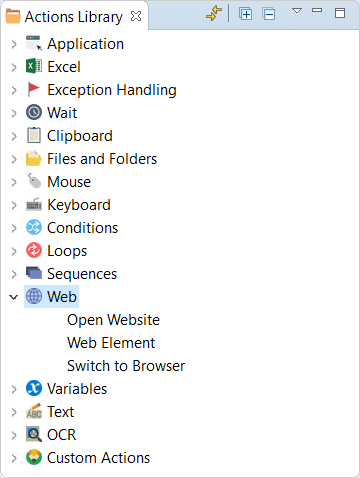
A sample recording demonstrates how you can use web actions to automate work with websites and web applications.
To run it, you need to:
- Download and unzip the recording folder.
- Copy the folder to your workspace. The default location is
C:/Users/%USERNAME%/workfusion-workspace/rpae_project. - Refresh the Media Files tab in Recorder and open the
web-automation-example.rpaefile.
Open Website
The action launches one of the supported browsers (Chrome, Firefox, Internet Explorer, Microsoft EDGE, and Microsoft EDGE in IE mode) and opens a specified website.
The Open Website action can contain other actions (Web Element, Mouse, Keyboard actions, and so on) as its children. Drag them onto the Open Website action.
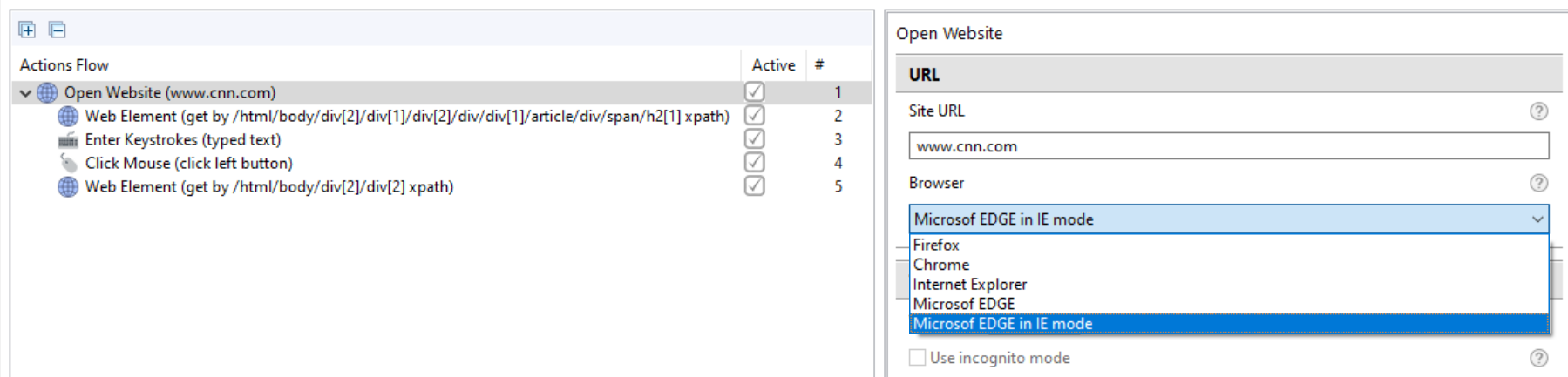
The parameters are as follows:
Site URL: the address of the website that will be opened. There are two ways to define the URL:
- Explicitly in the URL field.
- Recorder variable: the variable should be declared as String.
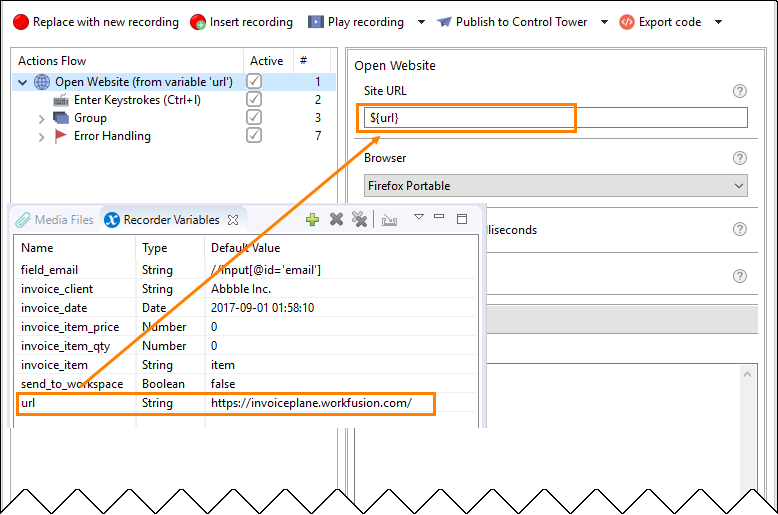
The URL in the Recorder variable should be defined as: http://www.site_address or https://www.site_address.
If you need to open a website that uses Basic authentication, add credentials via the URL, for instance, http(s)://login:password@site_address.
In this way, you have a lot of options to create a URL using Text Actions (for example, Join), Loops, Clipboard, and other actions.
- Browser: select the browser to use when opening the website.
The Use Incognito Mode option is currently not available and is disabled by default.
With the Open Website action, you can use the Mouse Click by XPath action. Refer to the Mouse Actions section for more details.
Web Element
The action is intended to get or set a web element value (text input, dropdown, label, and so on). A Bot searches for a web element by its unique locator called XPath, which is more reliable than an image in most cases.
Get Value
The action performs the following: find an element by XPath > select the element text > set this text to a variable.
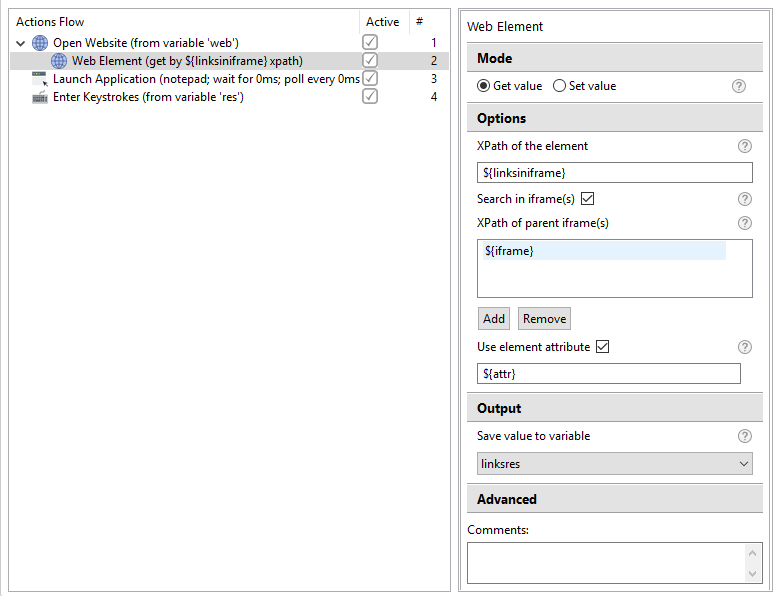
The parameters are as follows:
- Get value / Set value: choose whether to read a value from a text field, checkbox, other elements on a page, or write a value to an element on a page.
- XPath of the element: indicate an element by specifying its unique locator called XPath. See the XPath guide for more information.
- Search in iframe(s): use the option, if the element you need to get data from is located in an iframe (or iframes) as shown in the image below.
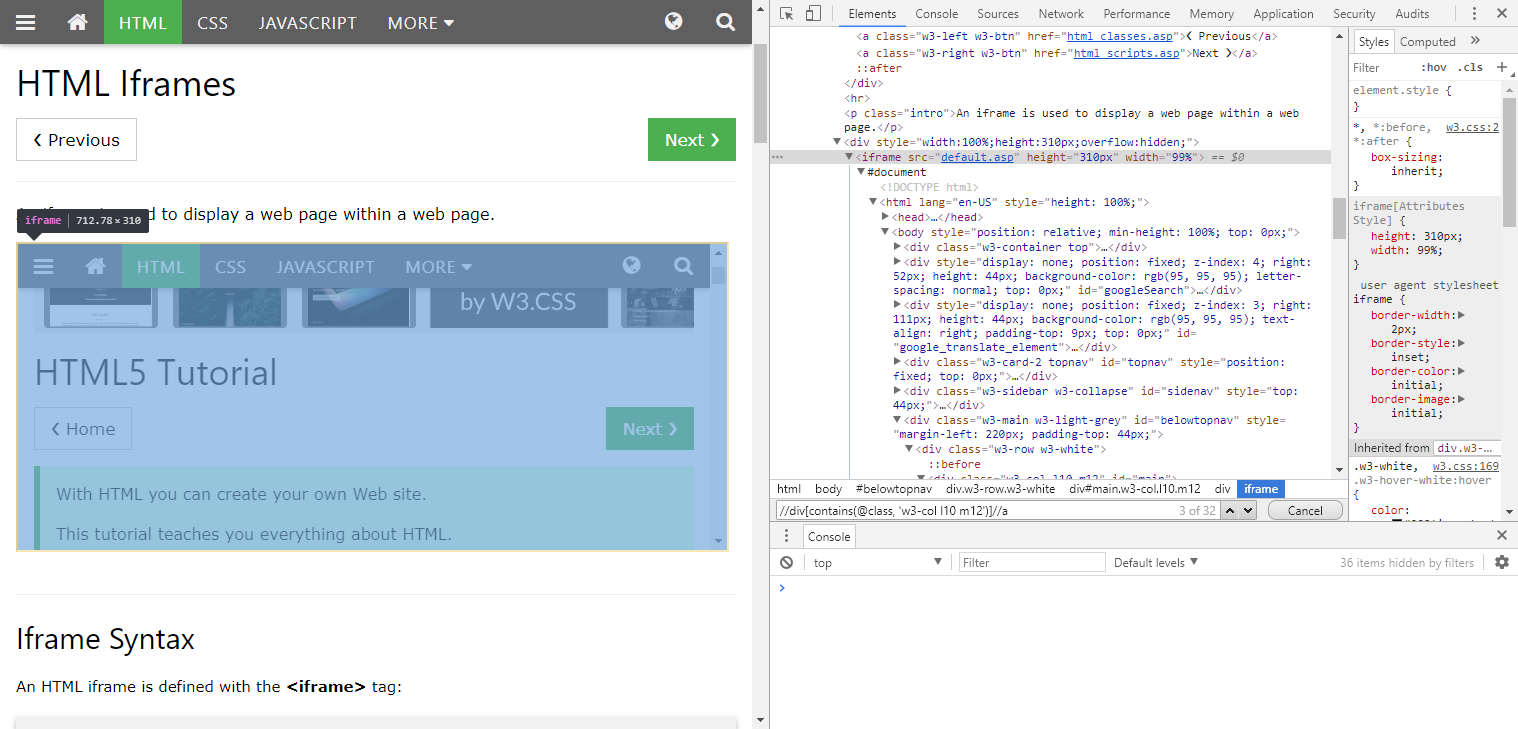
The iframe containing the web element can be enclosed in another iframe. In this case, define each iframe separately.

For that, click Add and define the iframe that holds the iframe with the web element.
When defining the iframes, stick to the following order:
- The first iframe is the iframe containing the web element.
- The second iframe is the parent iframe where the previous iframe is enclosed to.
- The third, fourth, fifth, and so on iframes should be defined all one by one so that the root iframe is in the last place.
- Use element attribute: define an attribute of the web element to be searched by XPath, for example
href,class,id,src.
Expand to see the use case
In the example, we collect all links from a div element located in an iframe.
Open https://www.w3schools.com/html/html_iframe.asp with the Open Website action and add Web Element to choose the elements required.
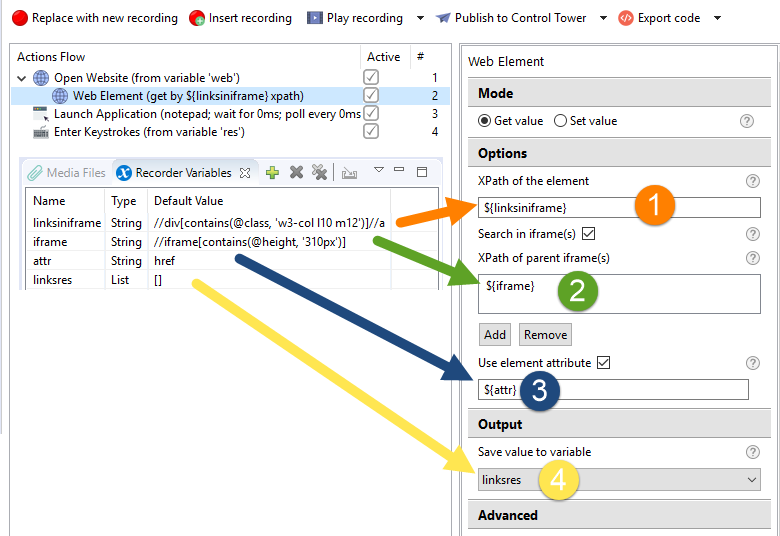
In XPath of the element, define an XPath to the elements (links) for extraction (defined as the
${linksinframe}Recorder variable whose value is//div[contains(@class, 'w3-col l10 m12')]//a).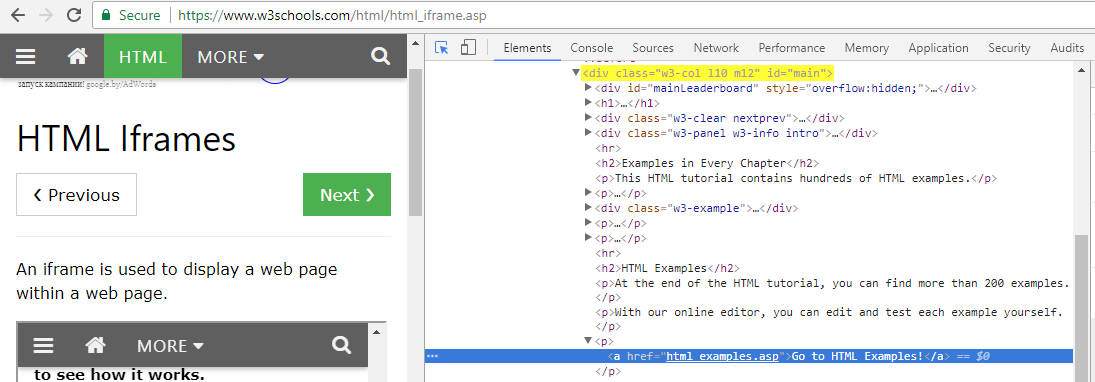
Select the Search in iframe(-s) option. Define the iframe where the
divelement is located. In the XPath of parent iframe(-s) field, define the target iframe defined as${iframe}whose value is//iframe[contains(@height, '310px')]).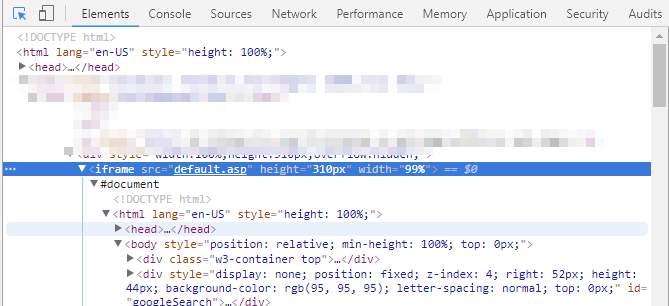
Define the element attribute to narrow the search. Select the Use element attribute option and define the attribute defined as
${attr}whose value ishref.Select a variable to save the output (defined as
linksresof List type as there can be a number of links indivthat match the defined criteria).
- Save value to variable: the value of the indicated element is saved to this variable.
There are two options for extraction provided by the function.
Get a single element when you define the XPath explicitly and save the result to a String or Number variable.
- Open www.sec.gov with Open Website.
- Put
//*[@id="header-nav"]/li[1]/ain the element XPath to define the element for extraction explicitly (the first item from the list). - Save the value to a String or Number variable.
- Play the recording.
- Check the value in the output. Result:
"ABOUT". A single element is extracted by XPath.
Get a list of elements contained under a single XPath and save the result to a List variable.
- Open www.sec.gov with Open Website.
- Put
//*[@id="header-nav"]/li/ain the element XPath to extract all the elements by XPath (all items from the list). - Save the value to a List variable.
- Play the recording.
- Check the value in the output. Result:
"[""ABOUT"",""DIVISIONS"",""ENFORCEMENT"",""REGULATION"",""EDUCATION"",""FILINGS"",""NEWS""]". A collection of elements is extracted by XPath.
Set Value
The action performs the following: finds an element by XPat > gets text from the Recorder variable > sets this text to the web element.
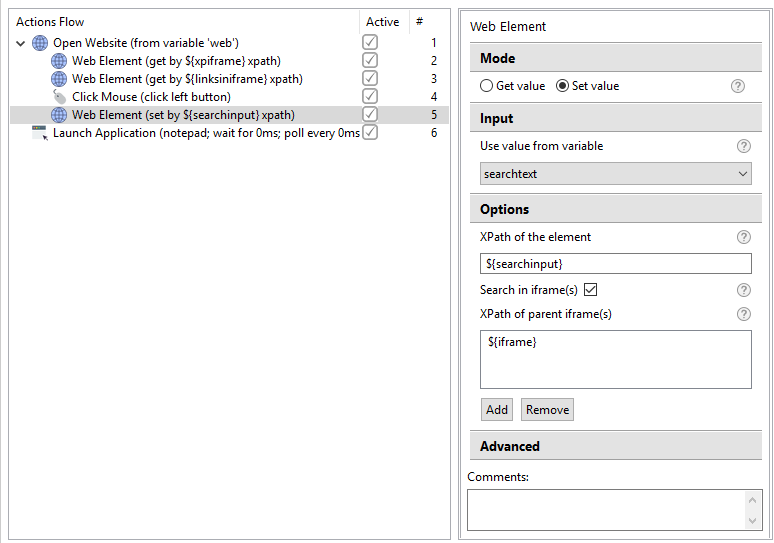
The parameters are as follows:
- Use value from variable: the value of the indicated element is set from the value of this variable.
- XPath of the element: indicate the element by specifying its unique locator called XPath. See the XPath guide for more information.
- Search in iframe(s): use the option in the same way as described for Get Value.
Switch to Browser
The action activates the browser window previously launched with the Open Website action. The action has no action-specific parameters.
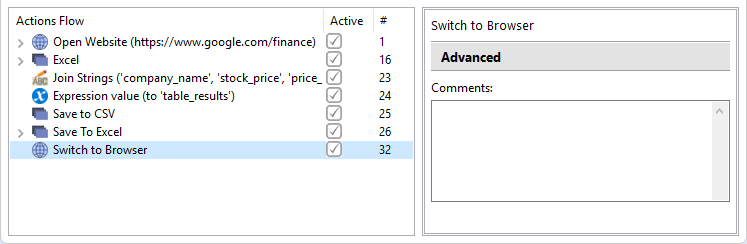
Mind that the Switch to browser action is used only if the Open Website action has already been added to the flow.
How to get element XPath
Read how to get a web element's XPath in different browsers in the XPath guide.
How to do table scraping
Table scraping is one of the valuable automation use cases. For example, users want to automate copying text from a web page table and paste it to an Excel file for further manipulations.
You can do scraping in the following ways:
While recording an automation script, drag the mouse cursor to select the table text.
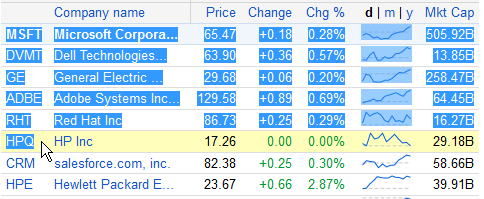
Copy the selected text to the clipboard (CTRL + C).
(optional) When editing the recording, set clipboard content to a variable.
- You cannot select separate column(s).
- It is hard to set selection when the table text changes (need to set anchor images for the top-left and bottom-right table corners).
For more details, see our Table Scraping sample.