Deploy project with Asset Bundle
The guide describes a project structure, covers different modules, and highlights essential project files.
If you use the rpa-bundle-quickstart archetype, the structure with two modules is as follows:
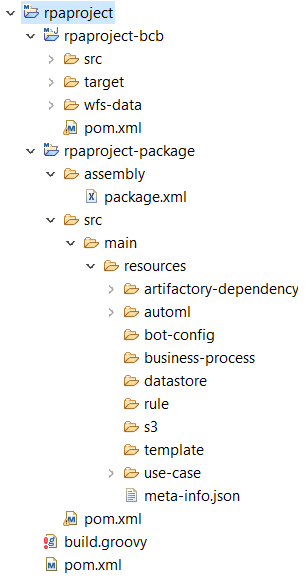
Package module
Inside the Package module, there are two folders:
assemblycontains apackage.xmlfile that is a descriptor for copying dynamic resources. The file has the following structure: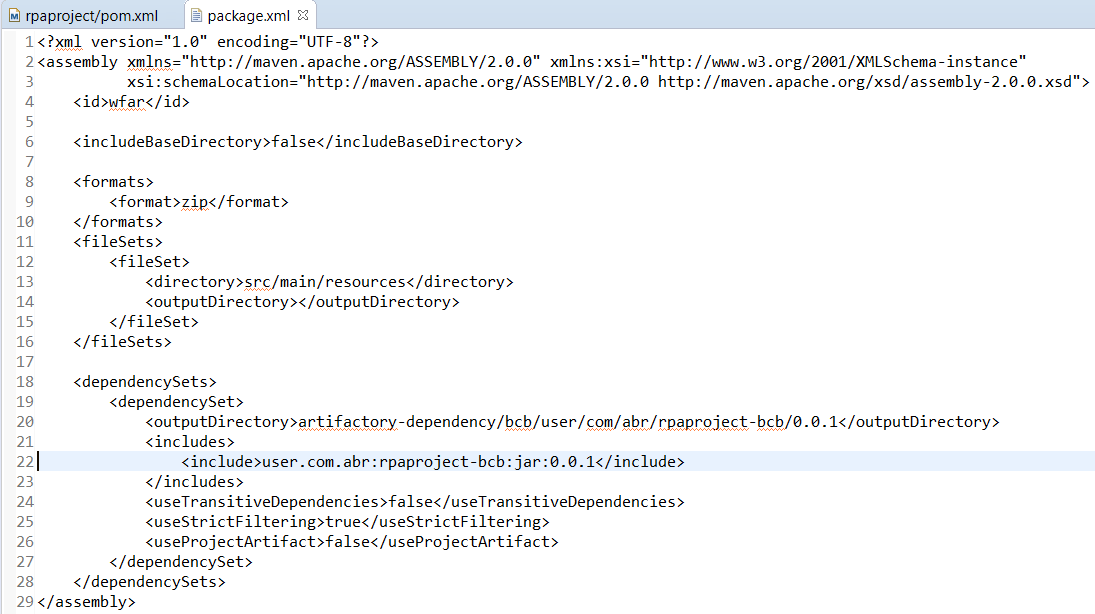
In this case, a zip file inside the Asset Bundle is dynamically copied into a packaged BCB JAR file. The JAR file also appears in
rpaproject-bcb/target.srccontains all static resources. If you add a Business Process package or a custom Manual Task to the Asset Bundle for deployment to Control Tower, add the resources into a proper folder withinsrc:- Data Store CSV files:
rpaproject-package/src/main/resources/datastore - Rules:
rpaproject-package/src/main/resources/rules - Files:
rpaproject-package/src/main/resources/s3 - Templates for Manual Tasks:
rpaproject-package/src/main/resources/template - Operations or AI Agent templates:
rpaproject-package/src/main/resources/use-case - Zip packages of Business Processes manually downloaded from Control Tower:
rpaproject-package/src/main/resources/business-process
- Data Store CSV files:
BCB module
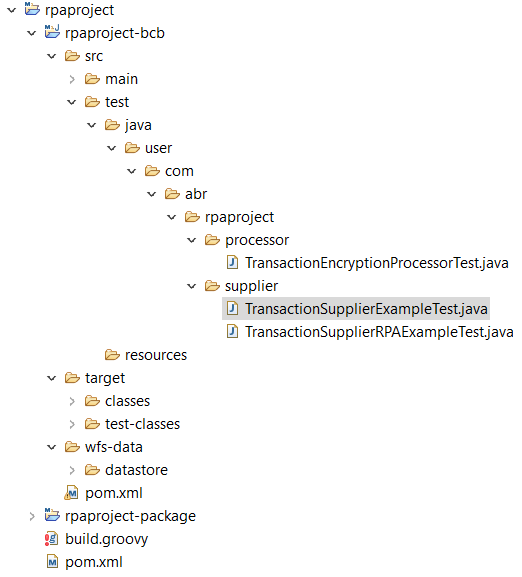
The BCB module structure is as follows:
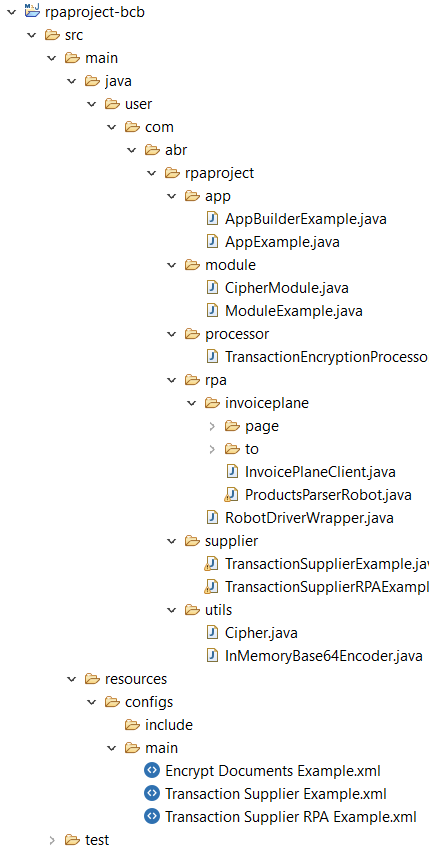
src/main/resources/configs/maincontains three out-of-the-box ODF sample Bot Tasks. Here, you can add your own Bot Tasks and delete the out-of-the-box ones.src/main/java/user/com/abr/rpaproject/appcontains basic classes:AppBuilderExample: the main application classAppExample: used to link a Bot Task and ODF Java-based classes
In ODF, you can organize project parts as Feather-based modules using an ultra-lightweight dependency injection library for Java.
The module definition looks as follows:
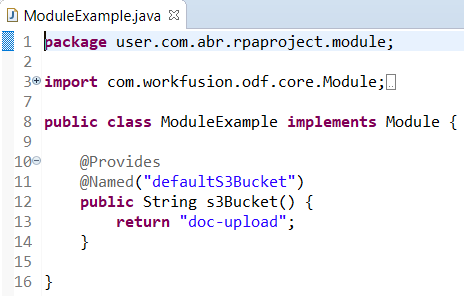
See the RPA implementation example using the PageObject concept in src/main/java/user/com/abr/rpaproject/rpa.
Inside the test folder, there are several tests created for out-of-the-box Bot Tasks:
ML-SDK module
If your project must include ML, create it using the full-bundle-ie/classification-quickstart archetype. The third module with the ml-sdk name appears like this:
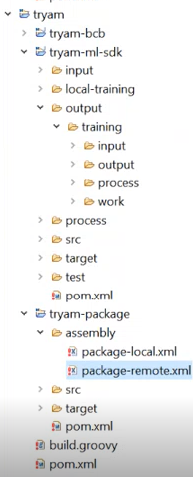
If you create a project and generate an Asset Bundle, the ML module remains empty because the ML model hasn't been trained yet. The output folder is empty, too. After the model training process followed by the bundle build, the resulting bundle artifact automatically includes the trained model.
The Import API service distributes the trained model to appropriate WorkFusion components for Control Tower to contain it.
A dynamic build of artifacts is specified in the Package module of the assembly folder. There are two XML files with local and remote profiles. The ML model is not included in a local package as there is no AutoML capability in Work.AI Developer on a local machine. The model is packaged in the remote profile only.
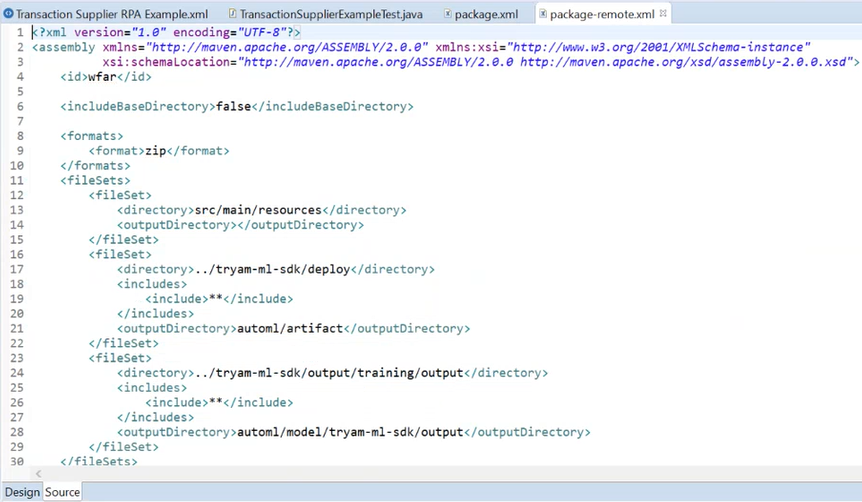
Mind that package-remote contains a dynamic configuration for the model and bcb parts.
Build project
After coding is complete, you can build a project.
Select the parent POM file and right-click it.
Execute the command Run as / Maven build....
Go to Edit configuration > Goals and specify the
clean installcommand. Click Run to start a build.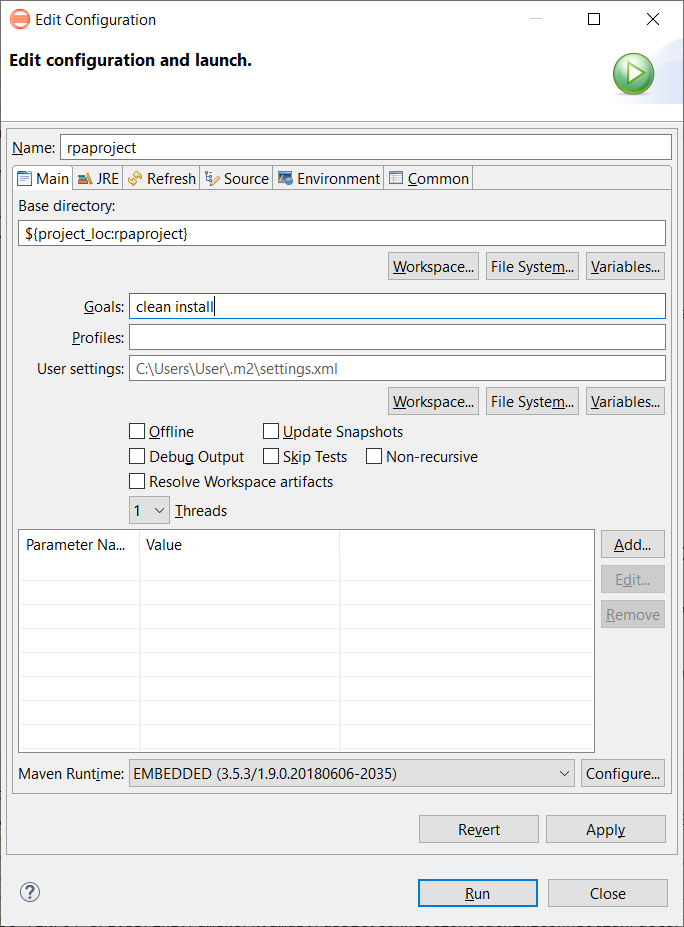
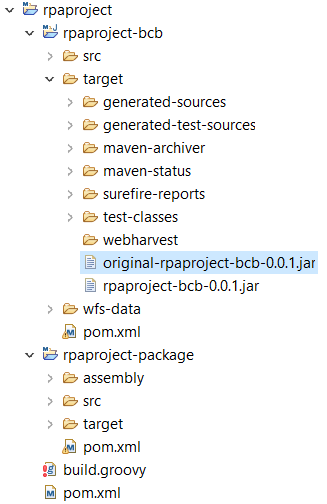
After the BUILD SUCCESS message appears in the Terminal, you can see that BCB JAR files are created.
Also, the project is dynamically copied to the resulting zip file.
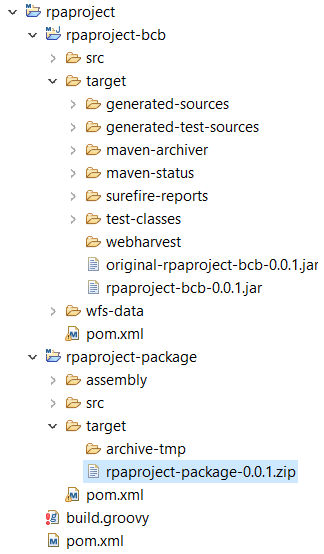
Now, you are ready to deploy this package to the local or remote Control Tower.