Manage templates
Templates allow you to reuse objects. Almost every object in the Work.AI platform, including Manual Tasks and Business Processes, is based on templates.
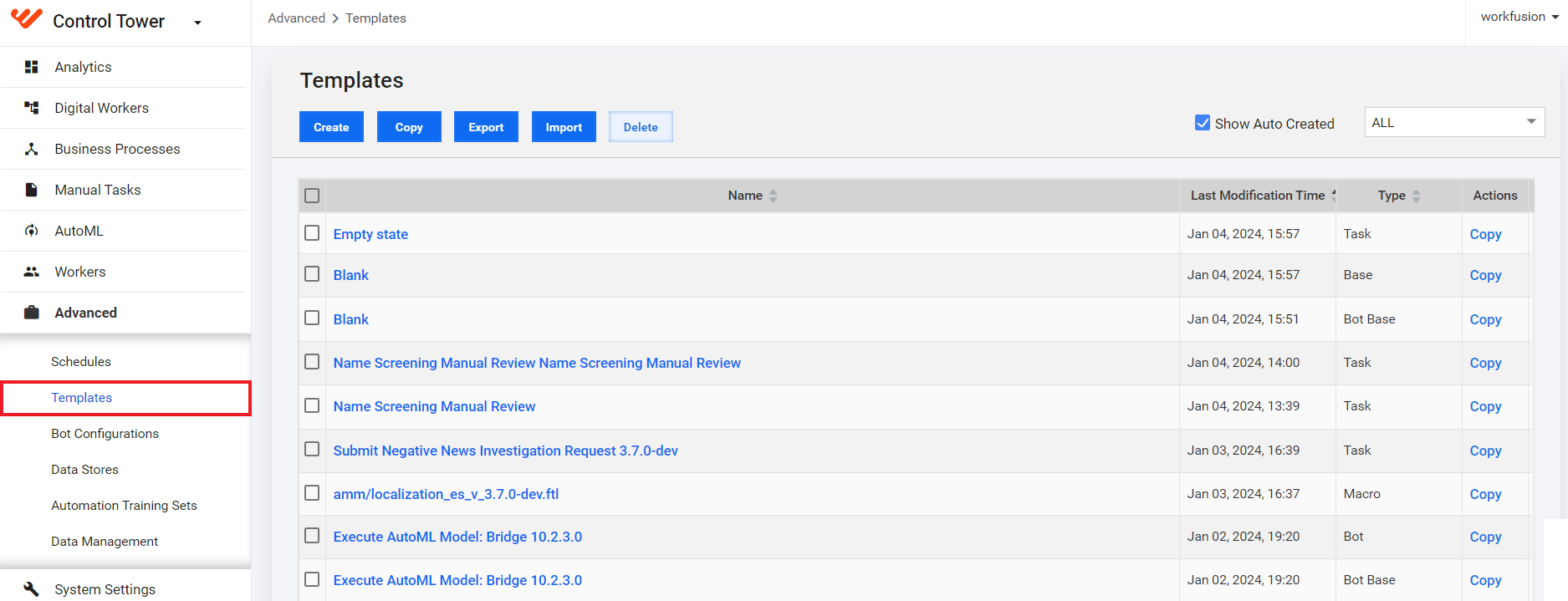
To start managing templates, go to Advanced > Templates. On the page, you can apply the following actions:
Create and edit templates
Copy templates
Export or import templates
Delete templates
Filter templates by type
Create and edit template
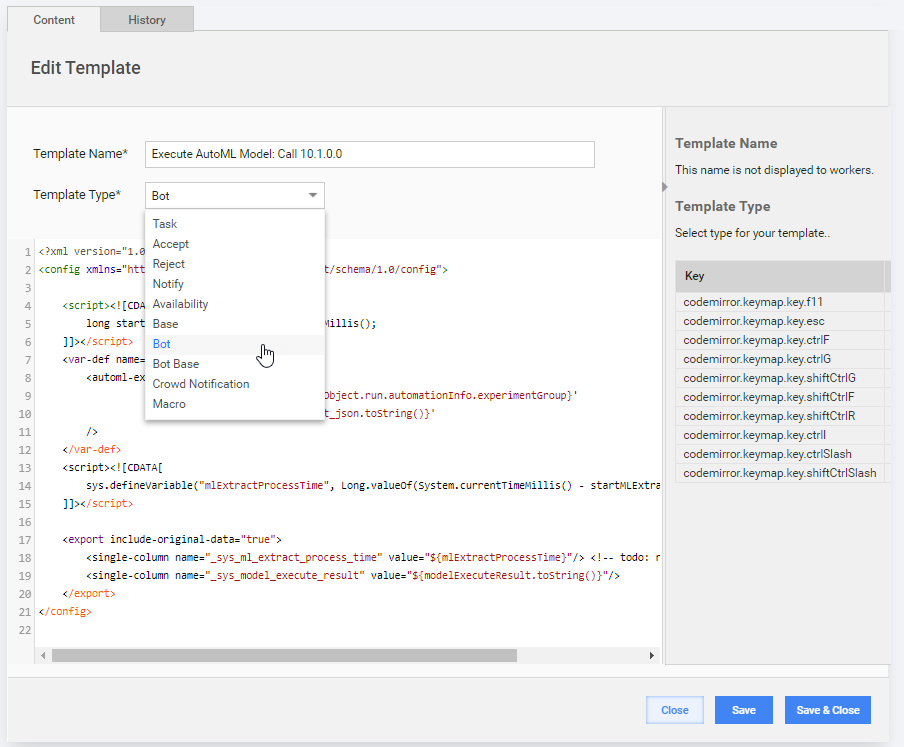
While editing or creating a template, you can access the following tabs:
Content
On the Content tab, you can do the following:
Add plain text, XML, HTML, CSS, JavaScript, and FreeMarker directives and save the result as a template.
Select and modify the template type.
History
The History tab displays all saved versions of a template, along with author names and modification dates.
To view the template code, locate the Template Name column and click the corresponding link. The code is displayed below the grid.
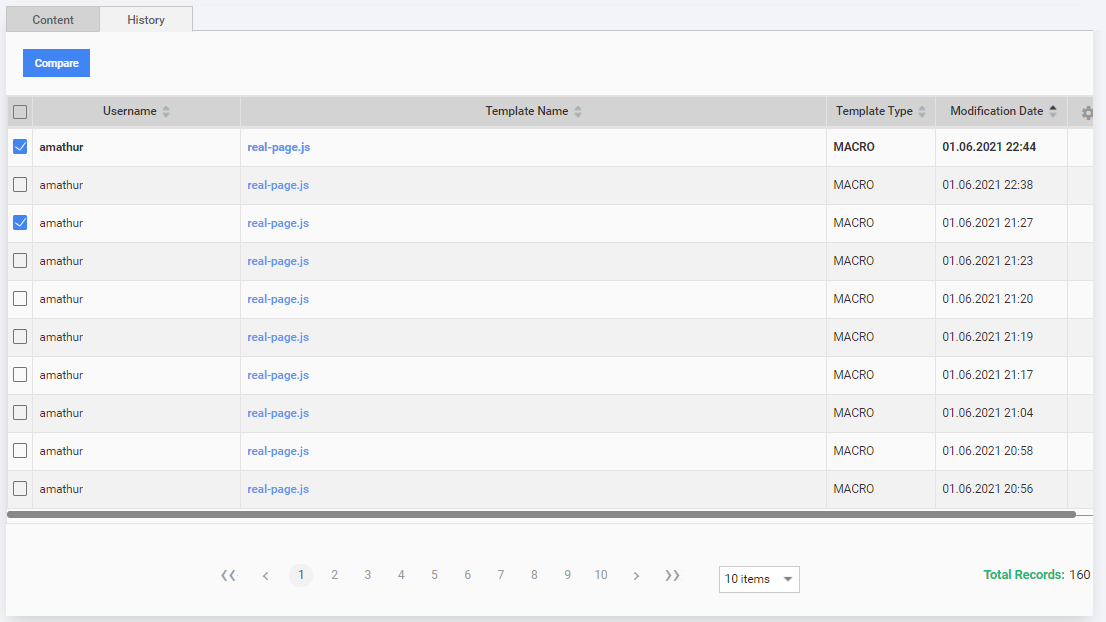
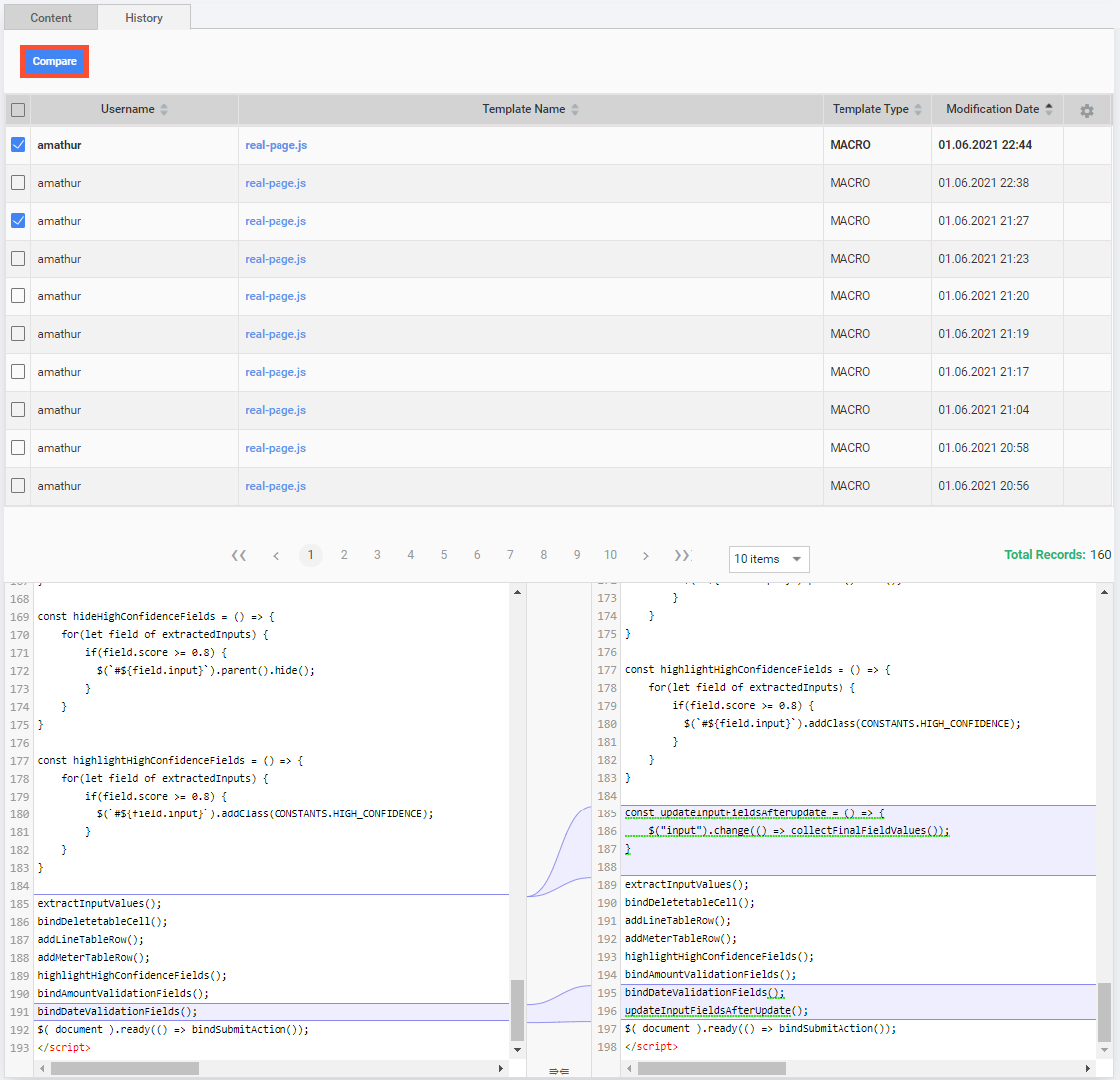
To compare two different versions of a template, select the appropriate checkboxes and click Compare. The selected versions are displayed under the grid, with all differences highlighted.
Copy tasks with and without templates
When copying tasks, you have two options:
Create a copy of an existing template.
Create a link to the template so that changes are propagated when either the original task or the copied task is modified.
When you copy a template, changes made to the new task do not affect the original task or its associated template. In contrast, changes made to a task with a linked template affect both.
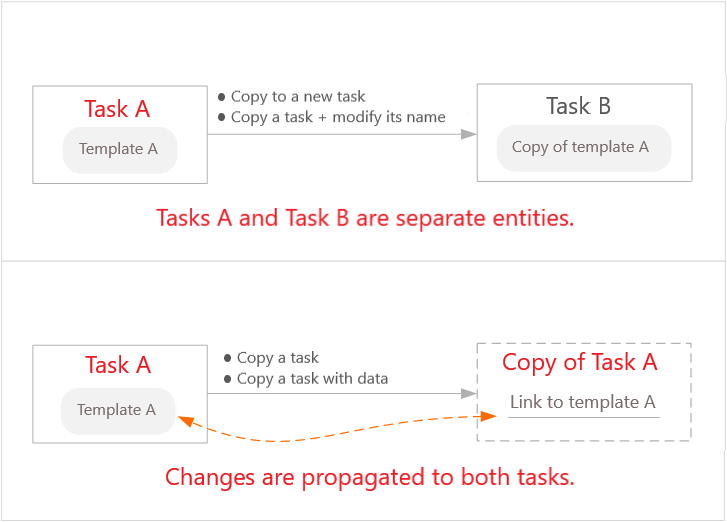
For more information on making copies, see Copy Business Process.
Use template variables
You can use the following variables in all templates except the Bot and Bot Base templates.
| Variable | Type | Description |
|---|---|---|
questions | List of objects | A list of questions typically used as shown below: Usage example: <#list questions as question>Question text: Field 1: ${question.data.field1}Field 2: ${question.data.field2}<@answers question=question/> </#list> |
question | Object | Instance of the com.freedomoss.appliance.model.QuestionDTO class. |
question.data | Map | Main question data you can use using question.data.column_name. |
question.order | Number | Question order. |
question.answers | List of objects | Answers to questions. |
submissionUUID | String | Task submission UUID. |
workerId | String | Worker ID assigned on the endpoint. |
worker | Object | Object containing current worker information. Can be null if a worker is previewing a task and has not accepted it yet. Class: com.freedomoss.worker.model.Worker |
worker.id | Number | Worker ID in the WorkFusion database. |
worker.uuid | String | Worker UUID. |
worker.nativeWorkerId | String | Same as worker.id. |
worker.firstName | String | Worker's first name. |
worker.lastName | String | Worker's last name. |
worker.nickname | String | Worker's nickname. |
worker.creationDate | Datetime | Worker registration datetime. |
worker.country.name | String | Worker's country. Can be empty if the country cannot be determined. |
worker.lastActivity | Datetime | Worker's last activity datetime. |
countryCode | String | Worker's country code, if detected. |
assignmentId | String | Assignment ID. |
mturkExternalSubmit | String | URL for unsecure task submission via HTTP. |
secureMturkExternalSubmit | String | URL for secure task submission via HTTPS. |
hitTypeId | String | Hit type ID as defined by the endpoint. |
For more information, see FreeMarker engine variables.
To use an object in code, wrap it in the <#if ??> directive:
<#if worker??>
  Worker Name: ${worker.firstName}
</#if>
You can also create a hidden answer and pass data to it for later viewing on the Results > Data page. For example, the following code snippet submits the worker ID to a separate column:
<#list questions as question>

    <input type="hidden" name="${question.identifier!}_worker_id_skipCheck"/>

    <script type="text/javascript">
      $(document).ready(function() {
        $("input[name=${question.identifier!}_worker_id_skipCheck]").val($('#workerId').val());
      });
    </script>

    <#if run??>
        <@input type="hidden" name="_sys_executorId" value="${workerId!}:${run.questionUUID}" question=question answer=false class="executorId"/>
        <@input type="hidden" name="_sys_human_task_title" value="${run.question.title}" question=question answer=false class="humanTaskTitle"/>
    </#if>

</#list>
Explore template types
Macro
Macro templates are libraries containing custom tags used to build the Task and Base templates. They include required imports, scripts, structure, and styling.
Macro templates can have the following extensions:
- FTL: used in the Code Editor for tasks
- CSS: used for Answer Type styling
- JS: used to implement Answer behavior
Manual modification of Macro templates in Control Tower is strictly forbidden. To modify a Macro template, create a feature request or bug ticket and assign it to the WorkFusion support team. WorkFusion tracks the history of template updates, so template content can be restored if needed.
The basic Macro templates are as follows:
| Name | Description |
|---|---|
html.ftl | Converts data, scripts, and formatting into HTML. |
answers.ftl | Contains macros for all defined Answer Types. |
extras.ftl | Contains gold data macros. |
answer_information_extraction.ftl | Used to render the Information Extraction Answer Type. |
Base and Bot Base
Automations are based on template types. These templates contain the code for task design, including Instructions, Questions, and Answer choices (if applicable). They define the input file format and are provided by default for application use.
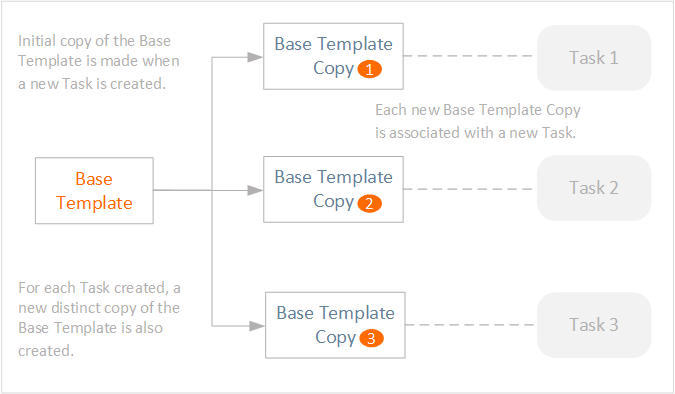
When you create a task using a Base template, a copy of the template is created and linked to the task. This duplication ensures that the original Base template remains unchanged unless explicitly required.
As new tasks are created, each task receives its own copy of the Base template:
Task
Each time a new task is created or copied, a task-specific template is generated. This template contains the code for the task design, including Instructions, Questions, and Answer choices (if any). It also handles data exchange, such as task input data and Answer data submitted by workers.
The FreeMarker code for a task is available in the task's Code Editor.
Task templates have include links to FTL files (extras, HTML, Answers)—Macro templates.
Bot
Bot templates contain Bot Config XML code written using the WebHarvest language.
Availability
Availability templates define an alternative user interface for the task when it is unavailable for execution.
These templates control task timing. A common use case is when time constraints apply, for example, when a task must only run during standard business hours.