Add Manual Task priority
The Run Priorities tab allows you to control the order in which Manual Tasks are processed.
For example, you are running several tasks simultaneously on a given endpoint and you want one task to have a higher priority than the others. You can assign the task a higher Run Priority in the task settings, and workers will see the task at the top of the assignment list when filtering by priority.
To start managing priorities, go to System Settings > Run Priorities.
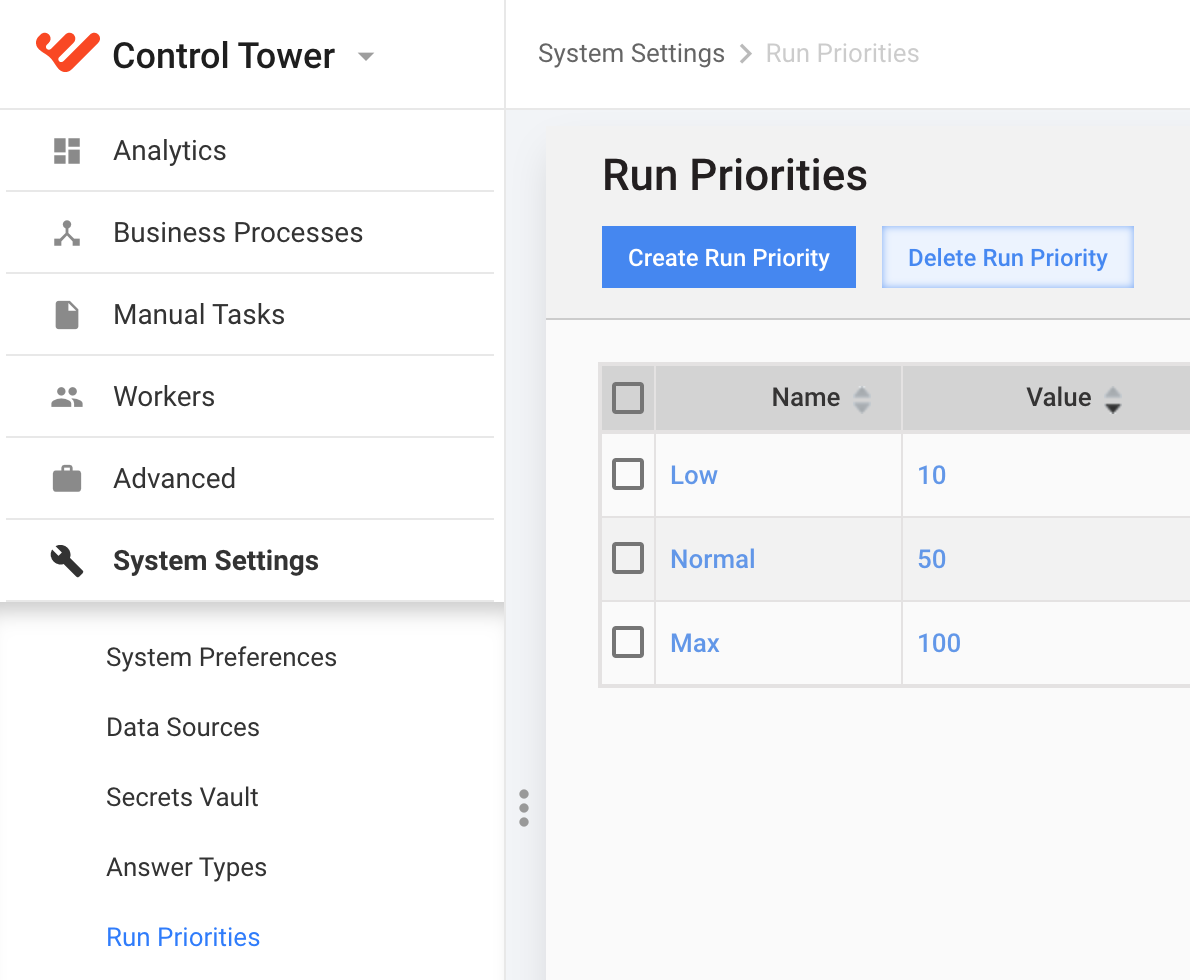
You can perform the following actions with run priorities:
- Create
- Edit (click the appropriate name)
- Delete
The Normal priority is default and cannot be deleted.
To create or edit a task priority, do as follows:
Click the Create Run Priority button or select a priority name in the grid.
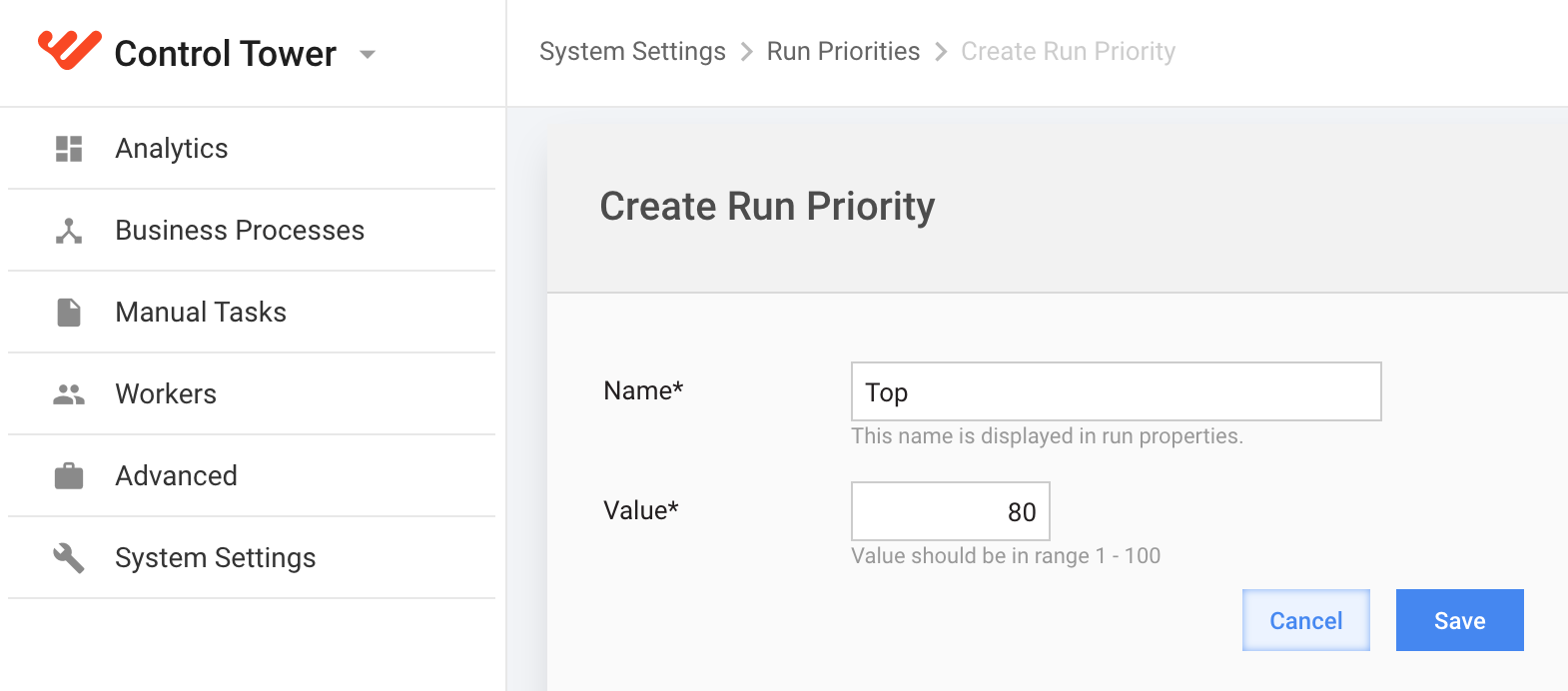
Enter a unique Name for the priority.
Enter a priority Value from 1 to 100. The higher the value is, the higher-priority tasks are processed in the first turn.
- 0-33: Low
- 34-67: Normal
- 68-100: High
To apply a run priority to a Manual Task, edit the task's settings. For more details, refer to Configure and run Manual Task.