View results and generate snapshots
The Data page is intended for viewing the Manual Task (MT) results. To access it, follow the steps below:
- Select Manual Task > View All.
- In the MT list, click the completed MT for which you want to see the results.
- Under the Results menu on the left, select Data.
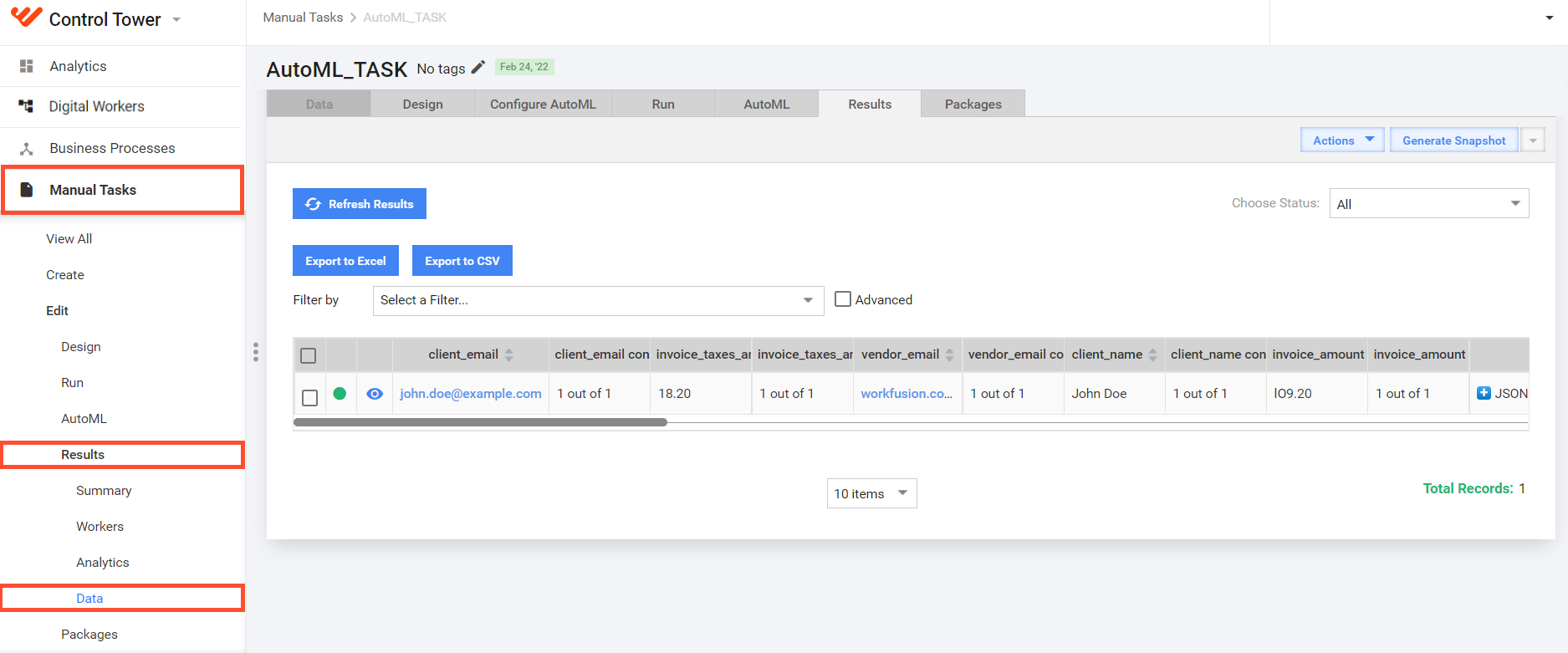
The displayed results grid has the following columns:
- Columns from the original data file.
- One column for each Answer—Answer code. For details, read Questions and Answers.
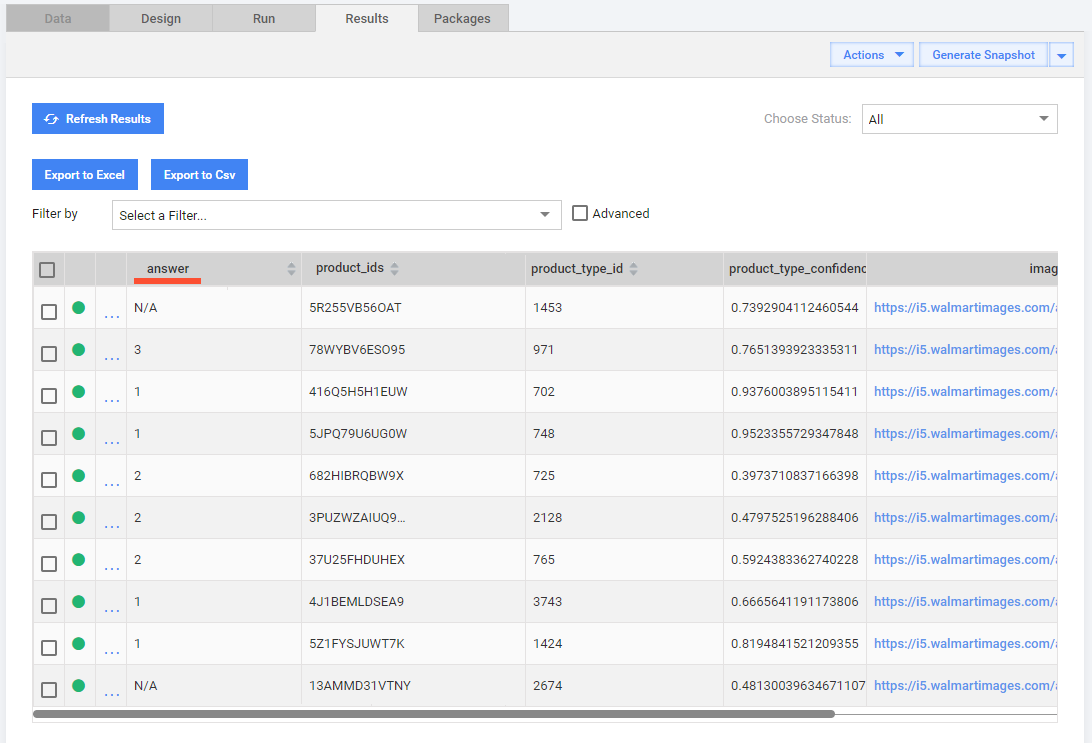
View
The grid with Records has horizontal scrolling, and you can manage the number of displayed columns by clicking the cogwheel in the top right corner.

If you do not see some Records, check the applied filters or the Choose Status drop-down box.

Export
To export MT data, follow the steps:
- Select or create a filter and apply it.
- Depending on the format needed, click the Export to Excel or Export to Csv button.
Generate snapshots
To save the intermediate or final MT results in Excel, click the Generate Snapshot button at the top of the Results page. No filters are applied to snapshots.
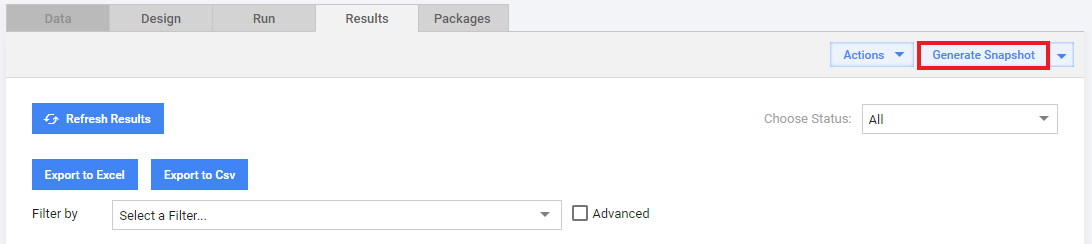
The following rules apply to snapshots:
- MT snapshots are generated automatically after the MTs are completed.
- If an MT is not completed, the snapshot contains only completed records.
- For an expired MT, snapshots contain answers for completed records and input data for records without answers.
Preview Answers
To view the details of a Record, click the appropriate eye icon in the third column.

The following popup screen appears:
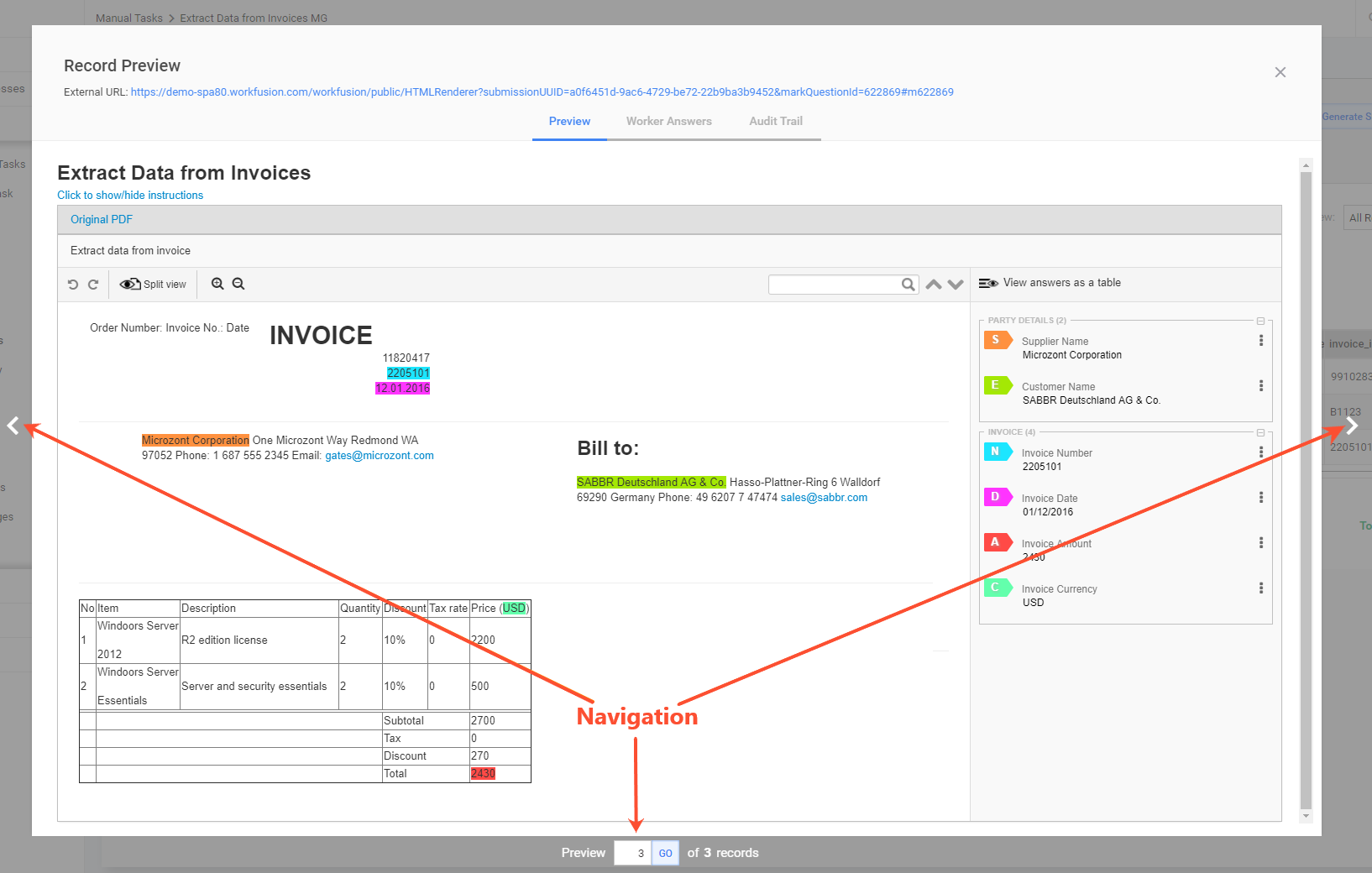
To preview a Record in a new window, click the External URL link at the top.
Worker Answers
To compare Answers from all workers, click the Worker Answers tab.
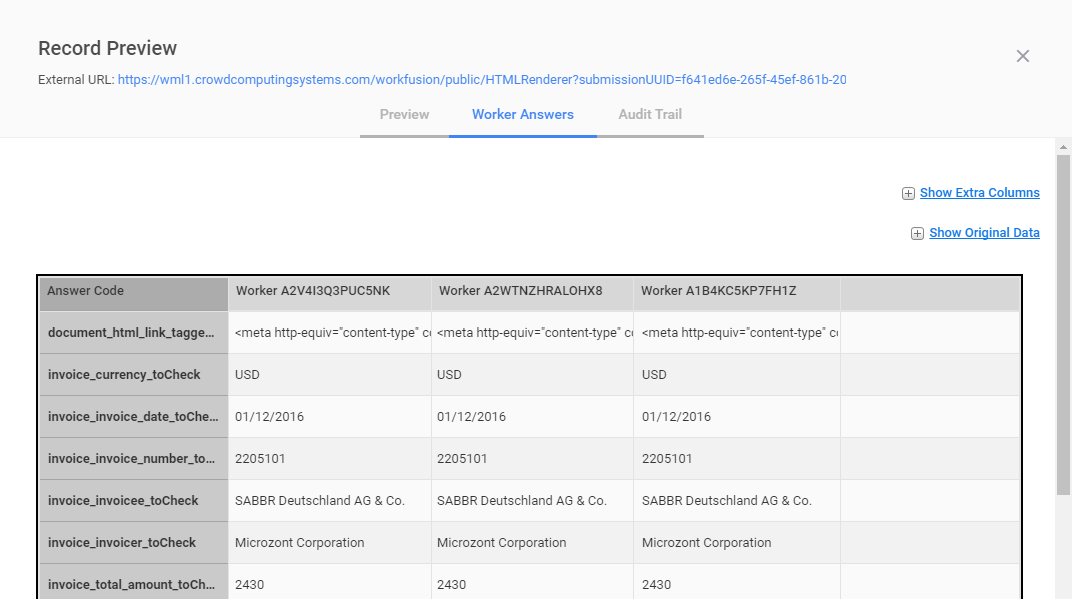
To display additional Answer and Record parameters, click the Show Extra Columns or Show Original Data link.
Audit Trail
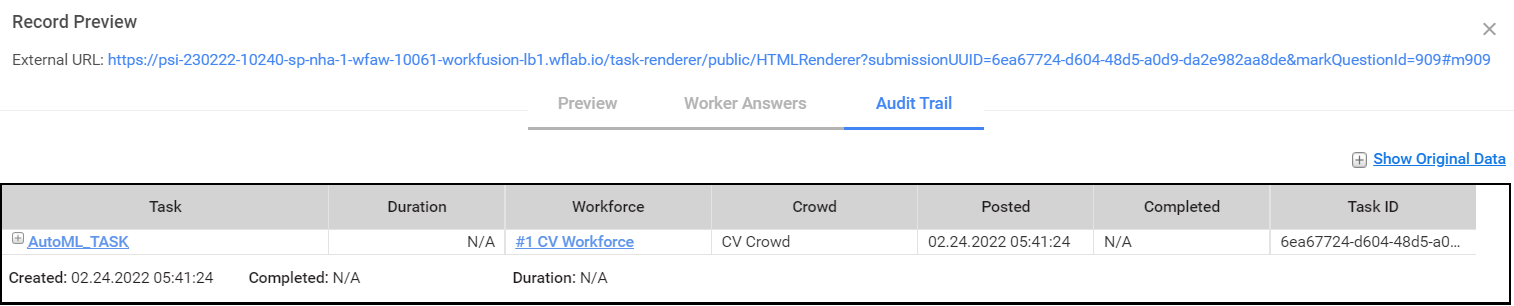
On the Audit Trail tab, you can see the following information:
- All worker task events
- Event duration and time
- Workers who submitted answers