
View Business Process results
See BP events and errors
To find out about the events (bot or user actions) or errors during a Business Process (BP) execution, refer to the BP event log. To access it, click the event log icon you can find on the BP list page and the Results tab.

The Event log popup appears:
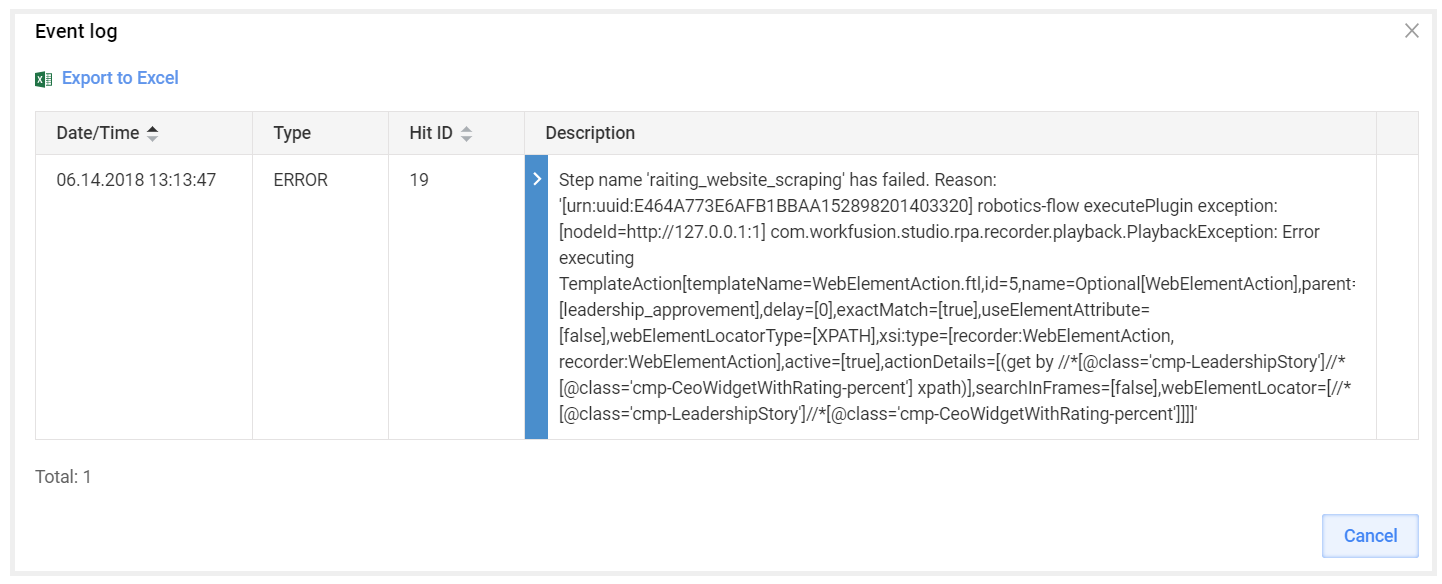
For more information about BP event logs, read the View Business Process logs topic.
View BP results
Summary
To access the Summary page, navigate to your Business Process > Results > Summary.
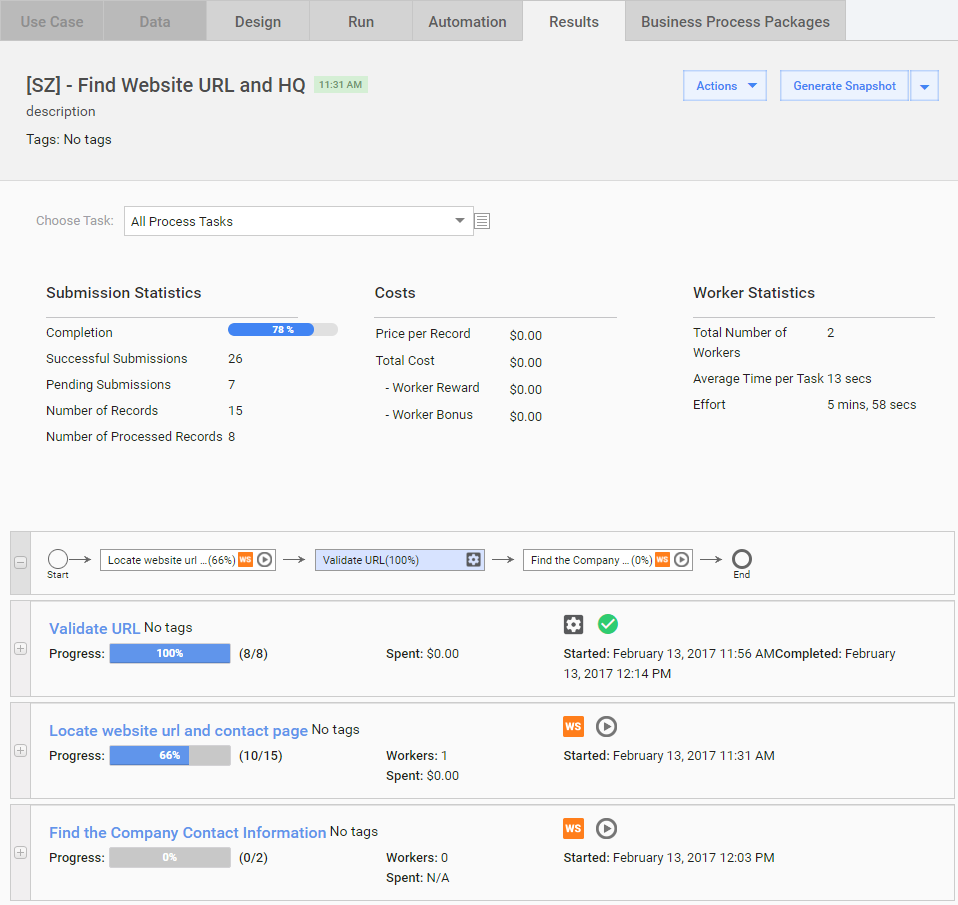
The Summary page gives a BP overview with key parameters and links. In the Choose Task drop-down menu, you can select one of the following options:
Specific Manual Task [M] or Bot Task [H]
Process [P]
All BP Tasks
Final Results
On the page, you can view the Submission Statistics, Costs, and Worker Statistics for the entire process or selected step. You can expand the BP task details by clicking the corresponding plus (+) icon or selecting a task figure on the diagram.
Data
The View Results > Data page combines all data gathered in the BP:
- Worker answers from manual steps (website_url in the figure below)
- Data from Bot steps (provided in the export plugin) (validity in the figure below)
- Columns from the Input Data file (company_name in the figure below)
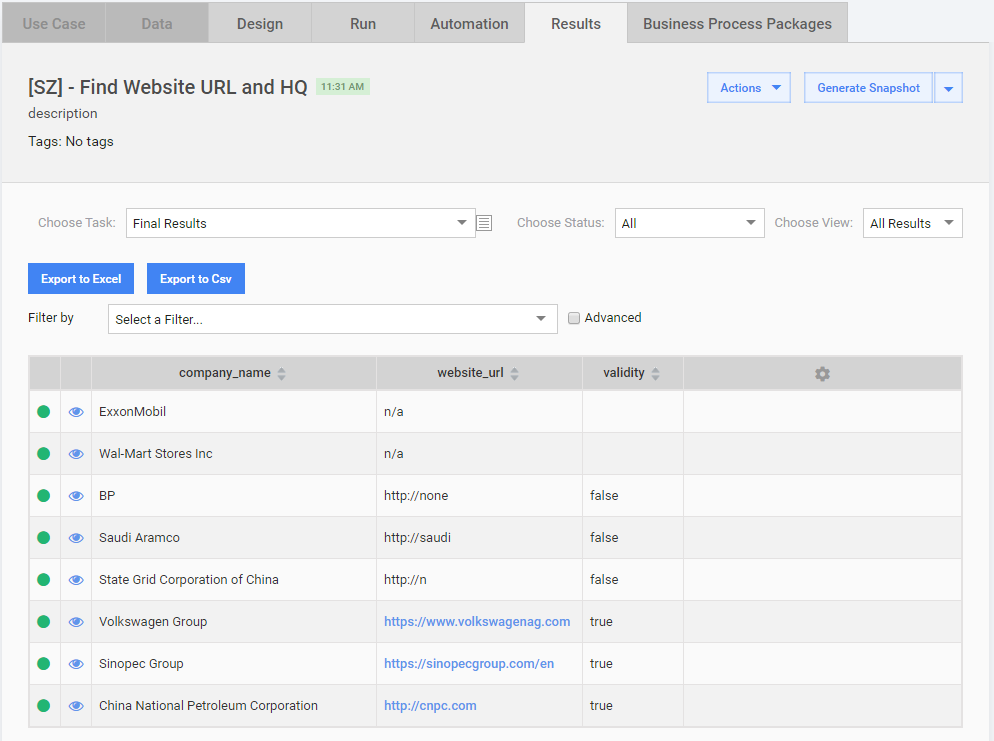
In the Choose Task drop-down menu, you can select an option to display data for the following:
- Specific task
- Process
- All BP Tasks
- Final Results
You can tweak the data view using the following filters:
- Record Status (In Progress, Not Started, Completed, Completed - Confidence Low)
- Process Step (any Manual or Bot step or Final Results)
- Column name and value
- Worker ID
- Task ID
Final Results
You can export BP results to a CSV or Excel file and save to your computer. Also, pay attention to the following considerations:
- Some values can be empty (for example, the 1st and 2nd rows in the validity column). It happened because these records were not routed to the bot step that automatically validates the website and adds true or false to the validity column. These records were routed directly to the process end after the 1st step because their website_url was submitted as n/a.
- If you have problems with viewing exported UTF-8 data in Excel, see this topic.
Workers
In the Choose Task drop-down menu, you can select an option to display workers for an individual task, process, all BP tasks, or Final Results.
For bot workers, the following actions are NOT available:
- Pay for Rejected Work
- Assign Qualifications
- Retract Worker Answers
- Send Message
- Give Bonus
Analytics
In the Choose Task drop-down menu, you can select an option to display analytics for an individual Task, Process, All BP Tasks, or Final Results.
View All BPs
To view all BPs with their details, go to Business Processes > View All Business Processes. For details, refer to View all Business Processes.