View Business Process logs
WorkFusion provides a capability to view Business Process (BP) and Manual Task logs containing system events, error messages, and stack traces.
Investigate errors
If a BP has processing issues, the following icon is displayed in the BP list:
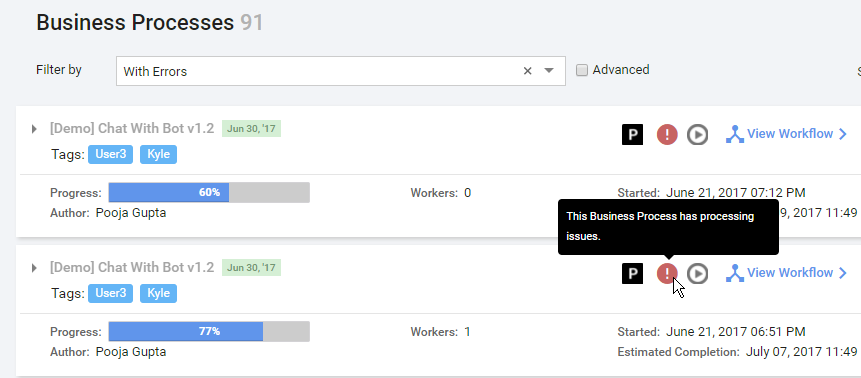
The processing issues icon signifies the following:
- At least one record in the BP exhausted the maximum number of retries and failed.
- Other records continue execution on different BP steps until either of the following happens:
- Their maximum number of retries is exhausted.
- They reach the final step.
- The BP with processing issues is not stopped automatically. Proceed in one of the following ways:
- Fix the BP step code, save, and repair the BP.
- Stop the current BP instance by using Actions > Stop. Then, copy the BP instance, fix code errors, and run it with the same or new data.
View detailed log
To view detailed information about any BP events or issues, go to BP > View Results > Summary.
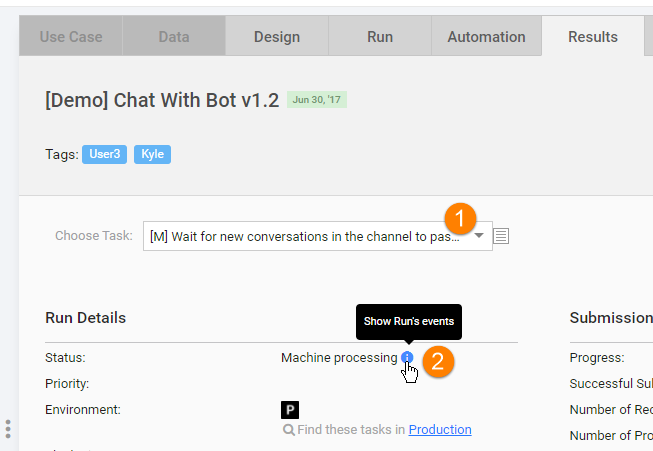
On the Summary page, proceed as follows:
- From the Choose Task drop-down menu, select a BP step or sub-process.
- Click the Show Run's events icon.
The Events popup appears.
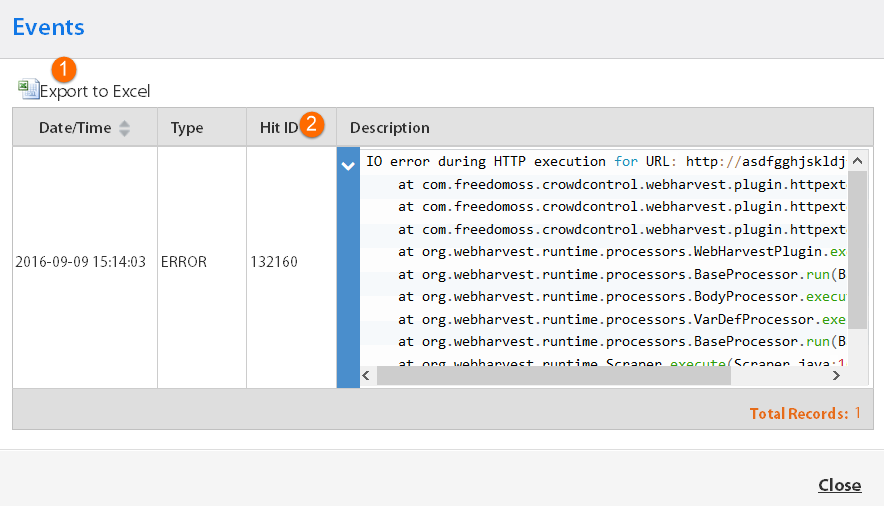
In the popup, you can do the following:
- Click the Export To Excel button to read, filter, and analyze logs using the Excel functionality.
- Find the Hit ID.
- In the Description column, lick the side arrows to expand descriptions and view the full stack trace for an event or an error.
Repair Business Process
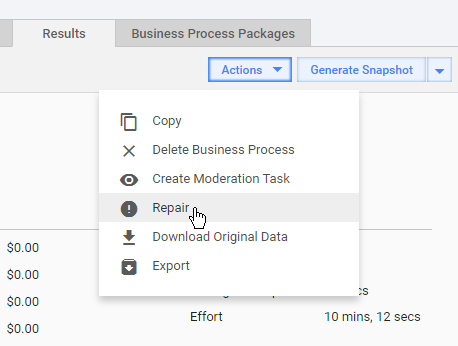
If a BP fails due to reasons unrelated to its configuration (external server not available, RPA node disconnected, and so on), you can try to repair it via Actions > Repair.