Previewing and Assigning Tasks
note
These features can be unavailable for some tasks or totally disabled by the WorkSpace administrator.
Preview Tasks
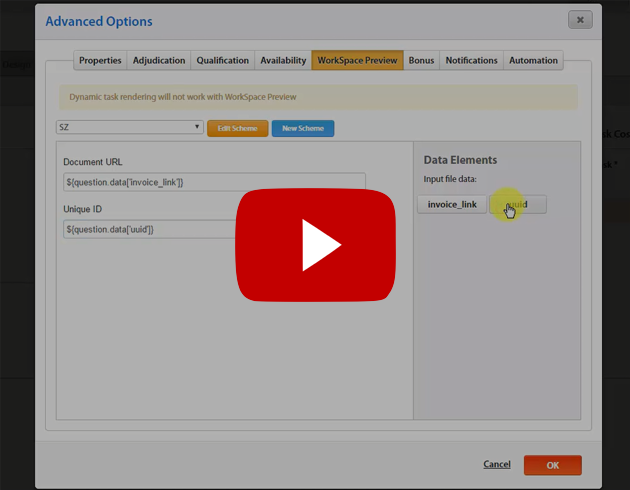
Download this video (~12 MB) here.
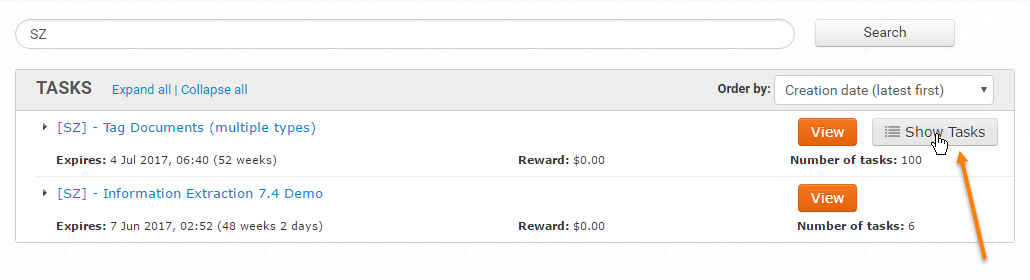
To pick a particular Worker Task from a Task type, click on the Show Tasks button.
A grid containing all Tasks of the same type is displayed.
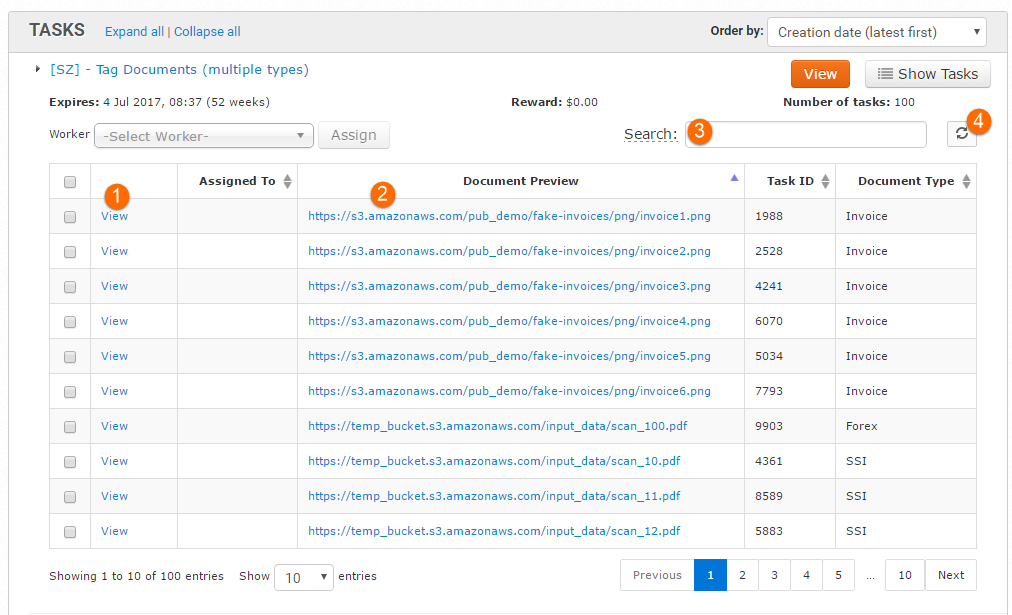
You perform the following actions:
View a particular Task by clicking the appropriate link and accept it.
If a grid contains column(s) with links to images or documents (like the Document Preview column on the screenshot), you can open these links without viewing the whole Task.
Filter results by using the Search box above the table. The search field accepts keywords as well as more advanced search terms, such as column-specific filtering (for example, Type: Loan to filter the results based on the term Loan within the Type column).
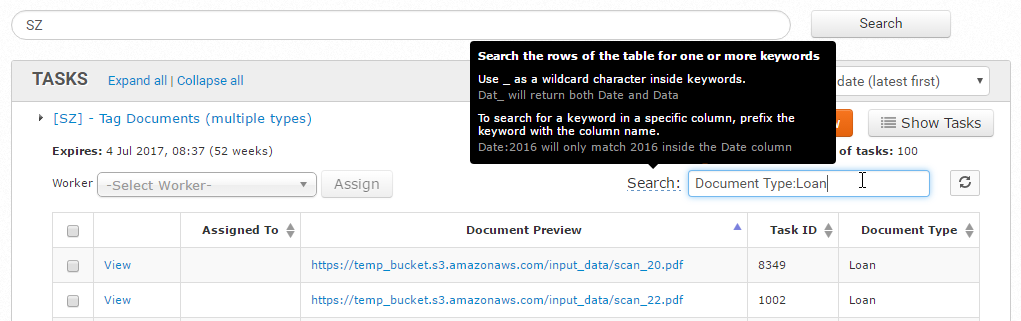
Refresh the grid to display currently available Worker Tasks only.
Assign Tasks
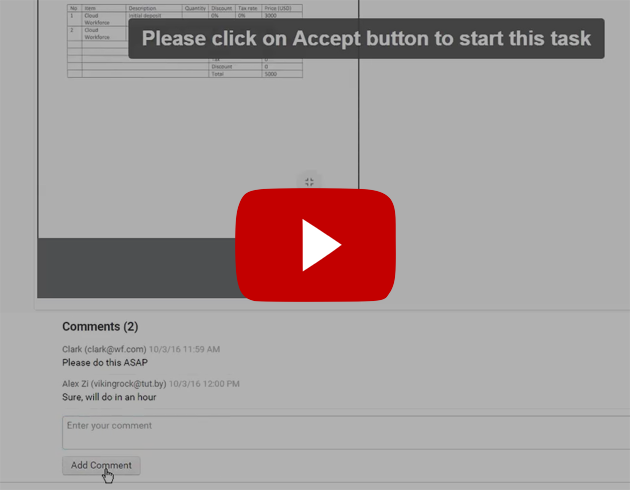
Download this video (6 > MB) here.
To assign a particular Worker Task to a person, do as follows.
Find your Task in the Tasks menu or using the search function.
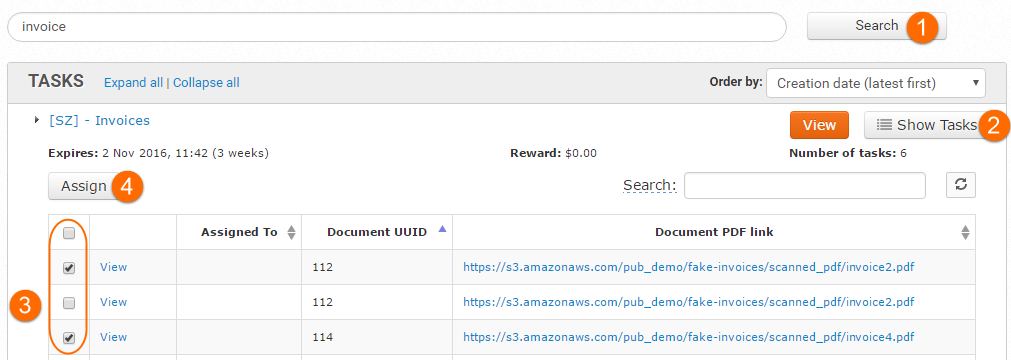
Click on the Show Tasks button to display all available Tasks of the same type.
Select Worker Tasks by ticking the appropriate checkboxes.
Click on the Assign button. A popup will appears.
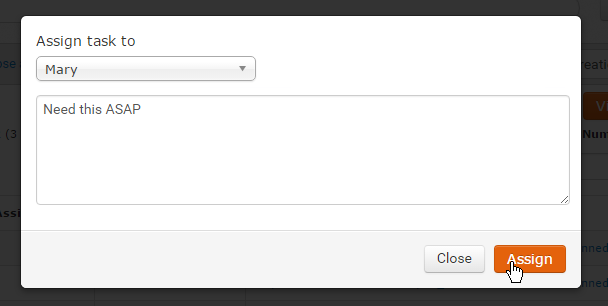
Select a Worker from the dropdown list.
(optionally) Add a Task comment if needed.
Click on the Assign button.
As a result, the Worker's name will be displayed in the Assigned To column.
If a Task is assigned to you, it means you are expected to accept this Task and submit it.
You can also make Tasks unassigned by selecting the [unassigned] option in the Worker dropdown. Assigned Tasks can be re-assigned to another person or unassigned.
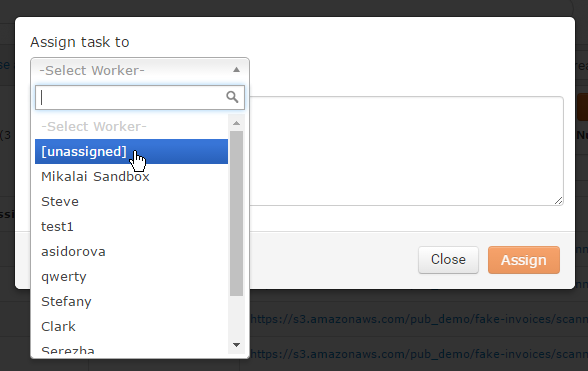
A Worker Task can also be assigned, reassigned, or unassigned from the Task Preview screen.
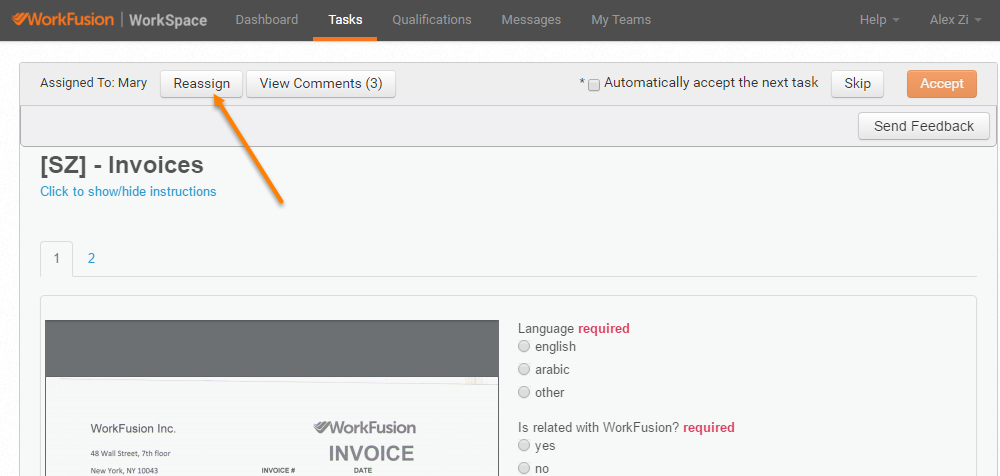
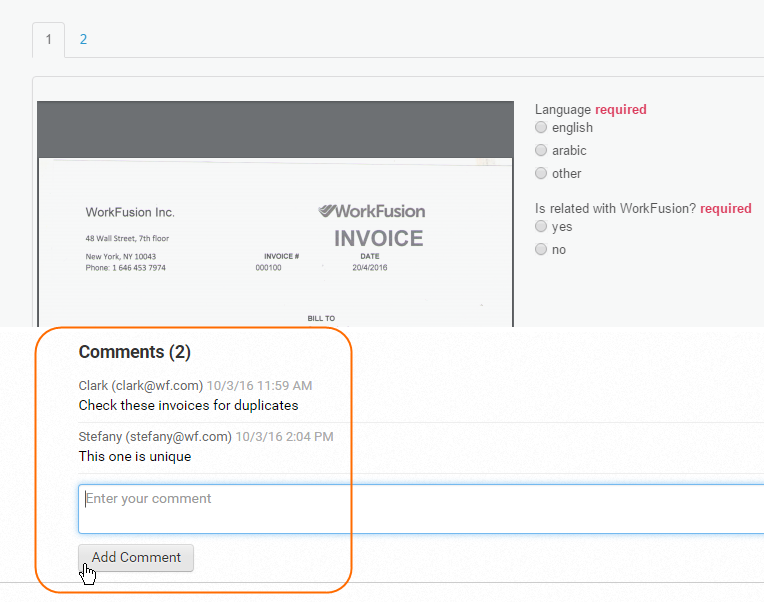
All the Task comments are displayed under the task. You can add a new one if needed.