
Title, Instructions, and FAQs
Set title
Modify task titles so that, once a task is run, it has a unique easy-to-find identification.
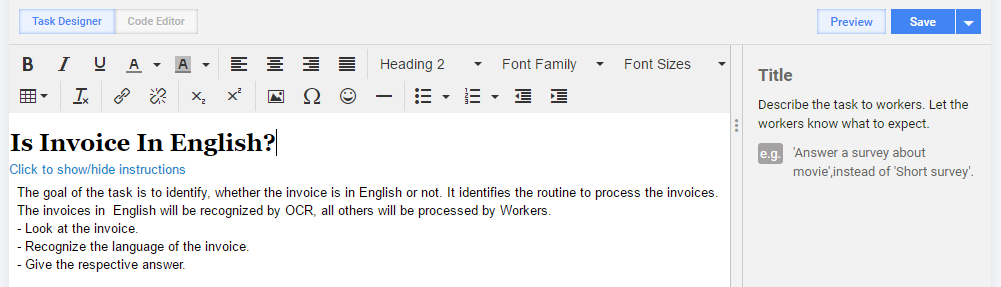
In particular, pay attention to the following considerations:
- Use informative and unique wording to distinguish the task among others and to clearly state the task goal.
- Do not insert line breaks and rare ASCII characters.
- Use the heading style with large font size.
- Remember to save to apply changes.
Manage FAQs
FAQ (Frequently Asked Questions) is a task section comprising common questions workers can ask about the task and respective answers.
Add FAQs
There are two ways to add FAQs:
- Via worker messages: while replying to worker messages, select the Create FAQ Item checkbox before hitting Reply. This automatically creates an FAQ item for the task.
- Via the Task Designer:
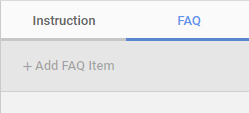
In the Task Designer, click the Instructions section inside. On the side panel, you will see Instruction and FAQ tabs.
Select the FAQ tab and click the Add FAQ Item button.
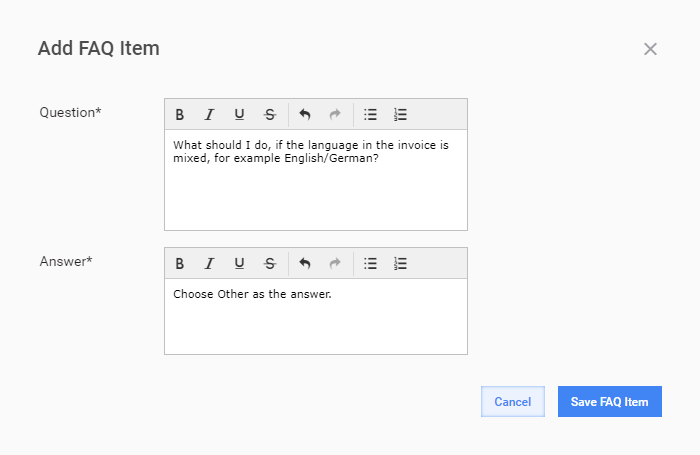
In the Add FAQ Item window, enter your Question and Answer and click the Save FAQ Item button.
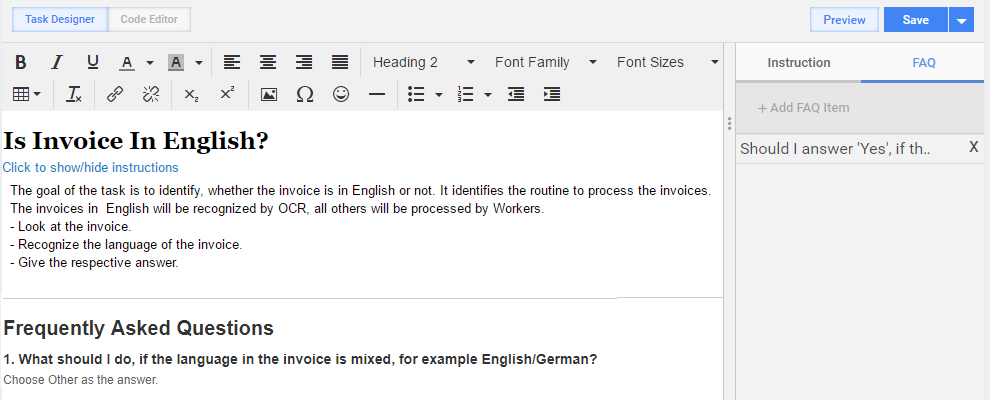
An FAQ item is appended to the Instructions section and is displayed on Preview.
note
Via the Task Designer, you can add FAQs dynamically while the task is still running.
Edit FAQs
To edit an existing FAQ item, go to the FAQ tab on the side panel and click the respective item. Then, in the popup window, edit the Question and Answer fields.
To modify the order of FAQ elements, drag them up and down.
To delete an FAQ element, click the close icon (x) to the right of it.
Manage Instructions
Instructions are an explanatory part of a task intended to provide initial data, task goal, steps to complete, examples.
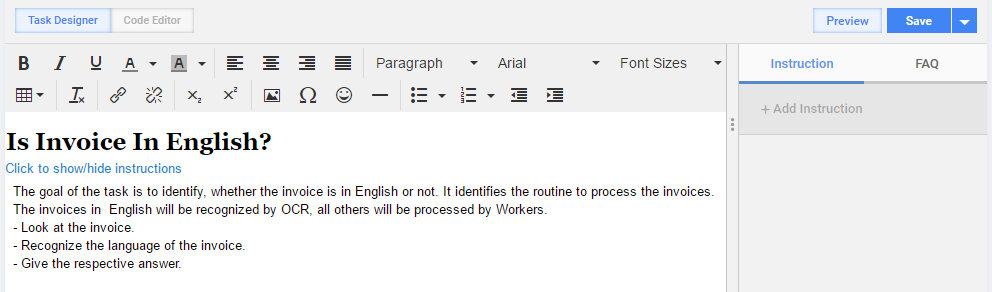
The following items are recommended sections of instructions for crowd-sourcing tasks:
- Overview: a brief explanation of a task objective, often in the Given ___, provide ___ format.
- Background: provides a context or background as required for a task. It should not necessarily be a separate section. The best option is to format it as extra paragraphs between the Overview and the Steps section.
- Steps: give clear step-by-step instructions for workers to follow.
- Data Definitions: a table listing a label, its definition, and an example of each data element the worker is to provide (useful for complex tasks).
- Guidance: explanations of the steps where you provide more details or insights as required to complete a task. You can also call it Useful Tips or merge with Common Mistakes for the Dos and Don'ts section.
- Common Mistakes: explanations of the things you DO NOT want in a task. In this case, you can also use Dos and Don'ts.
- Exceptions: items that go against the rest of the logic, potentially just a part of a previous section.
- Examples: specific examples of correct responses.
- References: supplemental information to help complete the task or provide more context. You can also call it Links.
The essential minimum for a worker: Title, Overview, and Steps.
An Instruction item can be published or marked as test. Each time Instructions are updated, a worker has to acknowledge the changes and mark them as read.
To modify the order of Instruction elements, drag them up and down.
To delete an Instruction element, click the close icon (x) to the right of it.
Add Instructions
To add Instructions, follow the steps below:
In the Task Designer, click the Instructions section.
On the side panel, select the Instruction tab and click the Add Instruction button.
In the Add Instruction window, enter Name and Description, and click the Save button.
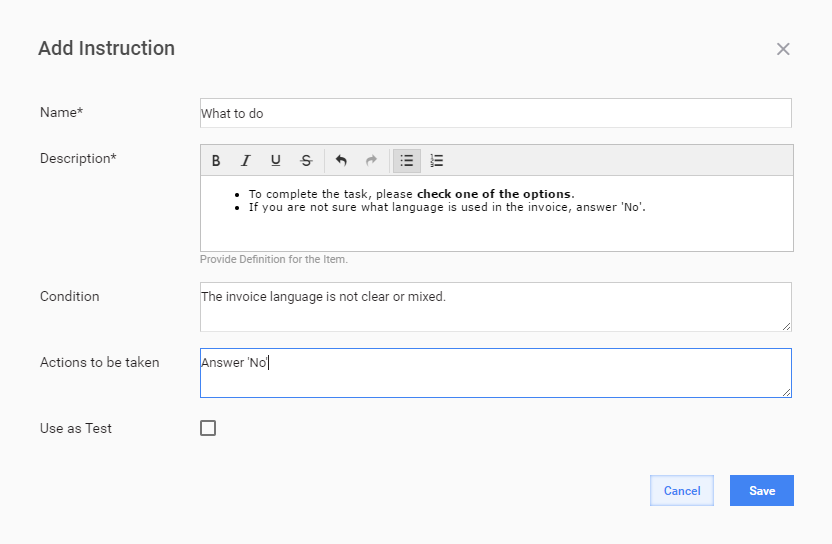
Optionally, for Instructions, you can also set up the following parameters:
- Condition: information about the condition of the task displayed in the Instruction body (If).
- Actions to be taken: information on how to handle the condition displayed in the Instruction body (What to do when the "if" condition is true).
Use Instructions as Tests
When Instructions are used as tests, workers are granted access to a task only after answering a test question correctly.
If worker answers are incorrect, the test is refreshed, and access to the task is NOT provided. Workers are asked to try answering the question again.
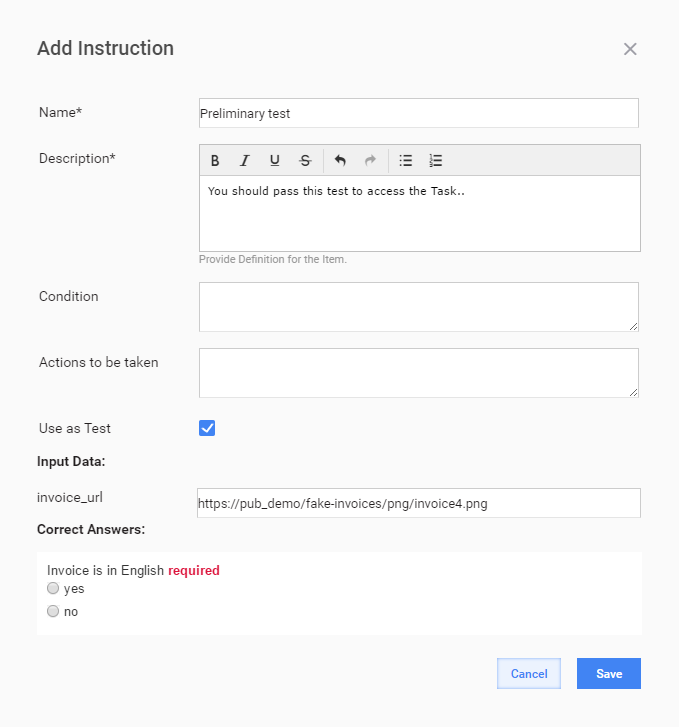
If the Use as Test checkbox is selected, the following additional fields are displayed in the form:
- Input Data: field names are parsed from the input data file
- Correct Answers: field names are parsed from Answer Codes
To set up those fields, add the input data and correct answers and click the Save button.
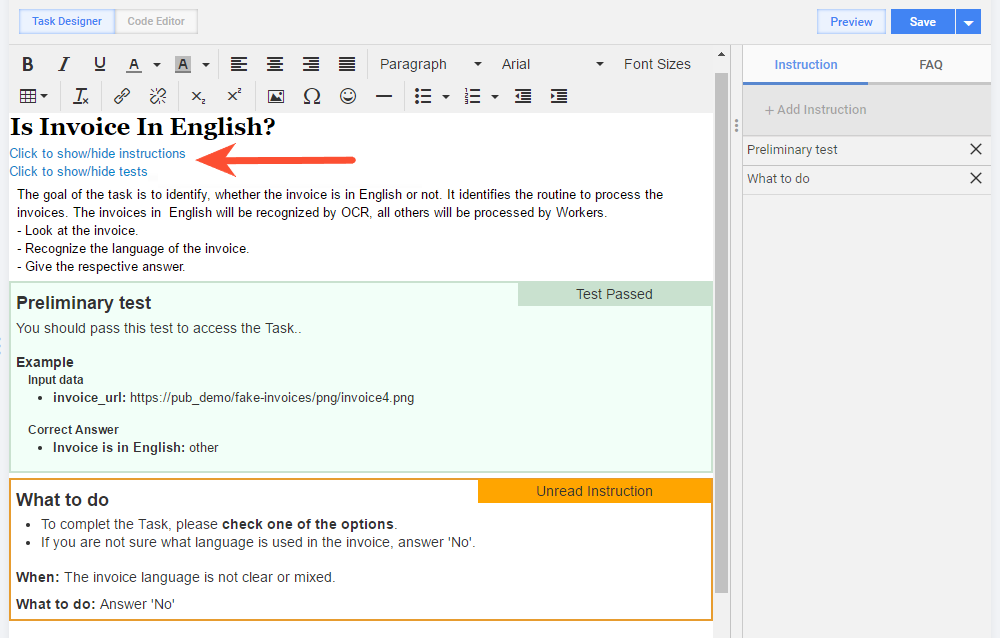
Show or hide Instructions or tests
To show or hide Instructions or tests, click one of the links, as shown below.
Work with Instructions in WorkSpace
To start working on a task, workers need to select the I have read the instructions checkbox.
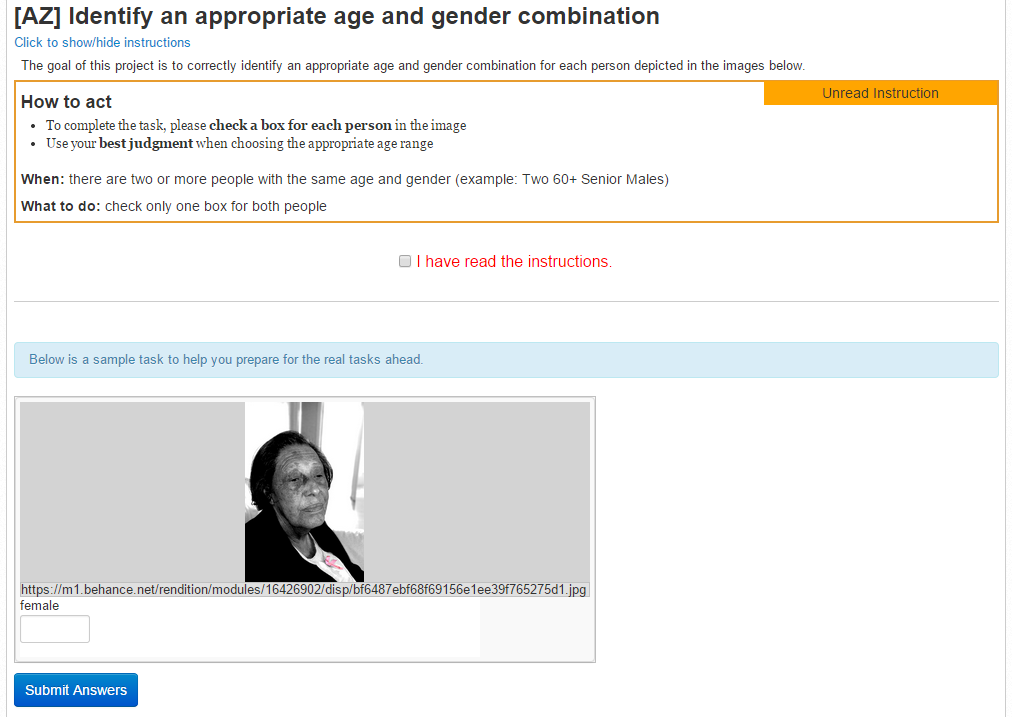
When a task contains Instructions as test, workers see a test question. If workers answer the question incorrectly, an error message appears on the screen. When the worker's answer is correct, the Test Passed indication is displayed, and workers can access the task.