
Configure project
To configure an AutoML SDK project, use one of the following methods:
Use AutoML SDK Wizard
AutoML SDK Wizard is the simplest way to configure a new AutoML SDK project in WorkFusion Studio. Follow the instructions below to quickly get started with a new project:
In WorkFusion Studio, click File > New > AutoML SDK Project.
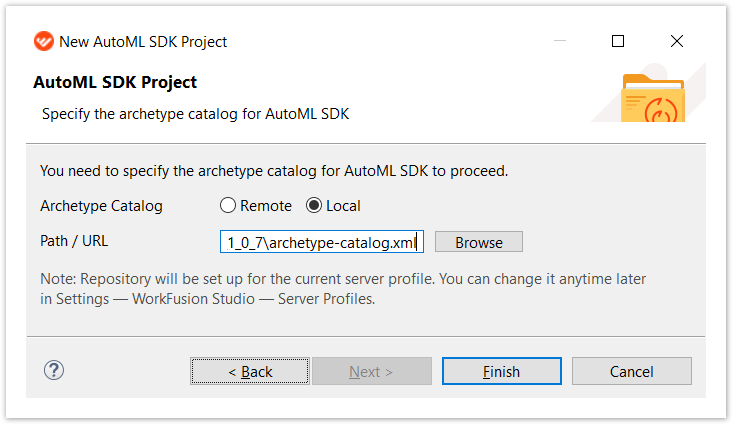
Select the Archetype Catalog:
Remote. For an on-premise installation, specify a URL to a pre-installed Nexus repository with all artifacts. For training purposes, specify the WorkFusion Maven repository. Enter your username and password.
Local. Specify the path to the
archetype-catalog.xmlfile.
Select the way you want your project to be created:
Create an empty project if you want to have an empty model without any configuration.
Extend generic models if you want your model to have a generic model configuration.
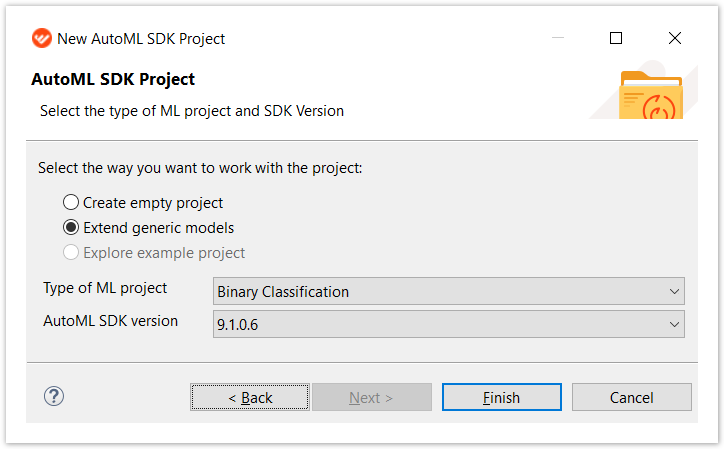
Select values for Type of ML Project and AutoML SDK Version.
Specify the properties and parameters for your AutoML SDK project. Note that the parameters are predefined.
groupId: group identifier of your artifactartifactId: unique identifier of your artifactversion: artifact versionpackage: default package for code generationmodelClassName: model's class namemodelCode: hyper model code; only [a-z, 0-9, _, -] allowedmodelDescription: hyper model description to be used as a hint during automation setup in WorkFusionasmodelTitle: hyper model title to be used as a drop-down value during automation setup in WorkFusionmodelVersion: hyper model version
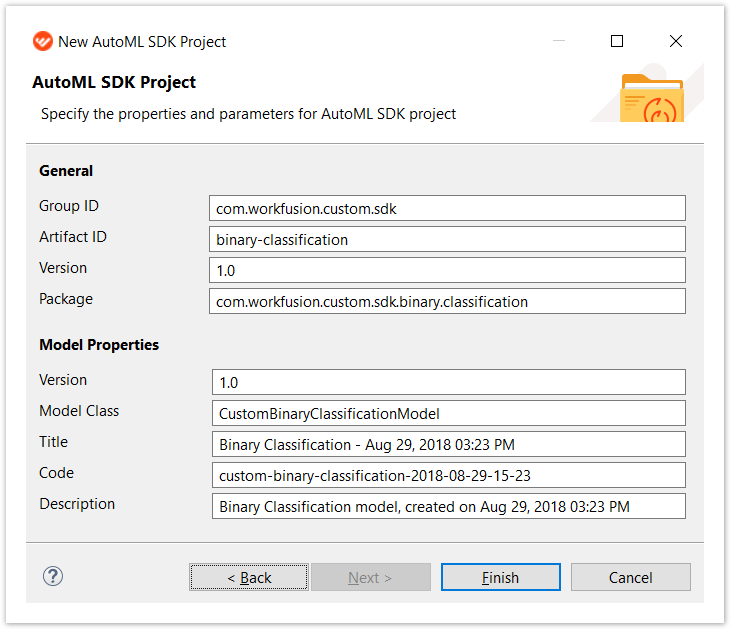
Click Finish and wait till your project is set up.
Now you're ready to start using the AutoML SDK project.
Use WorkFusion Studio
Set up project
- In WorkFusion Studio, click Window > Preferences > Maven > Archetypes.
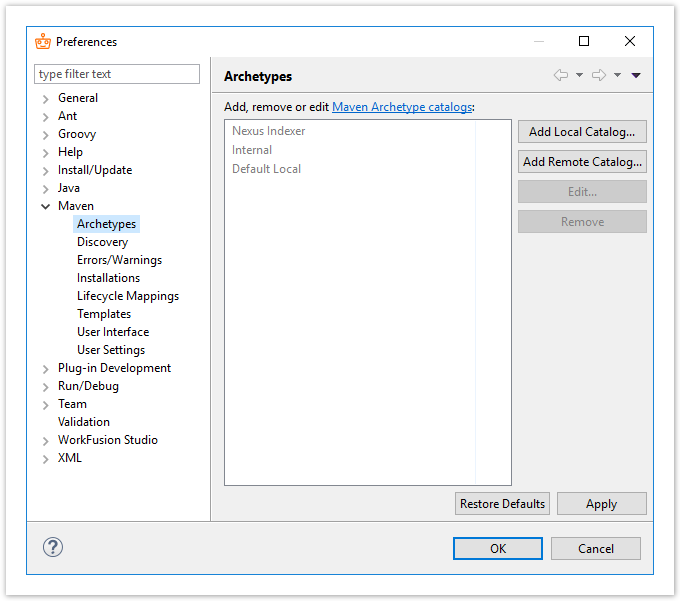
- Click Add Remote Catalog.... You can choose the pre-installed Nexus repository with all artifacts for an on-premise installation or the WorkFusion Maven repository for training purposes.
- Provide a URL to the repository, add the repository description (optional), and click OK.
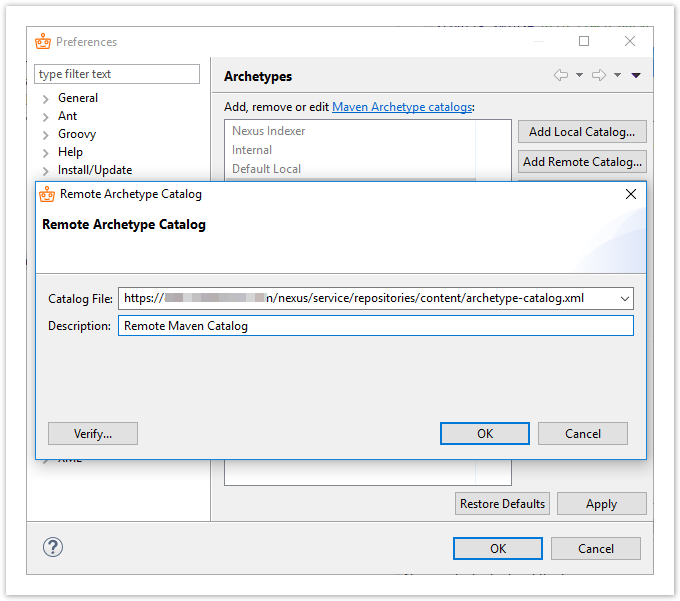
- Click OK to save the changes.
Generate project from Archetype
- In WorkFusion Studio, click File > New > Other > Maven.
- Select Maven Project, and click Next.
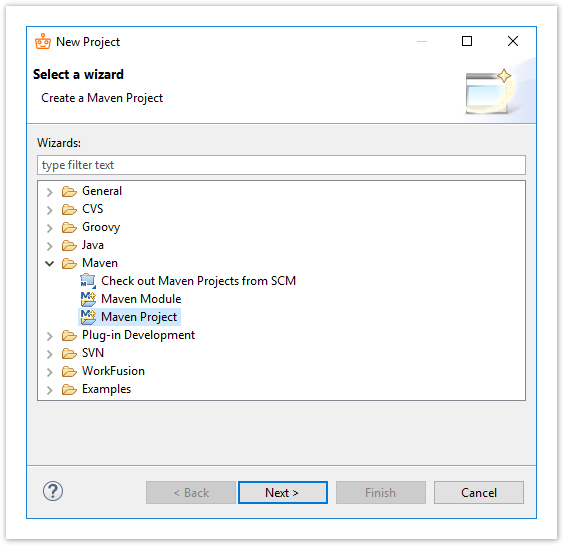
- Select Use default Workspace location, and click Next.
- Select the Catalog you created in the previous section, select an Archetype for your use case (Information Extraction or Classification), and click Next.
- Specify the Archetype parameters:
groupId: group identifier of your artifactartifactId: unique identifier of your artifactversion: artifact versionpackage: default package for code generationimportConfigurationFromGenericModel:yfor a generic model configuration ornfor an empty model without any configurationmodelClassName: class name of your modelmodelCode: hyper model code; only [a-z, 0-9, _, -] allowedmodelDescription: hyper model description to be used as a hint during automation setup in WorkFusionmodelTitle: hyper model title to be used as a drop-down value in the automation setup in WorkFusionmodelVersion: hyper model version
- Click Finish to generate a new project with the specified values.
- In Project tree, right-click the
pom.xmlfile. - Click Run As > Maven install and wait for the project to be built.
As soon as you see the BUILD SUCCESS message in the console, you are ready to use your custom model.
Use command line
Choose proper Maven command
To generate a stub using the command line, choose one of the following Maven commands, depending on the model type and Search Engine version.
Search Engine 2.0 models
Information Extraction
mvn archetype:generate -DarchetypeGroupId=com.workfusion.ml -DarchetypeArtifactId=ml-sdk-ie-se-20-archetype -DarchetypeVersion=<%artifact-version%>Classification
mvn archetype:generate -DarchetypeGroupId=com.workfusion.ml -DarchetypeArtifactId=ml-sdk-classification-se-20-archetype -DarchetypeVersion=<%artifact-version%>Binary Classification
mvn archetype:generate -DarchetypeGroupId=com.workfusion.ml -DarchetypeArtifactId=ml-sdk-binary-classification-se-20-archetype -DarchetypeVersion=<%artifact-version%>
Generate project
- Copy one of the above-mentioned commands.
- Replace
<%artifact-version%>with the current version of your AutoML SDK (for example,10.0.x.x). - Add the following fields:
groupId: group identifier of your artifactartifactId: unique identifier of your artifactversion: artifact versionpackage: default package for code generationimportConfigurationFromGenericModel:yfor a generic model configuration ornfor an empty model without any configurationmodelClassName: class name of your modelmodelCode: hyper model code; only [a-z, 0-9, _, -] allowedmodelDescription: hyper model description to be used as a hint during automation setup in WorkFusionmodelTitle: hyper model title to be used as a drop-down value during automation setup in WorkFusionmodelVersion: hyper model version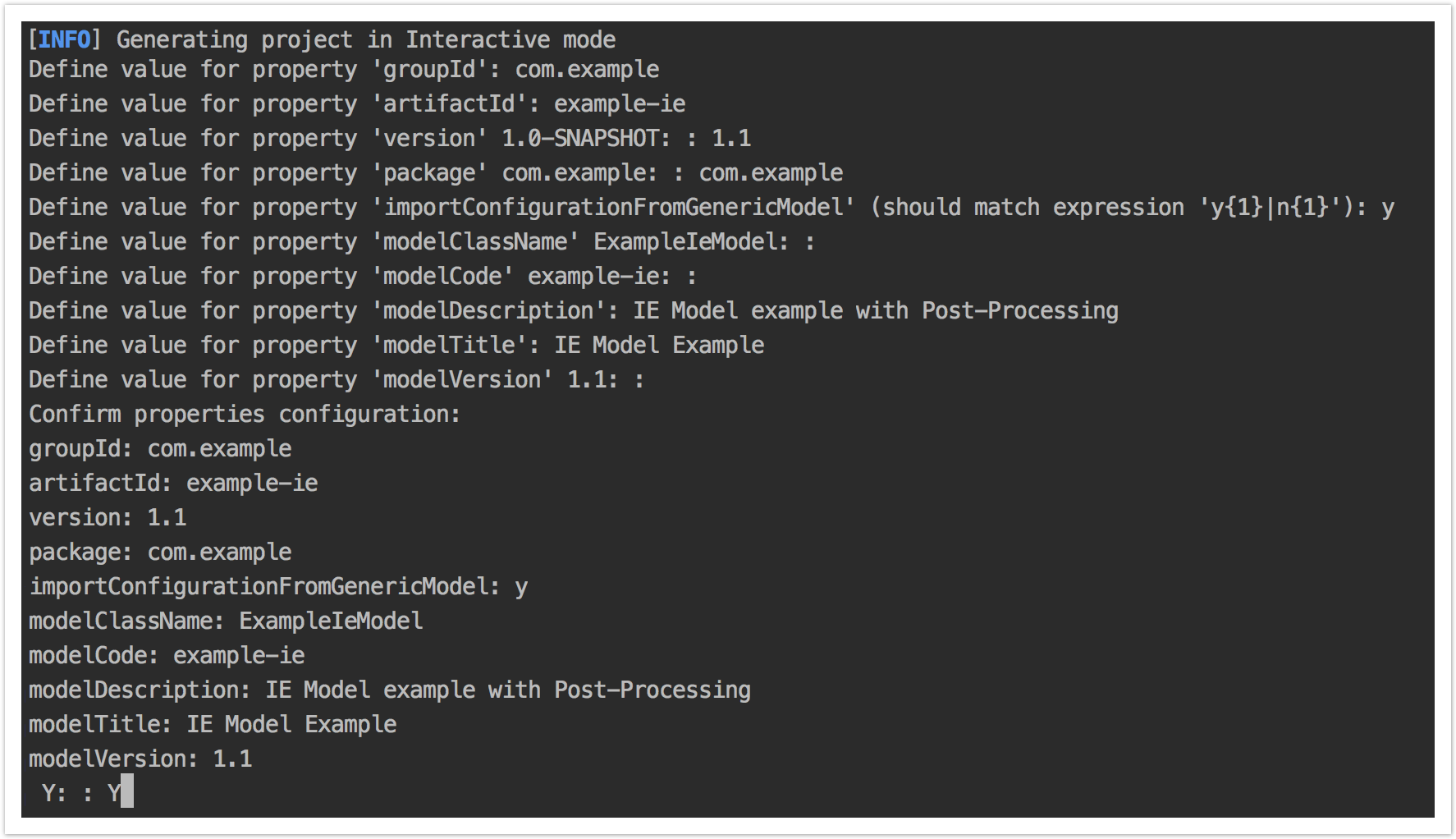
Your hyper model stub is generated. It's a Maven project you can import to your preferred Java IDE.
The generated stub has the following structure:
example-ie
├── src
│   ├── main
│   │   └── java
│   │   │    └── com
│   │   │        └── wf
│   │   │            └── example
│   │   │                ├── example_ie
│   │   │                │   ├── config
│   │   │                │   │   └── ExampleIeModelConfiguration.java
│   │   │                │   ├── model
│   │   │                │   │   └── ExampleIeModel.java
│   │   │                │   └── run
│   │   │                │       ├── ModelProcessingRunner.java
│   │   │                │       └── ModelTrainingRunner.java
│   │   │                └── FeatureExtractorExample.java
│   │   │                └── PostProcessorExample.java
│   │   └── resources
│   │       └── logback-local.xml
│   └── test
│       ├── java
│       └── resources
└── target
    └── pom.xml
Check project artifacts
The generated stub can contain the following classes:
<%artifact-name%>Modelclass with a custom hyper modelIn the class, you can find a basic configuration of your hyper model: code, version, title, and so on. It also contains the generated
ModelConfigurationannotation with a pre-generated model configuration. The generated hyper model extends one of the generic models:GenericIeHyperModelfor IE models andGenericMultiClassificationHyperModelfor Classification ones.<%artifact-name%>Configurationclass with your model configurationIt has methods, such as
processor,featureExtractors,annotators, where you can define your model configuration.PostProcessorExample: Post-Processor exampleFeatureExtractorExample: Feature Extractor exampleModelTrainingRunner: class for a local model training runModelProcessingRunner: class for a local model execution run to develop or debug post-processing