
Negative News report
High-level description
Negative News Report generator is a pre-defined template to generate the Negative News Report HTML, convert it to PDF, and store the PDF on S3.

The first NegativeNewsReport settings step is the configuration step.
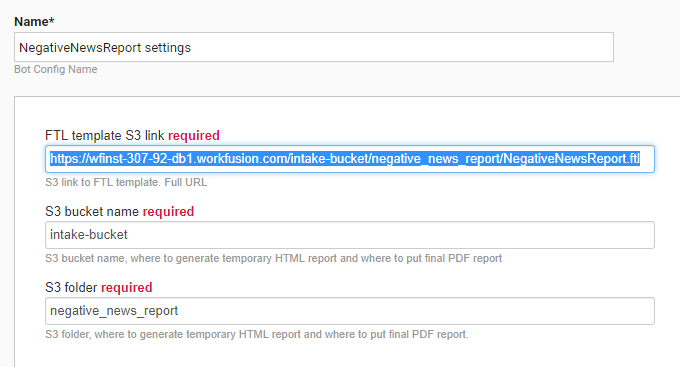
The NegativeNewsReport settings parameters are as follows:
- FTL template S3 link (required) – S3 link to the FTL template. Its full URL should be indicated, for example, https://wfinst-307-92-db1.workfusion.com/intake-bucket/NegativeNewsReport.ftl
- S3 bucket name (required) – S3 bucket name, where to generate a temporary HTML report and to put the final PDF report to
- S3 folder (required) – S3 folder, where to generate a temporary HTML report and where to put the final PDF report to
Note that the resulting PDF name is randomly generated.
The NegativeNewsReport settings Use Case and the Generate Report Bot Config are generic. They can generate any report type from the transaction data, using the particular FTL template file name. Negative News Report is a concrete report, generated by the NegativeNewsReport.ftl.
How to use
- Make sure that the ReportSettings - GORU-771 template of the Bot Base type exists in the Control Tower templates.
- Make sure that the NegativeNewsReport - GORU-771 Bot Use Case of ETL type exists in the Control Tower Use Cases.
- Create the first step as Bot Task.
- Double-click on the step.
- Select ETL Use Cases > the NegativeNewsReport - GORU-771 Use Case.
- Double-click on it again and populate parameter values properly.
- Make sure that the FTL template you specified in the FTL template file name in the previous step exists on S3 in the bucket specified by the S3 bucket name parameter and in the folder specified by the S3 folder parameter value.
- The second step must be the step that creates the transaction and populates it with the proper transaction attributes, documents, and document attributes.
note
We use the TransactionCreateFakeConnector connector as the second step. It creates a test transaction with all necessary data. This step should export the following columns to the Generate Report Bot Config:
- ftl_template_s3_link – S3 link to the FTL template; full URL
- s3_bucket – S3 bucket name, where to generate a temporary HTML report and to put final PDF report to
- s3_folder – S3 folder, where to generate a temporary HTML report and to put final PDF report to
- _sys_transaction_id – ID of the Negative News Report transaction created in the previous step (usually a connector step)
- Go to the side panel on the right > the Bot tab (Other) and drag-n-drop the Generate Report Bot Config from the Intake Bots BCB. Its name is Intake Bots (Generate Report).
How it works
- The Negative News Report generator uses transaction data to generate PDF based on the FTL template.
- The NegativeNewsReport.ftl template expects Transaction and Document(s) attributes in the transaction and the documents.
- Negative News Report also logs some actions during the work (with the INFO log level). The logs are available in the Business Process Results tab, the Event log link.
Transaction attributes
- entityName – entity name
- dateOfInvestigation – investigation date
- workerName – Worker name
- overallRecommendation – overall recommendation (final results from the Manual Task with the decision to investigate the entity or not)
- articlesReviewed – the number of articles reviewed
- suggestedKeywords – keywords suggested by the model; data format: JSON list; for example,
{"Keyword1","Keyword2","Keyword3"} - highRiskCountriesRelations – high-risk countries relations; data format: JSON list: for example:
{"Country1","Country2","Country3"} - manualTaskLink – link to the manual task.
Document attributes
- title – title
- publishingDate – publishing date
- classificationModelScore – classification model score
- triggeredCountries – triggered countries; data format: JSON list; for example:
{"Country1","Country2","Country3"} - suspiciousPhrases – set if an article triggers a further investigation; contains suspicious phrases from the Manual Task emphasized by a worker; data format: JSON list; for example:
{"Phrase1","Phrase2","Phrase3"} - originalDocumentLink – original link to the article
- origin.originalDocumentLink – archive link to the article
- htmlExcerpt – article HTML body excerpt; data format: plain text