Retrain model
Model retraining is a mechanism that allows you to easily improve model quality. The basic operations include actual retraining of your model, comparison of statistics of two models, applying the retrained model to the use case, and downloading and uploading the use case training dataset/model.
important
Retraining workflow allows to perform retraining on the non-Production environment (for example UAT or DEV). But it is also possible to use the Production environment for retraining: just skip dataset downloading from Production and uploading the retrained model back.
Download dataset
To perform model retraining, you need new data. To get it, go Control Tower on the Production environment.
Go to Use Cases and select the use case you are going to retrain the model for.
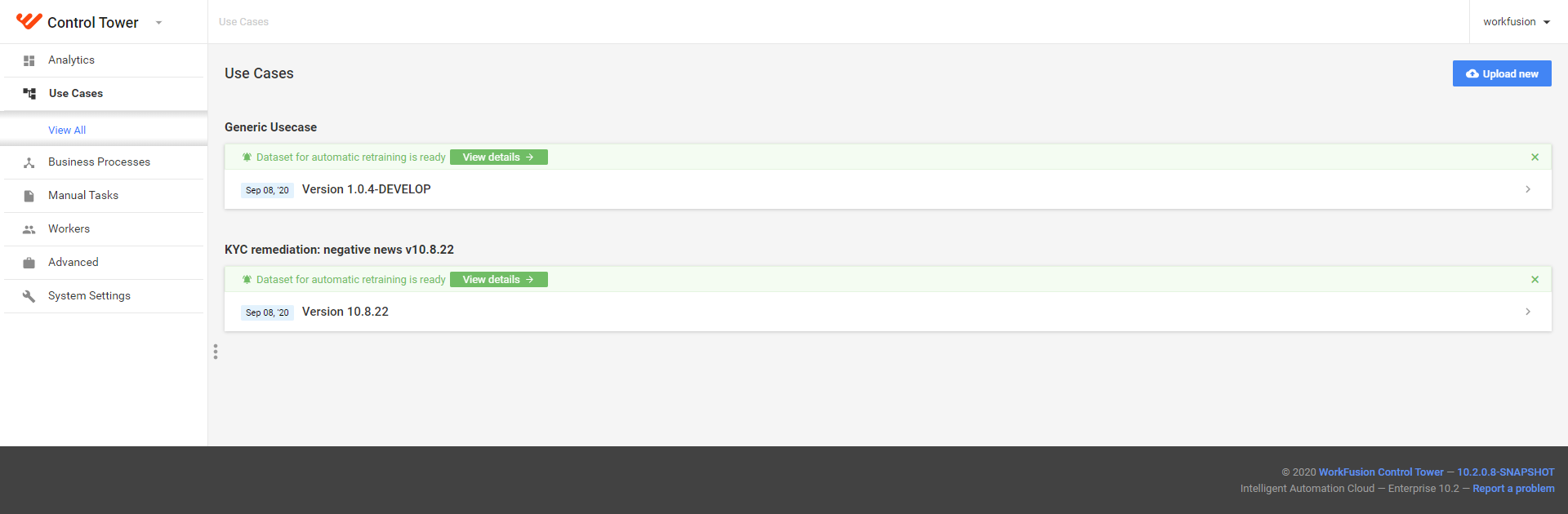
In case the dataset is full enough to retrain the model, you see the "Dataset for automatic retraining is ready" message. Click on the View details button.
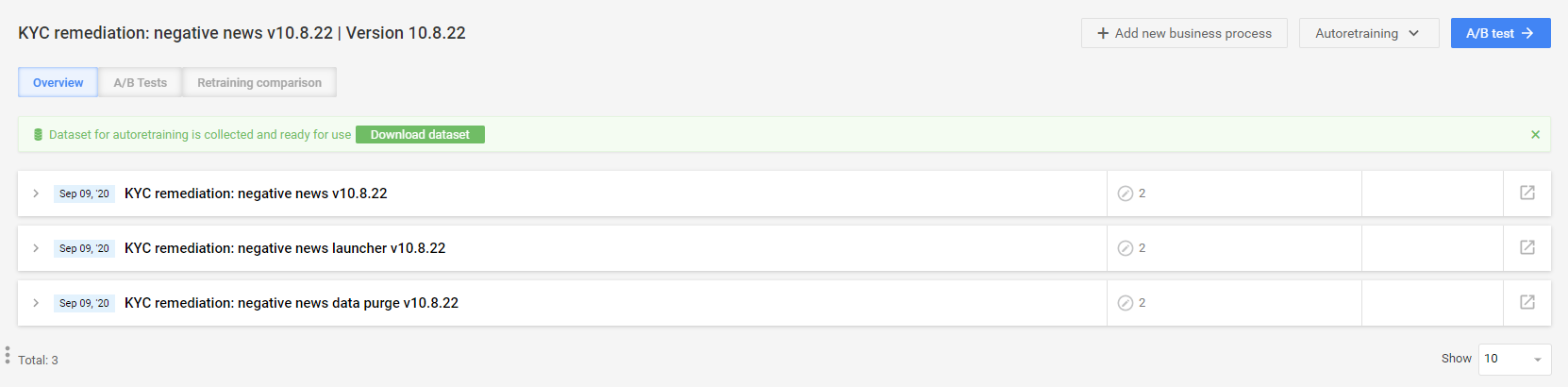
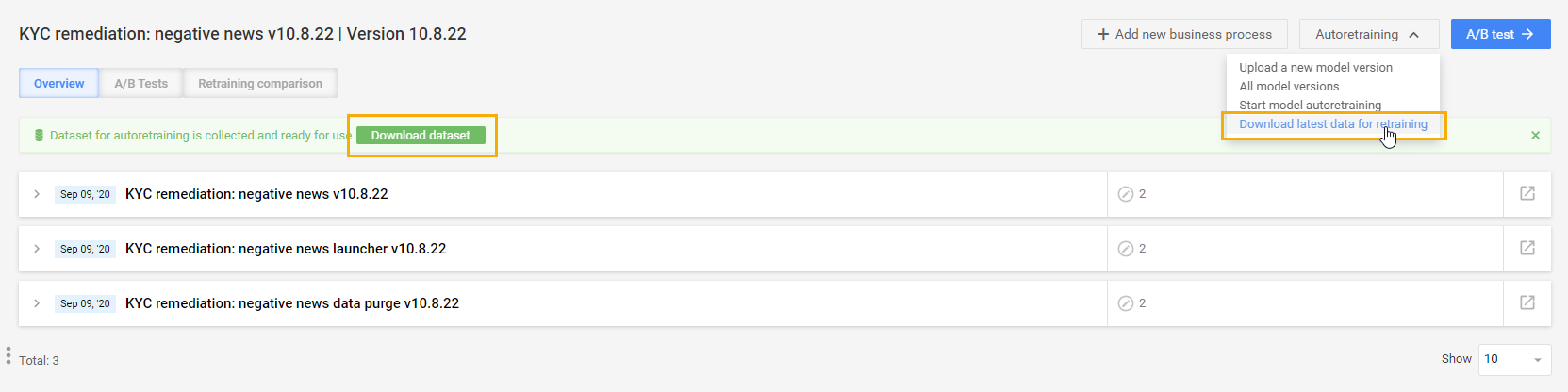
On the "Dataset for autoretraining is collected and ready for use" box, click Download dataset. You can also get the dataset by clicking on Autoretraining > Download latest data for retraining. The download starts automatically.
important
The training dataset file is downloaded in the .csv format.
Retrain model
tip
In case you as Data Analyst or Machine Learning Engineer require to perform manual manipulations with the dataset, do this now. On finishing, make sure you pack the data back in the same format it has been downloaded.
Perform model autoretraining on the UAT environment.
Go to Control Tower > Use Cases and select the same use case you have downloaded the retraining dataset on the Production environment.
In the Autoretraining drop-down box, select the Start model retraining option.
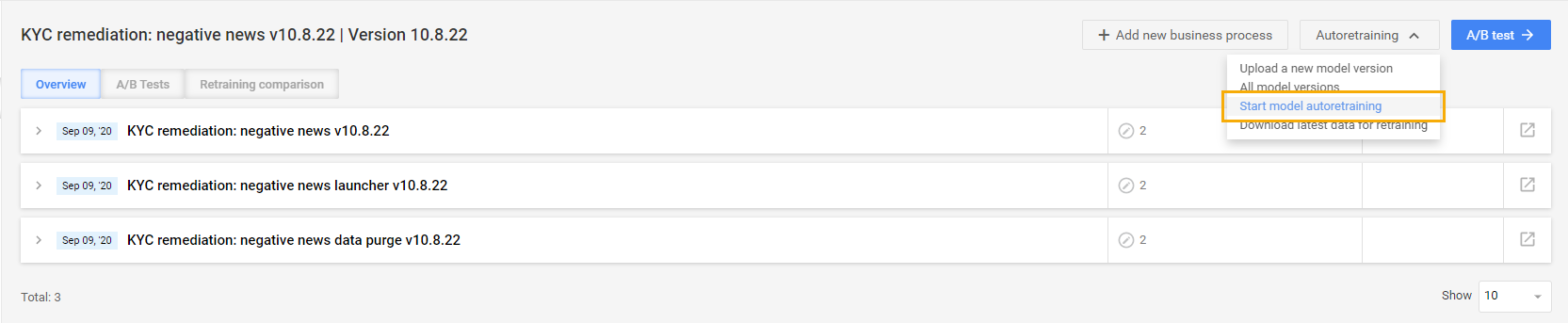
In the popup that follows, click Upload dataset and specify the path to the .csv file you have downloaded. When uploading, the dataset is split into training (70%) and test (30%) data. Mind that the current model will not be affected during the further retraining and test processes.
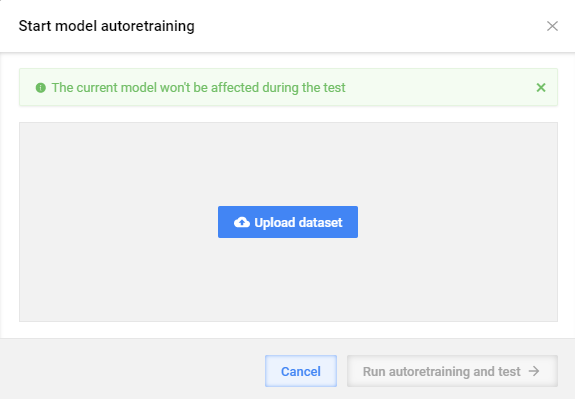
Click Run autoretraining and test.
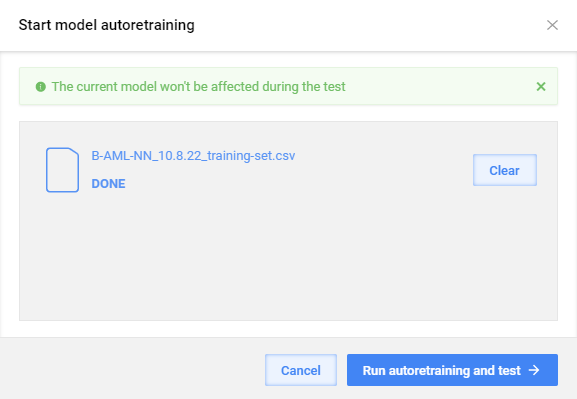
The model retraining comprises several major processes performed step by step. These processes include actual retraining, testing, and statistics collection. The process status and output display on the same screen.
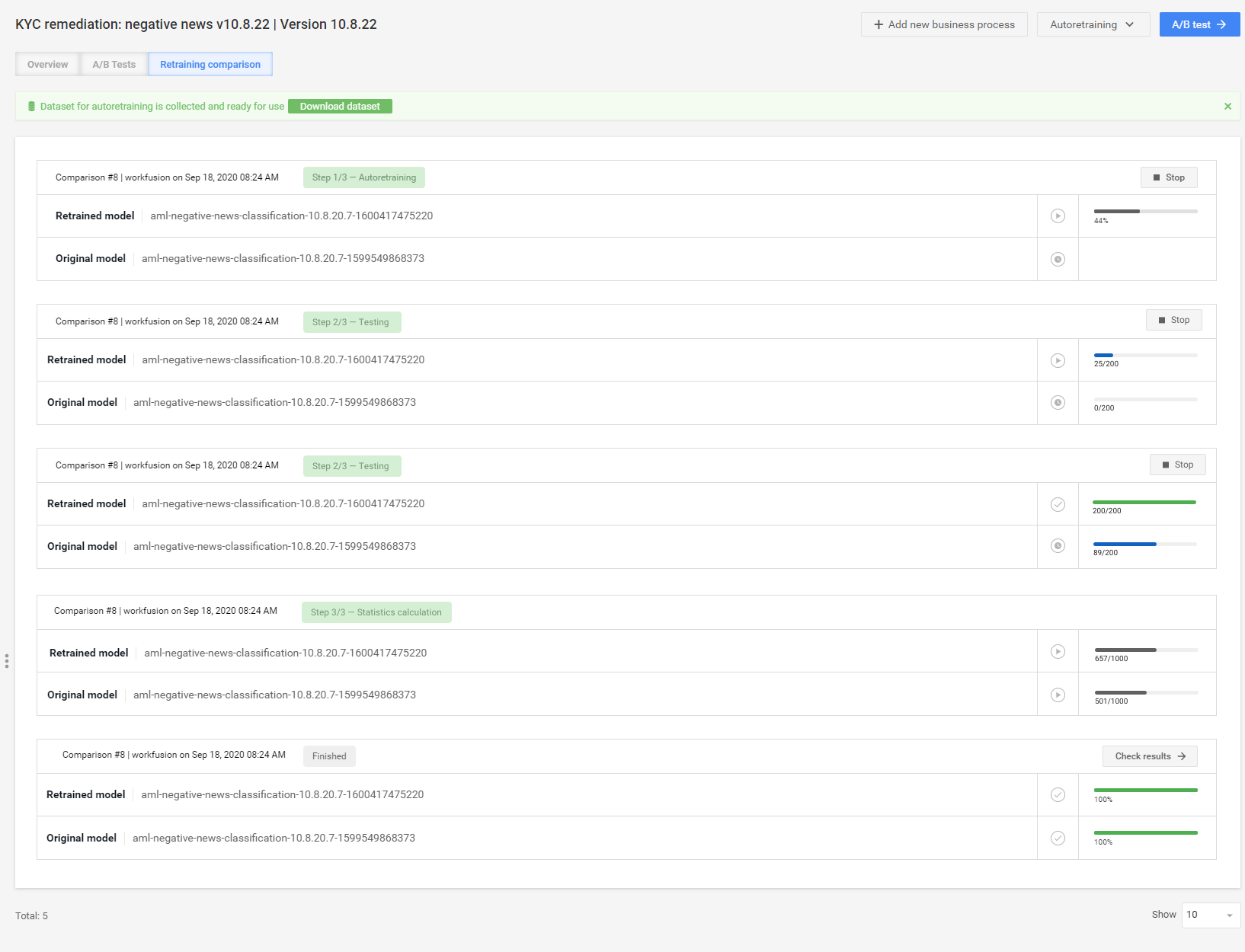
The model retraining results can be as follows:
- Finished: the model has been successfully retrained.
- Stopped: the status is shown in case you manually stop the autoretraining process (the Stop button).
- Failed: autoretraining could not be performed due to some error (view the notification on hovering over the error icon).

After the model retraining is finished, click on the Check results button.

On the Model Comparison screen, you can view retraining results, for example, the total number of documents where the model has low confidence and mistakes.
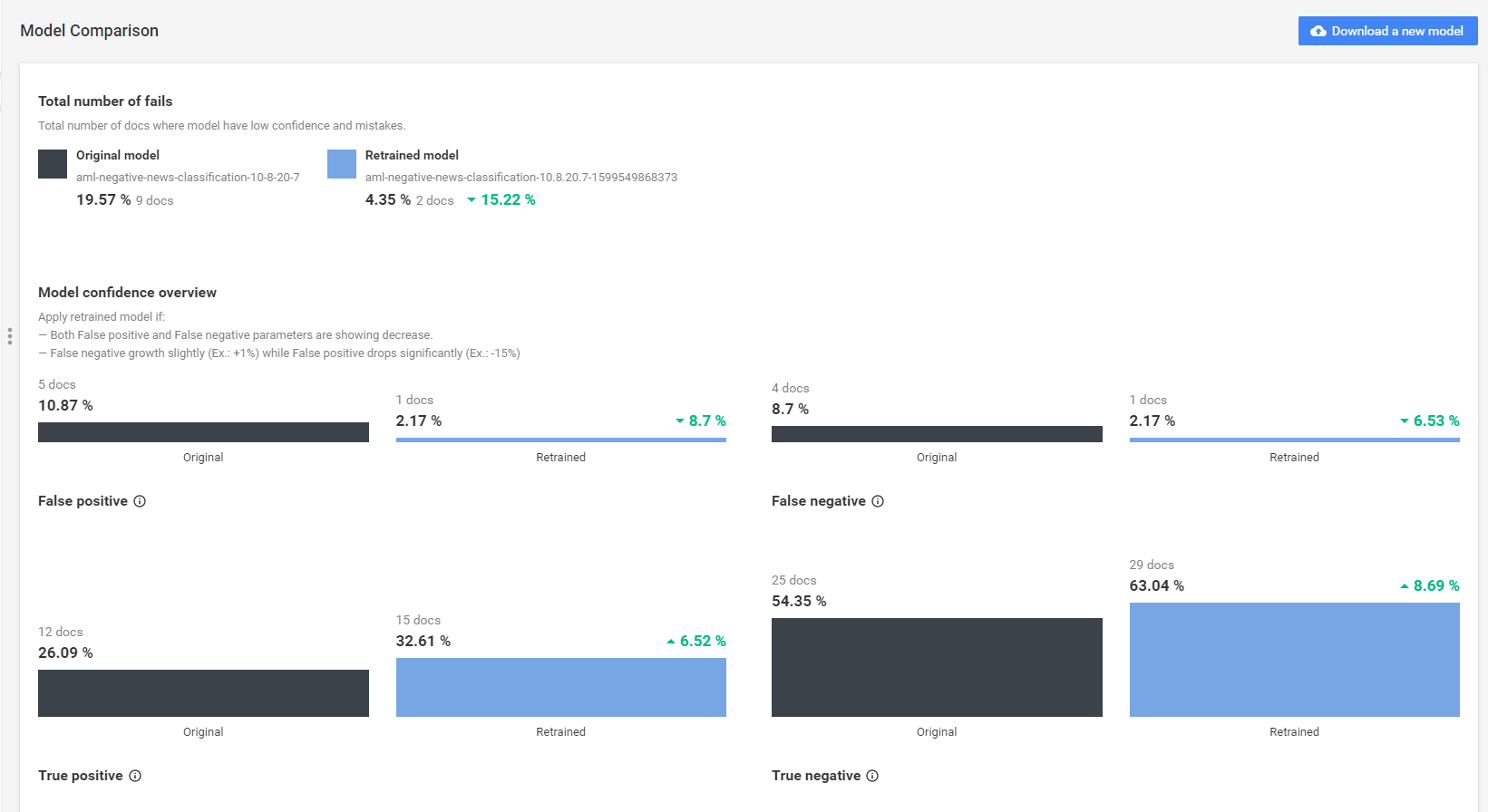
The parameters to pay attention to are as follows:
- False positive is the error made by the model when a not materially relevant article is misclassified into the Need to be read category. The increase in the metric leads to more noise and might increase the review time by the analyst.
- True positive is the case when a materially relevant article is correctly classified into the Need to be read category.
- False negative is the error made by the model when a materially relevant article is misclassified into the Don't need to be read category. The increase in this metric exposes the risk of missing attention to those articles by the analyst.
- True negative is the case when a not materially relevant article is correctly classified into the Don't need to be read category.
caution
It is recommended to apply a retrained model only in the following cases:
- Both the False positive and False negative parameters are showing a decrease.
- False negative slightly grows (for example, +1%) while False positive drops significantly (for example, -15%).
To further use the retrained model, click Download a new model. The retrained model is downloaded as a ZIP archive.

Upload retrained model
To upload your retrained model, go to the Production environment.
Go to Control Tower > Use Cases and select the use case you have retrained the model for.
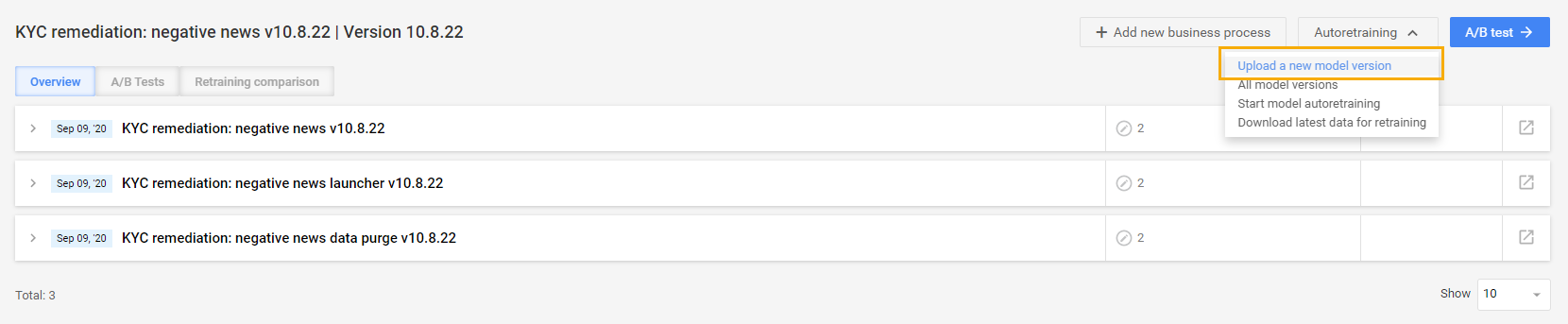
In the Autoretraining drop-down box, select the Upload a new model version option.
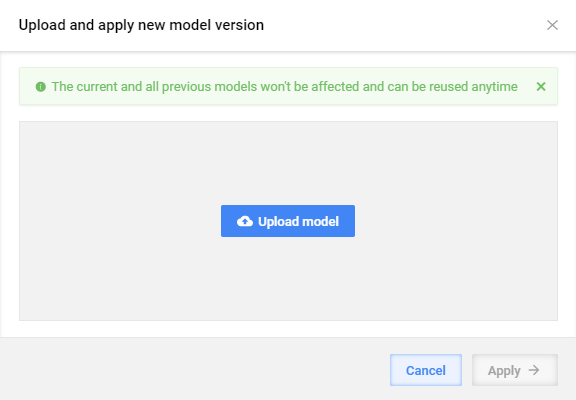
In the popup that follows, click Upload model and specify the path to the .zip archive with the retrained model. Mind that the current and previous models will not be affected, and you can reuse them anytime.
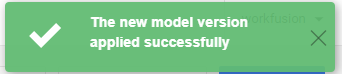
On uploading the model, the message confirming that the new model version has been applied appears in the top right-hand corner.
Select model
You can select what model to apply.
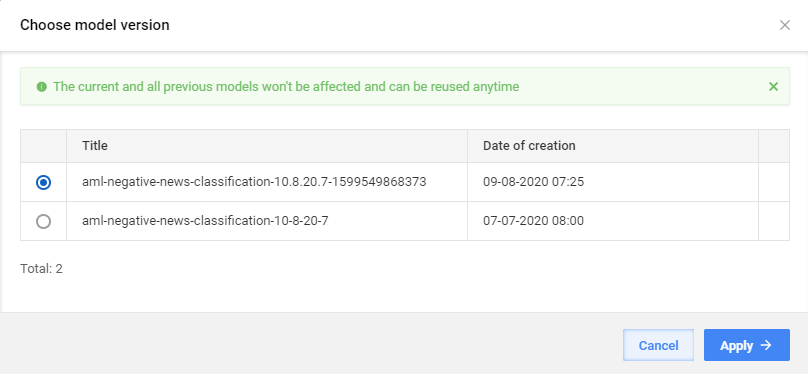
To view available models, go to Use Cases > your use case > Autoretraining > All model versions.
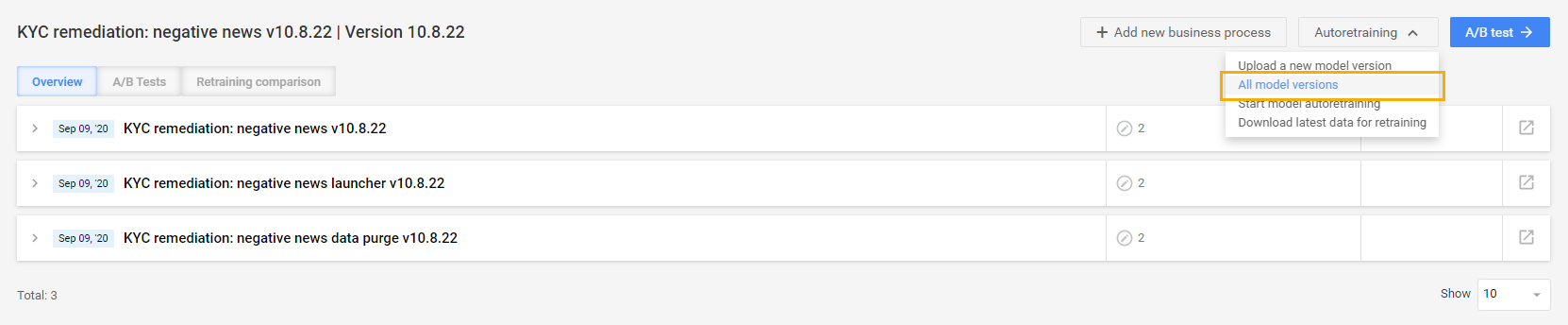
Choose the model version and click Apply.