
Add Composite Rules
Composite Rules define a Business Process (BP) flow variant, depending on the Record column values.
Example: if the website_status of a Record is VALID, execute the Rename the Company Contact Information task for the Record. Otherwise, go to End.
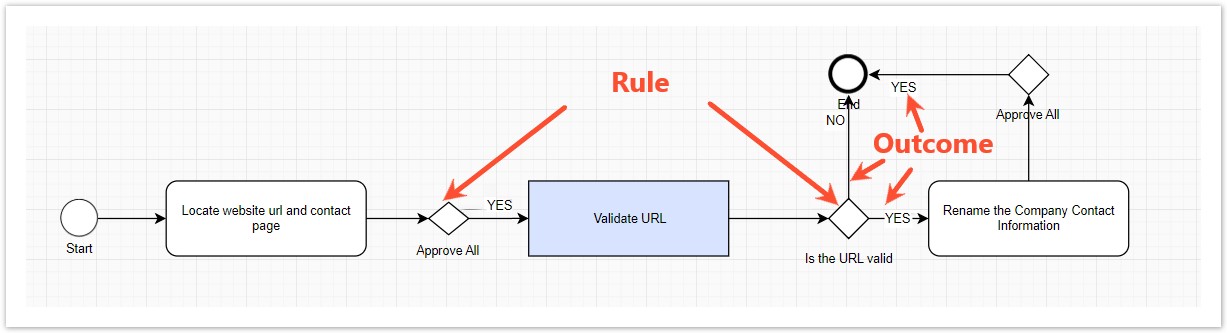
In most cases, you can configure these Rules via the user interface Rule editor.
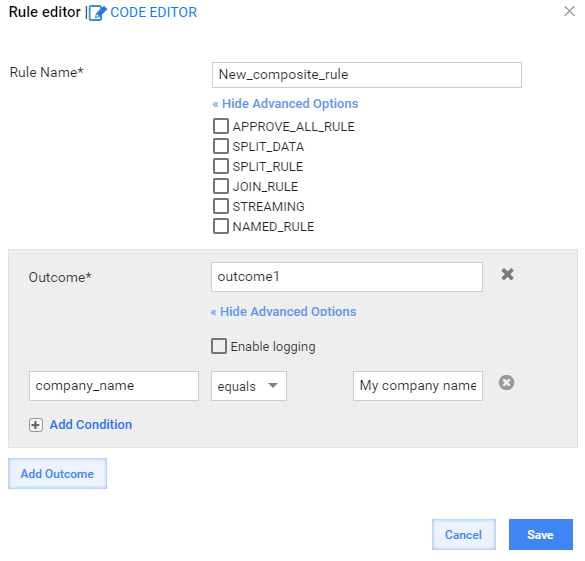
You can use additional functions related to Composite Rules by enabling Advanced Rule Options or Advanced Outcome Options.
Alternatively, you can create a custom Rule by editing the Composite Rule source code in the Drools language via Code Editor.
Composite Rule example
package com.freedomoss.requester;
# list any import classes here.
import java.util.Map;
import java.util.ArrayList;
import com.freedomoss.objective.model.CompositeRuleContext;
import com.freedomoss.objective.model.CompositeRuleDataItemContext;
import org.slf4j.Logger;

# declare any global variables here
global CompositeRuleContext source
global Logger log
global Map params

# RuleContext.SPIT_RULE:usa
rule "Rule context initialization"
auto-focus true
no-loop
agenda-group "initialization-group"
    when
        $ctx:CompositeRuleContext(initialized == false);
    then
        # insert processed facts into memory
        $ctx.updateWorkingMemory();
        # move to business rules
        kcontext.getKnowledgeRuntime().getAgenda().getAgendaGroup("calculation").setFocus();
end
# RuleOutcome.Definition={"outcomeId":"Group I","conditional":false,"conditions":[]}
# RuleOutcome.Definition={"outcomeId":"Group II","conditional":false,"conditions":[]}
# RuleOutcome.Definition={"outcomeId":"Group III","conditional":false,"conditions":[]}
# RuleOutcome.Definition={"outcomeId":"Group IV","conditional":false,"conditions":[]}
# RuleOutcome.Definition={"outcomeId":"Group V","conditional":false,"conditions":[]}
# RuleOutcome.Definition={"outcomeId":"outcome1","conditional":false,"conditions":[]}
rule "Send unprocessed result to unconditional outcome(s)"
agenda-group "calculation"
dialect "mvel"
salience 80
    when
        $ctx:CompositeRuleContext(initialized == true);
        $item:CompositeRuleDataItemContext();
    then
        $ctx.sendResultToUnconditionalOutcomes($item, true);
        $ctx.logExecutedRule(kcontext.getRule().getName() + " item:" + $item.toString());
end
rule "Logging all items"
agenda-group "calculation"
dialect "mvel"
salience 60
    when
        $ctx:CompositeRuleContext(initialized == true);
        $item:CompositeRuleDataItemContext(this memberOf $ctx.lastStepDataItems);
    then
        $ctx.logExecutedRule(kcontext.getRule().getName() + " item:" + $item.toString());
end
Create Composite Rule
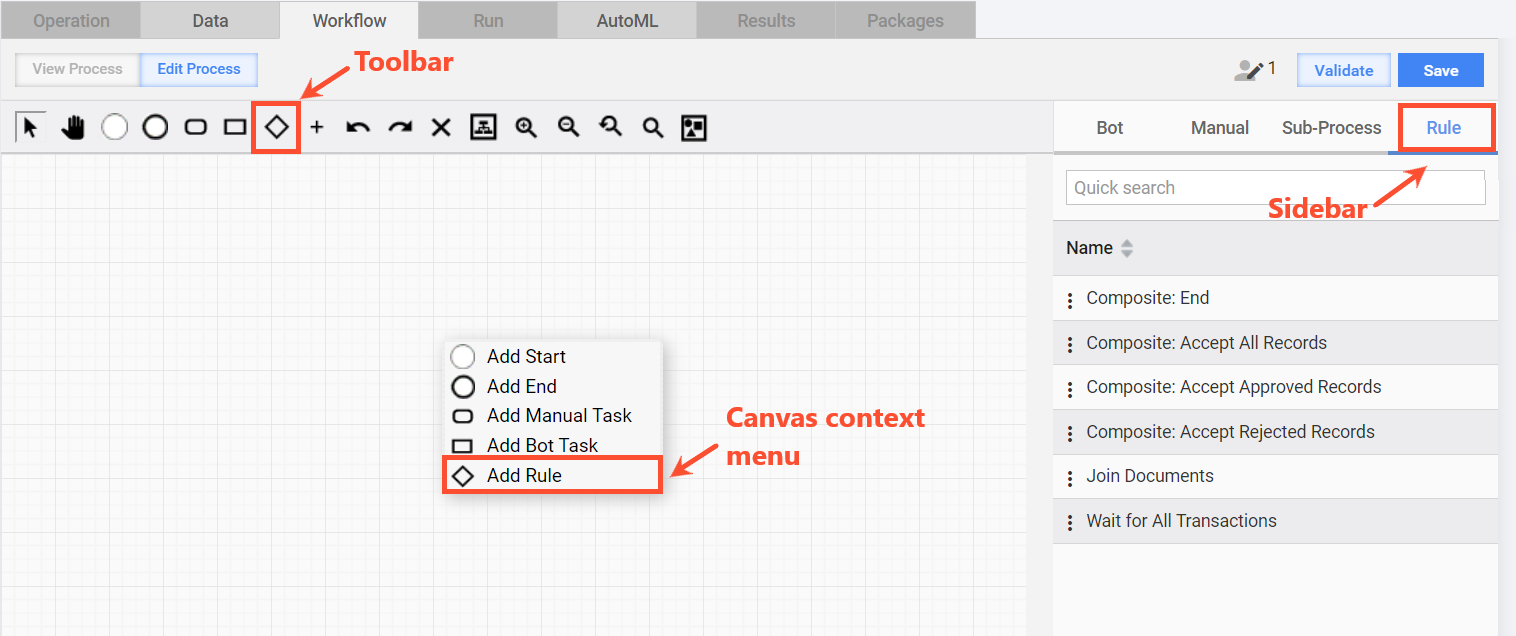
You can add a Composite Rule to a BP on the Workflow tab using one of the following methods:
- From the Toolbar or Canvas context menu. A blank Rule is created.
- From the Sidebar or Element context menu. In this case, the Rule is copied from the source Rule. You can edit the Rule if needed.
Edit Composite Rule
To edit a Rule, double-click the Rule figure or right-click and select Edit from the context menu.
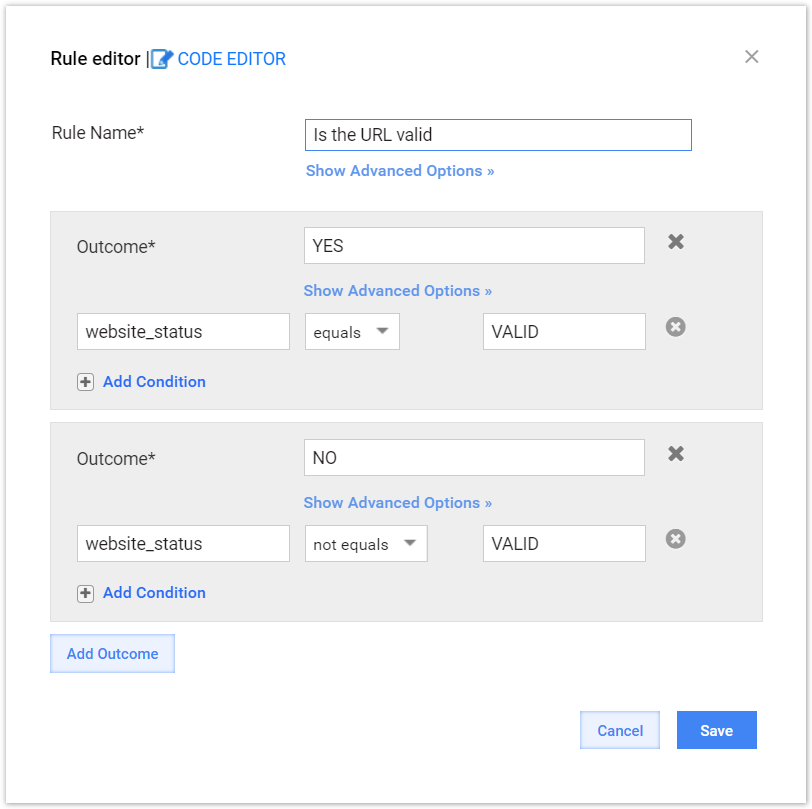
On the Rule Editor page, proceed as follows:
Enter a unique name for your Rule.
Click Add Outcome if there is not any. Each Rule must have at least one Outcome.
Click Add Condition to add a condition to an outcome.
You can add multiple conditions to one Outcome. If you leave Outcome without any conditions, this means all other Records.
The logic of Rule elements is the following:
- AND between Conditions
- OR between Outcomes
Set up Conditions for your Outcomes. Each Condition contains three required fields. These are as follows.
- Answer Code, or the name of column in the data file. The field is autocompleted.
- Logical Operator, for instance, equals, less than.
- Value, or a regular expression (matches regexp, not matches regexp). RegExp allows you to use the OR logic in the Condition values by adding the pipe "|" symbol, for instance, 1|2.
Save the Rule by clicking Save.
Connect the newly created Outcomes to the target Tasks or Processes.
Advanced Rule Options
APPROVE_ALL_RULE
If set, the Drools execution is replaced with a Java loop that unconditionally sends all Records to the next step.
SPLIT_DATA
The flag enables splitting Records for the next step according to the number of created Assignments. This feature can be used for Surveys.
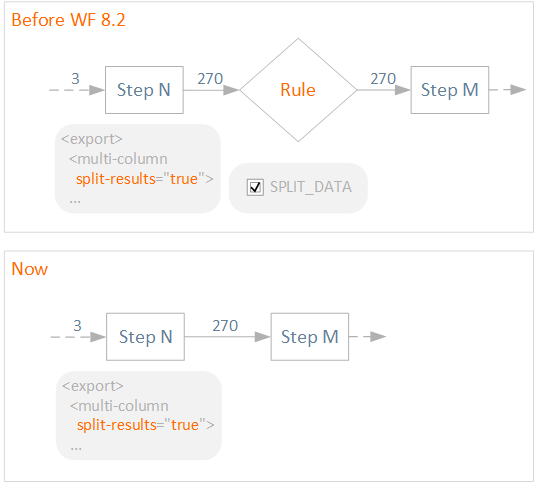
Create a Composite Rule with the SPLIT_DATA flag after a Bot Task using the multi-column Export plugin (with split-results="true") to split a single Record into multiple ones.
To minimize data errors when data record splitting is required, avoid adding the SPLIT_DATA rule after the step that splits records in its export section.
Previously, to produce multiple rows with split-results="true" after a step, it was necessary to create a rule with the SPLIT_DATA advanced option checked.
SPLIT_RULE and JOIN_RULE
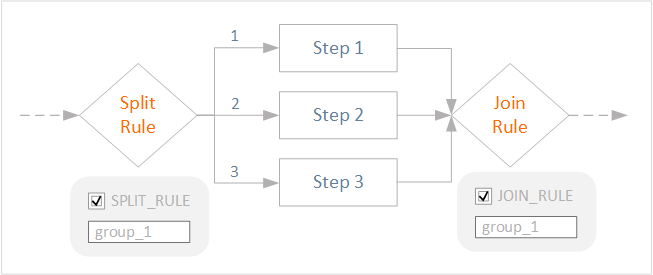
These flags are used in BPs where all Records going to the fork have to pass through all branches and join afterward. The step after the JOIN rule won't start until all branches are completed.
A group label—the value inserted after a flag—is used to differentiate between split-join groups in case they are used more than once, for example, if a BP has sub-processes with the split and join operations.
STREAMING
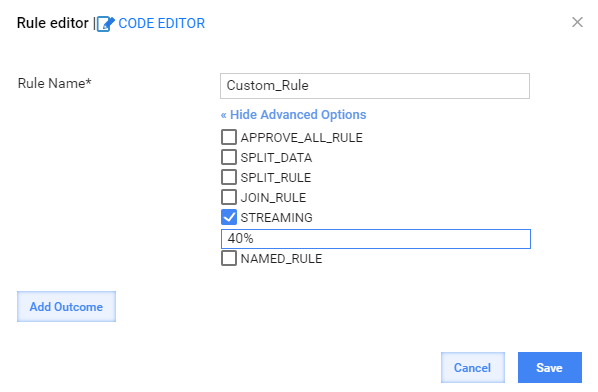
The flag overrides BP streaming settings for the subsequent step. If set, defines the number of tasks or a percentage value for streaming.
NAMED_RULE
The flag is used to build cut-off rules in an Automation BP according to model results. This rule is used after the extract step and allows you to generate a condition automatically.
Advanced Outcome Options
There is only one Advanced Outcome Option—Enable logging. If you apply it, the rule execution is recorded to rules.log.
RegEXP in conditions
RegEXP allows you to use OR in composite rules for a parameter.
For instance, num matches regexp 1\|2 means that the outcome accepts records with the num value of 1 OR 2. Otherwise, the record is redirected to the Default outcome.