
Set run parameters
To set run parameters for a Manual Task (MT), open a task and navigate to the Run tab. In addition to setting the parameters, the tab allows you to do the following:
caution
Always test MTs in a development environment to check their configuration.
View Manual Task details
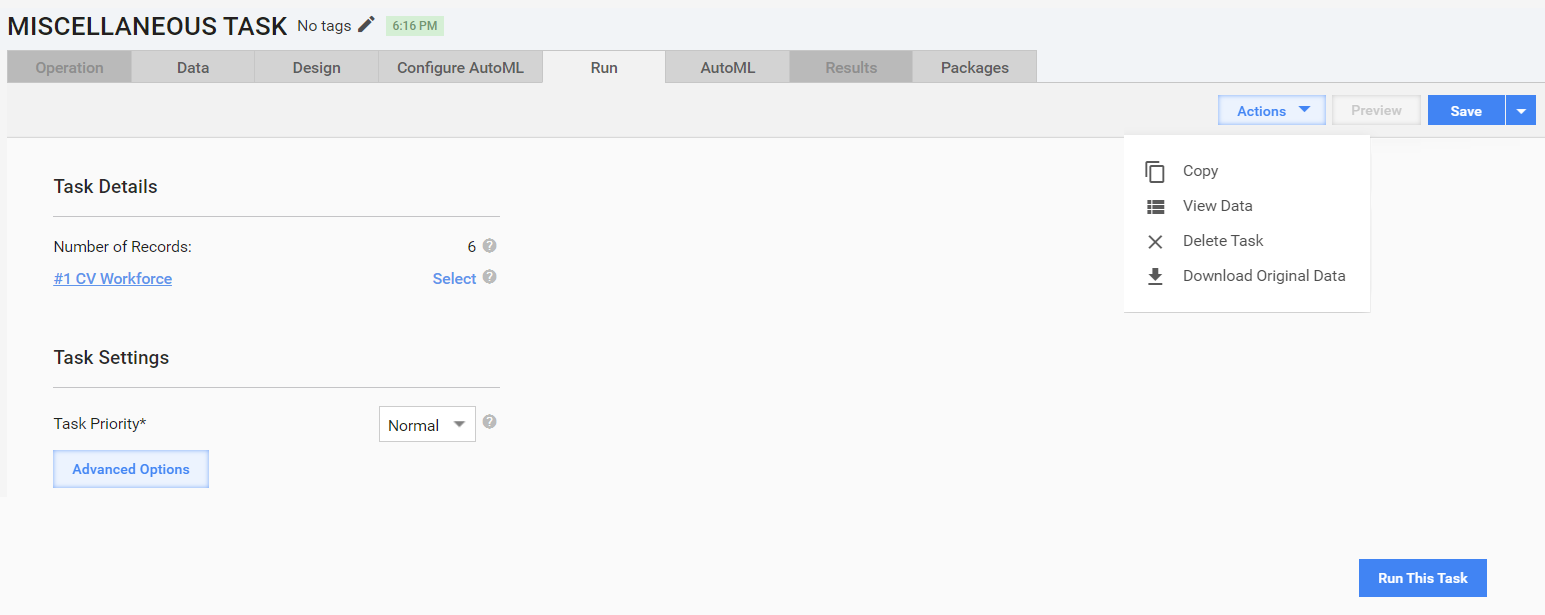
The Task Details block displays the following information:
Number of Records in the input data file
Workforce selected to complete the task
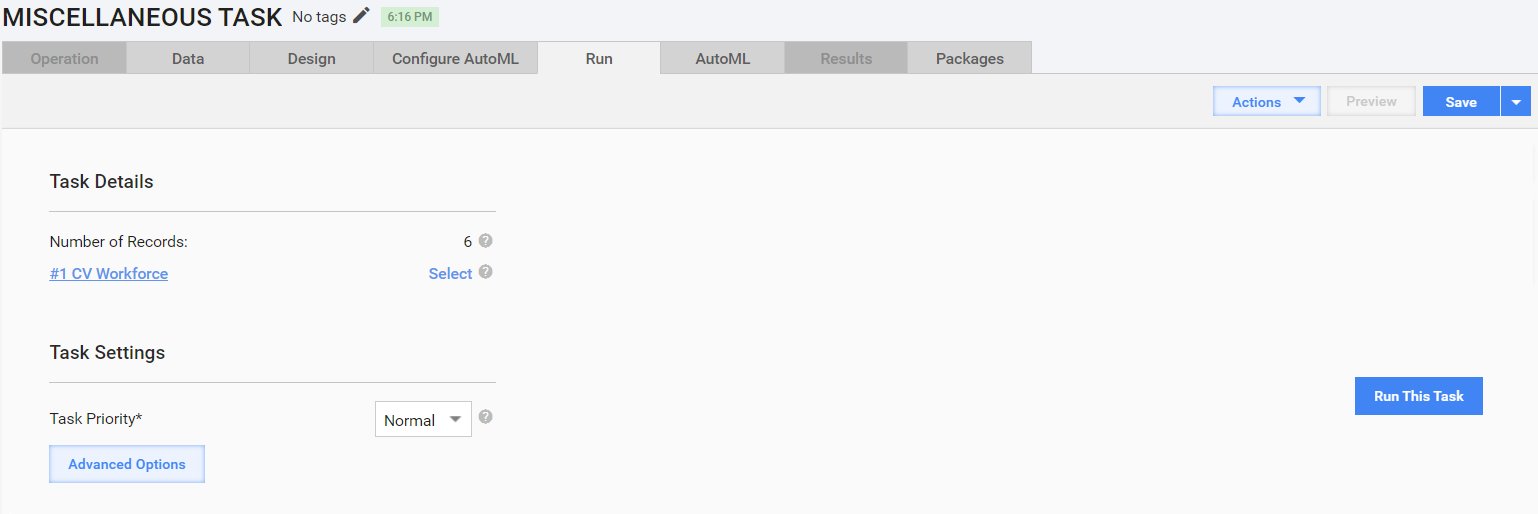
Set Workforce
Workforce is a grouping entity specifying who is working on a particular Manual Task. A Workforce can contain one or more Crowds. For detailed information, see the Manage Workforces and Crowds topic.
To view the Workforce and its Crowds selected for the Manual Task, go to the Task Details block and click the Workforce name link.
The following popup appears:
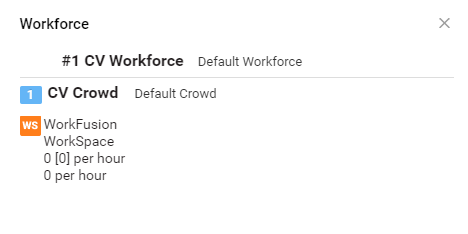
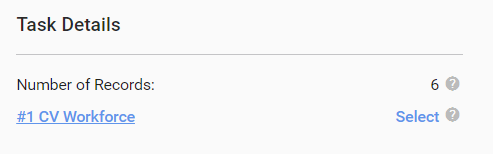
To set or change a Workforce for an MT, follow the steps below:
In the Task Details block, click the Select link.
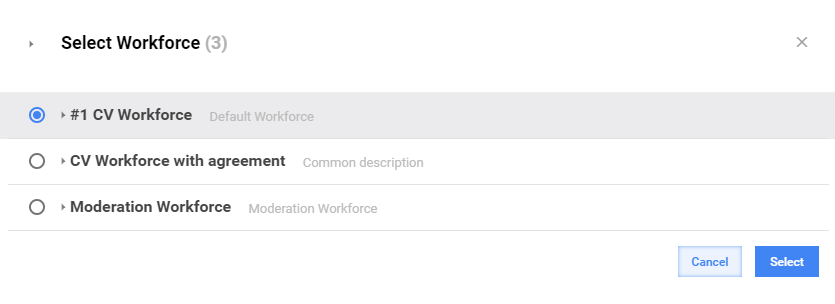
In the popup window, choose the required Workforce and click the Select button.
Set Manual Task parameters
In the Task Settings block, you can set the priority for processing MTs. The Task Priority setting changes the task ranking in the search results of target endpoints. Tasks with the highest priority are displayed at the top.
Example
Suppose, you have two similar MTs with different input data files. You want workers to complete the second MT in the first turn. For that, set the second MT's priority to Max. When a worker finds the task type and clicks the View link, they see the MTs with the highest priority on top.
To set a priority for an MT, choose an option from the Task Priority drop-down list. The Normal is the default priority, whereas other options are configurable. For instructions on setting MT priority options, refer to Run Priorities.
To access advanced MT run settings, click the Advanced Options button and changes the settings as described below.
Properties
On the Properties tab, set MT parameters listed in the table below (if needed). If you are new to the WorkFusion platform, edit the Keywords and Description fields and leave the preset options for the rest of the fields.

| Field | Description |
|---|---|
| Keywords | Provide keywords to help workers identify MTs while searching. |
| Description | Briefly describe what workers are expected to do to successfully complete the MT. |
| Custom Attributes | If you want to add custom attributes to an MT, select a Field Scheme to serve as a basis for them. |
| Task Expires in | A period after which an MT expires if nobody accepts it. Once the task expires, it is no longer available in Workspace. By default, MTs are set to expire in 30 days. To extend the expiration period, change the values in the boxes. |
| Due Date | Date by which all worker tasks are to be completed. An MT becomes unavailable after the due date. The functionality is deprecated starting from IA Cloud v10.2+. |
| External Form URL | Displays the URL of the Manual Task. After a task is started, the URL is used to build its preview link with public access. |
| Unique Column Name | Used for grouping records from an uploaded data file. See the Group records by Unique Column topic. |
| Permanent Open Tasks | The number of tasks available to workers simultaneously. Assume, an MT contains 100 records, and the Permanent Open Tasks value is 10. This means each worker in Workspace can see only 10 tasks available for the task type. |
Availability
note
The functionality is deprecated for IA Cloud v10.2+. To be deleted from the UI in further versions.
WorkSpace Preview
note
The functionality is deprecated for IA Cloud v10.2+. To be deleted from the UI in further versions.
Select Manual Task actions
On the Run tab, click the Actions button and select one of the following MT actions:
- Copy to create MT duplicates. For details, refer to the Copy Task article.
- View Data to show the Upload Data tab for draft MTs and to display the View Results tab for tasks with the Processing or Completed status.
- Delete Task to delete Manual Tasks.
- Download Original Data to download an input data file.
note
Available actions vary, depending on the task status—Draft, Processing, Paused, Completed.