
View all Manual Tasks
The Manual Tasks section allows you to do the following:
- Create new Manual Tasks (MT)
- Manage existing MTs
- Monitor the progress of active MTs
- View the results of completed MTs
The View All page provides the following functionality:
- Lists all created MTs and links to them
- Gives a quick overview of MT-related data, such as statuses, details, progress, possible issues
- Enables access to Manual Task actions, including to create an MT.
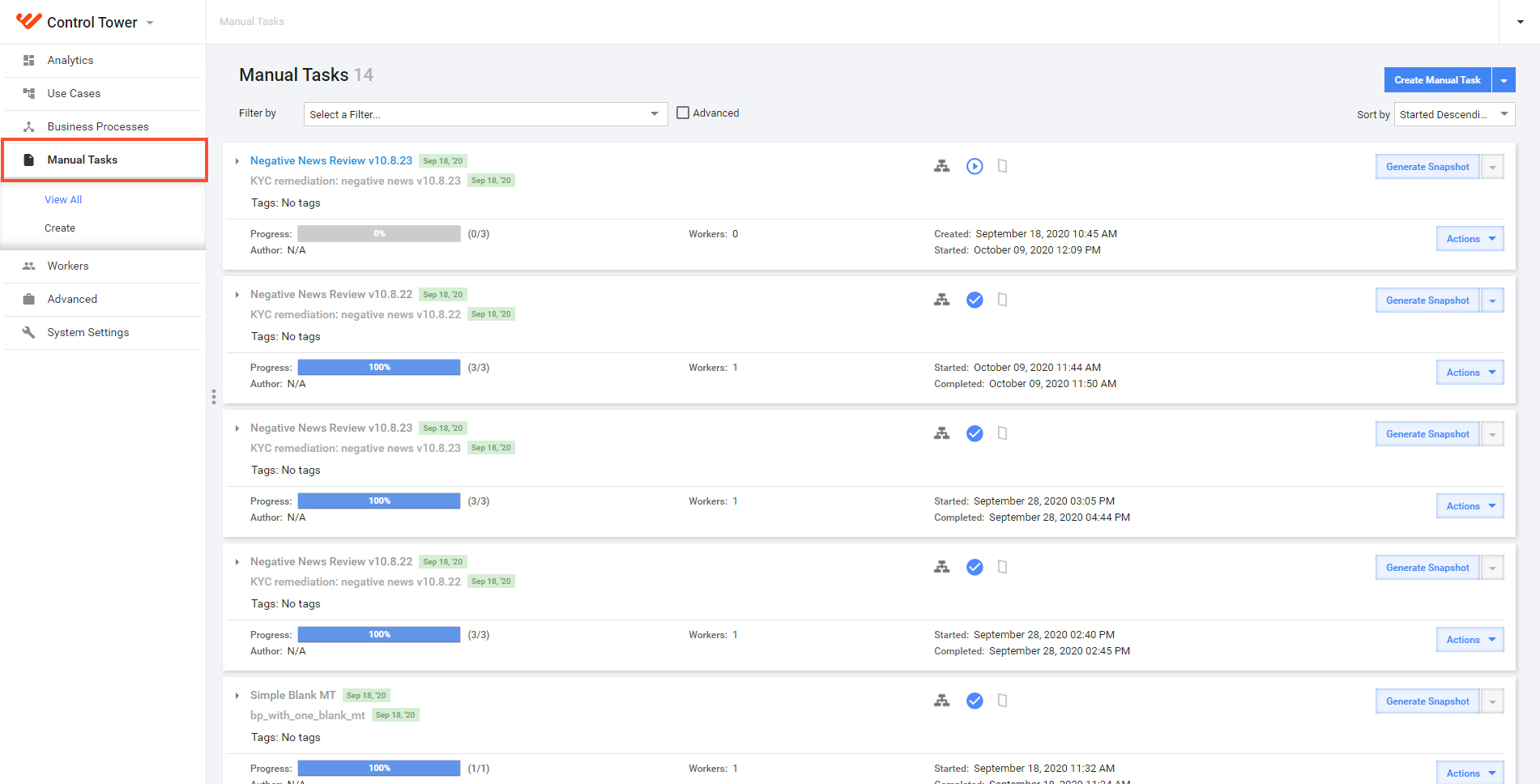
For more information, read the View MT data and perform actions sub-section.
Sort and filter MTs
Before taking any actions, set the appropriate sorting and filtering at the top of the grid:
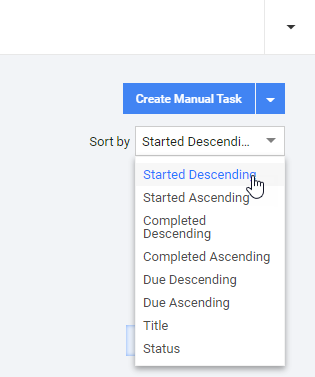
To sort MTs by order, select an option in the Sort by drop-down list in the top right corner.
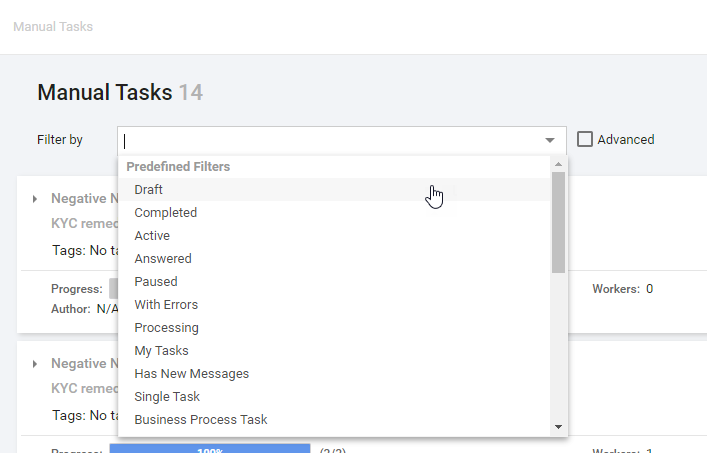
To filter by the MT status or other parameters, select a filter in the Filter by drop-down list.
To reset any added filters, click the Clear button.
Advanced filtering options
To use advanced filtering options, follow the steps below:
Select the Advanced checkbox.
In the menu that follows, set filters by adding them with the + button.
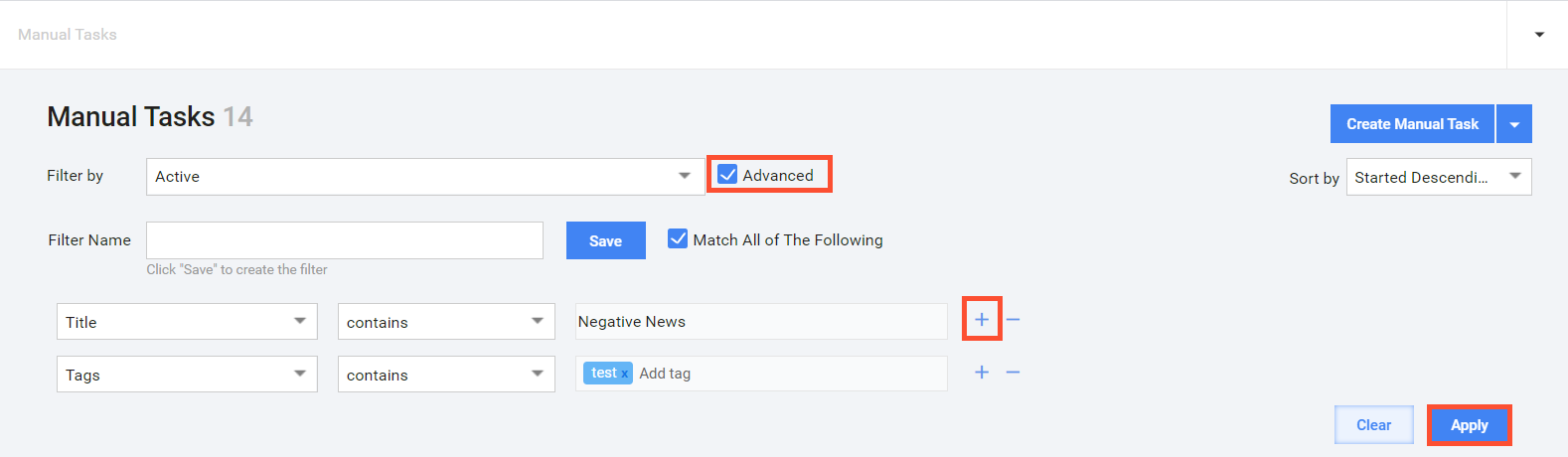
Click Apply to filter MTs accordingly.
View MT data and perform actions
note
The display of MT parameters and functions on the View All page varies depending on the MT status.
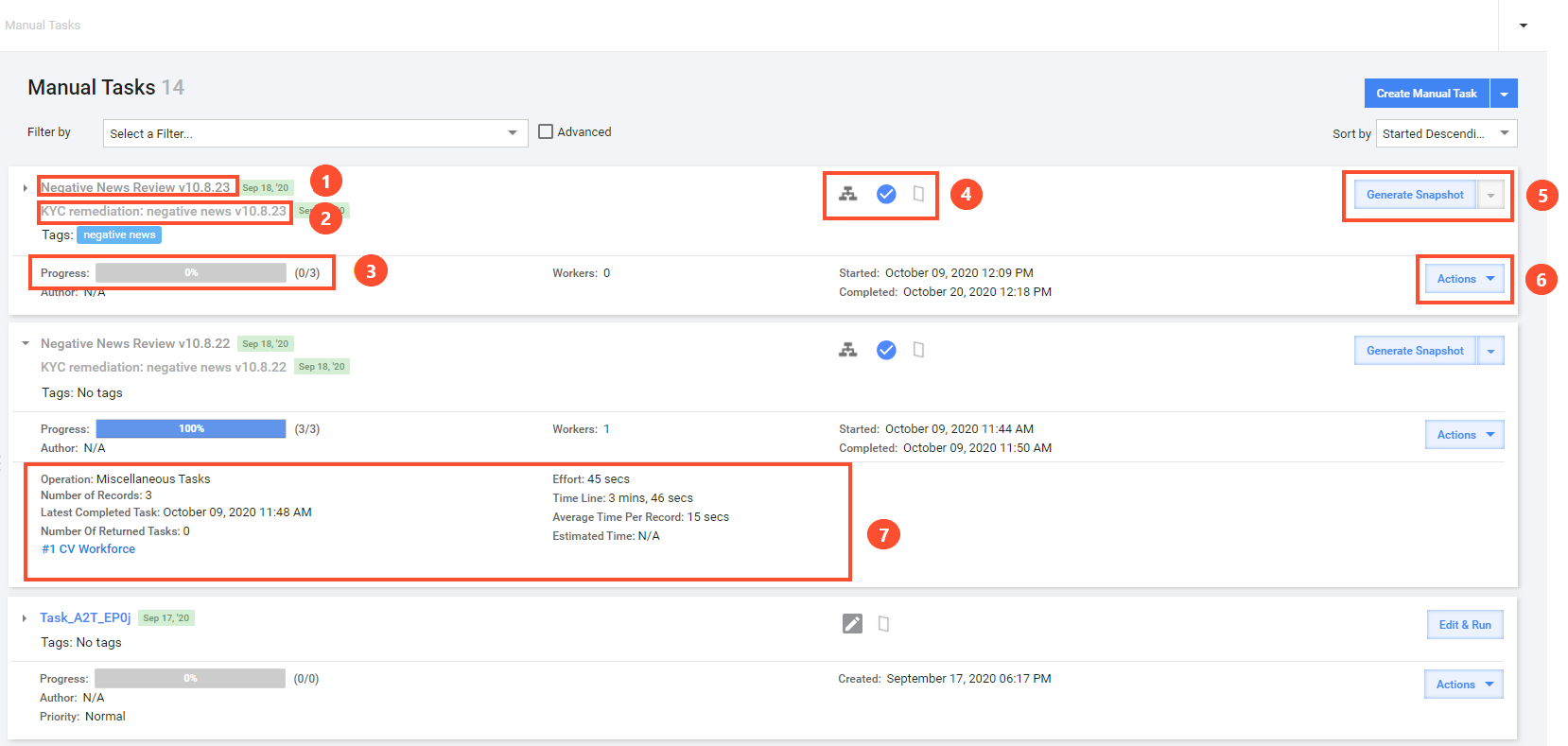
Via the View All page, users can access the MT data and perform actions as described below:
Task name. Click the link to perform the following actions:
Continue creating a task for draft MTs.
View MT data, properties, and results for MTs with other statuses.
note
If several MTs have the same name, you can distinguish them by defining unique tags. You can edit the tags by hovering over their label and clicking the pencil icon on the right side.
Business Process name. If an MT is a part of a Business Process (BP), the name of the latter is displayed under the MT name.
Progress bar. The progress bar displays the number of completed MTs against the total number of worker tasks. The bar is clickable for all non-draft tasks, and the link redirects you to MT results.
Indication icons:
 Business Process Task (if any). The icon informs you that the current MT is a BP step.
 Workforce
 task status, for example, Draft
 operation, for example, Other > Miscellaneous Tasks
Generate Snapshot. To generate a task snapshot for non-draft tasks, click Generate Snapshot. As soon as a file is generated, click the active arrow button and then—the data file to download.
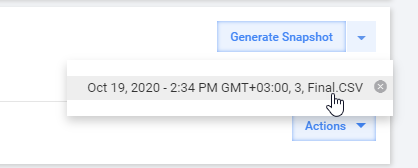
For draft tasks, the button is replaced by the Edit & Run button.
Actions. Click the button to view the list of available MT actions:
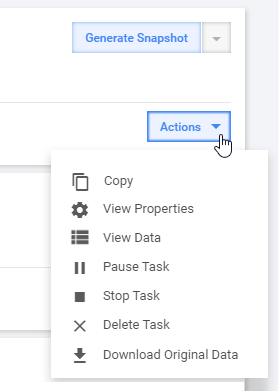
- Copy: copies the task; for more details, refer to Copy Task.
- View Properties: opens MT properties; for details, see Set Run parameters | Properties.
- View Data: redirects to MT results.
- Pause Task: in case the MT is in progress, pauses its execution.
- Stop Task: in case the MT is in progress, stops it.
- Delete Task: removes the MT permanently.
- Download Original Data: downloads an input data file.
Expanded MT details. Additional MT information.