
Copy Task
In Intelligent Automation Cloud Enterprise, you can save time and effort by reusing previously created tasks and Business Processes.
Tasks with the same name have a common template (Definition) – if you modify the design or parameters of one task and save it, all other tasks with the same name will be affected.
Tags are unique for each task, hence you can use different tags to distinguish tasks among tasks with the same name (of the same Definition).
Copy task
To run the same task with new data, do as follows.
Go to Manual Tasks > View All and select a Manual Task.
In the Actions drop-down menu, select Copy.
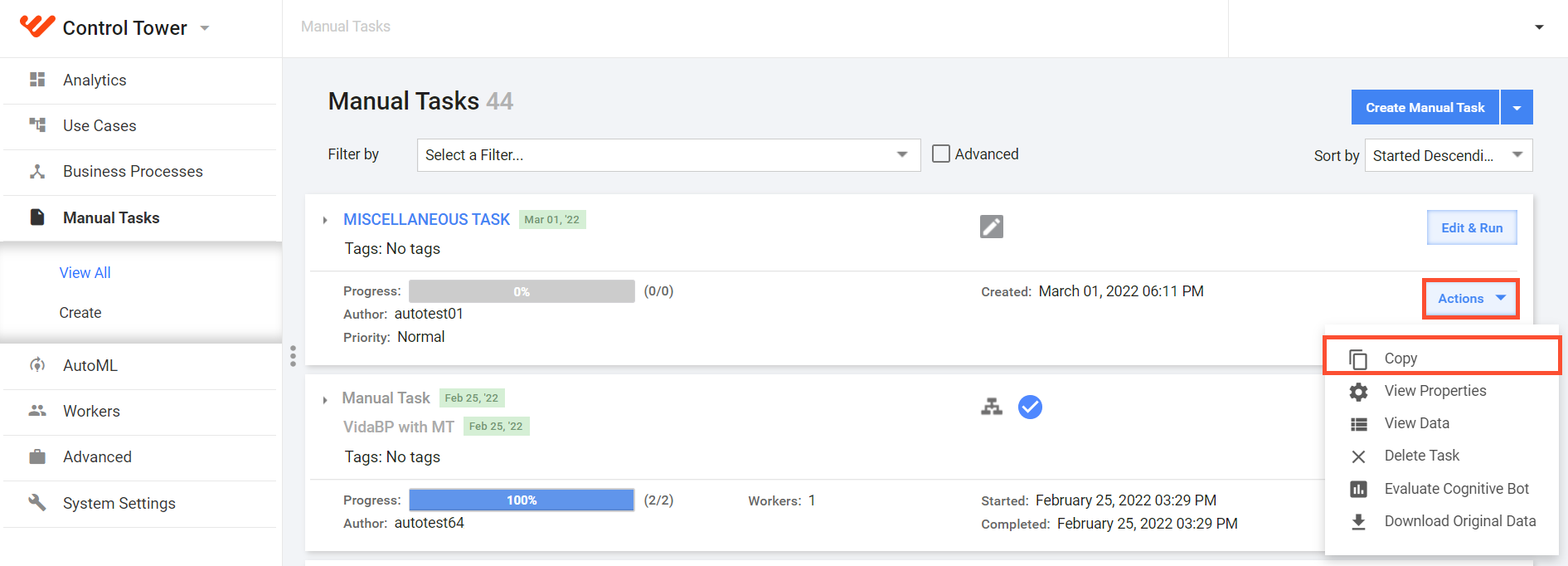
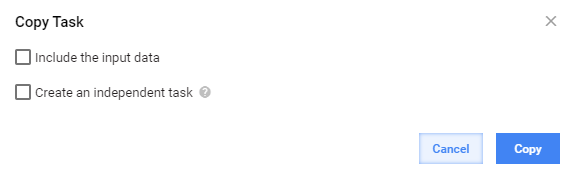
In the window that follows, press Copy. As a result, a new task instance with the same name as the original is created. The Data file is not copied – you will need to upload your Data.
important
All changes to this new task will affect tasks with the same name. If you want to "unlink" this task, change its name on the Design tab and save the task.
If you have copied a task with the Create an independent task option selected, a new task instance is created that will not be linked to its source task.
Include input data
To re-run the same task with the same data, select the Include Task the input data option while copying. This action is helpful if some issues occurred.
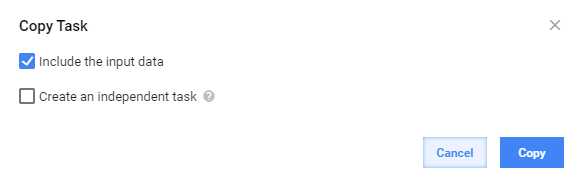
As a result, a new task instance with the same name and data as the original is created.
important
All changes to this new task will affect tasks with the same name. If you want to "unlink" this task, change its name on the Design tab and save the task.
Create independent task
Select the Create an independent task option to:
- Avoid affecting all task instances with the same name
- Create a new task instance based on an existing one
You will be prompted to enter a new task name in the Definition name field.
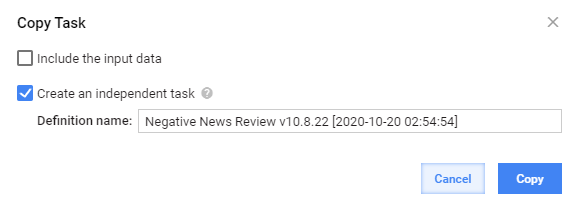
On copying, the task will not be linked to its original.
Export and import Manual Task
Intelligent Automation Cloud Enterprise enables to copy, or deploy, or migrate Manual Tasks, Business Processes, and Operations from one Control Tower instance to another. To migrate your work, export a Business Process or Manual Task to a single XML file or a ZIP package on a source instance and import these files to the target instance. With this approach, you can move a solution from the development environment to production.
There are two migration options: