Deploy model
After creating an AutoML project from an Archetype, you can deploy it to a Control Tower instance, even without training.
Use Asset Bundle
A project created from an AutoML Archetype already includes bundle-maven-plugin. You can use the tool to automate the packing of Asset Bundles and building of RESTful POST requests to deploy the bundles to Control Tower.
The Maven plugin is preconfigured in the pom.xml file of the package module as shown below:
<plugin>
    <groupId>com.workfusion.odf</groupId>
    <artifactId>bundle-maven-plugin</artifactId>
    <version>${bundle-maven-plugin.version}</version>
    <configuration>
        <server>
            <id>${workfusion.server.id}</id>
            <url>${workfusion.environment.url}</url>
        </server>
        <metaInfoFile>src/main/resources/meta-info.json</metaInfoFile>
        <bundle>target/${project.build.finalName}.zip</bundle>
    </configuration>
</plugin>
For more information about bundle-maven-plugin, refer to Maven plugins.
Configure access to Control Tower
Before publishing an Asset Bundle with the plugin, configure Control Tower settings. For that, in your project generated with AutoML Archetype, perform the following actions:
Specify the Control Tower URL where the Asset Bundles are to be published. For that, modify the project's root
pom.xml:<profiles> <profile> <id>remote</id> <activation> <activeByDefault>true</activeByDefault> </activation> <properties> <workfusion.server.id>remote-control-tower</workfusion.server.id> <workfusion.environment.url>https://instance.workfusion.com</workfusion.environment.url> <package.assembly.descriptor>package-remote.xml</package.assembly.descriptor> </properties> </profile> </profiles>Specify the Control Tower user credentials to be applied. Modify the
USER_HOME/.m2/settings.xmlfile as shown below. The role set up for the user must have the Export/Import and Advanced Package Import permissions in Control Tower. For details, refer to the Manage Control Tower roles and permissions topic.<!-- Control Tower user credentials --> <server> <id>remote</id> <username>username_value</username> <password>password_value</password> </server>
important
The id value in settings.xml must be the same as the profile configuration id value in the root pom.xml.
Deploy Asset Bundle to remote Control Tower
To deploy an Asset Bundle to a remote Control Tower, follow the instructions below:
- Run
mvn clean packageto build a project. The command creates a bundle packed as a zip archive in the[ARTIFACT]-package/targetdirectory. The build is completed with the[INFO] BUILD SUCCESSmessage. - To import the resulting bundle to Control Tower, use one of the two options:
- Option 1: go to the
[ARTIFACT]-packagemodule folder and runmvn bundle:importfrom it. The operation is completed with the[INFO] BUILD SUCCESSmessage. - Option 2: Take the zip archive from the
[ARTIFACT]-package/targetdirectory and import it via the AutoML user interface. For detailed instructions, refer to the Manage models topic.
- Option 1: go to the
Check deployment
There are two ways how you can check whether the Asset Bundle deployment is successful:
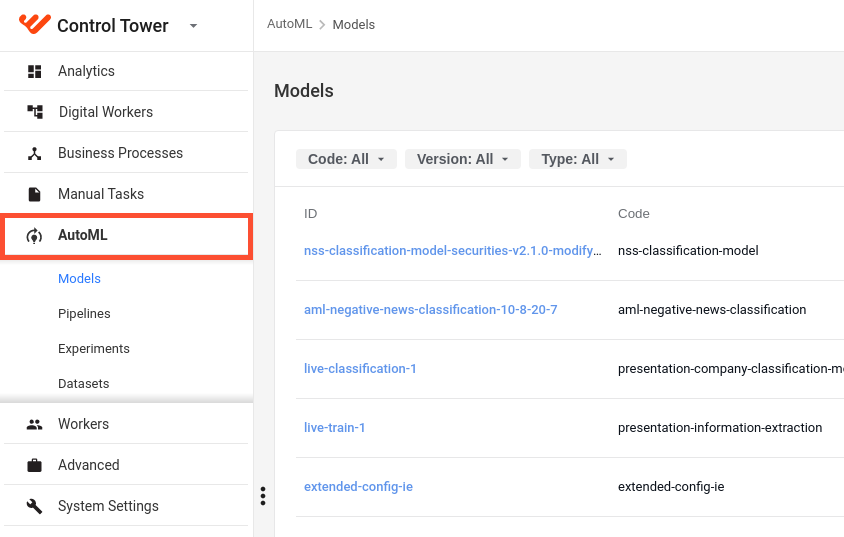
Sign in to Control Tower, navigate to AutoML > Models or Pipelines, and check the list of available models.
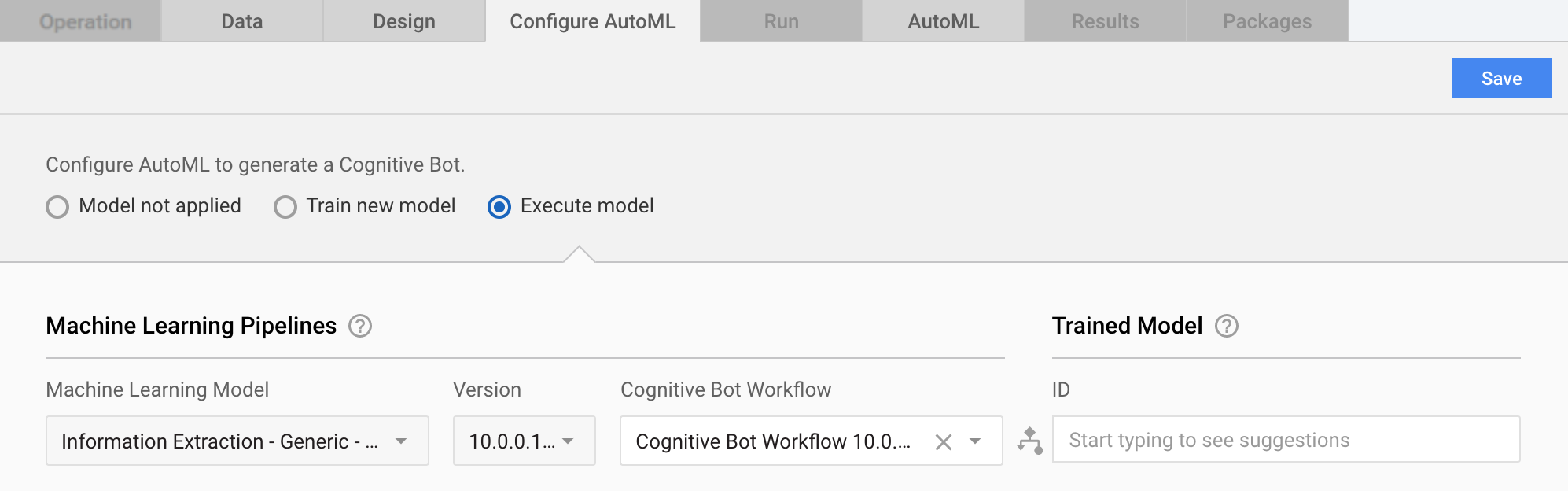
Sign in to Control Tower and go to Manual Tasks. Open a Manual Task from the list, navigate to the Configure AutoML tab, and check available models in the Machine Learning Model drop-down list.