
Split into batches
Goal of the step: Split documents into batches by layout types before starting any manual handling—tagging, reviewing, and so on.
Required input: Provide an OCRed data set without sorting or grouping.
Output of the step:
- The data set is divided into separate batches by layout types.
- The speed of document tagging, re-tagging, and validation is increased.
- The document handling quality is improved.
To accelerate the document processing flow and improve the output quality, apply document sorting. Depending on the specific process, the sorting allows a tagger or a Data Analyst (DA) to focus on one layout at a time without jumping from one to another. The method increases both the tagging and validation speed and reduces error.
Splitting into batches comprises the following steps:
- To define key phrases, create a Data Store with keywords.
- Sort documents by the keywords.
- Prepare batches.
tip
A group of documents with a similar appearance is called a template. After OCRing, it is a layout. For more details, see Input document characteristics | Template examples.
Define key phrases
The most obvious and helpful way of splitting a data set is to use keywords.
To define keywords, look through the data set documents and define the words or phrases you can use as unique and unambiguous identifiers of a particular layout.
For example, you have two document layouts combined: New Hampshire and Georgia. You need to analyze each carefully and define words and phrases to distinguish one layout from the other.
New Hampshire
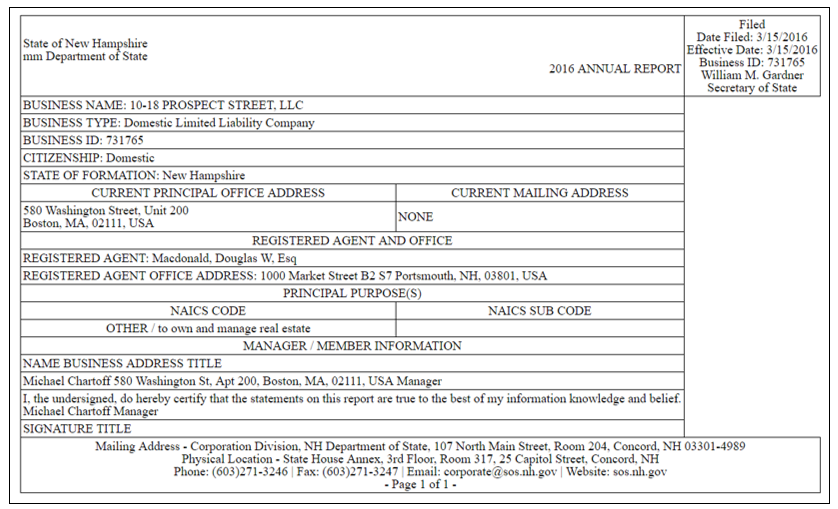
Possible keywords are as follows:
- State of New Hampshire
- Citizenship
- NAICS CODE
Georgia
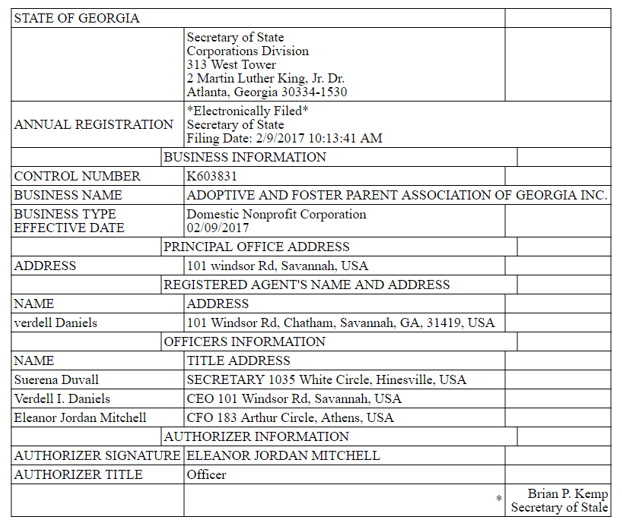
Possible keywords are as follows:
- STATE OF GEORGIA
- Corporations Division
- Martin Luther King (street address of the state authority, permanent)
caution
Keywords should always be unambiguous and specific and should not identify more than one layout. For instance, such words as "title" or "officer" should not be used as keywords because they are too general and appear frequently. Also, it's not recommended to use such specific items as a street address (1000 Market Street) or names (ELEANOR JORDAN MITCHEL) because they cover only one or several documents.
Using the state's name only, for example, "Georgia," is probably not reliable as there is an Address block in each document where you can mention the state.
Sort documents
If documents are not numerous, you can sort them manually. An ML Engineer can also assist in the process automation by writing code or a bot with the logic as in the example below.
Automate sorting
Input:
- A CSV file after OCRing that contains the original_document_link column with links to original documents and the ocr_document_link column with links to the OCR results.
- A link to the Data Store, where:
The layout_name column contains the names of layouts corresponding to the values from the key_words column, for example:
- New Hampshire
- Georgia
Each cell of the key_words column contains a list of keywords, for example, for the Georgia layout:
- Martin Luther King
- State of Georgia
- Corporations Division
Output:
A CSV file with three columns:
- original_document_link
- ocr_document_link
- layout_name
Flow description:
The bot tries to find the keywords in the OCR result document.
If OCR recognizes one of the keywords correctly and the bot has found these, the bot assigns the corresponding layout name from the layout_name column to a record from the ocr_document_link column.
As a result, you get a single CSV file containing the original_document_link, ocr_document_link, and layout_name columns correspondingly, as in the example below:
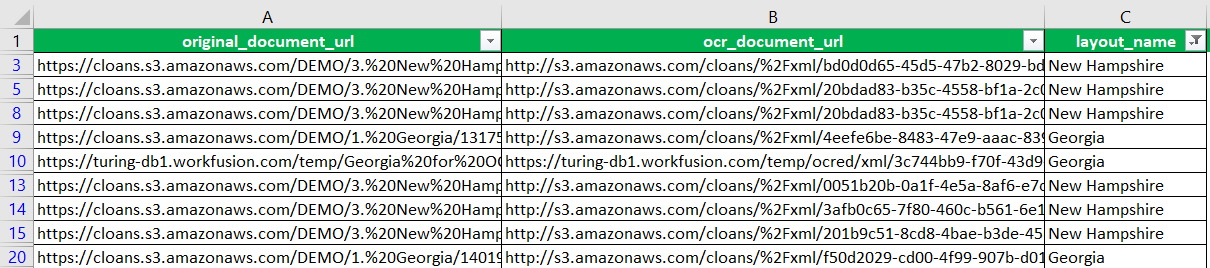
The Business Process ends when all keywords are processed, but no match is found. For these records, in the layout_name column, the "No match" message appears.
The main reason for this can be OCR mistakes. For example, instead of State of New Hampshire, the OCRed document contains State of New Hamp$h1re, where s is replaced with $ and i with 1. In this case, two options are possible:
If the bot misses many documents, change keywords. Do not include the parts that were most damaged by OCR, for example, "State of New."
If there are a few documents left, you can check them manually by opening links.
Form batches
When sorting is finished, form batches for tagging. The recommended batch size is fifty documents. Several layouts represented by fewer than fifty documents can be gathered into a single batch.