
Platform Monitor Security Guide
Authentication
Platform Monitor supports form-based authentication
Authentication is enabled by default (it turns on during installation).
auth: form
Form-based authentification
This authentication should be enabled for all Platform Monitor agents
(WF Agents).
These agents should be accessible to target users with configured
credentials.
The best practice is that Hub and Node1 (slave) agents should be
accessible only from APM (master) server.
Master Platform Monitor has only one configuration of
credentials for every slave Platform Monitor.
That is why any Platform Monitor should use only one configuration
and you should use only one user and it is not possible to create
different credentials for slave Platform Monitor.
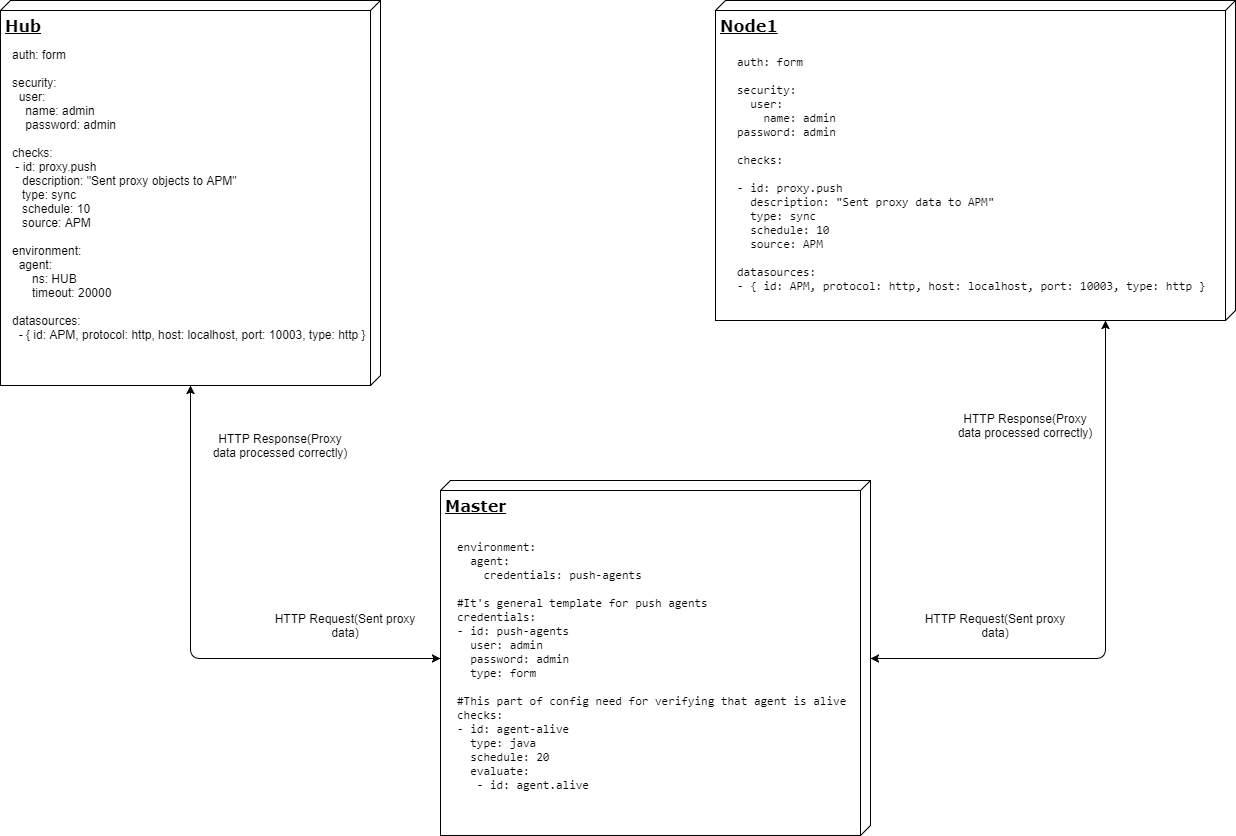
Details about proxy Platform Monitor
Proxy mechanism is way to transfer data from slave Platform Monitor to
master Platform Monitor.
Platform Monitor has push proxy mechanism that means slave PM sends data
to master PM.
For slave Platfom Monitor it's enabled by check
checks:
 - id: proxy.push
   description: "Sent proxy objects to APM"
   type: sync
   schedule: 10
   source: APM
To clear older data from master when slave Platform Monitor is off need to use this check
checks:
  - id: agent-alive
    type: java
    schedule: 20
    evaluate:
      - id: agent.alive
Platform Monitor transfers the following types of data:
ALERTS
METRICS
ITEMS
GROUPS
COMPONENTS
INCIDENTS
PROCESSES
COMMANDS
AGENT (information by itself)
PM server
In order to enable form-based (with login page) authentification for Platform Monitor (wfagent), you need to add the following lines to the configuration file:
config.yml
auth: form

security:
 user:
    name: wfagent
    password: changeit
To check the new configuration, try to access agent UI via browser. You should see login form like this:
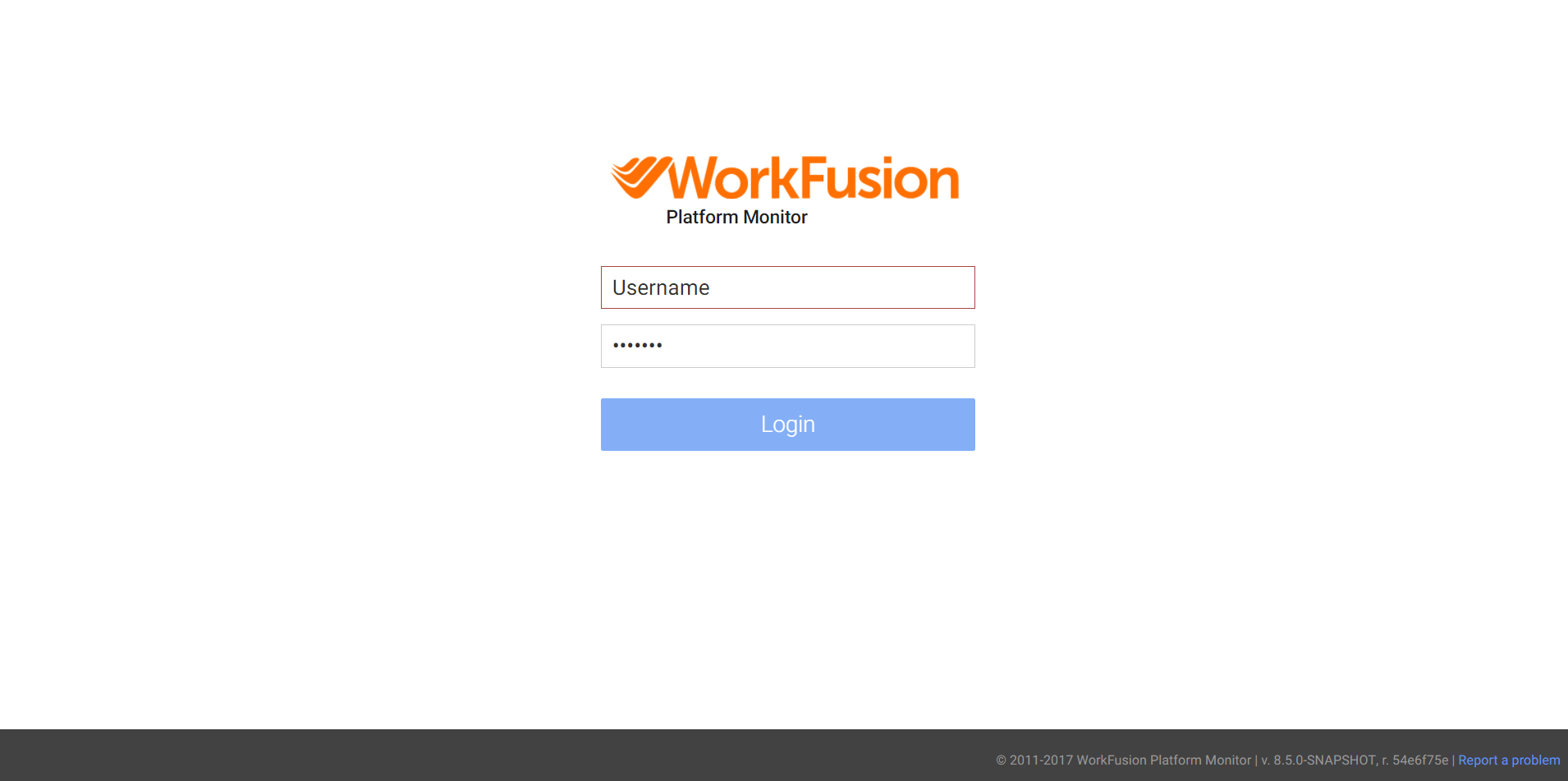
To log in into the application, use credentials from the configuration file.
Connecting agents
All Platform Monitor agents should have additional configuration to connect to APM server:
- Add a credentials entry.
 credentials:
   - id: pm
     user: "admin"
     password: "admin"
     url: "http://${environment.pm_hostname}:${environment.pm_port}/login"
- Make sure you don't create a duplicate credentials section.
- There should be valid
pm_hostnameandpm_portvariables in theenvironmentssection. - To modify a Sync check, add the
credentials: pmline to thepm.synccheck.
- id: pm.sync
  type: sync
  schedule: 20
  credentials: pm
  source: PmMaster
Enable access to Platform Monitor via Control Tower
To enable the access to Platform Monitor from Control Tower and see a new menu itemthat redirects to Platform Monitor, the following steps should be made:
Configure permissions to a user role in Control Tower. The logged-in user role should contain any of the Platform Monitor specific permissions:
- PM_VIEW_STATISTICS
- PM_EXECUTE_ACTIONS
note
By default, these permissions are available in the following roles of Control Tower:
- ROLE_ADMIN
- ROLE_SUPER_ADMIN
Check that during the Control Tower installation the
pm.application.hostproperty is overridden in/opt/tomcat/conf/workfusion.properties:pm.application.host=http\://local-beautify-rest-api.crowdcomputingsystems.com:10101Add the following properties to VAULT:
pm.jwt.secret=SuQ6fzt5693XRmGueUhSbQ==Try to log in to Platform Monitor via Control Tower under the required user.
Property encryption
For instruction on how to enable properties encryption refer to the Property Encryption Guide page.