RPA Server Installation
Prerequisites
- Internet Explorer 10+
- Run RPA installation as Windows administrator
- Separate user to run each RPA Bot and Hub
Java installation
If you have Java installed on your system, check if Java architecture matches Internet Explorer browser architecture (32 or 64 bits) and proceed to the next step.
Download and install Java SE Runtime Environment.
Install with the same architecture as the Internet Explorer browser (32 or 64 bits).
Java is needed to work with applets only.
tip
Before making any changes with registering RPA Grid, make sure your Internet Explorer browser is turned off and no Java processes are running.
RPA installation
Extract all files from
RPAInstaller-{version}.zipto any folder on your PC.Launch
RPAInstaller.exe.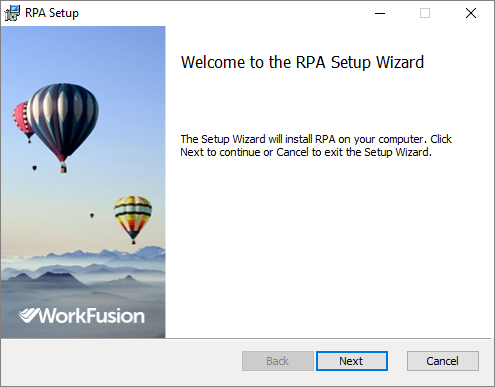
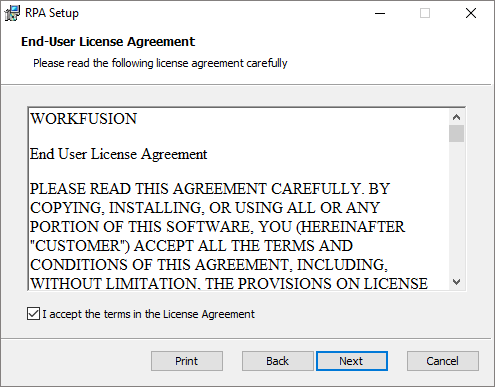
Read and accept the License Agreement.
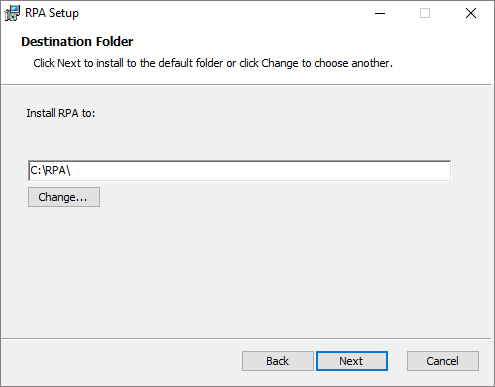
Set the Destination Folder for RPA installation.
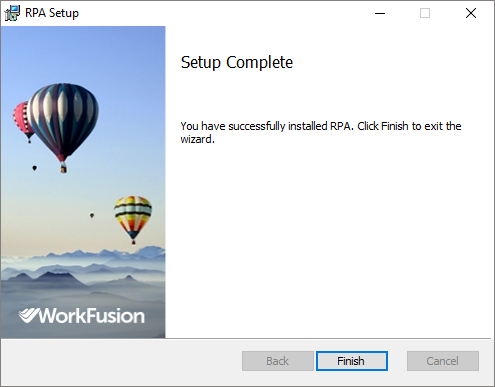
Wait until installation is finished.
Java configuration
For details, see Configure Java applets.
Verify Internet Explorer settings
For more details, see Configure Internet Explorer.
Perform configuration
- Only in case your OS is 32 bit, rename **java **to java_x64. Afterwards, rename java_x86 to java.
- Upload SSL certificate and SSL key files to
INSTALL_DIR\nginx\ssland rename them toserver.pemandserver.keycorrespondingly. - Edit
INSTALL_DIR/nginx/conf/nginx.conf. Replace{HOST_NAME}with a valid DNS name of your Windows RPA server. Replace{WF_HOST_IP}with IP where rpa_manager (Selenograph) is installed. Replace{LOCAL_IP}with IP address of your Windows RPA server.
Start RPA without Platform Monitor
Run
start_nginx.batto start Nginx.Run
INSTALL_DIR/rpa-grid/start-hub.batto start hub.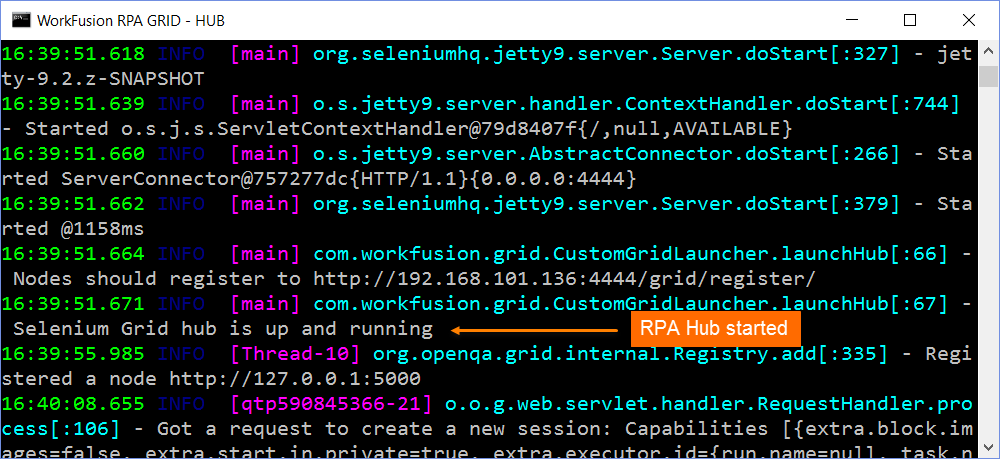
Run
INSTALL_DIR/rpa-grid/start-node0.batto start node.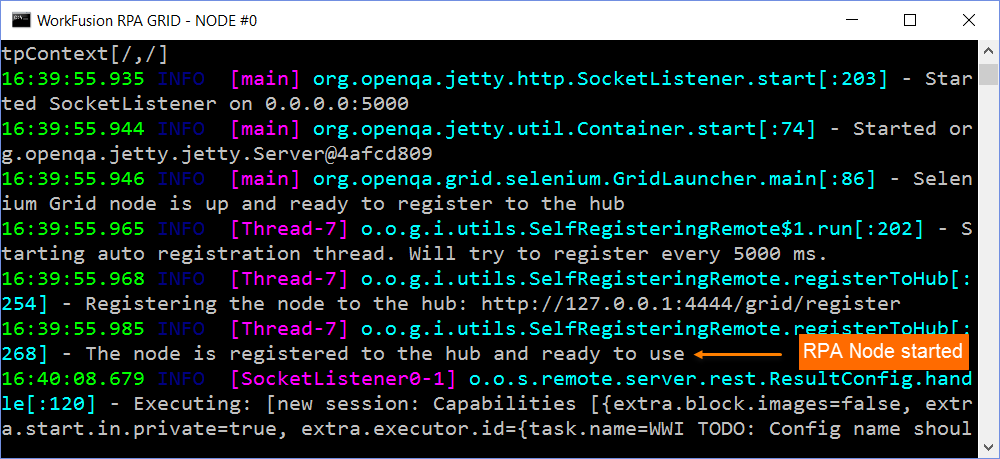
You should see in the command line that node is registered to the hub and is ready to use.
Each RPA Node must be started under a separate Windows user. For example:
Start RPA Hub as user1.
Open an RDP connection to localhost under user1.
Open
INSTALL_DIR/registry/user-settings.reg.Start RPA Node1.
Open an RDP connection to localhost under user2.
Open
INSTALL_DIR/registry/user-settings.reg.Start RPA Node2.
Start RPA with Platform Monitor
Use the following installation guide: Platform Monitor for RPA - Installation.
For simple 1 Bot per server deployment the steps are:
Configure
INSTALL_DIR/wfagent/conf/environment.yml.Run
INSTALL_DIR/wfagent/bin/wfagent-hub-nordp.batto start Nginx and RPA Hub (without RDP).Run
INSTALL_DIR/wfagent/bin/wfagent-node0.batto start RPA Node.
Check RPA installation
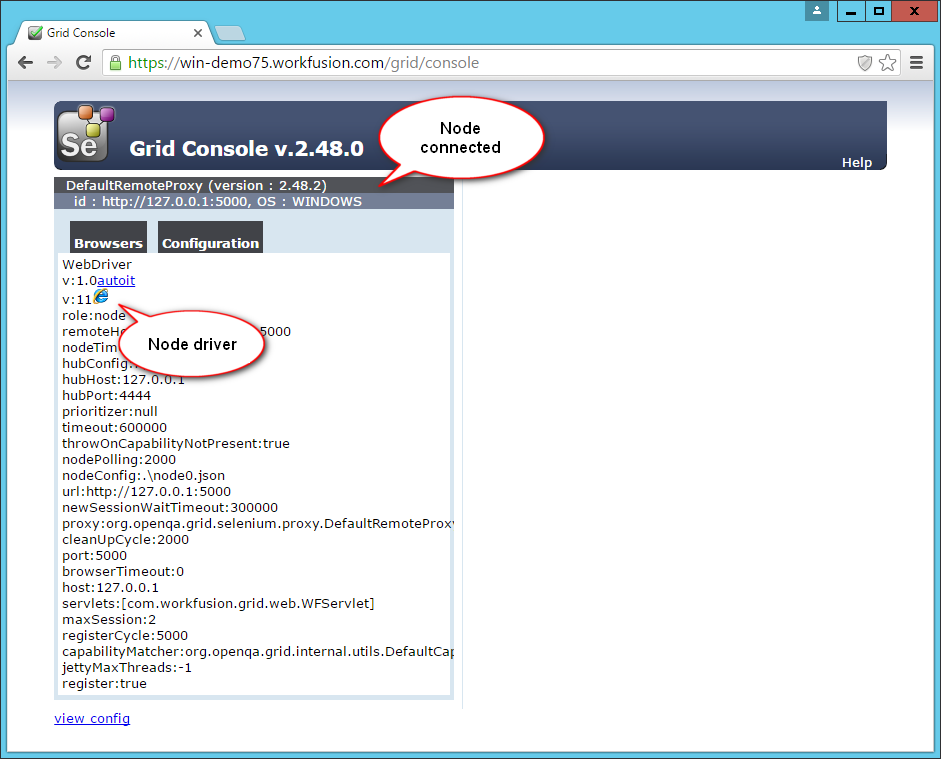
To check that RPA Grid works (Nodes are available on the Hub and WebDrivers exist on the connected Nodes), open the following link in your browser:
https://rpa.example.com/grid/console
You will see a list of available RPA nodes:
Configure Nginx on Windows machines
The section describes using of secure connection between RPA manager and RPA Hub.
To enable TLS encryption between RPA Manager and RPA Hub you should configure RPA Manager on APP Server as described in APP Server post-install procedures | Configuration of RPA Manager in SSL mode.
important
Skip this step if the setup does not use TLS encryption.
Configure Windows Firewall
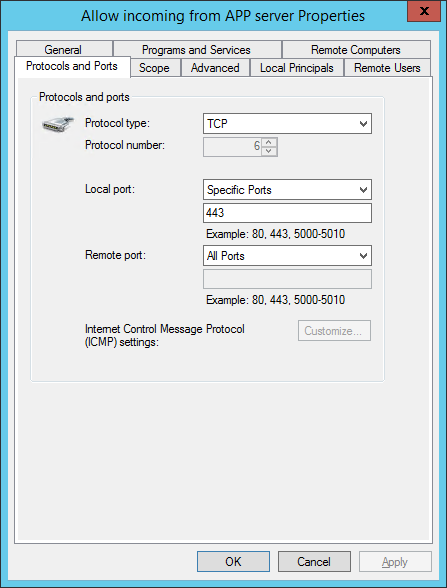
Create a new rule to allow inbound secure communication for applications via port 443 on the RPA Hub server for using SSL connection.
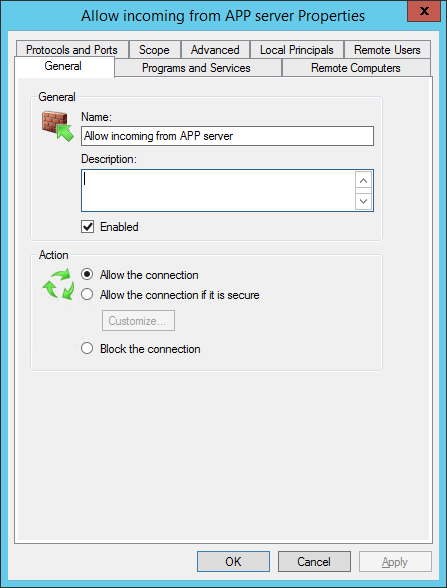
Define the local port 443 to allow the connection.