
Preparation of RPA and BI configurations
By default Windows configs are generated on the APP server in /distr/windows_host_configuration. In this guide, you can find the steps how to do it manually.
Generated configurations are zipped to the archives in /distr/windows_host_configuration:
- RPA:
rpa_windows_host_configuration.zip - BI:
bi_windows_host_configuration.zip
Log in to APP Server via SSH.
Change user to default user
wfuser.su - wfuser cd /opt/workfusion/wf_installer/Copy secrets_overrides.yml and config_overrides.yml files from DB node to the current host.
Make sure that rpa_manager_nodes and bi_hostname variables are filled with the actual hostname.
Make sure that Analytics certificates are generated and are located at <PACKAGE_DIR>/certificates.
Run configuration generation step with full path for the secrets_overrides.yml and config_overrides.yml files.
./install.sh rpa_bi_win_configs app -e @/tmp/secrets_overrides.yml -e @/tmp/config_overrides.ymlThis command asks for Vault password that used for encrypting the secrets.yml file.
Here is the structure of RPA archive package:
- SSL
  - server.pem
  - server.key
  - client.pem
  - CA.crt
- nginx
  - nginx.conf
- wfagent
  - environment.yml
Here is the structure of BI archive package:
- SSL
  - bi.crt
  - bi.key
  - CA.crt
- configs
  - config.<wfapp>.cmd
  - config.<wfapp>_WFA.cmd
  - import_users.csv
Copy this archive to destination Windows hosts and unpack.
Using pre-generated configuration on Windows Analytics server
This step should be done after BI Installer is extracted and installed.
Log in to the BI server.
Copy bi_windows_host_configuration.zip to the host.
Extract archive bi_windows_host_configuration.zip to any folder on your Windows PC.
Copy CA.crt and BI certificates to:
- <EXTRACTED_ARCHIVE_PATH>\bi_configuration\SSL\CA.crt to ssl directory <INSTALL_DISK>\ssl\
- <EXTRACTED_ARCHIVE_PATH>\bi_configuration\SSL\bi.crt to ssl directory <INSTALL_DISK>\ssl\
- <EXTRACTED_ARCHIVE_PATH>\bi_configuration\SSL\bi.key to ssl directory <INSTALL_DISK>\ssl\
- <EXTRACTED_ARCHIVE_PATH>\bi_configuration\SSL\CA.crt to filebeat directory <INSTALL_DISK>\Filebeat\
Copy configs:
- <EXTRACTED_ARCHIVE_PATH>\bi_configuration\configs\import_users.csv to deploy the <INSTALL_DISK>\tdeploy_home\deploy\config\ directory
- <EXTRACTED_ARCHIVE_PATH>\bi_configuration\configs\config.<wfapp>.cmd to deploy the <INSTALL_DISK>\tdeploy_home\deploy\config\ directory
- <EXTRACTED_ARCHIVE_PATH>\bi_configuration\configs\config.<wfapp>_WFA.cmd to deploy the <INSTALL_DISK>\tdeploy_home\deploy\config\ directory
Proceed with the BI Windows Server installation.
Using pre-generated configuration on RPA server
This step should be done after RPAInstaller extracted and installed.
Log in to the RPA server.
Copy rpa_windows_host_<rpa_manager_node>_configuration.zip to the host with right <rpa_manager_node> name.
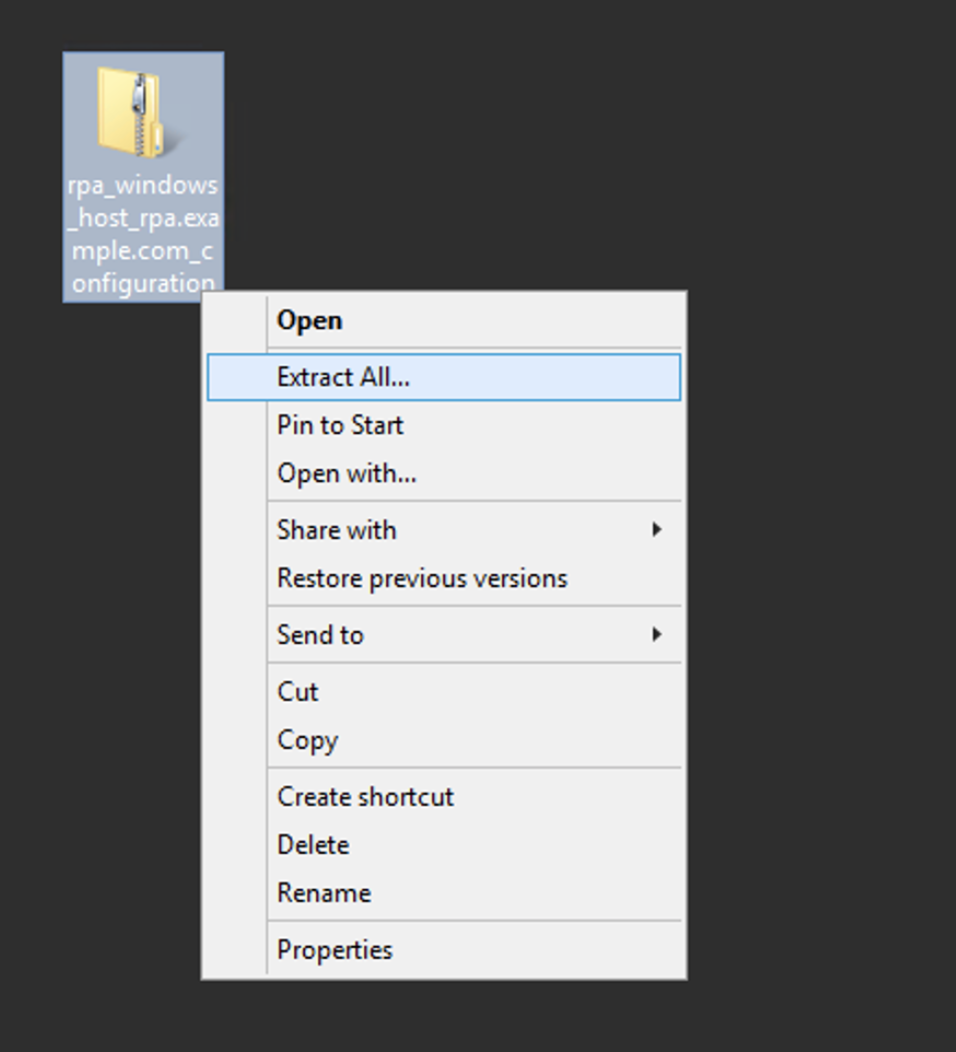
Extract the rpa_windows_host_<rpa_manager_node>_configuration.zip archive to any folder on your Windows PC.
Change path to correct value in <EXTRACTED_ARCHIVE_PATH>\rpa_configuration\nginx\nginx.conf.

Copy <EXTRACTED_ARCHIVE_PATH>\rpa_configuration\nginx\nginx.conf to <INSTALL_DIR>\nginx\conf\nginx.conf.
Copy <EXTRACTED_ARCHIVE_PATH>\rpa_configuration\wfagent\environment.yml to <INSTALL_DIR>\wfagent\conf\environment.yml.
Copy <EXTRACTED_ARCHIVE_PATH>\rpa_configuration\ssl\CA.crt to filebeat directory <INSTALL_DIR>\filebeat\ssl\.
Copy Nginx cerificates:
- <EXTRACTED_ARCHIVE_PATH>\rpa_configuration\ssl\server.pem to filebeat directory <INSTALL_DIR>\nginx\ssl\
- <EXTRACTED_ARCHIVE_PATH>\rpa_configuration\ssl\server.key to filebeat directory <INSTALL_DIR>\nginx\ssl\
- <EXTRACTED_ARCHIVE_PATH>\rpa_configuration\ssl\client.pem to filebeat directory <INSTALL_DIR>\nginx\ssl\
Add <EXTRACTED_ARCHIVE_PATH>\rpa_configuration\ssl\CA.crt to RPA Java keystore. Refer to Platform Monitor configuration for more details.
Proceed with other RPA Windows Server installation.