Upgrade from v9.2.7 to v9.2.8
The guide describes the steps to apply patch_9.2.8 to SPA v9.2.7.
Prerequisites
- You have WorkFusion SPA 9.2.7 installed.
- All actions for applying patch_9.2.8 must be performed as <WF_USER>. The Root user is not required.
Upgrade procedure
Prepare all nodes for patching
On each Linux server, create the <install_dir>/patches/patch_9.2.8 directory, download, and extract the patch into it:
$ mkdir -pv <install_dir>/patches/patch_9.2.8
$ cd <install_dir>/patches/patch_9.2.8
$ curl -o 'patch_9.2.8.tar.gz' '<patch download url>'
$ tar xzf patch_9.2.8.tar.gz --strip-components=1
You will see the following directory structure:
-rwxr-xr-x. 1 wfuser wfuser     13023 Feb 17 07:38 patch_9.2.8.sh
-rw-rw-r--. 1 wfuser wfuser 395280874 Feb 17 09:05 patch_9.2.8.tar.gz
drwxr-xr-x. 9 wfuser wfuser       105 Feb 17 08:03 sources
-rw-rw-r--. 1 wfuser wfuser        59 Feb 17 09:06 var
On the DB server, in the <install_dir>/patches/patch_9.2.8/vars file, fill in the credentials for the MySQL server:
export MYSQL_ADMIN='<put your mysql admin username here>'
export MYSQL_PASS='<put your mysql admin password here>'
On the DB server, verify the correctness of the specified credentials:
$ source <install_dir>/patches/patch_9.2.8/vars
$ <install_dir>/mysql/usr/bin/mysqlcheck -h 127.0.0.1 -P 3306 -u$MYSQL_ADMIN -p$MYSQL_PASS --check-upgrade --all-databases
You will see a similar output:
mysql.columns_priv                                 OK
mysql.db                                           OK

........ (lots of similar output) .....

wfdb.worker_interest                               OK
wfdb.workeractivitylog_test                        OK
On each Linux server, stop all WorkFusion services:
$ wfmanager stop all
Upgrade DB server
To upgrade DB on the DB server, execute the following command:
$ cd <install_dir>/patches/patch_9.2.8
$ ./patch_9.2.8.sh upgrade_db
You will see the following output:
Wed Feb 17 09:09:04 UTC 2021 Updating DB server to version: 9.2.8
Wed Feb 17 09:09:04 UTC 2021 Backing up java binaries...
mkdir: created directory ‘backup/java_8u261’
Wed Feb 17 09:09:07 UTC 2021 Extracting java binary
Wed Feb 17 09:09:13 UTC 2021 java update completed
Wed Feb 17 09:09:14 UTC 2021 Updating MongoDB server to version: 3.6.22
Wed Feb 17 09:09:17 UTC 2021 Backing up MongoDB binaries...
mkdir: created directory ‘backup/mongodb_3_6_20’
mkdir: created directory ‘backup/mongodb_3_6_20/bin’

--- similar output ---

wfdb.workeractivitylog_test                        OK
Wed Oct 28 10:05:46 UTC 2020 Mysql update completed. Check for any errors in output
Wed Oct 28 10:05:47 UTC 2020 DB server patching completed
Inspect the output of the MySQL status for any errors or not-ok statuses. It must return the status 'OK' for each test, as in the example earlier. If the check is successful, execute the following commands to update the database schema:
$ cd <install_dir>
$ mysql/usr/bin/mysql_upgrade -h 127.0.0.1 -P 3306 -u$MYSQL_ADMIN -p$MYSQL_PASS
In case the execution is successful and has no errors in the output, restart the MySQL process:
$ wfmanager restart mysql
Upgrade VDS Master server
To upgrade VDS Master, on the vdsmaster server, execute the following command:
$ cd <install_dir>/patches/patch_9.2.8
$ ./patch_9.2.8.sh upgrade_vdsmaster
You will see the following output:
Wed Oct 28 10:11:00 UTC 2020 Upgrading components on VDS master
Wed Oct 28 10:11:00 UTC 2020 Backing up java binaries...
mkdir: created directory ‘backup/java_8u251’
Wed Oct 28 10:11:03 UTC 2020 Extracting java binary
Wed Oct 28 10:11:10 UTC 2020 java update completed
Wed Oct 28 10:11:11 UTC 2020 VDS master upgrade completed
Upgrade VDS Slave server
To upgrade VDS Master, on the vdsmaster server, execute the following command:
$ cd <install_dir>/patches/patch_9.2.8
$ ./patch_9.2.8.sh upgrade_vdsslave
You will see the following output:
Wed Feb 17 09:20:21 UTC 2021 Upgrading components on VDS slave
Wed Feb 17 09:20:21 UTC 2021 Backing up java binaries...
mkdir: created directory ‘backup/java_8u261’
Wed Feb 17 09:20:24 UTC 2021 Extracting java binary
Wed Feb 17 09:20:31 UTC 2021 java update completed
Wed Feb 17 09:20:32 UTC 2021 VDS slave upgrade completed
Upgrade APM server
To upgrade APM, on the APM server, execute the following command:
$ cd <install_dir>/patches/patch_9.2.8
$ ./patch_9.2.8.sh upgrade_apm
You will see the following output:
Wed Feb 17 09:39:33 UTC 2021 Upgrading components on APM server
Wed Feb 17 09:39:33 UTC 2021 Backing up java binaries...
mkdir: created directory ‘backup/java_8u261’
Wed Feb 17 09:39:36 UTC 2021 Extracting java binary
Wed Feb 17 09:39:43 UTC 2021 java update completed
Wed Feb 17 09:39:44 UTC 2021 Updating MongoDB server to version: 3.6.22
Wed Feb 17 09:39:47 UTC 2021 Backing up MongoDB binaries...
mkdir: created directory ‘backup/mongodb_3_6_20’
mkdir: created directory ‘backup/mongodb_3_6_20/bin’
Wed Feb 17 09:39:50 UTC 2021 Temporarily disabling MongoDB user authentication
Wed Feb 17 09:39:53 UTC 2021 Extracting MongoDB 3.6.22 binaries...
Wed Feb 17 09:39:58 UTC 2021 Updating MongoDB feature compatibility version to 3.6
Wed Feb 17 09:39:58 UTC 2021 Ensure MongoDB accepts external connections
Upgrade OCR server
To update OCR, on the OCR server, execute the following command:
$ cd <install_dir>/patches/patch_9.2.8
$ ./patch_9.2.8.sh upgrade_ocr
You will see the following output:
Wed Feb 17 09:41:41 UTC 2021 Upgrading components on OCR server
Wed Feb 17 09:41:41 UTC 2021 Backing up java binaries...
mkdir: created directory ‘backup/java_8u261’
Wed Feb 17 09:41:44 UTC 2021 Extracting java binary
Wed Feb 17 09:41:50 UTC 2021 java update completed
Wed Feb 17 09:41:51 UTC 2021 OCR server upgrade completed
Upgrade APP server
To upgrade APP, on the APP server, execute the following command:
$ cd <install_dir>/patches/patch_9.2.8
$ ./patch_9.2.8.sh upgrade_ct
You will see the following output:
Wed Feb 17 12:38:47 UTC 2021 Upgrading components on APP server
Wed Feb 17 12:38:47 UTC 2021 Backing up java binaries...
mkdir: created directory ‘backup/java_8u261’
Wed Feb 17 12:38:50 UTC 2021 Extracting java binary
Wed Feb 17 12:38:56 UTC 2021 java update completed
Wed Feb 17 12:38:57 UTC 2021 Backing up components' directories with tomcat binares and configs...
mkdir: created directory ‘backup/tomcat_8.5.32/’
Wed Feb 17 12:38:57 UTC 2021 Backing up workfusion
Wed Feb 17 12:38:58 UTC 2021 Backing up workspace_production
Wed Feb 17 12:38:58 UTC 2021 Backing up workspace_sandbox
Wed Feb 17 12:38:59 UTC 2021 Backing up sqc
Wed Feb 17 12:38:59 UTC 2021 Backing up wfbi
Wed Feb 17 12:39:02 UTC 2021 Extracting tomcat binaries
--- output ommited ---
Wed Feb 17 12:39:09 UTC 2021 APP server upgrade completed
Upgrade RPA server
Back up the current installation by renaming the RPA directory (for example, from C:\RPA to C:\RPA_old).
Uninstall RPA using the respective item from Programs and Features in Control Panel. Reboot the server when requested.
caution
Do not delete the C:\RPA directory itself. It still contains the required configuration files.
Install a new version of RPA, as described in RPA Windows Server installation.
From the backup directory, restore the following files to their corresponding paths:
- File nginx.conf from the C:\RPA_old\nginx\conf directory
- All files from the C:\RPA_old\rpa-grid directory, except rpa-desktop <version>.jar and directories 'dependency', 'drivers', 'extensions'
- All files from the C:\RPA_old\wfagent\conf directory
- All files from the C:\RPA_old\wfagent\bin directory
Restart the RPA server.
Start WorkFusion services on all Linux servers
On all Linux servers, DB > VDSmaster > APP > OCR > APM > VDSslave, run the following command as <WF_USER>.
$ wfmanager start all
Post-upgrade steps
After the upgrade, on the APP server, check a Business Process as <WF_USER>:
$ cd /tmp/workfusion-full-package-9.2.2.0-35/
$ ./install.sh check_raw app -e @/tmp/config_overrides.yml -e test_rpa=true -e test_ocr=true -e test_ml=true
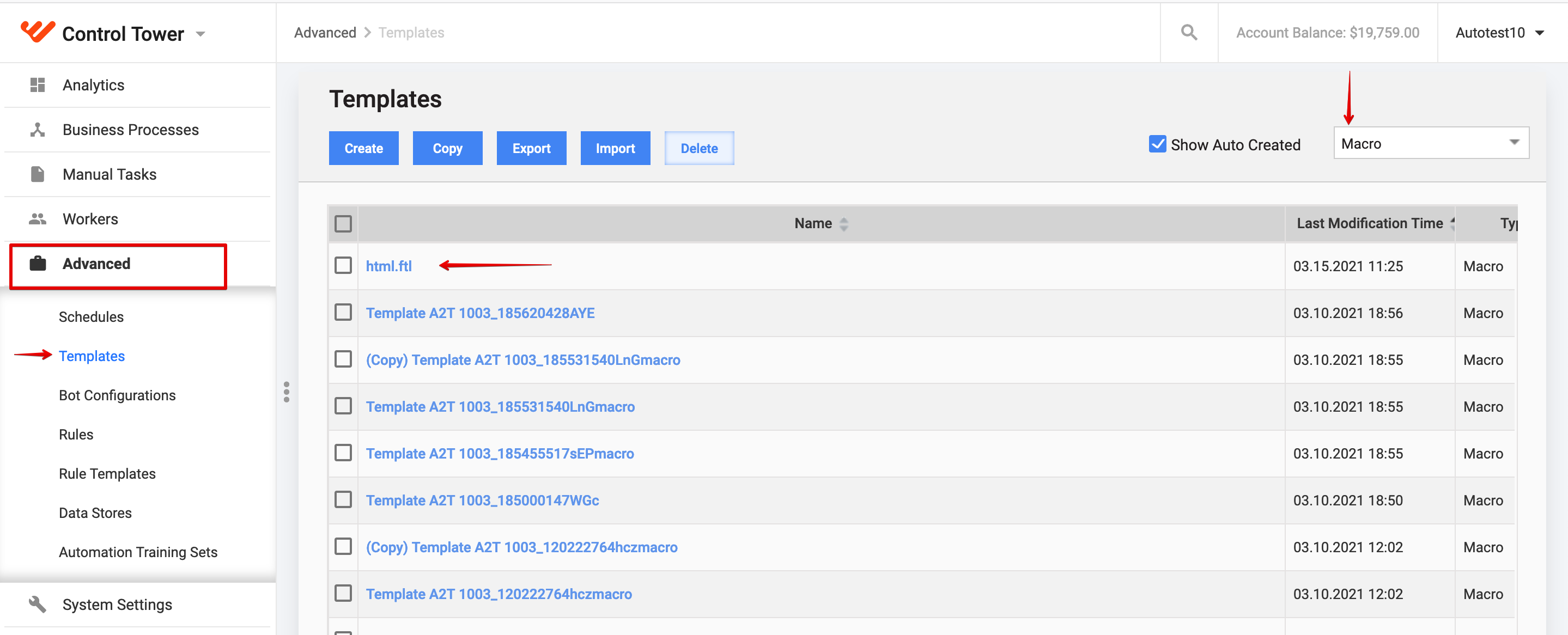
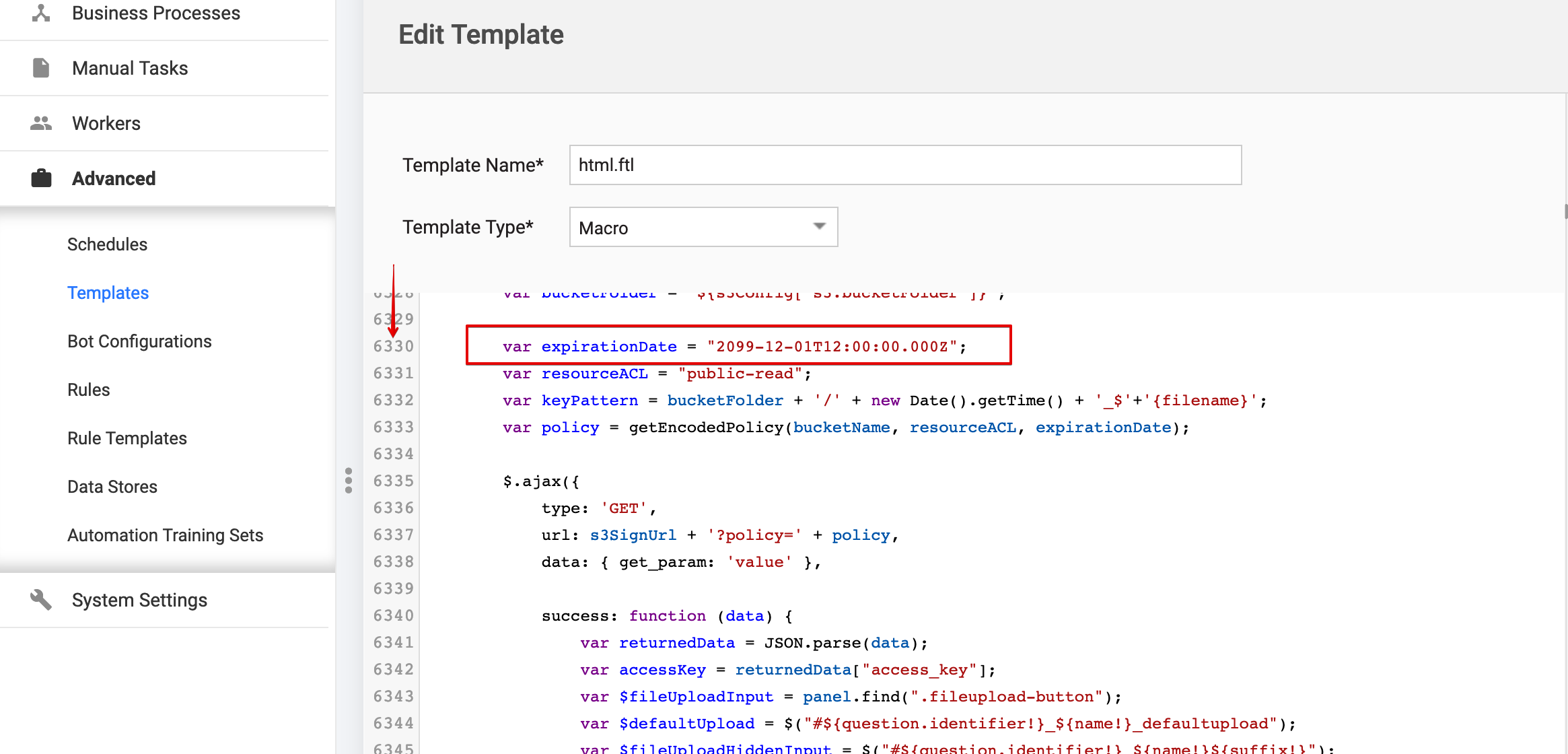
After patching is completed and all services are running, make sure that the html.ftl template in Control Tower doesn't contain an expired setting for the expirationDate. To do that, in Control Tower, click Advanced > Templates, select filter 'Macro', find html.ftl. In row number 6330, you will find:
var expirationDate = "2020-12-01T12:00:00.000Z";
Ensure that it is set to:
var expirationDate = "2099-12-01T12:00:00.000Z";