
Preparation of RPA and BI configurations
By default Windows configs are generated on the APP server in /distr/windows_host_configuration. In this guide, you can find the steps how to do it manually.
Generated configurations are zipped to the archives in /distr/windows_host_configuration:
- RPA:
rpa_windows_host_configuration.zip - BI:
bi_windows_host_configuration.zip
Log in to the APP Server via SSH.
Change user to the default
wfuseruser.su - wfuser cd /opt/workfusion/wf_installer/Copy the
secrets_overrides.ymlandconfig_overrides.ymlfiles from the DB node to the current host.Make sure that the
rpa_manager_nodesandbi_hostnamevariables are filled with the actual hostname.Make sure that Analytics certificates are generated and are located in
<PACKAGE_DIR>/certificates.Run configuration generation step with the full path for
secrets_overrides.ymlandconfig_overrides.ymlfiles../install.sh rpa_bi_win_configs app -e @/tmp/secrets_overrides.yml -e @/tmp/config_overrides.ymlThe command will ask for the Vault password that used for encrypting the
secrets.ymlfile.Structure of RPA archive package:
- SSL
  - server.pem
  - server.key
  - client.pem
  - CA.crt
- nginx
  - nginx.conf
- wfagent
  - environment.yml
Structure of BI archive package:
- SSL
  - bi.crt
  - bi.key
  - CA.crt
- configs
  - config.<wfapp>.cmd
  - config.<wfapp>_WFA.cmd
  - import_users.csv
Copy this archive to the destination Windows hosts and unpack.
Using pre-generated configuration on Windows Analytics server
This step should be done after the BI Installer is extracted and installed with BI Windows Server Installation.
Log in to the BI server and perform the following steps:
Copy
bi_windows_host_configuration.zipto the host.Extract the
bi_windows_host_configuration.ziparchive to any folder on your Windows PC.Copy
CA.crtand BI certificates to:<EXTRACTED_ARCHIVE_PATH>\bi_configuration\SSL\CA.crtto thessldirectory in<INSTALL_DISK>\ssl\<EXTRACTED_ARCHIVE_PATH>\bi_configuration\SSL\bi.crtto thessldirectory in<INSTALL_DISK>\ssl\<EXTRACTED_ARCHIVE_PATH>\bi_configuration\SSL\bi.keyto thessldirectory in<INSTALL_DISK>\ssl\<EXTRACTED_ARCHIVE_PATH>\bi_configuration\SSL\CA.crtto theFilebeatdirectory in<INSTALL_DISK>\Filebeat\
Copy the configurations:
<EXTRACTED_ARCHIVE_PATH>\bi_configuration\configs\import_users.csvto thedeploydirectory in<INSTALL_DISK>\tdeploy_home\deploy\config\.<EXTRACTED_ARCHIVE_PATH>\bi_configuration\configs\config.\<wfapp>.cmdto thedeploydirectory in<INSTALL_DISK>\tdeploy_home\deploy\config\<EXTRACTED_ARCHIVE_PATH>\bi_configuration\configs\config.\<wfapp>\_WFA.cmdto thedeploydirectory in<INSTALL_DISK>\tdeploy_home\deploy\config\
Proceed with the BI Windows Server installation.
Using pre-generated configuration on the RPA server
This step should be done after RPAInstaller is extracted and installed with
the RPA Windows Server Installation.
Log in to the RPA server and follow the steps:
Copy
rpa_windows_host_<rpa_manager_node>_configuration.zipto the host with right<rpa_manager_node>name.Extract the
rpa_windows_host_<rpa_manager_node>_configuration.ziparchive to any folder on your Windows PC.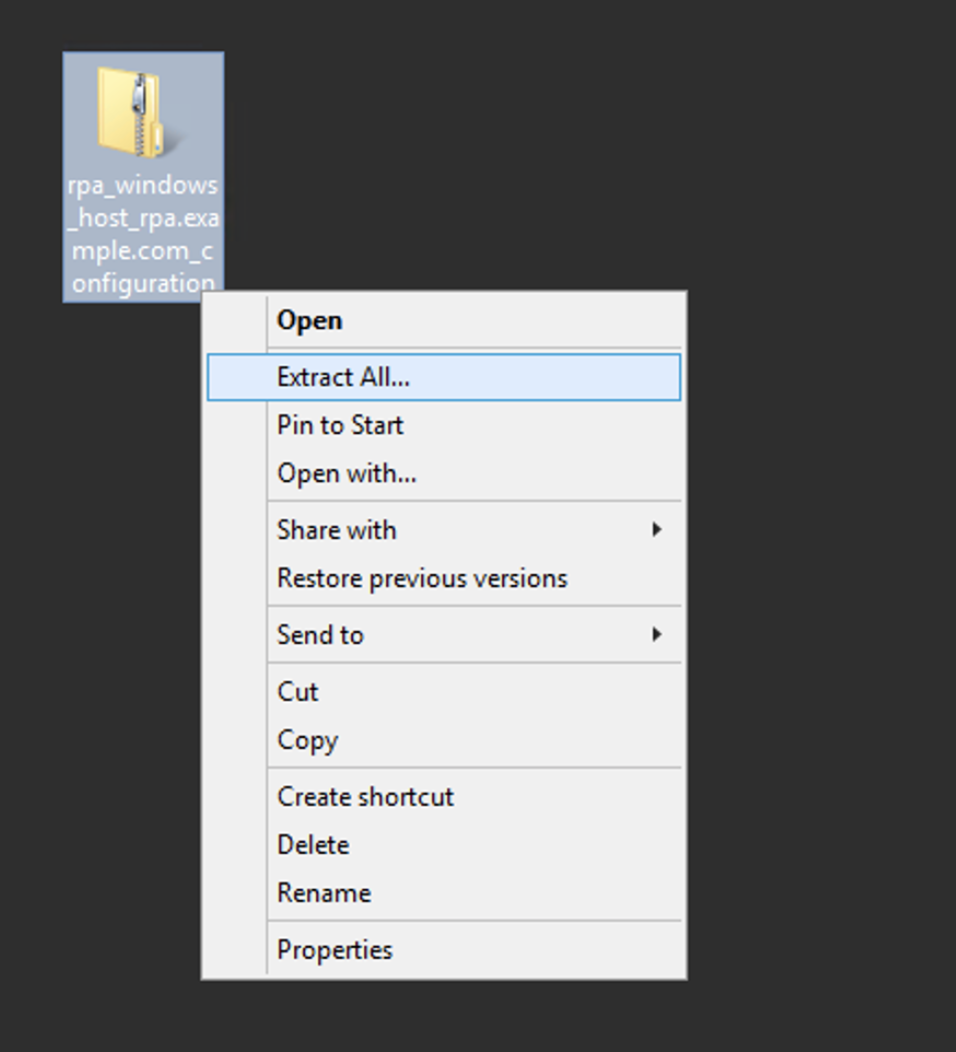
Change the path to the correct value in
<EXTRACTED_ARCHIVE_PATH>\rpa_configuration\nginx\nginx.conf.
Copy
<EXTRACTED_ARCHIVE_PATH>\rpa_configuration\nginx\nginx.confto<INSTALL_DIR>\nginx\conf\nginx.conf.Copy
<EXTRACTED_ARCHIVE_PATH>\rpa_configuration\wfagent\environment.ymlto<INSTALL_DIR>\wfagent\conf\environment.yml.Copy
<EXTRACTED_ARCHIVE_PATH>\rpa_configuration\ssl\CA.crtto the Filebeat directory<INSTALL_DIR>\filebeat\ssl\.Copy Nginx cerificates:
<EXTRACTED_ARCHIVE_PATH>\rpa_configuration\ssl\server.pemto the Filebeat directory<INSTALL_DIR>\nginx\ssl\.<EXTRACTED_ARCHIVE_PATH>\rpa_configuration\ssl\server.keyto the Filebeat directory<INSTALL_DIR>\nginx\ssl\.<EXTRACTED_ARCHIVE_PATH>\rpa_configuration\ssl\client.pemto the Filebeat directory<INSTALL_DIR>\nginx\ssl\.
Add
<EXTRACTED_ARCHIVE_PATH>\rpa_configuration\ssl\CA.crtto the RPA Java keystore. Refer to the Platform Monitor configuration for more details.Proceed with other RPA Windows server installations.