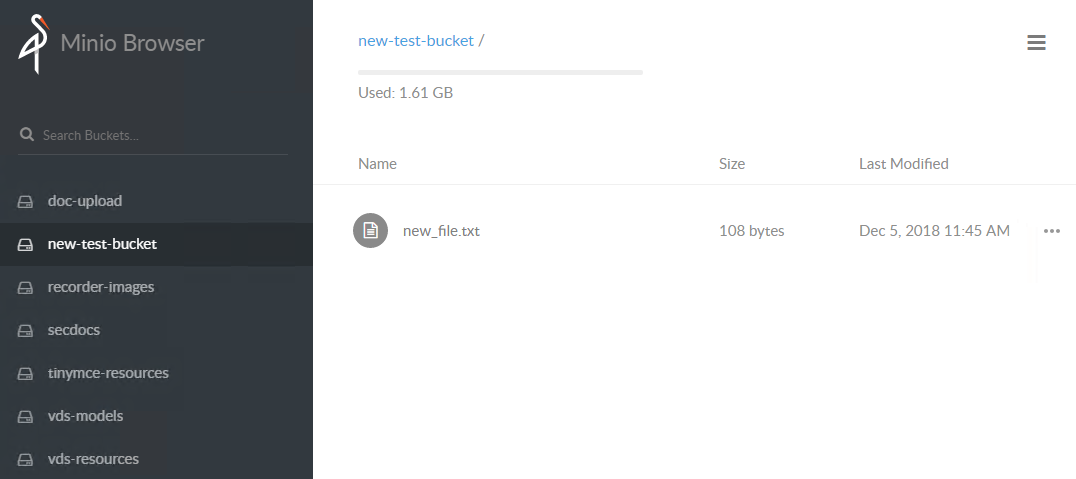
Upload files to S3 MinIO storage
There are several ways how to upload files to Minio storage. Choose the most suitable for you.
Use web browser
Open S3 storage (MinIO), for example, https://app-s3.example.com/minio.
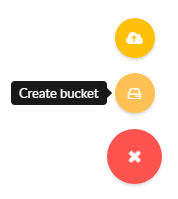
Click on "+" button on the right bottom and select Create Bucket.
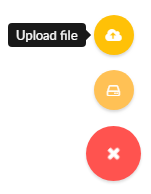
Click on "+" button on the right bottom and select Upload file.
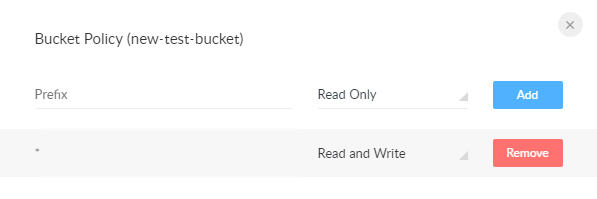
Set public policy for the bucket and files:
- Click three dots for the needed button and select Edit policy.
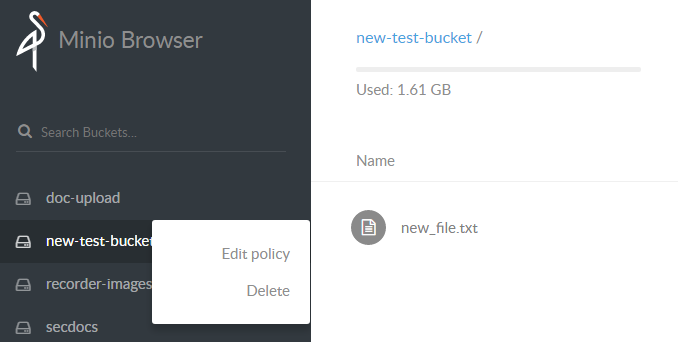
- Add a new policy for "*" with Read and Write permissions.
Check the results in the web browser at https://app-s3.example.com/minio/new-test-bucket.
Upload files to Linux server
The steps provided in this documentation is for Workfusion SPA 9.2 version. For other versions there can be some differences.
Log into DB server.
Create a new directory under the
<INSTALL_DIR>/minio/datadirectory.Don't use dots ".", underscore "_" symbols in the directory names.
mkdir -p <INSTALL_DIR>/minio/data/new-test-bucketCopy the needed files to the created directory.
cp -a new_file.txt <INSTALL_DIR>/minio/data/new-test-bucketSet public policy for the bucket and files.
s3 is an alias for MinIO. You can find it at
/minio_client_conf/config.json:"s3":{ "url":"http://localhost:9000", "accessKey": "access_key", "secretKey":"secret_key", "api": "s3v4", "lookup": "auto"}<INSTALL_DIR>/tools/mc -C <INSTALL_DIR>/minio_client_conf/ policy --recursive public s3/new-test-bucketExample:
/opt/workfusion/tools/mc -C /opt/workfusion/minio_client_conf/ policy --recursive public s3/new-test-bucket
Access permission for `s3/new-test-bucket` is set to `public`
Check the results in the web browser at https://app-s3.example.com/minio/new-test-bucket.
As the result, you will see the uploaded files in the browser and they can be accessible from the Business Process tasks.