Label documents in Tagging-over-Document Business Process
Overview
The Tagging-over-Document (TOD) Business Process (BP) allows users to label the original document to avoid facing OCR results.
Before: The user labeled the OCR result, which can differ from the original document, and struggled to find a proper value.
After: The user labels the original, taking no time to recognize the familiar document, its structure, the position, font, and font size of the required value.
Result: For classification models, the labeling speed increase is at least 50%, for extraction models—at least 30%. Labeling speed increase, combined with model training time reduction, decreases the time required to deliver an operation to the customer.
Demo
The TOD BP offers several workflows allowing the following actions:
- Label: select and label values, chunks of sentences, or entire table rows and columns.
- Search: find other occurrences of a specific value across the document.
- Evaluate: check the labeled values. Click the extracted value to jump to it even if the document has many pages.
Features
The out-of-the-box labeling use case is intended for an easy setup of the TOD BP. The case utilizes the preprocessed OCR XML output to do the following:
- Split text into words.
- Calculate absolute coordinates of each symbol.
- Group the symbols into words, lines, columns.
- Generate HTML where a label over the original document corresponds to an OCRed text underneath.
According to the execution engine architecture, the BP has no limitations for the number of pages and records or the number of documents on any step. Note that each step must complete the processing of all records before moving to the next step.
Limitations
In the Work.AI platform, the TOD BP has the following limitations:
- The BP does not include a Manual Task and an ETL step.
- The BP does not support predefined autoselect OCR parameters.
- The BP supports OCR with basic or no authentication only. There is no OCR JWT authentication support.
- When labeling a document, including one token in two overlapping or exactly matching sections, the BP produces a resulting empty XML and should be avoided. However, it is possible to include a smaller label inside the bigger one. For example, label a
Cityinside anAddress.
Configure environment
- AutoML 10.0 or later.
- ImageMagick (Windows: v7.1.0, for example,
ImageMagick-7.1.0-17-Q16-x64-static.exe) and Ghostscript (Windows: v9.20) installed to perform a multi-page document split in the case when the TOD OCR type is used. - Global variables configured according to the Manage global variables topic.
OCR REST API
The OCR BP implemented in AutoML extends the OCR API by retrieving a preprocessed document to use for labeling an information extraction Manual Task. It wasn't a difficulty before the users labeled an OCRed document. But if the users label the original document, there is a problem with the coordinates of recognized symbols.
The reason is that OCR performs internal preprocessing of a document regardless of the parameters, such as rotating, improving the quality, and so on. The coordinates of the recognized symbols relate to the internally preprocessed document and mismatch to the very original document. Hence, the users do not actually label original document, but the differences are so tiny that they do not notice them.
You can retrieve an OCR preprocessed document using the following methods:
POST /processDocumentor/submitImagewith thestorePreprocessedDoc=trueparametercurl
curl -s --form "file=@FILENAME" "http://ocr.hostname:8080/api/v1/cloud/processImage?correctSkew=true&xml:writeRecognitionVariants=false&profile=documentConversion&exportFormat=txt&language=English&storePreprocessedDoc=true"Response
<?xml version="1.0" encoding="UTF-8" standalone="yes"?><response><task id="5693d8f77b78005fcbbfbe84" message="OK" processEndTime="2016-01-11T16:32:00" processStartTime="2016-01-11T16:31:56" registrationTime="2016-01-11T16:32:28" resultUrl="http://ocr.hostname:8080/api/v1/cloud/download?taskId=5693d8f77b78005fcbbfbe84&result=1" resultUrl2="http://ocr.hostname:8080/api/v1/cloud/download?taskId=5693d8f77b78005fcbbfbe84&result=2" resultUrl3="http://ocr.hostname:8080/api/v1/cloud/download?taskId=5693d8f77b78005fcbbfbe84&result=3" statusChangeTime="2016-01-11T16:32:28" status="Completed"/></response>GET /download/preprocessedwith the following parameters:taskId: OCR task ID (returned from/processDocumentor/submitImage)page: the number of document pagescurl
curl -s --form "file=@FILENAME" "http://ocr.hostname:8080/api/v1/cloud/download/preprocessed?taskId=5693d8f77b78005fcbbfbe84&page=1"
Configure Data Stores
OCR cache Data Store
Cache storage is optional for labeling but highly recommended as it allows to decrease requests to the OCR cluster. Create Data Store for OCR cache in Control Tower.
The Data Store with the name you specified is created automatically if it doesn't exist. The most important Data Store parameters are as follows:
| Parameter name | Description | Mandatory | Example |
|---|---|---|---|
ocr_json | Cached response from OCR | yes | {"original_document_url": "https://services-rnd.s3.amazonaws.com/testing%20OCR/new_fiels/timo0002125.tif", "ocr_export_format": "xmlForCorrectedImage", "original_document_name": "timo0002125", "ocr_document_name": "timo0002125-xmlForCorrectedImage", "ocr_document_format": "xml", "ocr_document_url": "https://vision-automl-db1.workfusion.com:8443/doc-upload/timo0002125-xmlForCorrectedImage.xml" } |
key | Document hash | yes | 208682471691263be19a1fc0909d3efa |
ocr_type | OCR flow used in a BP run | yes | tod |
export_format | List of formats used in a BP | yes | xmlForCorrectedImage, xmlWithoutRecognitionVariants |
meta_info_json | Contains all required data for a labeling Manual Task, including character positions, preprocessed document URL, and so on | yes | { "pages": "https://vision-s3.workfusion.com:9000/doc-upload/tod/images/preprocessed/links/4e5d19df-b421-4638-8eee-0b723df92438.json", "ocrXmlUrl": "https://vision-s3.workfusion.com:9000/doc-upload/6b674b22-6825-4383-8e37-adea5e6bf54d/39203488-1102-4a5f-acc0-de0d347e9716/1916260-xmlWithoutRecognitionVariants.xml", "imageUrl": "https://bep-vision-db1.workfusion.com/doc-upload/1916260.pdf" } |
Global variables
Global variables are used for the global labeling configuration. Specify the following parameters:
| Parameter name | Description | Mandatory | Example |
|---|---|---|---|
convert_lib_path | Specify the path to the ImageMagick library if it was not added to PATH | no | /usr/bin/convert |
ocr_url | URL to the OCR service with context path | yes | https://velcom-ocr1.workfusion.com/api/v1/cloud |
ocr_username | OCR username | no | <some_username> |
ocr_password | OCR password | no |
You can change the OCR engine version by changing the URL in global variables. For example, https://velcom-ocr1.workfusion.com/api/v1/cloud > https://velcom-ocr1.workfusion.com/api/v2/cloud (v1 > v2).
Configure Business Process
BP structure
The BP must include the following steps:

OCR settings
If the ETL settings step is inserted using drag-and-drop from the bot library to the right of the workflow field, the settings are rewritten for all BPs using this step. To avoid this, drag an empty Bot Task from the toolbar above the workflow field and define it using the OCR settings case as described below.
Add the OCR settings step to the BP before the out-of-the-box TOD BP:
On the Workflow tab, drag an empty bot step to the BP designer.
Double-click the Bot Task and select ETL.
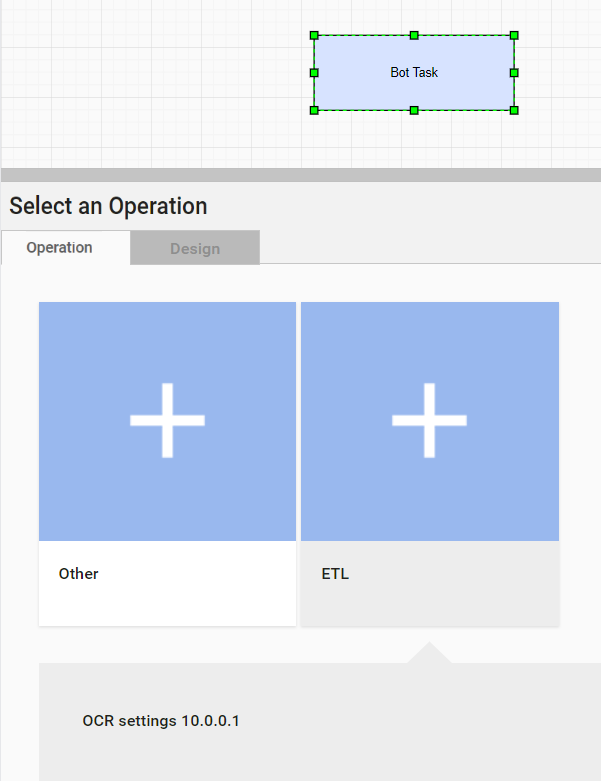
Specify OCR settings according to the instructions below:
| Setting | Description | Required | Example / Options |
|---|---|---|---|
| S3 bucket | S3 bucket for labeling and OCR results | yes | doc-upload |
| OCR Type | OCR flow for the BP—specifies the OCR BP use mode | yes | Enriched output (default); Standard |
| Export Format | Specifies the storage format for the OCR result | yes | html, pdfSearchable, txt, xml, xmlForCorrectedImage, xmlWithoutRecognitionVariants |
| Document Language | no | English (default) | |
| Change DPI | DPI value for documents | no | from 50 to 400 |
| Invert image | no | true/false | |
| Discard Color Image | no | true/false | |
| Remove Color Objects | Remove color objects according to the selected option | no | Blue, Green, Red, Yellow |
| Remove Color Objects Type | Remove color objects type | no | Background, Full Stamp |
| Custom Regions | Custom regions for OCR | no | <some-region> |
| Allowed Region Types | Allowed region types for OCR | no | BTAutoanalysis, BT Barcode, BT_Checkmark, BT_CheckmarkGroup, BP_RasterPicture, BT_Separator, BT_SeparatorGroup, BT_Table, BT_Text, BT_VectorPicture |
| Cache Data Store | OCR cache Data Store | no | ocr_cache_datastore described in the OCR cache Data Store section |
When the Enriched output OCR Type is selected, the Export Format field is hidden, and xmlWithoutRecognitionVariants, xmlForCorrectedImage are selected.
OCR workflow
To add the OCR Workflow step to your BP, perform the following actions:
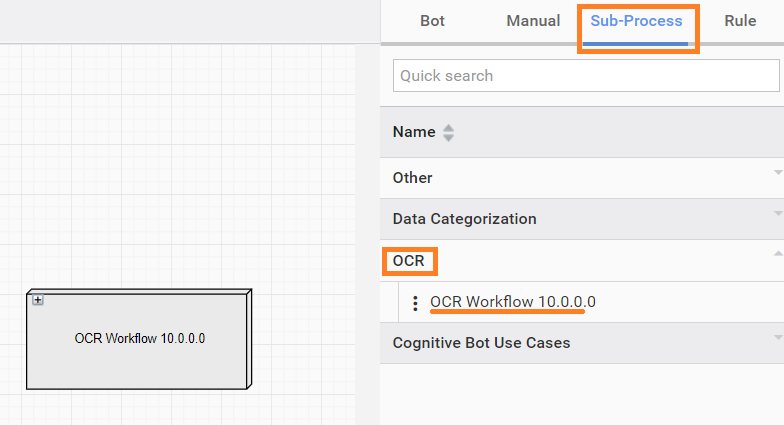
On the Workflow tab of your BP, select Sub-Process in the right panel.
Expand the OCR section and select OCR Worklow.
Drag and drop the OCR Workflow step to the left on the BP structure field.
Manual Task
To label documents after recognition, add Information Extraction Manual Task to the BP after the out-of-the-box TOD step.
The information extraction Manual Task is generic and accepts both old and new formats. It displays XML or the original document based on the input format and includes an original document if the input file refers to the corresponding JSON. Otherwise, the information extraction task works with any document type as previously.
For more details on the input format, refer to Input.
TOD Answer
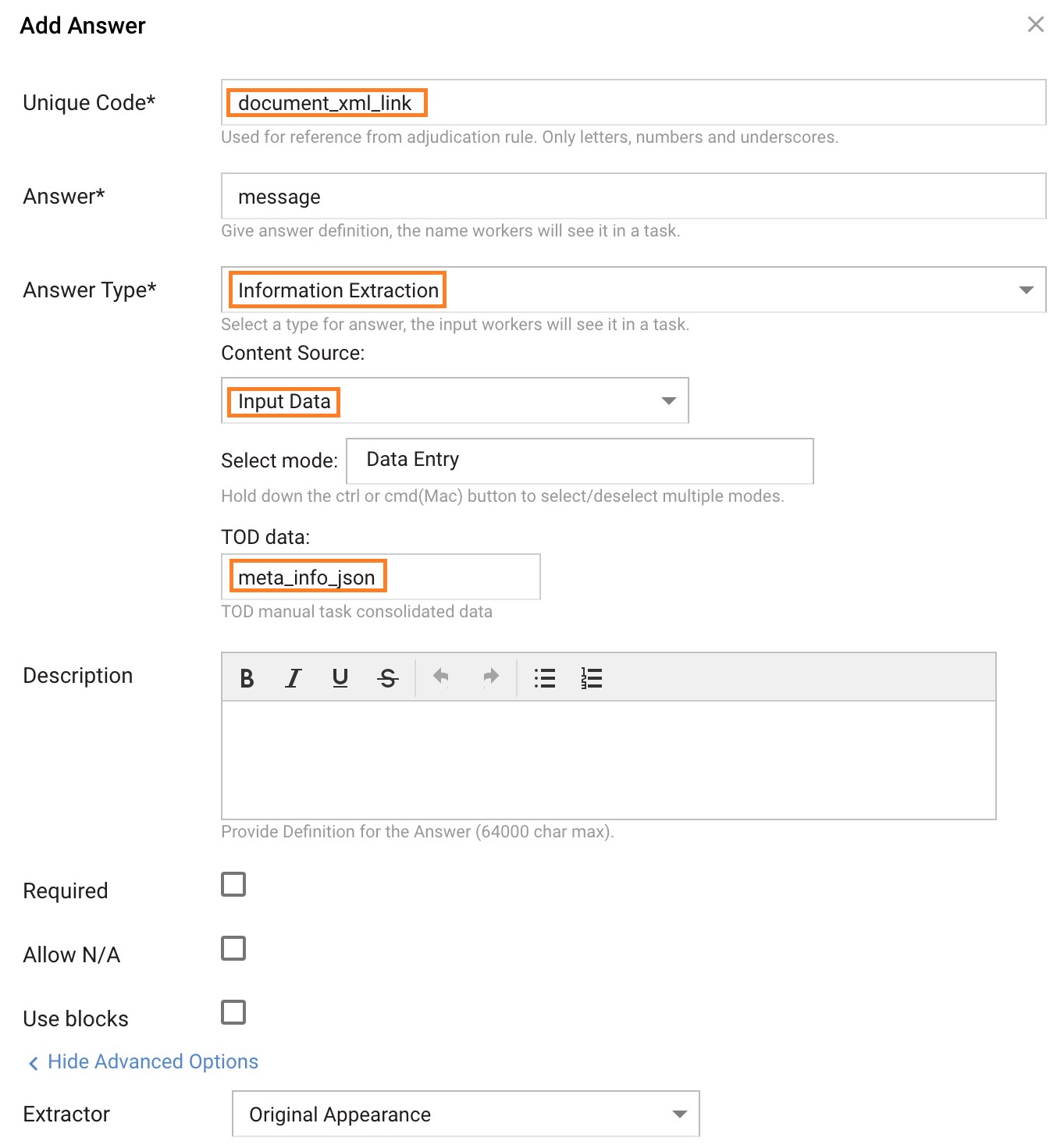
Configure TOD Answer in the following way:
- Unique Code:
document_xml_link(default) or mapped to a column containing XML or link to XML from the previous steps. - Answer Type: Information Extraction.
- Content Source: Input Data.
- TOD data:
meta_info_json(default) or mapped to a column containing JSON from OCR.
The following Unique code values are not allowed:
blockformattinglinepparprerectregiontdtexttrdocumentseparatorpageregionrecttextregionlineformattingtextparblocktextptext|plinerectrectendcellrowstarttablethsec-documentsec-headerdocumenttypesequencedescriptiontextfilenamebr
To learn more, see Information Extraction.
Input
Input data must contain original_document_url.
Input file content sample
original_document_url
https://vision-automl-db1.workfusion.com:8443/doc-upload/d1ceba.tif
https://vision-automl-db1.workfusion.com:8443/doc-upload/b5ytx.tif
https://vision-automl-db1.workfusion.com:8443/doc-upload/p4exv.tif
https://vision-automl-db1.workfusion.com:8443/doc-upload/6ng9y.tif
https://vision-automl-db1.workfusion.com:8443/doc-upload/j7ter.tif
Output
The TOD OCR BP produces meta_info_json in case the Enriched output flow is selected in the OCR settings. Below is a sample of the meta_info_json structure:
meta_info_json
{
 "pages": "https://vision-s3.workfusion.com:9000/doc-upload/tod/images/preprocessed/links/4e5d19df-b421-4638-8eee-0b723df92438.json",
 "ocrXmlUrl": "https://vision-s3.workfusion.com:9000/doc-upload/6b674b22-6825-4383-8e37-adea5e6bf54d/39203488-1102-4a5f-acc0-de0d347e9716/1916260-xmlWithoutRecognitionVariants.xml",
 "imageUrl": "https://bep-vision-db1.workfusion.com/doc-upload/1916260.pdf"
}
pages: a link to a JSON document containing an array of links to characters recognized on a specific page of the document and the preprocessed image URLpages
[{
    "imgUrl": "https://vision-s3.workfusion.com:9000/doc-upload/tod/images/preprocessed/5694ad66-66c1-4129-848c-9b3e3b66b2ac.png",
    "charsUrl": "https://vision-s3.workfusion.com:9000/doc-upload/tod/images/preprocessed/1-d50e6d9a-5b1b-4887-820b-6280130fadbc.json"
},
 ...
]charsUrlcontent:chars
[{
    "r": "657",
    "b": "80",
    "t": "39",
    "char": "I",
    "l": "652",
    "wordStart": true
}, {
    "r": "699",
    "b": "80",
    "t": "39",
    "char": "N",
    "l": "667"
},
 ...
]ocrXmlUrl: OCR result in the Export Format.imageUrl: original document.
Add certificates
The out-of-the-box TOD BP works in all environments. In the case of untrusted certificates, download the SSL DB server certificate and add it to the trusted list. Otherwise, you cannot access the document image in a labeling Manual Task in Workspace.