Email connector
High-level description
Email is a very common source of incoming data. Often, a bot needs to connect to a specific mailbox and read messages for further processing.
Email Connector is designed with this built-in capability. It supports the most common email protocols, such as MS Exchange and IMAP. Note that POP3 is not supported due to limited usage.

How it works
The Email Connector logic is the same for both Exchange and IMAP protocols.
- Email Connector connects to the target server folder using the specified settings and fetches unread emails. If the Mark As Read flag is set to
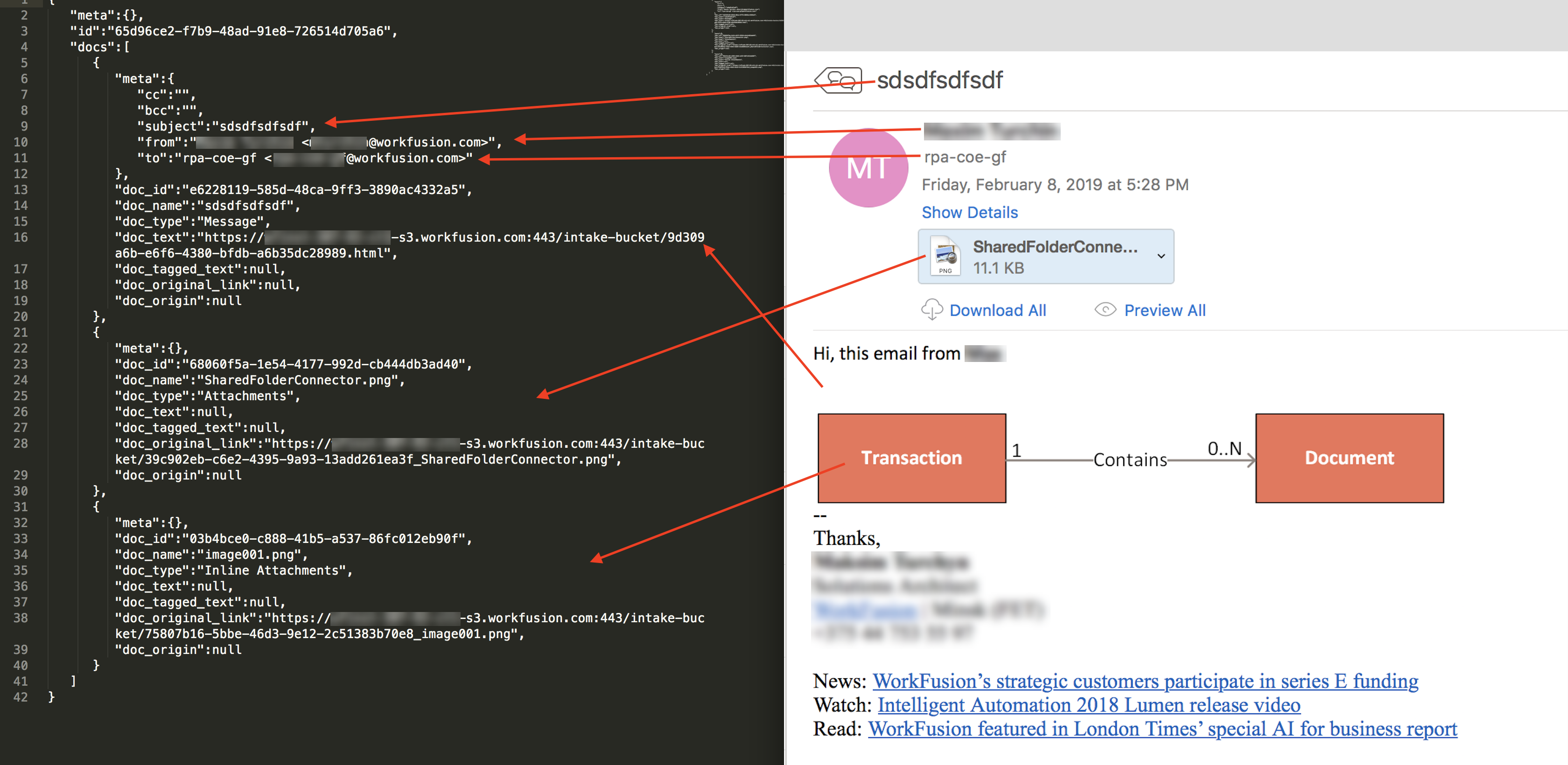
true, all emails will be marked as read. - Each email fetched from the server becomes a Transaction object. By default, each transaction has at least one document representing the email message. This document contains metadata such as From, To, Subject, CC, BCC, and the message body as its content.
- If the email contains attachments, they can be inline (for example, an embedded image) or regular attached files. Email Connector creates a document for each attachment as part of the same transaction and assigns the appropriate type.
The example below shows a Transaction created from an email with both inline and file attachments, as represented in the Transaction JSON file.
{
   "meta":{ },
   "id":"65d96ce2-f7b9-48ad-91e8-726514d705a6",
   "docs":[
      {
         "meta":{
            "cc":"",
            "bcc":"",
            "subject":"sdsdfsdfsdf",
            "from":"Maxim Turchin <mturchin@workfusion.com>",
            "to":"rpa-coe-gf <rpa-coe-gf@workfusion.com>"
         },
         "doc_id":"e6228119-585d-48ca-9ff3-3890ac4332a5",
         "doc_name":"sdsdfsdfsdf",
         "doc_type":"Message",
         "doc_text":"https://wfinst-307-92-ct1-s3.workfusion.com:443/intake-bucket/9d309a6b-e6f6-4380-bfdb-a6b35dc28989.html",
         "doc_tagged_text":null,
         "doc_original_link":null,
         "doc_origin":null
      },
      {
         "meta":{},
         "doc_id":"68060f5a-1e54-4177-992d-cb444db3ad40",
         "doc_name":"SharedFolderConnector.png",
         "doc_type":"Attachments",
         "doc_text":null,
         "doc_tagged_text":null,
         "doc_original_link":"https://wfinst-307-92-ct1-s3.workfusion.com:443/intake-bucket/39c902eb-c6e2-4395-9a93-13add261ea3f_SharedFolderConnector.png",
         "doc_origin":null
      },
      {
         "meta":{},
         "doc_id":"03b4bce0-c888-41b5-a537-86fc012eb90f",
         "doc_name":"image001.png",
         "doc_type":"Inline Attachments",
         "doc_text":null,
         "doc_tagged_text":null,
         "doc_original_link":"https://wfinst-307-92-ct1-s3.workfusion.com:443/intake-bucket/75807b16-5bbe-46d3-9e12-2c51383b70e8_image001.png",
         "doc_origin":null
      }
   ]
}
Email matching can look as follows:
How to use
Email Connector consists of two steps:
- Email server settings are configured in a Form view. There is one configuration template for Exchange and another for IMAP.
- The bot connects to the server using the parameters from the previous step, retrieves the email messages, and creates Transactions.
An example configuration is shown below:

Exchange Mail Connector Settings
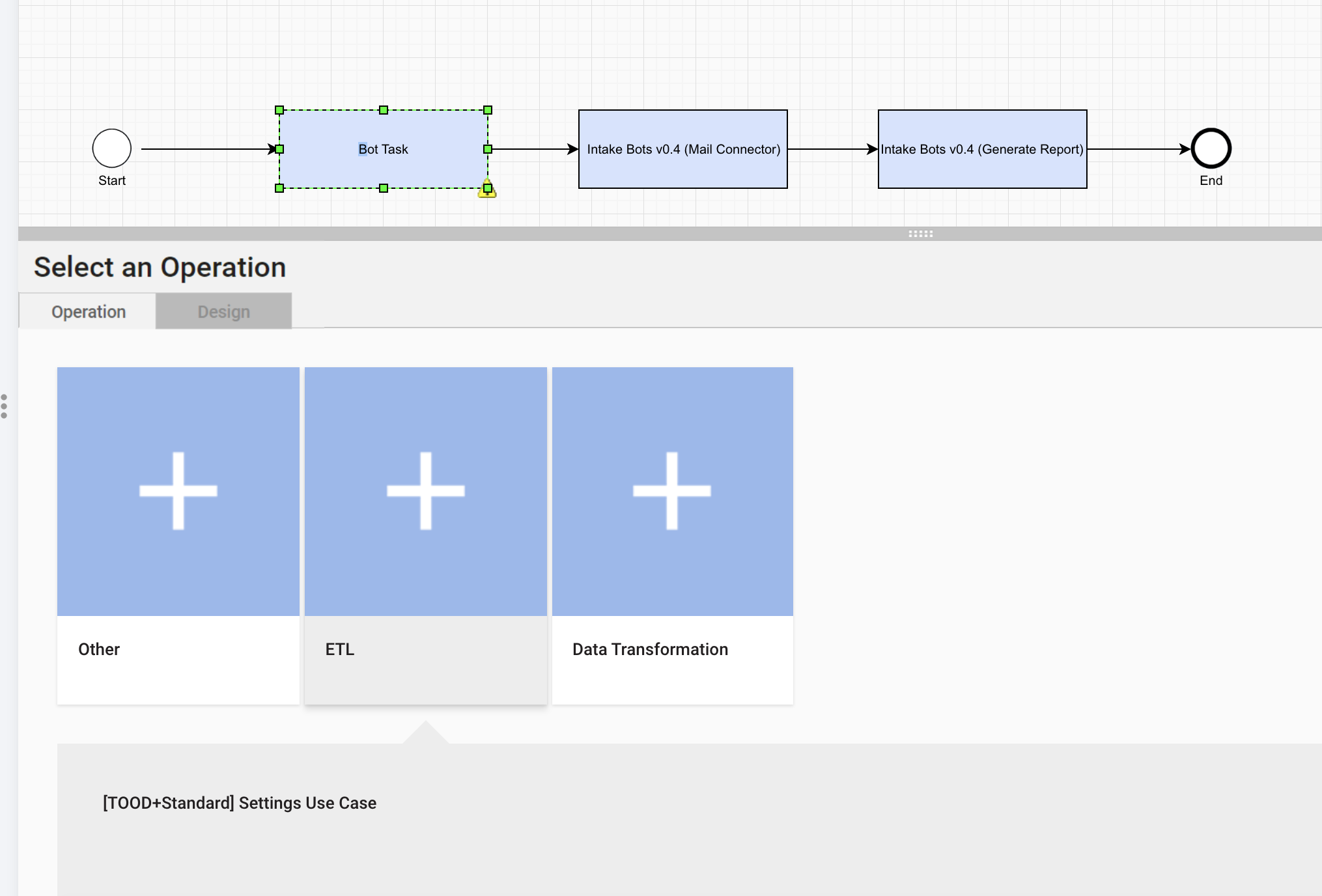
To create the Exchange settings step, add an empty step first.

Double-click it and select the ETL section.
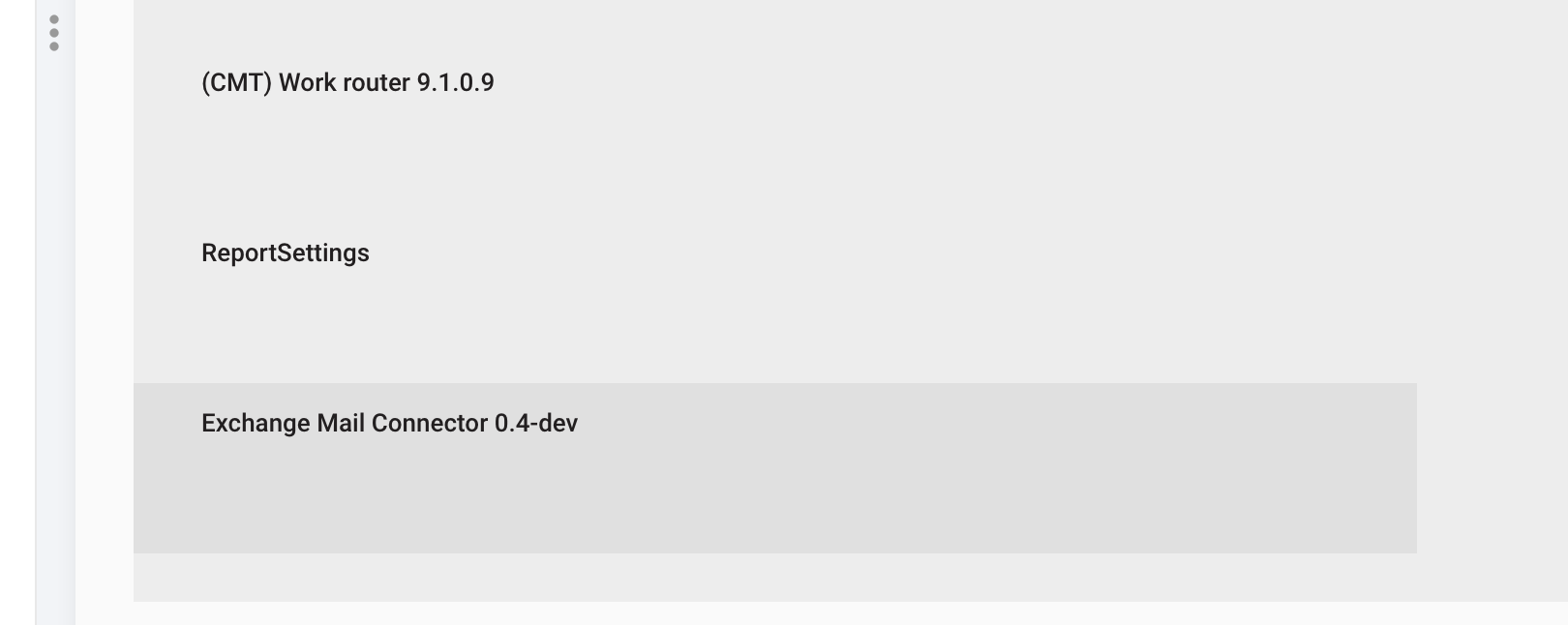
Choose Exchange Mail Connector Settings.
Configure the form according to your server settings.
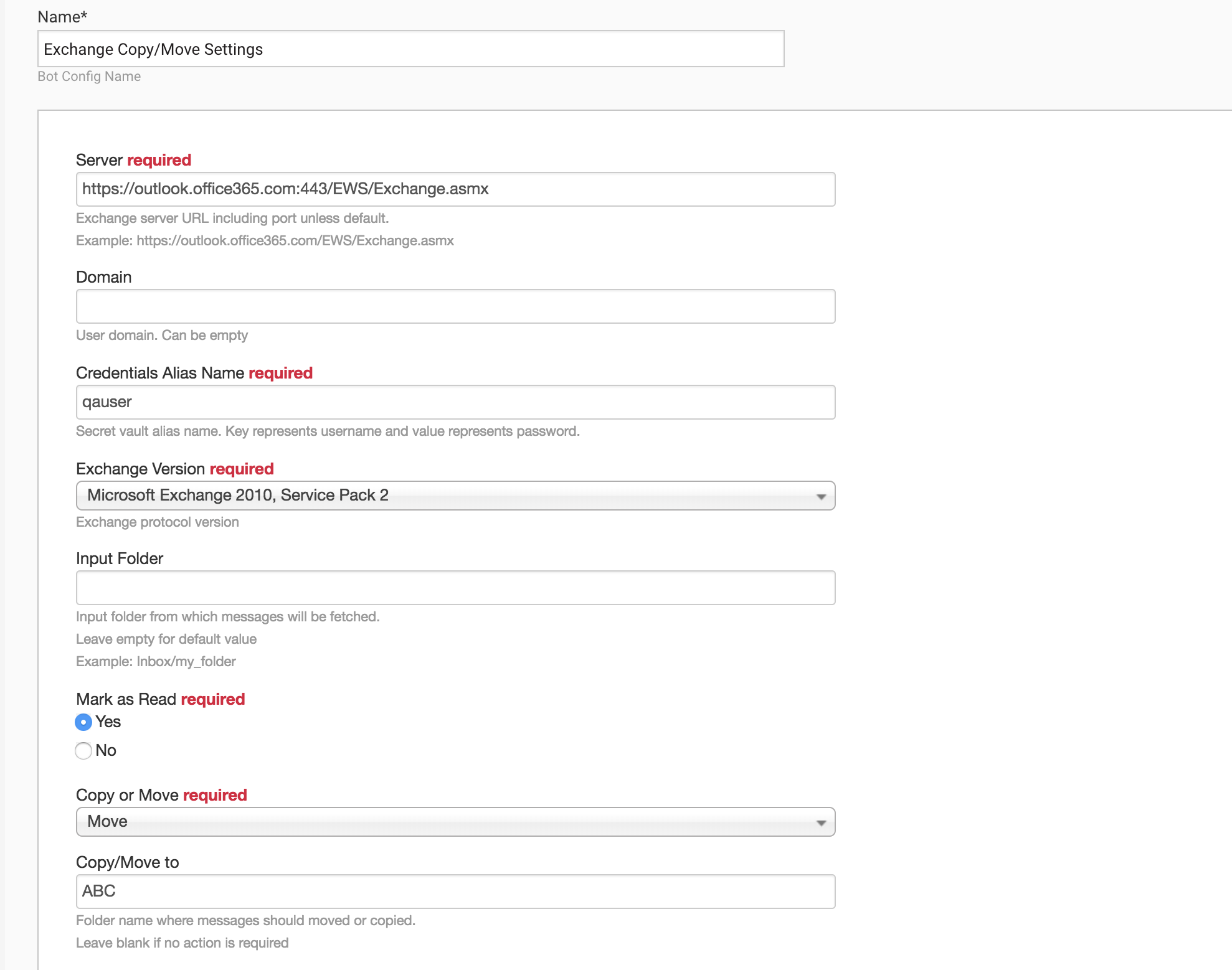
The table below describes all parameters for Exchange Mail Connector Settings.
| Parameter | Description | Required | Default value |
|---|---|---|---|
| Server | Exchange server URL, including the port if it is not the default, for example: https://outlook.office365.com/EWS/Exchange.asmx | Yes | n/a |
| Domain | User domain | No | |
| Credentials Alias Name | Secret name stored in Secrets Vault. The secret entry key is the username, and the value is the password. | Yes | n/a |
| Exchange Version | Acceptable values: Exchange2007_SP1, Exchange2010, Exchange2010_SP1, Exchange2010_SP2 | Yes | MS Exchange 2010 SP2 |
| Input Folder | Target folder name from from which email messages will be fetched. | No | Default mailbox folder (Inbox) |
| Mark as Read | Indicates whether fetched email messages should be marked as read. | Yes | Yes |
| Copy or Move | Allows to move or copy read messages to a target folder. Select None, if no action is required. | Yes | None |
| Copy/Move to | Target folder name where messages should be moved or copied. Leave blank if no action is required. | No | n/a |
IMAP Mail Connector Settings
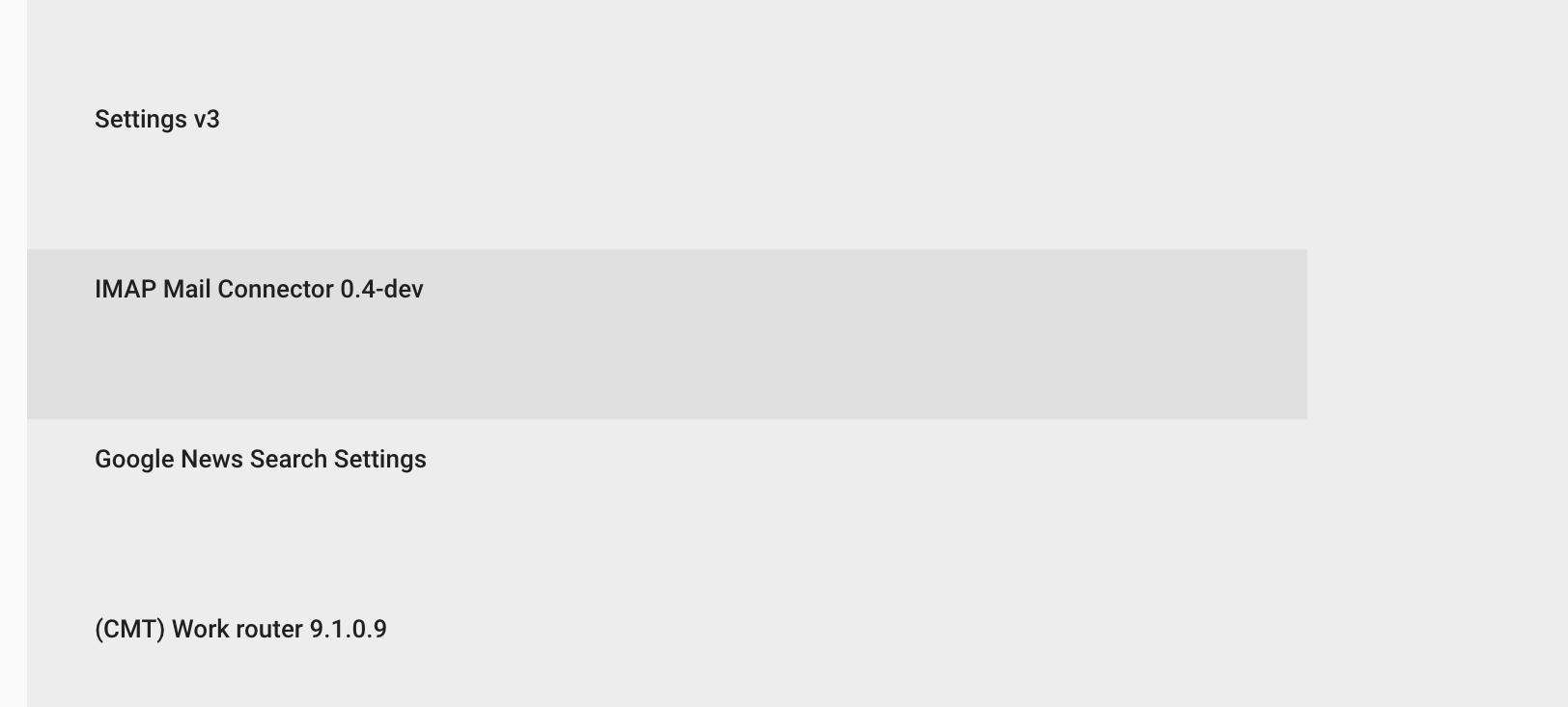
To set up IMAP, follow the same steps as for Exchange Mail Connector Settings but select IMAP Mail Connector Settings in the the ETL list.
The example of the configuration form is shown below.
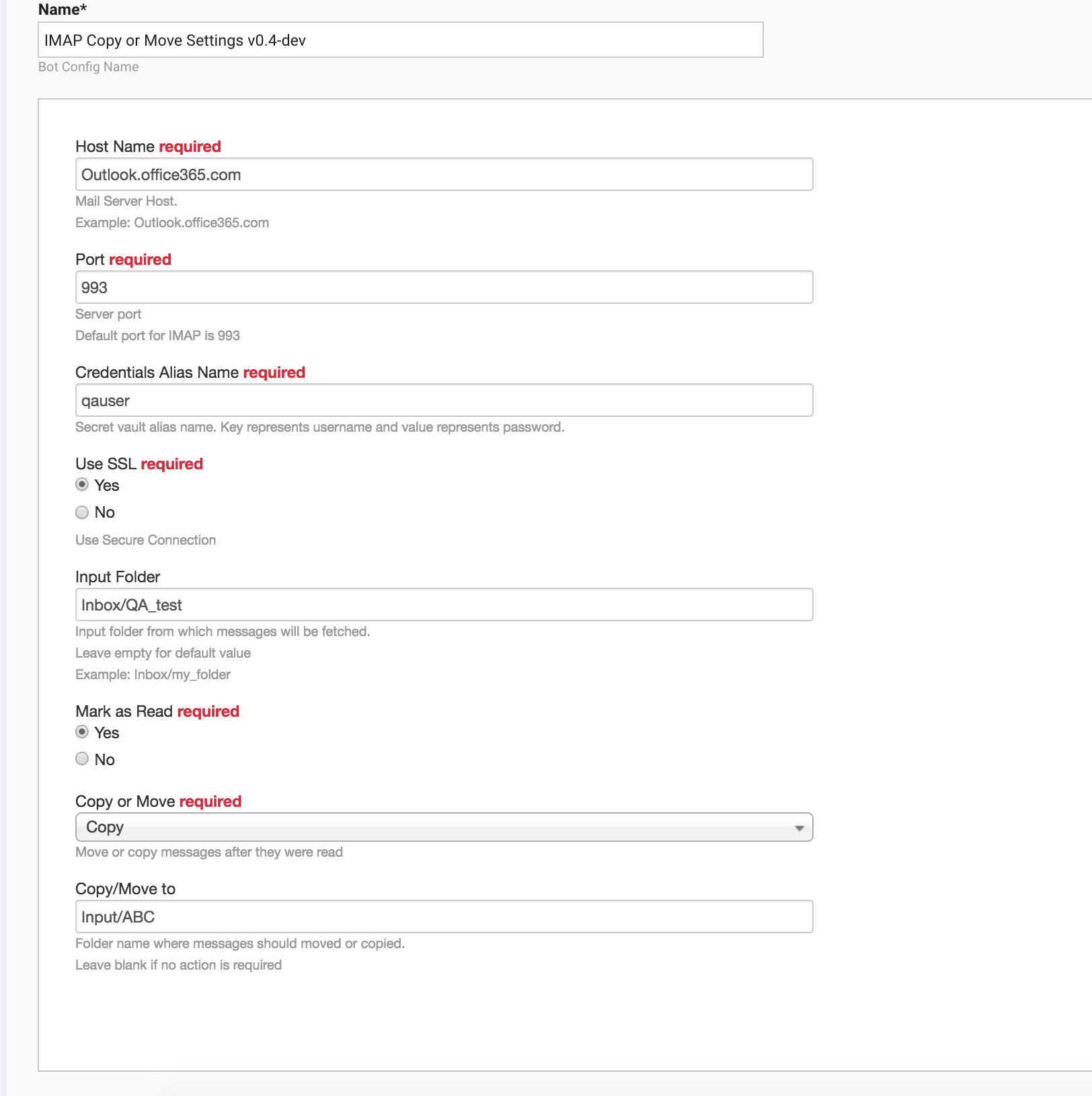
The table below describes all parameters for IMAP Mail Connector Settings.
| Parameter | Description | Required | Default value |
|---|---|---|---|
| Hostname | Target server host (without port), for example, Outlook.office365.com. | Yes | n/a |
| Port | Target server port number. The default is 993. | Yes | 993 |
| Credentials Alias Name | Secret name stored in Secrets Vault. The secret entry key is the username, and the value is the password. | Yes | n/a |
| Use SSL | Indicates whether the connection should be secured. The server must also support SSL connections. | Yes | Yes |
| Input Folder | Target folder name from which email messages will be fetched, for example, input/folder_name. | No | Default mailbox folder (Inbox) |
| Mark as Read | Indicates whether fetched email messages should be marked as read. | Yes | Yes |
| Copy or Move | Allows to move or copy messages after reading them. Select None if no action is required. | Yes | None |
| Copy/Move to | Target folder name where messages should be moved or copied. Leave blank if no action is required. | No | n/a |
Mail Connector step
After the Settings step is set up, drag the Intake Bots (Email Connector) bot from available Bot Configurations.