AutoML Model Bridge integration
Introduction
The Execute AutoML Model: Bridge significantly simplifies ML execution. It takes three input parameters (model_id with ID of the model to be called, document with content to be processed, and the go_forward_on_failure flag), and returns ML output in the model_result (or model_error) column.
You can integrate ML execution into the ODF-based Business Process using two new steps to pass Documents to and from this Bridge step: ML Bridge Input and ML Bridge Output.
How to use
You will need Execute AutoML Model: Bridge, ML Bridge Input, and ML Bridge Output steps. You can find those in the Bot panel on the right side of the Workflow editor.
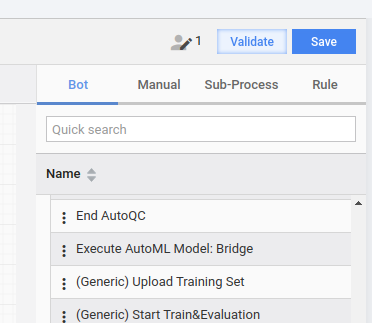
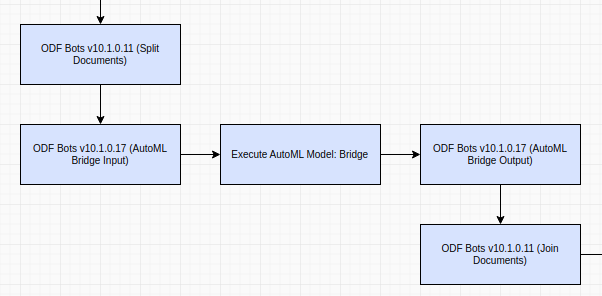
Place ML Bridge Input before Execute AutoML Model: Bridge, and ML Bridge Output after it. There is no need to configure anything except the Bridge step itself.
The example is shown below.
ML Bridge Input
The ML Bridge Input step should be placed just before AutoML Model Bridge. It extracts the content of Document and puts it into the output step as the Bridge step expects it.
To specify which model should process the document, there are two options.
- Specify the model ID in the Bridge step ETL properties (see Bridge step documentation).
- Specify the model ID in the Document attribute named
modelId. This attribute will override the model ID defined in the Bridge step for this specific document. This way, you can specify a different model for each document.
If Transaction can contain multiple Documents, ML Bridge Input should be placed after the Split Transaction step. In case there is one Document per Transaction, splitting is not necessary.
Step input
_sys_transaction_id: Transaction ID as usual for ODF steps_sys_doc_id(optional): Document ID for a split transaction, as usual for ODF steps
Step output
_sys_transaction_id: the same Transaction ID as in step input_sys_doc_id(optional): the same Document ID as in step input, if presentdocument: the Document content to be processed by the ML modelmodel_id(optional): ID of the ML model to be called, if themodelIdattribute is present in Document
ML Bridge Output
The ML Bridge Output step should be placed after AutoML Model Bridge. It takes ML output and puts it into Transaction as Document, keeping the original Document as its origin (exactly as the Join Documents after OCR step does).
The ML Bridge Output step can work on both split and unsplit transactions, taking the _sys_doc_id column into consideration. In any case, it will never merge the transaction.
Step input
_sys_transaction_id: the Transaction ID as usual for ODF steps_sys_doc_id(optional): the Document ID for a split transaction, as usual for ODF steps
Step output
_sys_transaction_id: the same Transaction ID as in step input_sys_doc_id(optional): the same Document ID as in step input, if present
Parsing ML output
Currently, there are no standard DTOs for ML output. To parse a document that was put into the transaction by the ML Bridge Output step, you can use readTree() API of Jackson's com.fasterxml.jackson.databind.ObjectMapper. This API returns a tree of objects representing JSON nodes, which you can traverse in your code. As a somewhat easier alternative, you can use the JsonPath library that allows retrieving data from JSON using XPath-style queries.