Add Bot Task
Bot Tasks contain work to be done by WorkFusion's bots. In a Business Process (BP), the bots complete those steps that are more suited for automation than human labor. Bot Tasks can exist only as a Business Process step.
Examples: address parsing, determining the width and height of an image, interacting with your API or repository, or filtering the content that does not meet certain criteria.
Add to BP flow
You can add a Bot Task to a BP using one of the following methods:
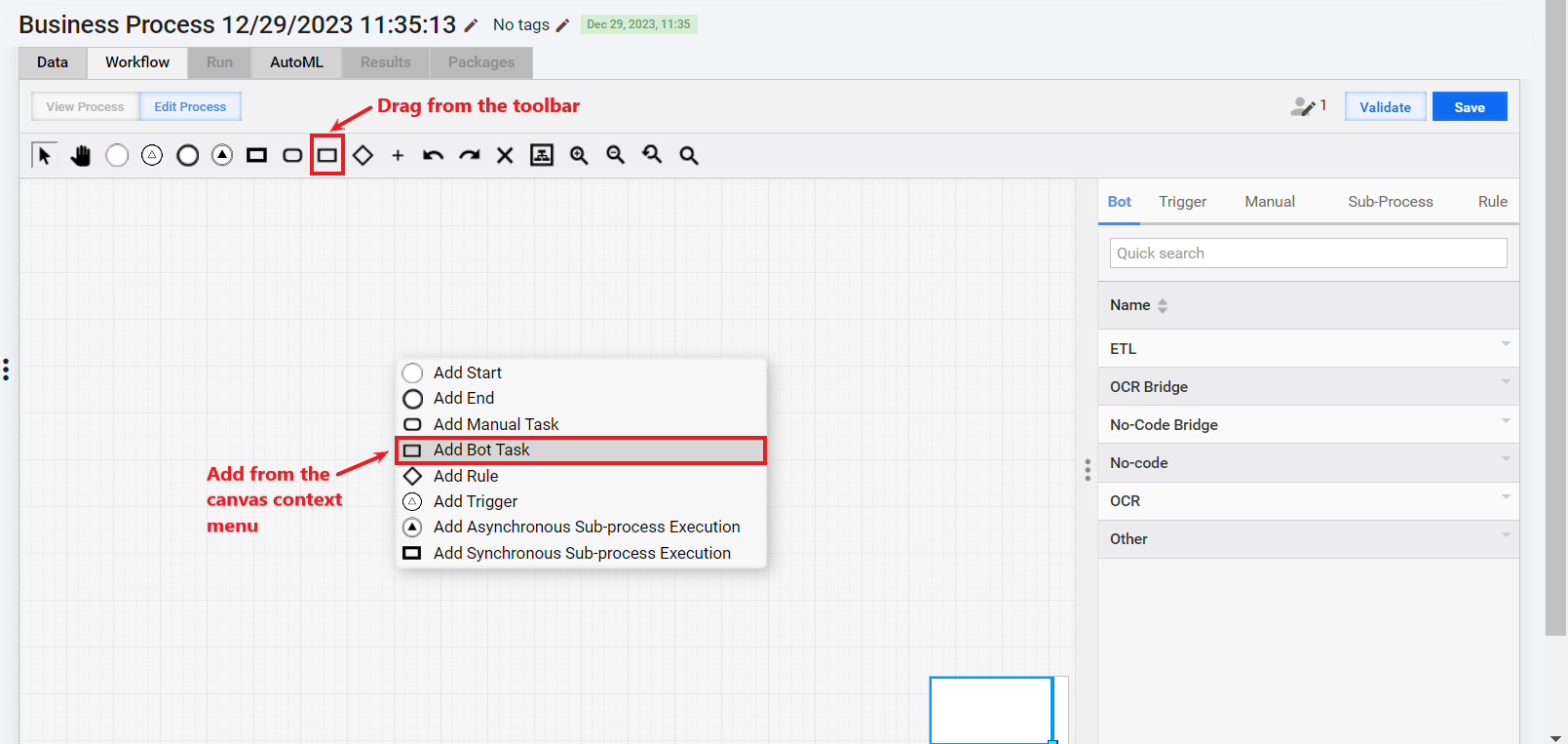
Drag the Bot Task element to the canvas from the toolbar, or click the canvas and, in the context menu, choose Add Bot Task. In this case, a blank task is created. You should select an Operation and configure the task.
On the right panel, navigate to the Bot tab and drag an option to the canvas, or click a Bot Task element in the canvas and, in its context menu, choose Duplicate or Copy. In this case, the task configuration is copied from the source task. You can edit the task if needed.
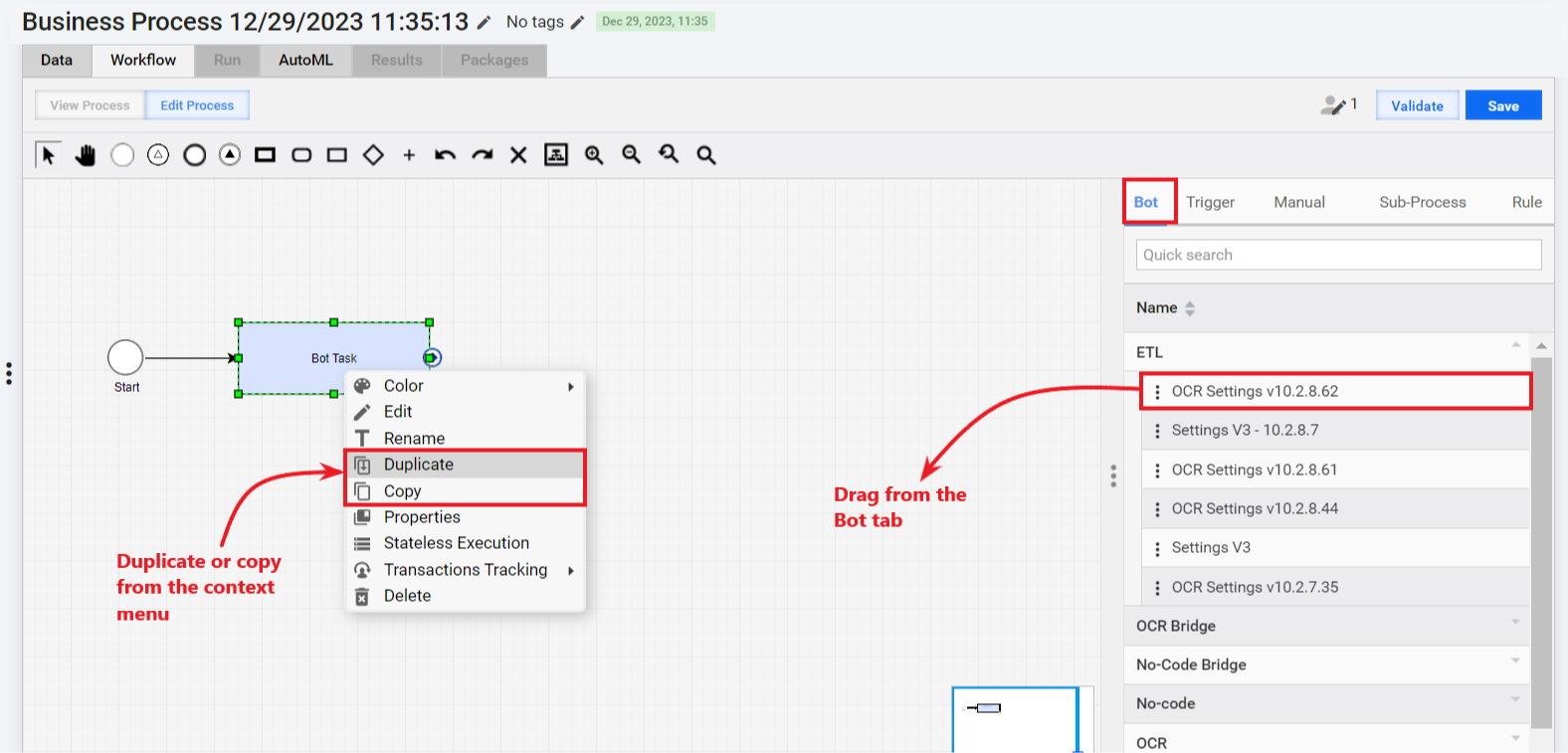
If you duplicate a task or BP, all subsequent changes in the source and the duplicated task or BP are synchronized.
If you copy a task or BP, you are prompted to edit its name. The copy and the source are not synchronized.
For details on adding no-code bot steps to a BP, refer to Configure no-code rule-based Bot Tasks.
Select Operation
If you drag a Bot Task element to the canvas from the toolbar or add it from the canvas context menu, a blank task is created, and a side panel appears where you can choose an Operation. The Operation serves as a template to create a Bot Task.
Click an Operation category and click Select next to the option of your choice:
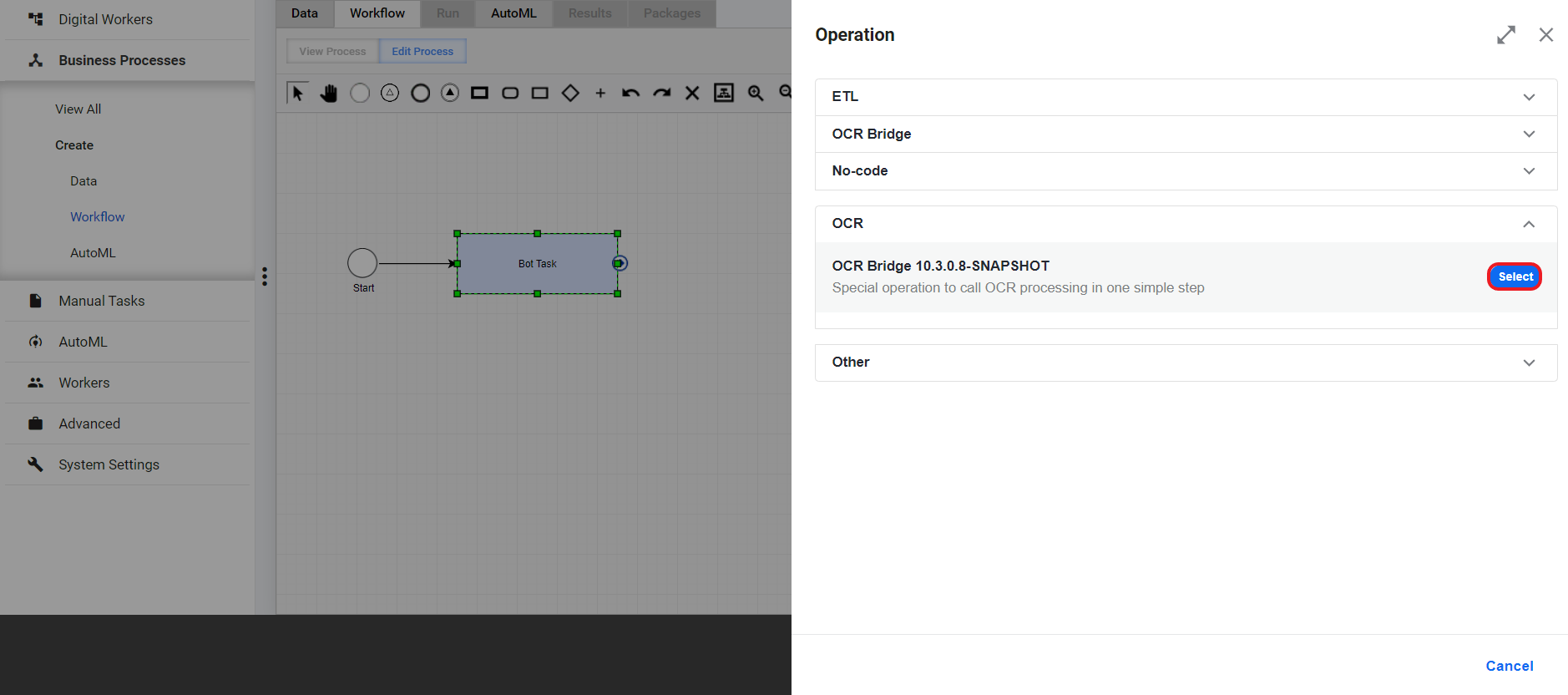
ETL: the category includes Operations used to create Bot Forms, otherwise known as ETL. It is a special Bot Config type intended for flexible re-using by defining all initial parameters (variables) through a user interface form rather than direct code editing. For more details, refer to Represent Bot Task as ETL form.
OCR Bridge: the category comprises Operations allowing you to create Bot Tasks for optical character recognition (OCR). For more information, refer to Configure OCR Bridge step and OCR providers.
No-code: the category includes Operations used to create Bot Tasks with complex decision logic without code. For details, refer to Configure no-code rule-based Bot Tasks.
Other: Operations beyond the above categories, including for creating AutoML Bridge steps.
Configure no-code Bot Task
Once you select an Operation, a Bot step configuration panel opens where you can configure the Bot Task settings in a no-code manner.
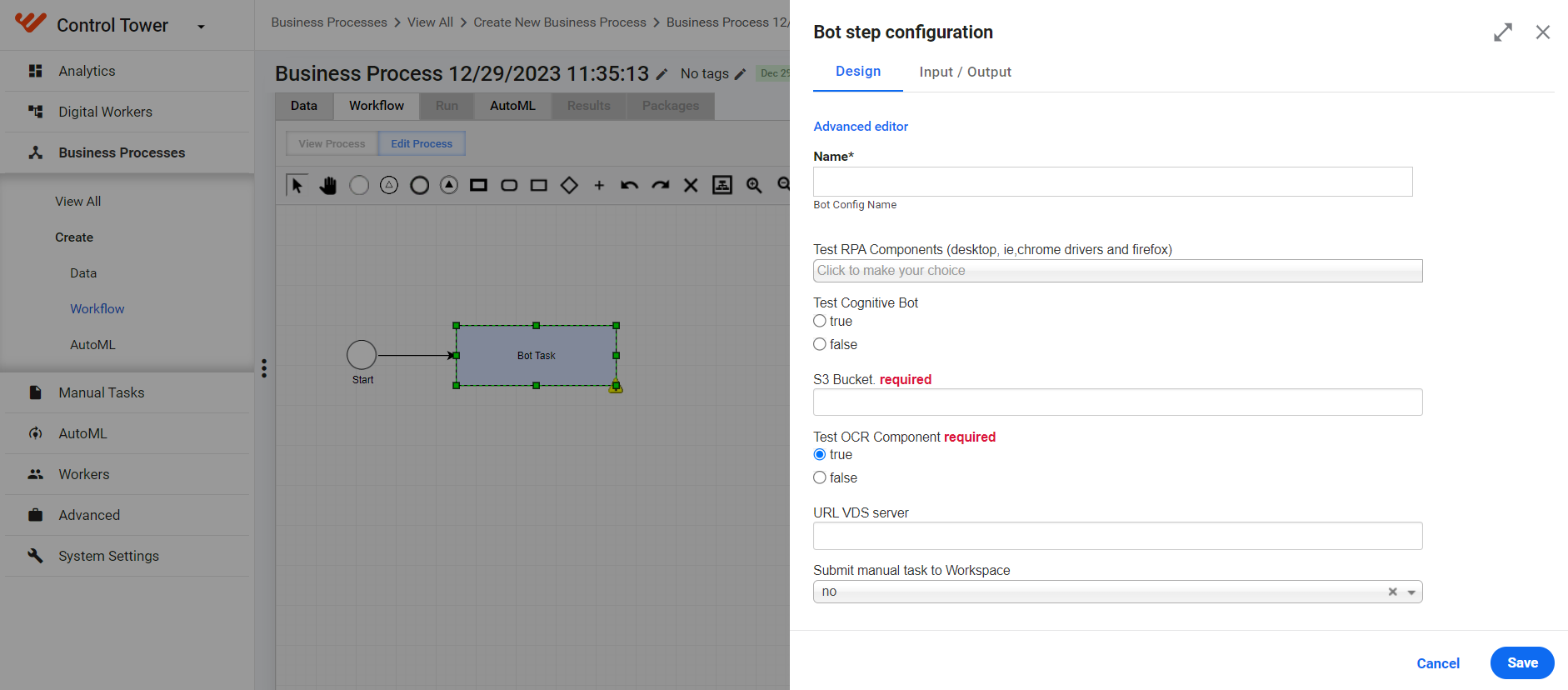
To configure a Bot Task without using code, act as follows:
On the Design tab, set a name for the task and fill in other fields as required. The settings can differ, depending on the Operation category and type you have chosen.
On the Input/ Output tab, set the data flow from and to the particular step.
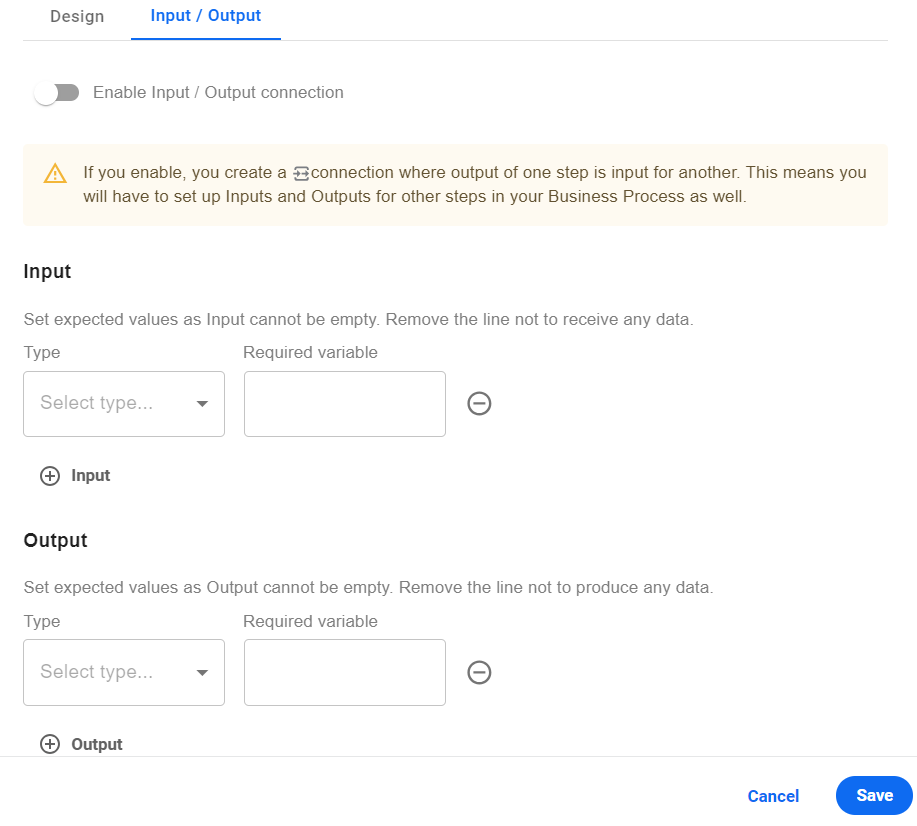 warning
Enabling the Input/ Output feature for a step turns a BP into a schema-based one. So, for the BP to execute as expected, you have to set contracts for other steps within the BP as well. For more information, refer to Configure input and output contracts in Business Process steps.
Save the task before closing it. After saving the task, make sure to save the BP.