Add no-code Data Store steps
The no-code Data Store steps allow you to easily retrieve or modify data from Data Store tables using an SQL query. The steps send a query to a database, which then processes it and returns the result.
Add Data Store steps to Business Process flow
To add a no-code Data Store bot step to a Business Process (BP), do as follows:
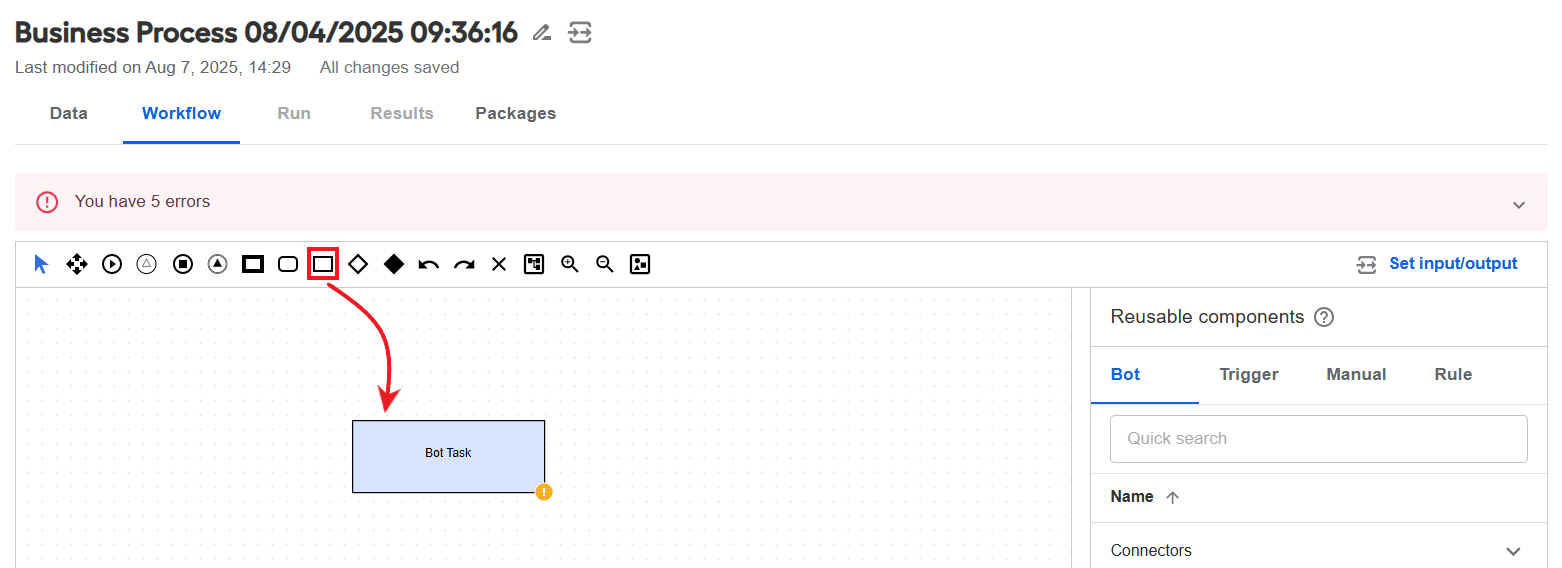
On the Workflow tab of your BP, drag the Bot Task element to the canvas from the toolbar. A blank task is created.
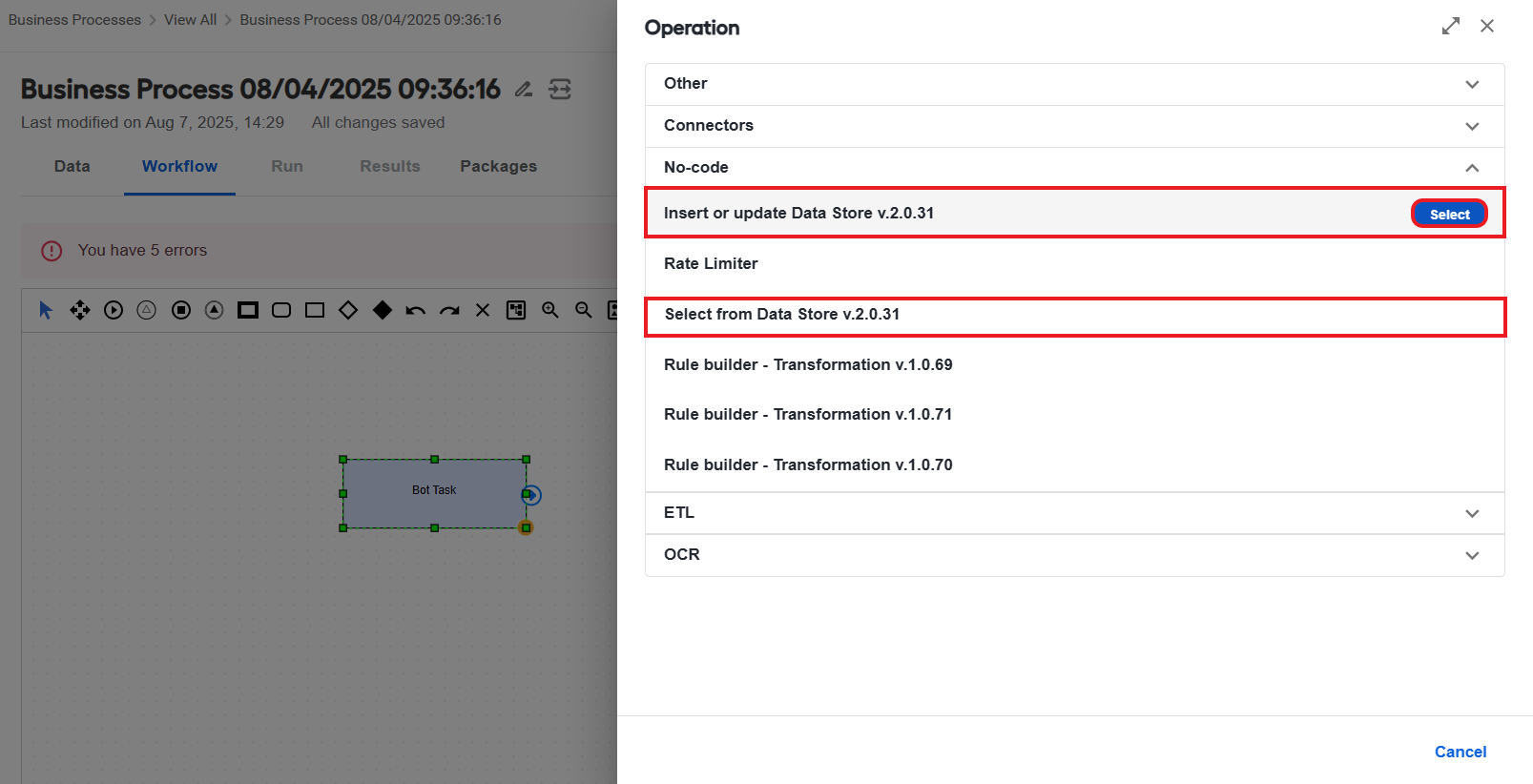
Double-click the bot step. On the Operation side panel, expand No-code and click Select next to a required Data Store operation:
Once you choose the Operation, the Bot step configuration panel opens.
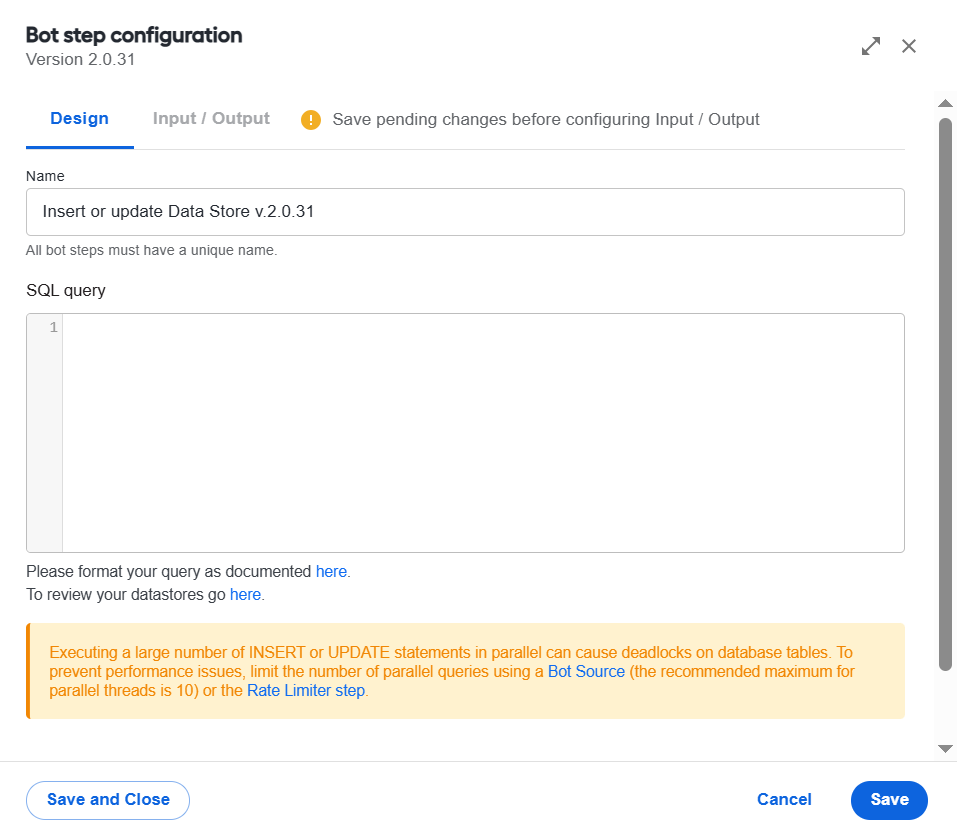
In the Name field, enter the name for the Data Store step.
In the SQL query field, input your SQL statement. Click Save to save the changes.
If your bot step is part of a schema-based BP, configure contracts as defined in the guide.
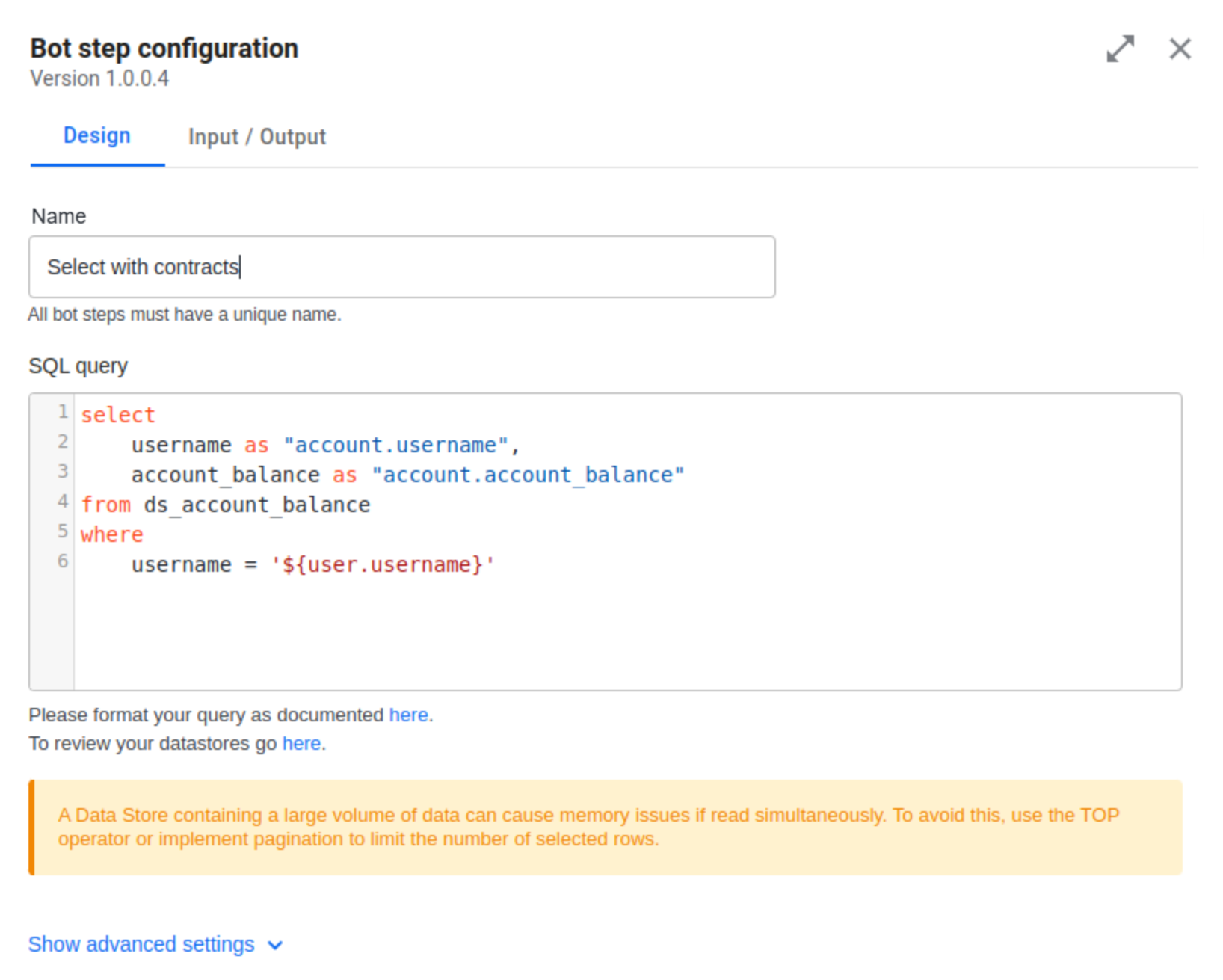
Click Save and Close to finish the configuration.
Write SQL query
SQL (Structured Query Language) is used to interact with databases. In a Data Store step, you can write SELECT, UPDATE, and INSERT queries using standard SQL syntax.
The no-code Data Store steps replace expressions surrounded with ${} with values taken from the step input or configuration. An incorrect expression results in an error.
The expression consists of two parts—the prefix and the path, for example, ${prefix:path}, where:
- The prefix specifies the source to search for a value. If the prefix is absent, the value is retrieved from the step's input data.
- The path is a JsonPath expression that specifies where to find the value within the data structure.
Accessing input data
To add input data, enter input parameters directly into the text of a query in ${}. The parameters can be:
Simple:
${username}Structured:
${user.username}or${context:dwInfo.useCaseCode}
You can access any column from the step input using its name in a simple expression, such as ${my_input_column}. If the column value is valid JSON, you can use a JsonPath expression to read specific parts of it.
For example, the value of the user column is an object like this:
{
    "age": 21,
    "first_name":"John",
    "second_name":"Doe"
}
Then, the ${user.age} expression returns 21, and ${user.second_name} returns Doe.
You can have the value as an array of objects, for example, in the users column:
[
    {
        "age": 21,
        "first_name":"John",
        "second_name":"Doe"
    },
        {
        "age": 35,
        "first_name":"Jane",
        "second_name":"Smith"
    }
]
Then, the ${users[0].age} expression returns 21, and ${users[1].second_name} returns Smith.
Accessing data from step execution context
Using an expression prefixed with context:, you can access data from the step execution context. A key example of such data is the AI Agent information, which is often required to determine the name of the Data Store correctly. For example, ${context:dwInfo.useCaseCode} resolves to the AI Agent code.
See the list of task input parameters you can use to extract data from the context
processorusernametenantIdinputTaskIdstepExecutionIdstepDefinitionIdstepDefinitionUuidstepNamestepExecutionUuidbpExecutionUuidstepExecutionRetryLimitstepExecutionAttemptCountstepExecutionCustomAttributesinstanceConfiguration:configurationIdconfigurationJsonData
dwInfo:useCaseCodeuseCaseVersiondataModelVersionversionedDataStoreNamePatternnonVersionedDataStoreNamePattern
Using SQL bind parameters
The no-code Data Store steps replace expressions with corresponding values before sending a query to the database for execution. However, databases have their own method for handling dynamic values—SQL parameterized queries. The Data Store step enables you to leverage this by using expressions with bind parameters. For that, add the bind: prefix in ${} and specify the table to reference. Such an expression makes the resulting SQL query parametrized, and the actual value is sent to the database along with the query.
For example, the input contains the age column with the value of 21:
SELECT first_name FROM users WHERE age = ${age};
Then, it is resolved as follows:
SELECT first_name FROM users WHERE age = 21;
If you add the bind: prefix to the expression:
SELECT first_name FROM users WHERE age = ${bind:age};
It is resolved as:
SELECT first_name FROM users WHERE age = :age;
The actual value of age is sent to the database along with the query, and the database takes care of the substitution.
There are several benefits of using bind parameters:
- You do not need to care about the types of input data.
- You can perform batch inserts or updates efficiently.
Automatic managing of data types
The database automatically converts input data to the correct type, managing data types efficiently. This helps maintain a consistent query structure and optimizes execution, especially when handling large volumes of data. Consider the following SQL queries:
Quotes are required for
"${name}"becausesecond_nameis a column of a String type:SELECT first_name FROM users WHERE second_name = "${name}";With the
bind:prefix, the quotes are not required because the database will take care of it automatically:SELECT first_name FROM users WHERE second_name = ${bind:name};
Batch INSERT and UPDATE operations
If the Insert or update Data Store step receives multiple rows of input, each row is processed in a separate task execution. However, there is also a way to perform multiple operations within a single step.
If the step input contains an array of data, and the query includes ${bind:} expressions that reference this data, the query is executed once for each element in the array.
For example, if the input contains a user column, which value is a JSON array:
[{ "name": John" }, { "name": "Jane"}, { "name": "Michael"}]
Then, the following query is executed three times, once for each name in the array:
INSERT INTO user (name) VALUES (${bind:user.name});
If the input is a single value rather than an array, the query is executed only once.
When performing batch operations, bind parameters can only reference a single array.
Example
For example, your input data contains the following columns:
user=[{ "name": John" }, { "name": "Jane"}, { "name": "Michael"}]balance=[{ "USD": 5 }, { "USD": 7 }, { "USD": 11 }]status="active"
The following query works fine, as it references only one array (user):
UPDATE user SET status = ${bind:status} WHERE name = ${bind:user.name};
Similarly, this query also works, as it references only the balance array:
UPDATE user SET status = ${bind:status} WHERE balance = ${bind:balance.USD};
However, the query below will fail because it references both the user and balance arrays:
UPDATE user SET status = ${bind:status}, balance = ${bind:balance.USD} WHERE name = ${bind:user.name};
View sample SQL queries
SELECT
To retrieve data from a database, choose the Select from Data Store Operation and add a SELECT statement as your SQL query.
When working with a Data Store that contains a large volume of data, attempting to read all the data simultaneously can lead to significant memory issues. To avoid this, use the TOP operator or implement pagination to limit the number of selected rows.
Case 1: bot step without output contract
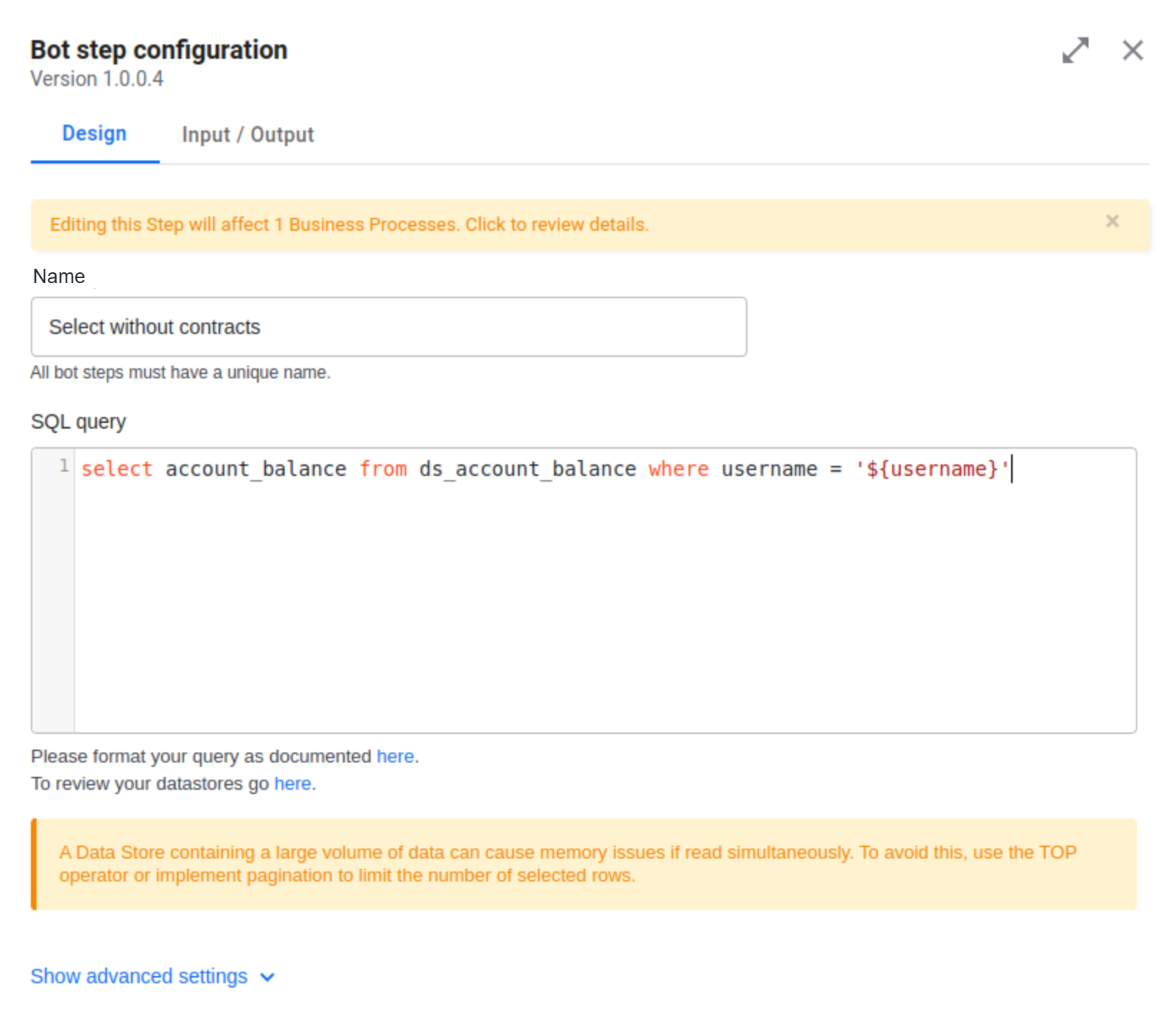
In the SQL query, the reference is made to a table with the username and account_balance columns. The bot step receives username as a string input and returns the account_balance value.
select account_balance from ds_account_balance where username = '${username}'
On running the BP, go to Results > Final results and view the query_execution_result column.
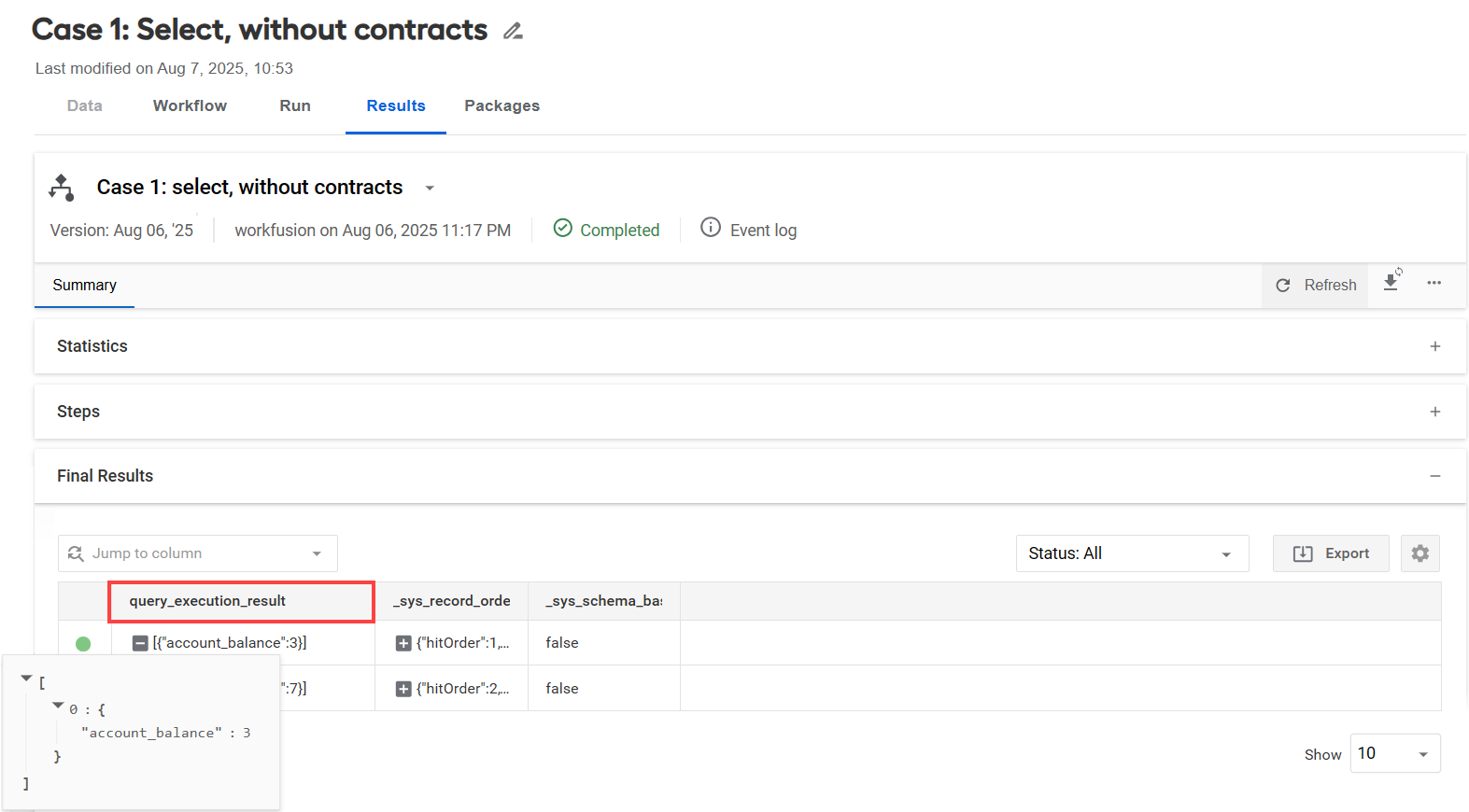
The output returns a JSON object with account_balance:
[
    0:{
    "account_balance":3
    }
]
Case 2: bot step with output contract
If the Select from Data Store step has an output contract, it can provide object output. For example, an output contract for the Data Store step contains a column named account.
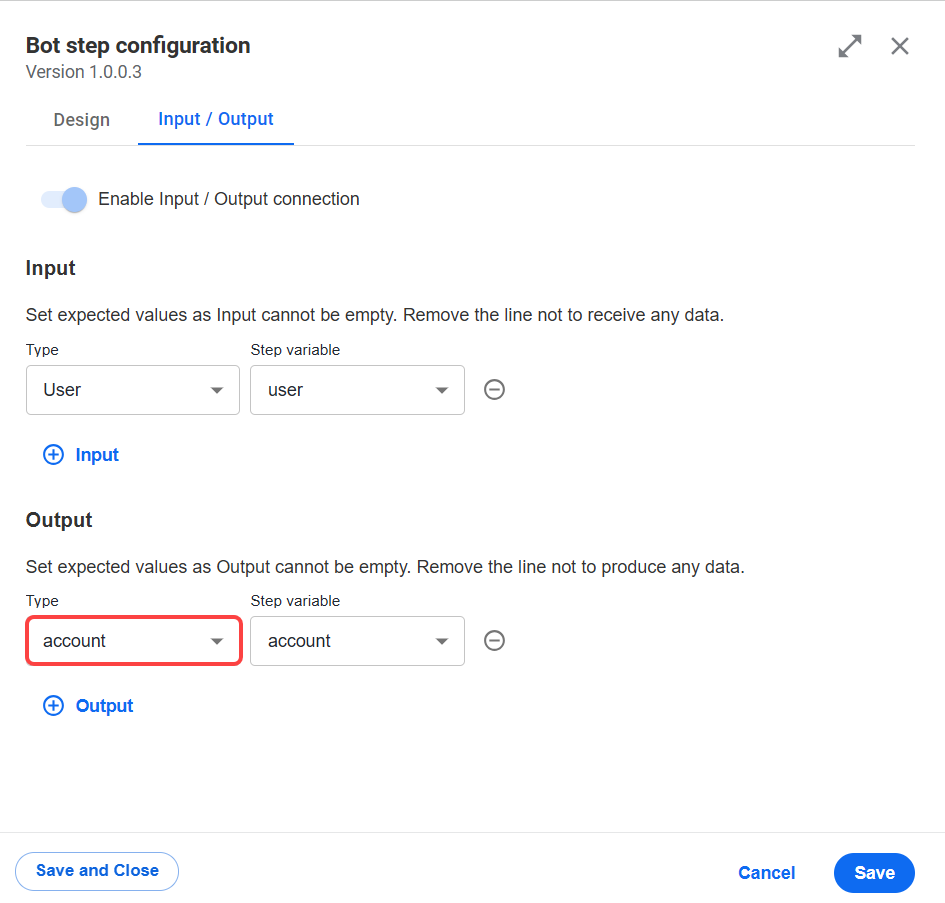
Its type is defined as an object with the username and account_balance fields.
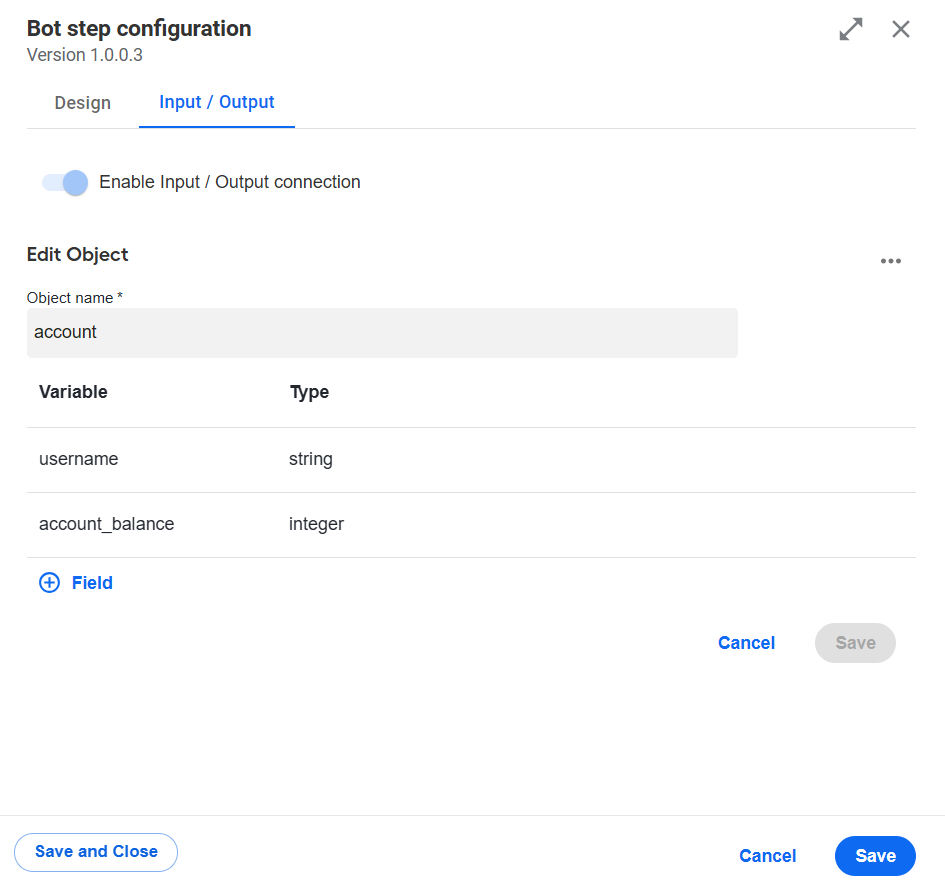
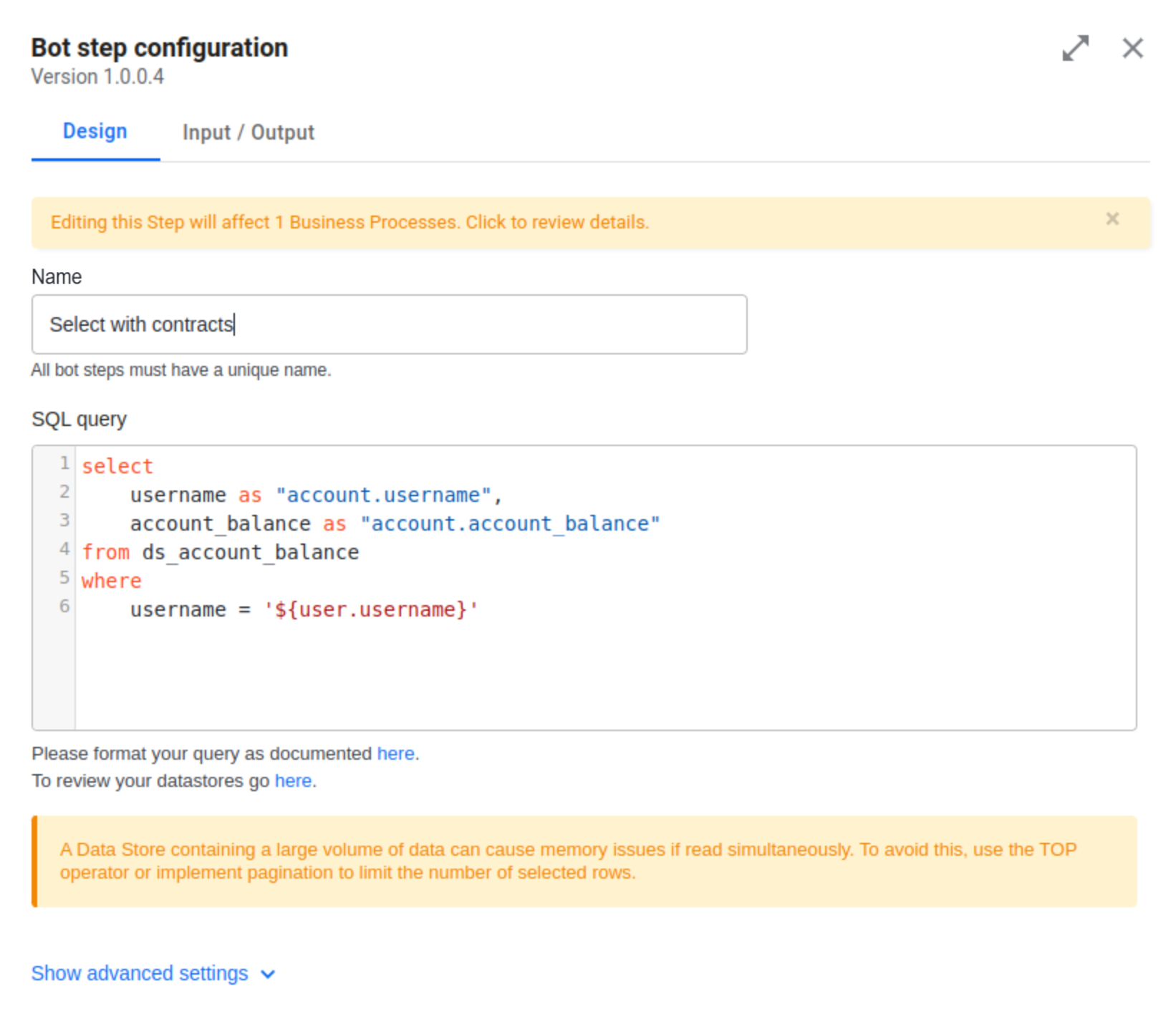
The query below then produces an object result according to the contract. The name of each result value is used as a path to locate the corresponding column and field.
    select
        username as "account.username",
        account_balance as "account.account_balance"
    from ds_account_balance
    where
        username = '${user.username}'
On running the BP, go to Results > Final results and view the account column.
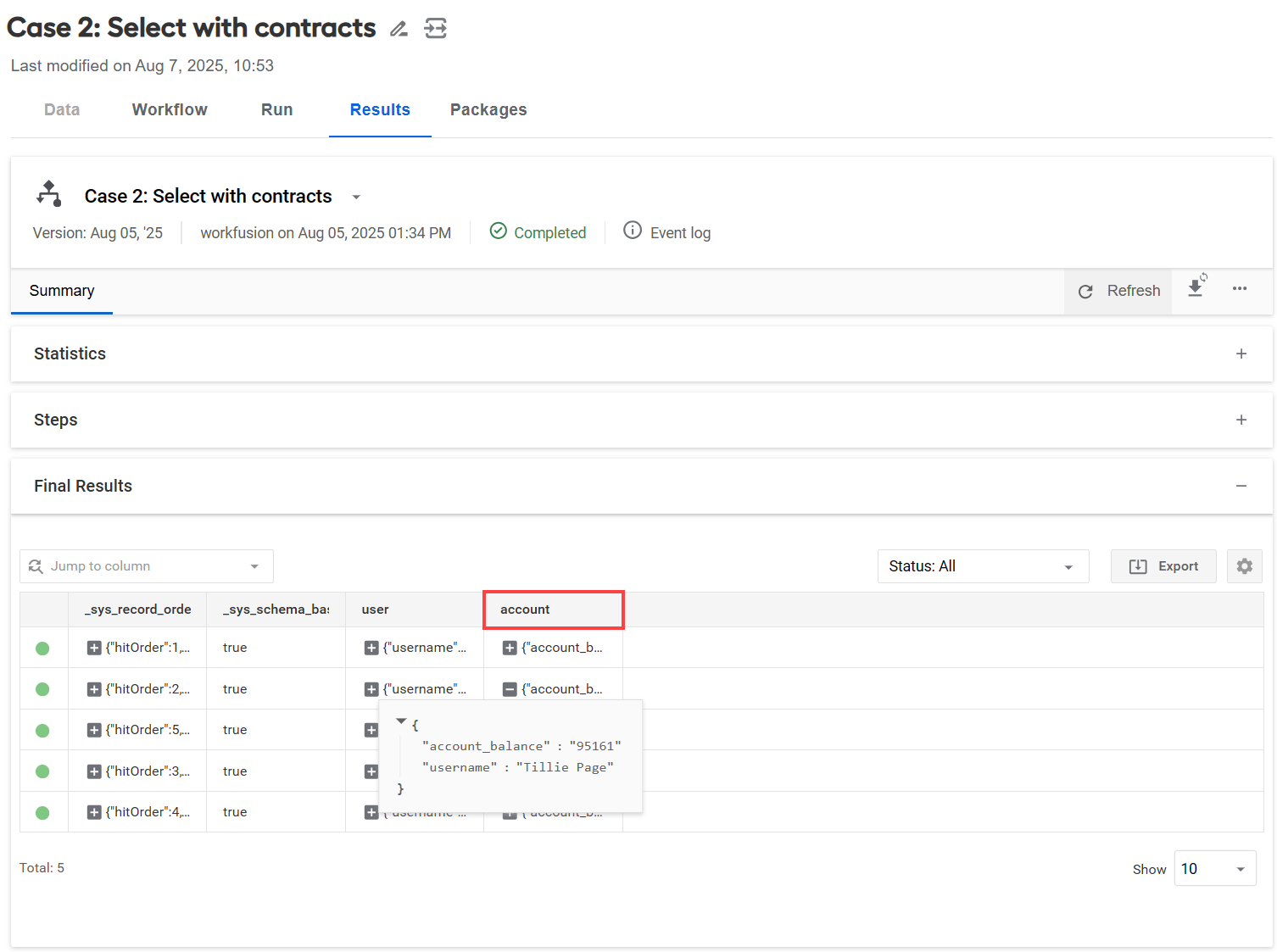
The JSON object constructed according to the contract looks like this:
{
    "account_balance":"95161"
    "username":"Tillie Page"
}
UPDATE
The UPDATE statement is used to modify existing data in a table. Select the Insert or update Data Store Operation and specify your SQL query.
Executing a large number of UPDATE statements in parallel against a database can lead to contention for shared resources, such as locks on rows or tables. This contention may escalate into deadlocks, impacting the performance. To prevent such issues, limit the number of parallel queries using a Bot Source (the recommended maximum number of parallel threads is 10) or the Rate Limiter step.
In a sample SQL query for a bot step with contracts, the table name is constructed using AI Agent information (its code and version) from the context.
UPDATE ds_${context:dwInfo.useCaseCode}_users_v${context:dwInfo.dataModelVersion}
SET
    age = ${bind:users.age}
WHERE first_name = ${bind:users.first_name} AND second_name = ${bind:users.second_name}
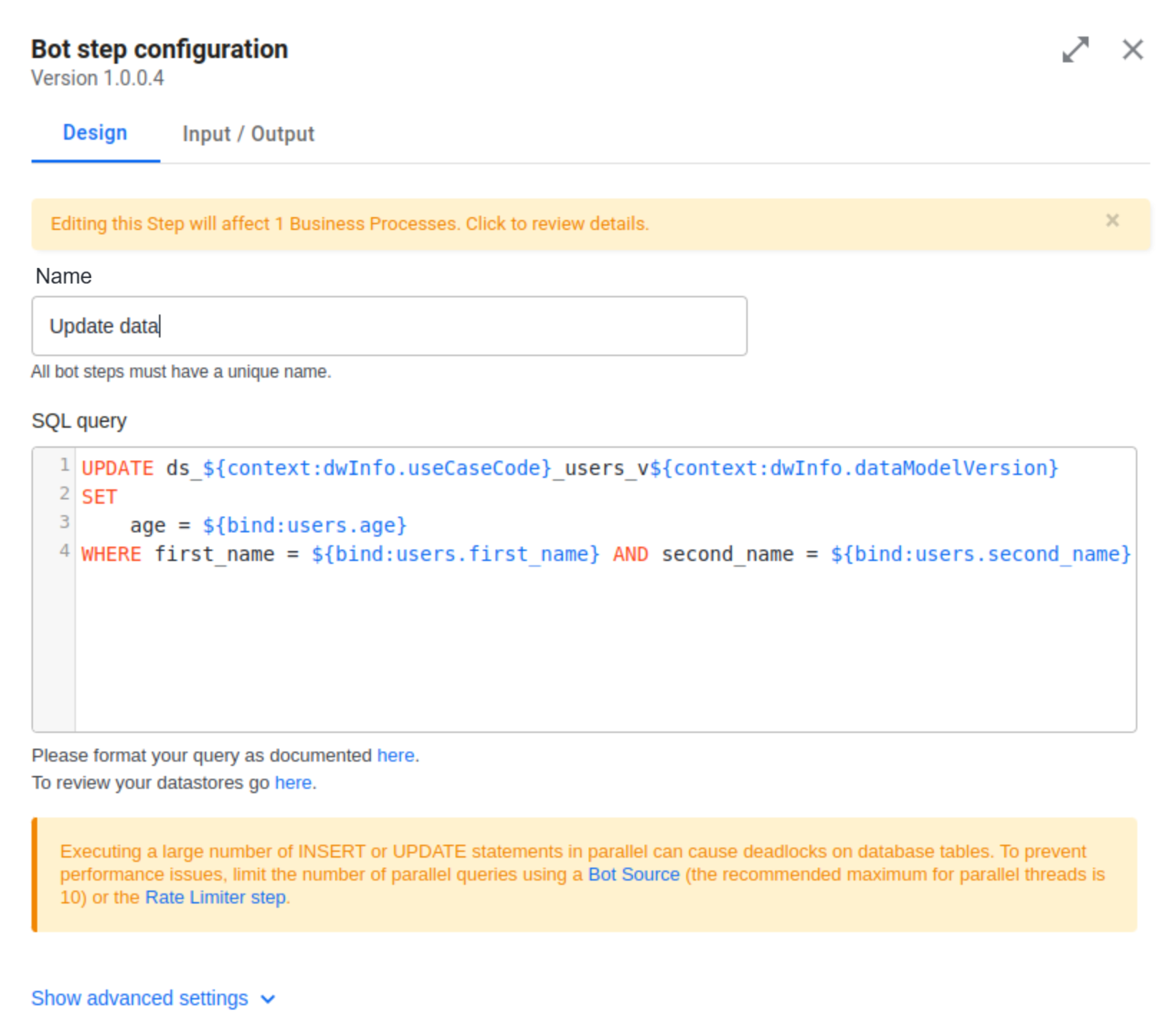
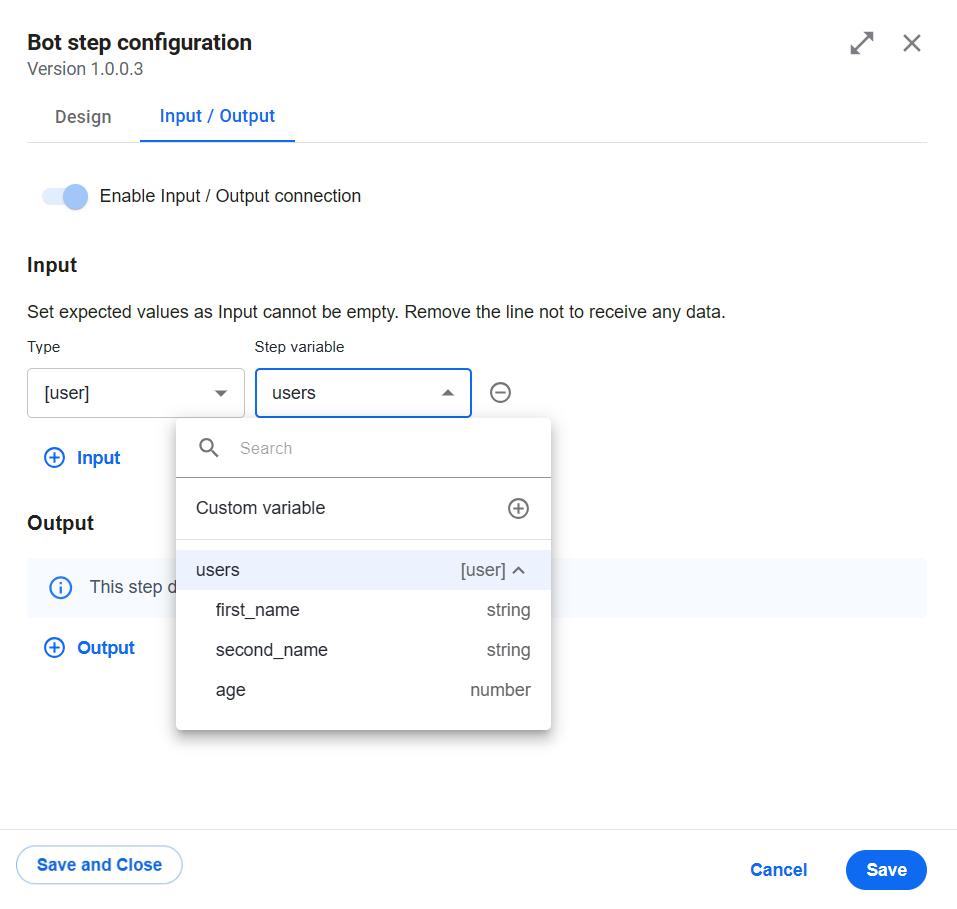
Bind parameters are applied to users defined in the input contract.
On running the BP, go to Results > Steps, select the update data step, and view the query_execution_result_information column displaying the updated table rows (affectedRows).
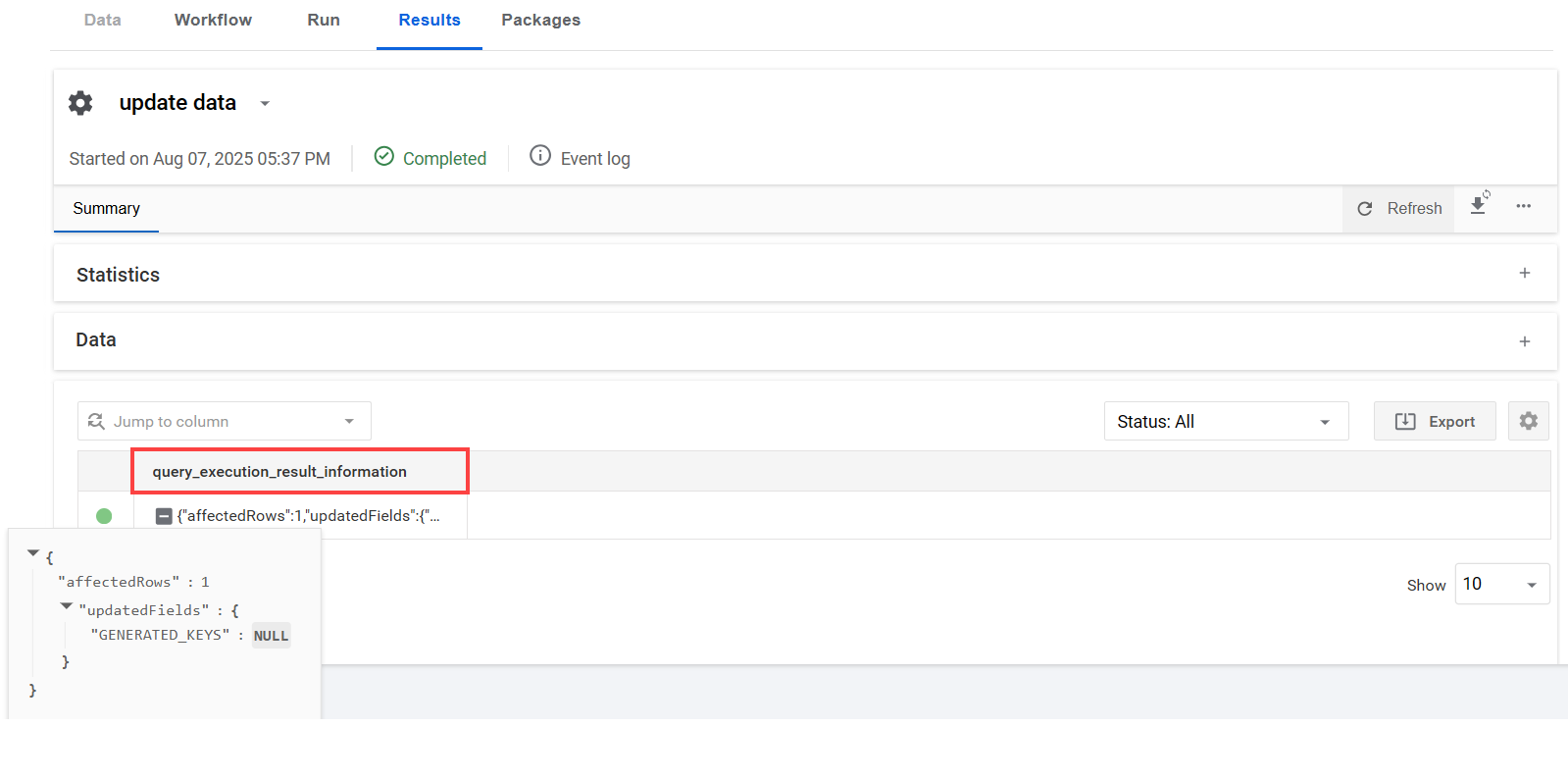
The database might auto-generate fields that are also displayed (updatedFields). Any errors will appear in the errors field of the JSON object.
{
    "affectedRows":1
    "updatedFields":{
        "GENERATED_KEYS":NULL
    }
}
INSERT
The INSERT statement is used to add new rows to a table. Like the UPDATE operation, it modifies the table. Select the Insert or update Data Store Operation and specify your SQL query.
Executing a large number of INSERT statements in parallel against a database can lead to contention for shared resources, such as locks on rows or tables. This contention may escalate into deadlocks, impacting the performance. To prevent such issues, limit the number of parallel queries using a Bot Source (the recommended maximum number of parallel threads is 10) or the Rate Limiter step.
To insert additional rows via the Insert or update Data Store bot step without contracts, you can write a simple INSERT statement where you specify the table and the data to insert, for example, username, account_balance, and status:
insert into ds_user (username, account_balance, status) values('${user.username}', '${user.account_balance}', '${user.status}')
On running the BP, go to Results > Final results and view the user column.
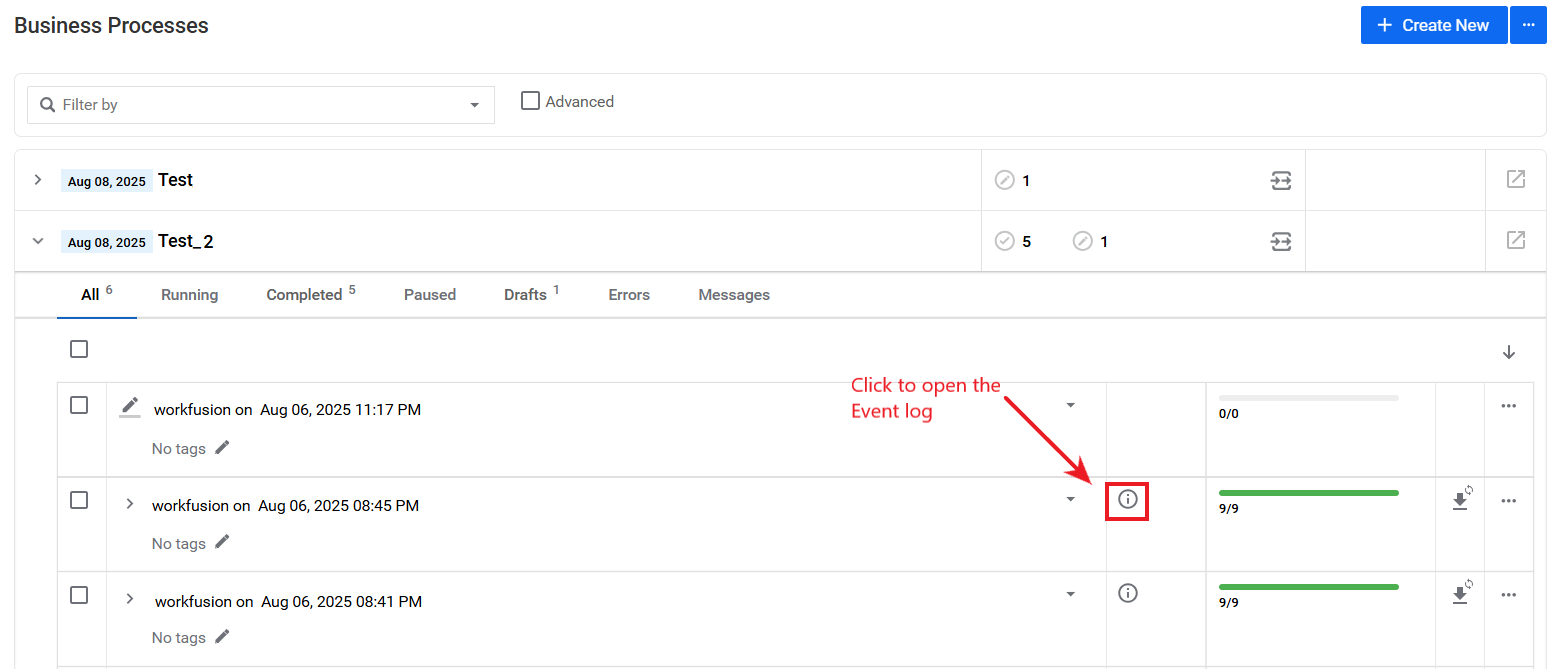
The resulting JSON object is as follows:
{
    "username":"Charity Love"
    "account_balance":0
    "status":"inactive"
}