Back up Business Process
To back up a Business Process, follow the steps below, depending on the Work.AI version you are using.
- For Work.AI versions up to 10.2.9
- For Work.AI v10.3+
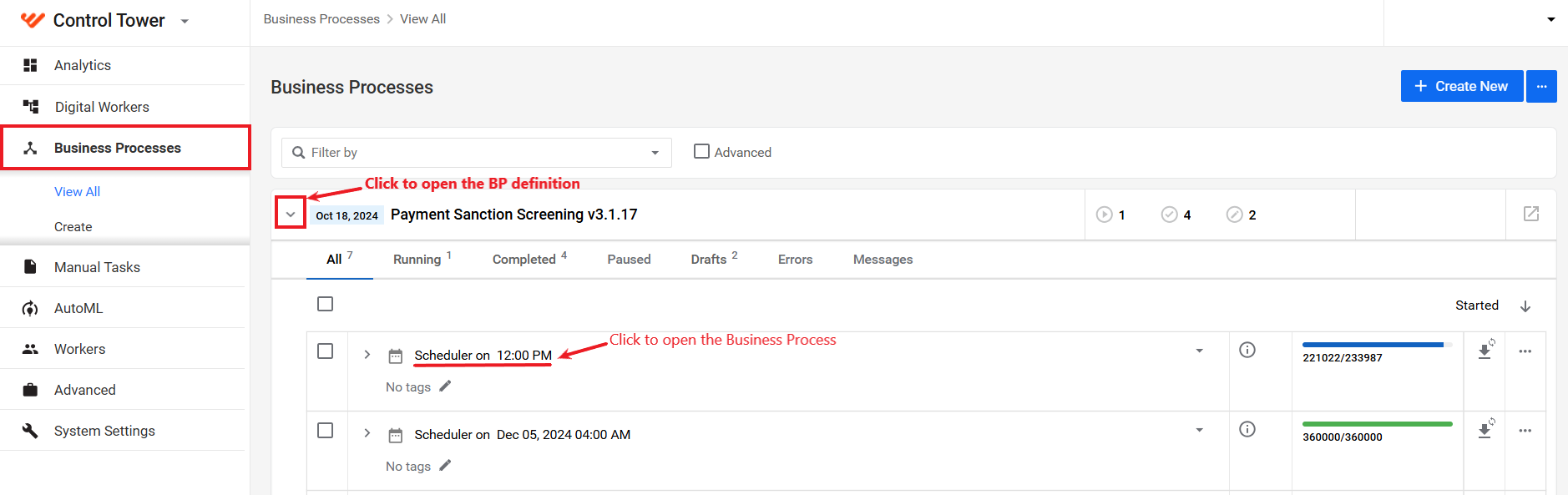
In the Business Processes list, find the Business Process you want to back up, open the BP definition, and click an instance.
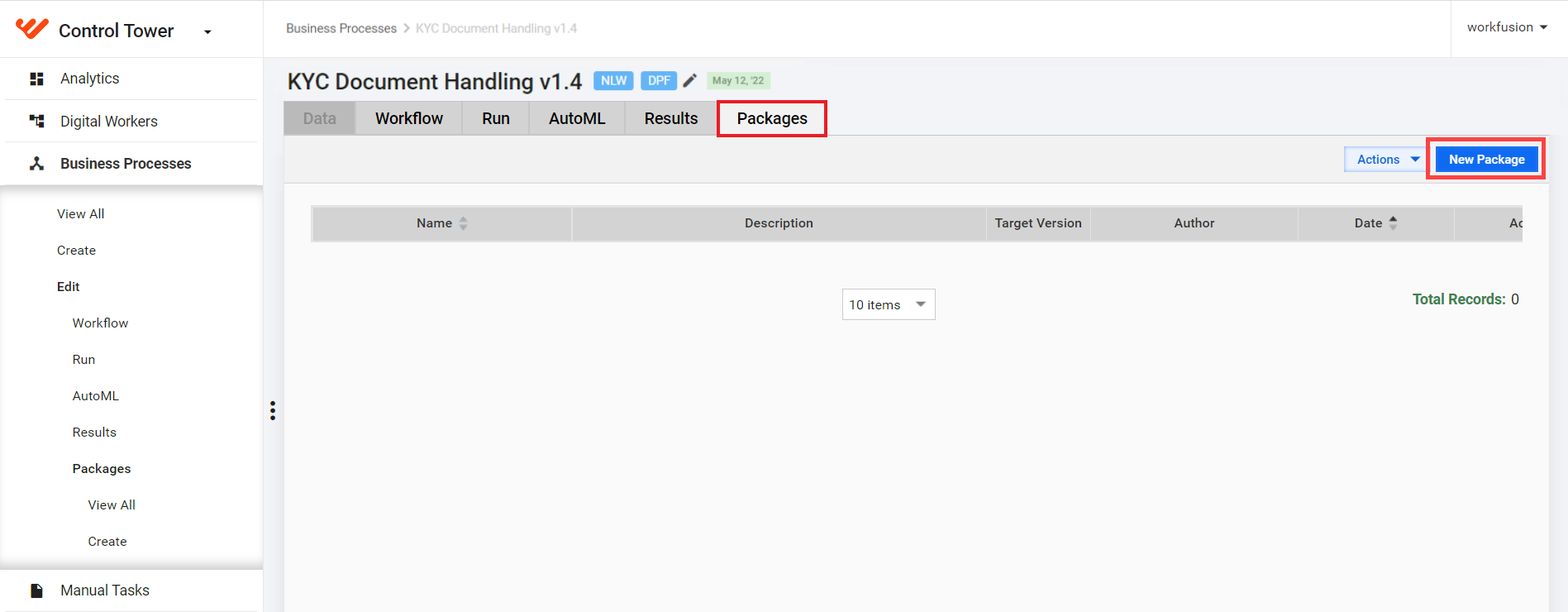
Go to the Packages tab and click New package.
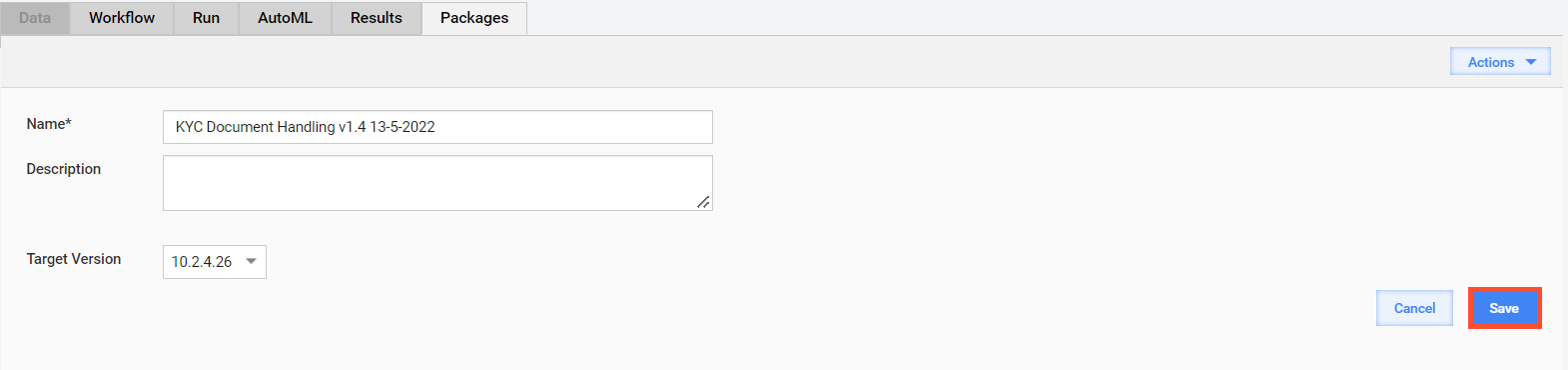
On the displayed page, perform the following actions:
Add a title and (if required) description.
In the Target Version box, choose the BP version you want to save.
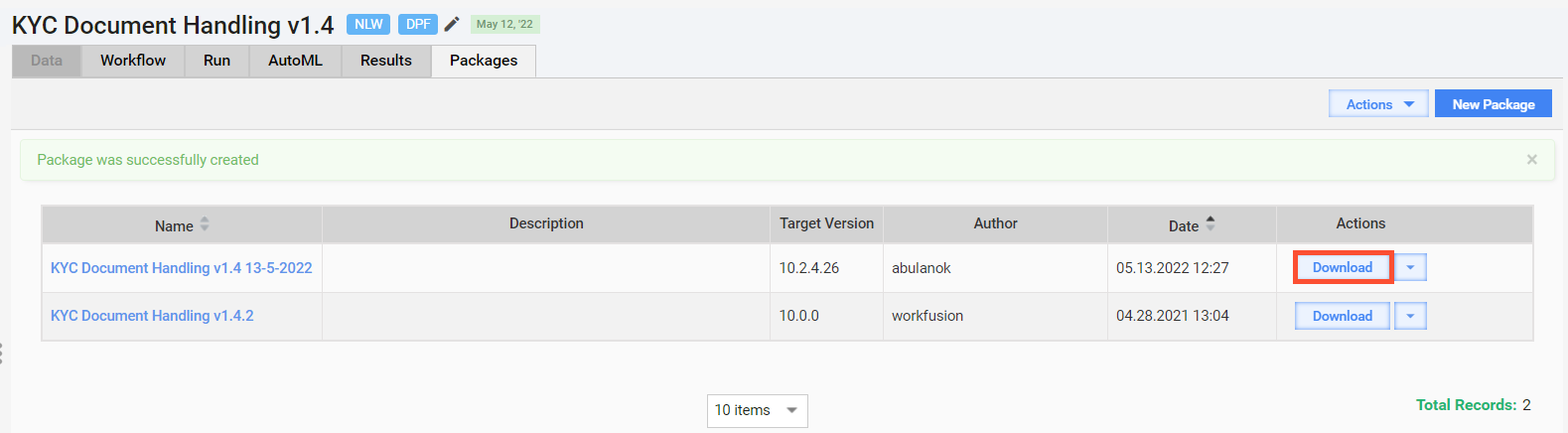
Click Save. After that, you get a message about the BP package created successfully, and an appropriate record appears in the table on the Packages tab.
Click Download to save the package to your machine.
One of the cases when you might need to back up a Business Process is to prevent its deletion during the out-of-the-box data purge. All BPs that have not been run for a defined purging period (90 days by default or any defined custom period) are removed automatically upon expiration of the period.
To restore the backed-up Business Process, import the backup package to your Control Tower instance as described in the guide.
Starting from v10.3, Work.AI features a dedicated data backup mechanism for preventing accidental loss of essential data as a result of applying the data management procedure removing the BPs that have not been active for over 90 days. The mechanism is based on two data management configurations you can create and run in Control Tower:
Database data archival fetches data from the CT and DS archive tables and moves the data to a specified S3 storage in the ZIP file format.
Database data restoration retreives data from the CT and DS archive tables that you want to restore and merges it with the CT and DS schema tables.
For details and instructions, see Manage database and S3 data | Back up process data before purging.