Improve OCR results
What are quality requirements to input documents?
Scanned images might require preprocessing prior to recognition. For example, it is essential for those documents that contain background noise, skewed text, inverted colors, black margins and have wrong orientation or resolution.
The recommended resolution for a source image is 300 dpi for standard texts (10pt or larger) and 400-600 dpi for texts in smaller fonts (9pt or smaller).
For brightness recommendations, see the table below.
| Your image looks like this | Recommendations |
|---|---|
 | The image is suitable for recognition. |
 | Lower the brightness to make the image darker. |
 | Increase the brightness to make the image brighter. |
Why searchable PDF is better for recognition than high-dpi image created from it?
In source PDF files, OCR service analyzes internal information, such as annotations, metadata, text objects, font dictionaries, and content stream. The service enhances PDF conversion performance and speed through efficient and accurate text selection.
If text is embedded into the PDF file, the OCR engine examines the integrity of the text layer and decides whether to extract the text or apply OCR block by block.
Why cache OCR results?
ABBYY OCR is part of the WorkFusion Product. The way WF partners with ABBYY requires licensing for every commercial user to whom we resell the OCR capability. The license cost is based on the quantity of processed pages or images. This is why it is important to avoid reprocessing the same files.
WorkFusion's core feature is exposure Business Processes allowing you to create and distribute OCR subprocess that contains a solution for caching. The caching approach is as follows:
- For the file you need to OCR, calculate a unique hash based on the file's binary.
- The Query Data Store should have this hash.
- If NO, execute OCR. Write a new hash with OCR results to the Data Store.
- If YES, get OCR results from the Data Store.
How to improve OCR results?
These are several ways how you can improve OCR results:
- For Work.AI versions up to 10.2.9
- For Work.AI v10.3
Preprocess documents with ImageMagick or Ghostscript:
convert -colorspace rgb -density 300 input.pdf -monochrome output.tifChoose a searchable PDF instead of a high-dpi image.
Use a custom dictionary.
Apply the
removeGarbageSizeparameter for scanned images to remove garbage (excess dots smaller than a specific size).Add the
allowedRegionTypesparameter to exclude incorrect region types.Use
xml:writeRecognitionVariantsto understand recognition issues.
- Preprocess documents with Ghostscript:
convert -colorspace rgb -density 300 input.pdf -monochrome output.tif - Choose a searchable PDF instead of a high-dpi image.
- Use a custom dictionary.
- Apply the
removeGarbageSizeparameter for scanned images to remove garbage (excess dots smaller than a specific size). - Use
xml:writeRecognitionVariantsto understand recognition issues.
Example 1
Step 1: apply default properties
File:
exportFormat = html, xml
Output results:
HTML
<!DOCTYPE HTML PUBLIC "-//W3C//DTD HTML 4.0 Transitional//EN" "http://www.w3.org/TR/html4/loose.dtd">
<html>
    <head><meta http-equiv="content-type" content="text/html; charset=UTF-8"/><meta name="generator" content="ABBYY FineReader 11"/><link rel="stylesheet" href="result-html-065017dc-46f5-4c8f-a0bc-4b8996f6d9fb.css" type="text/css"/>
    </head>
    <body style="background-color:#FFFFFF;"><img src="result-html-065017dc-46f5-4c8f-a0bc-4b8996f6d9fb-1.png" style="width:497pt;height:54pt;"/>
    </body>
</html>
XML
<document xmlns="http://ocr.crowdcomputingsystems.com/xml/schema-v1.xml" xmlns:xsi="http://www.w3.org/2001/XMLSchema-instance" languages="" producer="Workfusion" version="1.0" xsi:schemaLocation="http://ocr.crowdcomputingsystems.com/xml/schema-v1.xml">
   <page height="80" originalCoords="1" resolution="96" width="682">
      <block b="75" blockName="" blockType="Picture" l="13" r="676" t="3">
         <region>
            <rect b="75" l="13" r="676" t="3" />
         </region>
      </block>
      <block b="19" blockName="" blockType="Separator" l="312" r="389" t="14">
         <region>
            <rect b="16" l="323" r="389" t="14" />
            <rect b="17" l="319" r="389" t="16" />
            <rect b="18" l="312" r="389" t="17" />
            <rect b="19" l="312" r="319" t="18" />
         </region>
         <separator thickness="1" type="Black">
            <start x="312" y="16" />
            <end x="389" y="16" />
         </separator>
      </block>
      <block b="21" blockName="" blockType="Separator" l="46" r="81" t="19">
         <region>
            <rect b="21" l="46" r="81" t="19" />
         </region>
         <separator thickness="1" type="Black">
            <start x="46" y="20" />
            <end x="81" y="20" />
         </separator>
      </block>
      <block b="26" blockName="" blockType="Separator" l="408" r="496" t="20">
         <region>
            <rect b="21" l="408" r="429" t="20" />
            <rect b="22" l="408" r="454" t="21" />
            <rect b="23" l="429" r="492" t="22" />
            <rect b="24" l="454" r="492" t="23" />
            <rect b="25" l="435" r="492" t="24" />
            <rect b="26" l="435" r="496" t="25" />
         </region>
         <separator thickness="2" type="Black">
            <start x="408" y="23" />
            <end x="496" y="23" />
         </separator>
      </block>
      <block b="31" blockName="" blockType="Separator" l="549" r="588" t="30">
         <region>
            <rect b="31" l="549" r="588" t="30" />
         </region>
         <separator thickness="1" type="Black">
            <start x="549" y="30" />
            <end x="588" y="30" />
         </separator>
      </block>
      <block b="61" blockName="" blockType="Separator" l="111" r="169" t="58">
         <region>
            <rect b="59" l="111" r="169" t="58" />
            <rect b="60" l="111" r="164" t="59" />
            <rect b="61" l="128" r="164" t="60" />
         </region>
         <separator thickness="1" type="Black">
            <start x="111" y="59" />
            <end x="169" y="59" />
         </separator>
      </block>
   </page>
</document>
You can see that, by default, OCR recognized the text with a garbage image. See the img tag in the HTML output.
The XML format is more informative for you to see the recognized Picture and Separator block types.
Step 2.A: apply default and removeGarbageSize properties
Try to remove the garbage and see if the result changes:
removeGarbageSize=1
Output results:
Federal Credit Union, July 25, 2005
HTML
<!DOCTYPE HTML PUBLIC "-//W3C//DTD HTML 4.0 Transitional//EN" "http://www.w3.org/TR/html4/loose.dtd">
<html>
    <head><meta http-equiv="content-type" content="text/html; charset=UTF-8"/><meta name="generator" content="ABBYY FineReader 11"/><link rel="stylesheet" href="result-html-171a0901-d71c-4f21-a96a-db1dfc18adda.css" type="text/css"/>
    </head>
    <body style="background-color:#FFFFFF;">
        <p><span class="font0">Federal Credit Union, July 25, 2005</span></p>
    </body>
</html>
XML
<document xmlns="http://ocr.crowdcomputingsystems.com/xml/schema-v1.xml" xmlns:xsi="http://www.w3.org/2001/XMLSchema-instance" languages="" producer="Workfusion" version="1.0" xsi:schemaLocation="http://ocr.crowdcomputingsystems.com/xml/schema-v1.xml">
   <page height="80" originalCoords="1" resolution="96" width="682">
      <block b="69" blockName="" blockType="Text" l="13" r="678" t="10">
         <region>
            <rect b="69" l="13" r="678" t="10" />
         </region>
         <text>
            <par lineSpacing="2330">
               <line b="62" baseline="54" l="15" r="676" t="23">
                  <formatting lang="EnglishUnitedStates">Federal Credit Union, July 25, 2005</formatting>
               </line>
            </par>
         </text>
      </block>
      <block b="19" blockName="" blockType="Separator" l="312" r="389" t="14">
         <region>
            <rect b="16" l="323" r="389" t="14" />
            <rect b="17" l="319" r="389" t="16" />
            <rect b="18" l="312" r="389" t="17" />
            <rect b="19" l="312" r="319" t="18" />
         </region>
         <separator thickness="1" type="Black">
            <start x="312" y="16" />
            <end x="389" y="16" />
         </separator>
      </block>
      <block b="21" blockName="" blockType="Separator" l="46" r="81" t="19">
         <region>
            <rect b="21" l="46" r="81" t="19" />
         </region>
         <separator thickness="1" type="Black">
            <start x="46" y="20" />
            <end x="81" y="20" />
         </separator>
      </block>
      <block b="26" blockName="" blockType="Separator" l="408" r="496" t="20">
         <region>
            <rect b="21" l="408" r="429" t="20" />
            <rect b="22" l="408" r="454" t="21" />
            <rect b="23" l="429" r="492" t="22" />
            <rect b="24" l="454" r="492" t="23" />
            <rect b="25" l="435" r="492" t="24" />
            <rect b="26" l="435" r="496" t="25" />
         </region>
         <separator thickness="2" type="Black">
            <start x="408" y="23" />
            <end x="496" y="23" />
         </separator>
      </block>
      <block b="31" blockName="" blockType="Separator" l="549" r="588" t="30">
         <region>
            <rect b="31" l="549" r="588" t="30" />
         </region>
         <separator thickness="1" type="Black">
            <start x="549" y="30" />
            <end x="588" y="30" />
         </separator>
      </block>
      <block b="61" blockName="" blockType="Separator" l="111" r="169" t="58">
         <region>
            <rect b="59" l="111" r="169" t="58" />
            <rect b="60" l="111" r="164" t="59" />
            <rect b="61" l="128" r="164" t="60" />
         </region>
         <separator thickness="1" type="Black">
            <start x="111" y="59" />
            <end x="169" y="59" />
         </separator>
      </block>
   </page>
</document>
You can see the block type was changed from Picture to Text, and the image was recognized successfully.
Step 2.B: use default and allowedRegionTypes properties
Starting from v10.3, the
allowedRegionTypesproperty is deprecated, so you can only use the sample resolution for Work.AI versions up to v10.2.9.Be careful using the
allowedRegionTypesproperty as it can break the original document layout.
You can choose another way to fix the problem: exclude the Picture block type from allowed regions.
allowedRegionTypes=BT_Table,BT_Text,BT_Barcode,BT_Separator,BT_SeparatorGroup,BT_Checkmark,BT_CheckmarkGroup
HTML
<!DOCTYPE HTML PUBLIC "-//W3C//DTD HTML 4.0 Transitional//EN" "http://www.w3.org/TR/html4/loose.dtd">
<html>
    <head><meta http-equiv="content-type" content="text/html; charset=UTF-8"/><meta name="generator" content="ABBYY FineReader 11"/><link rel="stylesheet" href="result-html-2ec5f1e3-143e-46f9-a533-1dafc7b7519c.css" type="text/css"/>
    </head>
    <body style="background-color:#FFFFFF;">
        <table border="1">
            <tr>
                <td style="vertical-align:bottom;"><p><span class="font0">Federal CreditUnion, July 25, 2005</span></p></td>
            </tr>
        </table>
    </body>
</html>
XML
<document xmlns="http://ocr.crowdcomputingsystems.com/xml/schema-v1.xml" xmlns:xsi="http://www.w3.org/2001/XMLSchema-instance" languages="" producer="Workfusion" version="1.0" xsi:schemaLocation="http://ocr.crowdcomputingsystems.com/xml/schema-v1.xml">
   <page height="80" originalCoords="1" resolution="96" width="682">
      <block b="19" blockName="" blockType="Separator" l="312" r="389" t="14">
         <region>
            <rect b="16" l="323" r="389" t="14" />
            <rect b="17" l="319" r="389" t="16" />
            <rect b="18" l="312" r="389" t="17" />
            <rect b="19" l="312" r="319" t="18" />
         </region>
         <separator thickness="1" type="Black">
            <start x="312" y="16" />
            <end x="389" y="16" />
         </separator>
      </block>
      <block b="21" blockName="" blockType="Separator" l="46" r="81" t="19">
         <region>
            <rect b="21" l="46" r="81" t="19" />
         </region>
         <separator thickness="1" type="Black">
            <start x="46" y="20" />
            <end x="81" y="20" />
         </separator>
      </block>
      <block b="26" blockName="" blockType="Separator" l="408" r="496" t="20">
         <region>
            <rect b="21" l="408" r="429" t="20" />
            <rect b="22" l="408" r="454" t="21" />
            <rect b="23" l="429" r="492" t="22" />
            <rect b="24" l="454" r="492" t="23" />
            <rect b="25" l="435" r="492" t="24" />
            <rect b="26" l="435" r="496" t="25" />
         </region>
         <separator thickness="2" type="Black">
            <start x="408" y="23" />
            <end x="496" y="23" />
         </separator>
      </block>
      <block b="31" blockName="" blockType="Separator" l="549" r="588" t="30">
         <region>
            <rect b="31" l="549" r="588" t="30" />
         </region>
         <separator thickness="1" type="Black">
            <start x="549" y="30" />
            <end x="588" y="30" />
         </separator>
      </block>
      <block b="61" blockName="" blockType="Separator" l="111" r="169" t="58">
         <region>
            <rect b="59" l="111" r="169" t="58" />
            <rect b="60" l="111" r="164" t="59" />
            <rect b="61" l="128" r="164" t="60" />
         </region>
         <separator thickness="1" type="Black">
            <start x="111" y="59" />
            <end x="169" y="59" />
         </separator>
      </block>
      <block b="75" blockName="" blockType="Table" l="13" r="676" t="3">
         <region>
            <rect b="75" l="13" r="676" t="3" />
         </region>
         <row>
            <cell bottomBorder="White" height="72" leftBorder="White" rightBorder="White" topBorder="White" width="663">
               <text>
                  <par lineSpacing="2330">
                     <line b="62" baseline="54" l="15" r="676" t="23">
                        <formatting lang="EnglishUnitedStates">Federal CreditUnion, July 25, 2005</formatting>
                     </line>
                  </par>
               </text>
            </cell>
         </row>
      </block>
   </page>
</document>
Example 2
Step 1: apply default properties
File:

Output results:
Facility Namer Nortfawoods Home Health and Hospice
Cit> : Lancaster
State r NH
HTML
<!DOCTYPE HTML PUBLIC "-//W3C//DTD HTML 4.0 Transitional//EN" "http://www.w3.org/TR/html4/loose.dtd">
<html>
<head><meta http-equiv="content-type" content="text/html; charset=UTF-8"/><meta name="generator" content="ABBYY FineReader 11"/><link rel="stylesheet" href="result-html-efc7eed8-a91c-42ab-9f13-7bf0ba9419f0.css" type="text/css"/>
</head>
<body style="background-color:#FFFFFF;">
<p><span class="font0">Facility Namer Nortfawoods Home Health and Hospice Cit> : Lancaster State r NH</span></p>
</body>
</html>
Step 2: apply default properties and image preprocessing
Starting from v10.3, the ImageMagick tool is no longer included in the Work.AI installation.
Improve the vertical and horizontal density of the image (dpi) using the ImageMagick conversion tool command:
convert -colorspace rgb -density 250 example2.png example2-250.tif
File:
Output results:
Facility Name: Northwoods Home Health and Hospice
City: Lancaster
State :NH
Example 3
Step 1: apply default properties
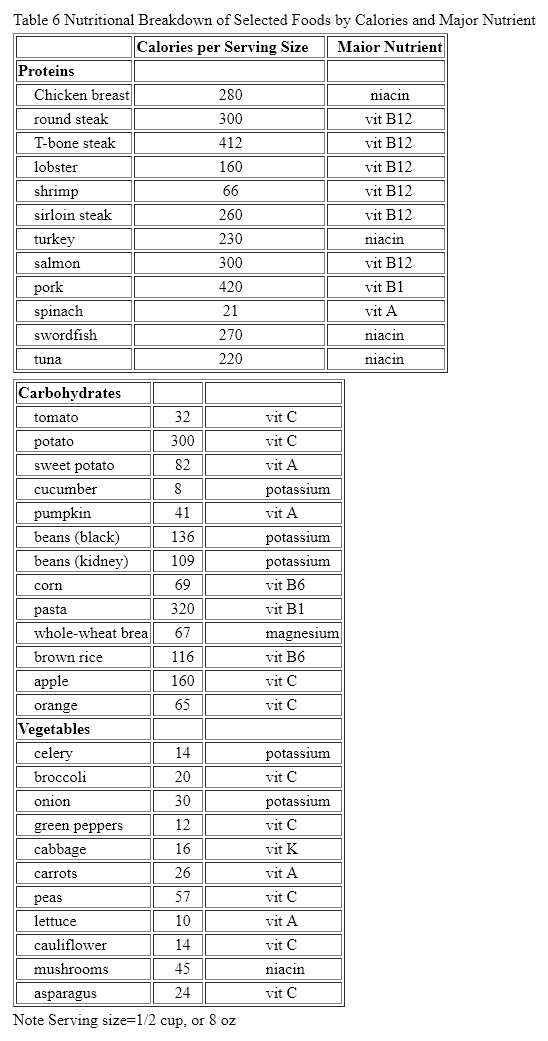
Output results:
Step 2: use default properties and customRegions
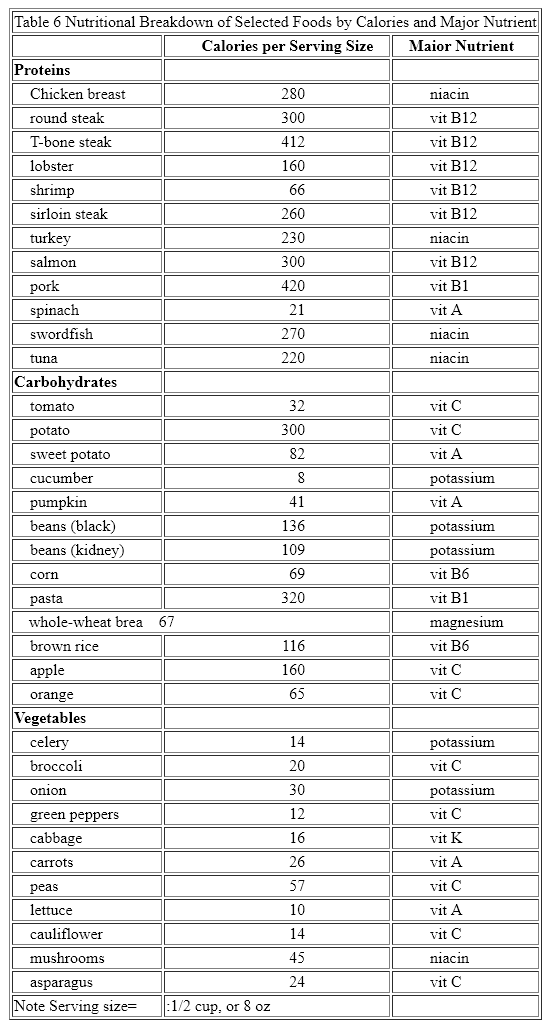
Starting from v10.3, the customRegions property is deprecated, so you can only use the sample resolution for Work.AI versions up to v10.2.9.
A single table is split into two. To fix the issue, try to use the following:
customRegions = [ { "type": "BT_Table " , "left":0, "top":0, "right":10000, "bottom":10000} ] //select full page like a table
For more information on OCR troubleshooting, read also OCR how-tos.