Work with Linux instance
Meet prerequisites
Before you start working with a Linux instance, check that the following prerequisites are met:
- You have an SSH client, for example, OpenSSH client, installed.
- You have a public or private key pair generated.
Before working with the instance console, run the inject-ssh-key job to inject your local SSH public key into the instance. For Linux, it is located in /home/user_name/.ssh/*.pub.
Connect to instance type in terminal
To connect to an instance type in the terminal, run the following command:
ssh -i path_to_your_private_key ec2-user@host -t "sudo su - wfuser"
Example:
ssh -i ~/.ssh/id_rsa ec2-user@core-1234-wfaw-10061-master1.wflab.io -t "sudo su - wfuser"
Configure port forwarding
You can use port forwarding for remote debugging. To configure, run the following command:
ssh -i path_to_your_private_key -L localhost:local_port:remote_host:remote_port ec2-user@remote_host
Example:
ssh -i ~/.ssh/id_rsa -L localhost:7999:core-1234-wfaw-10061-master1.wflab.io:4444 ec2-user@core-1234-wfaw-10061-master1.wflab.io
where:
localhost:7999is a local configuration for debugging in IntelliJ IDEA.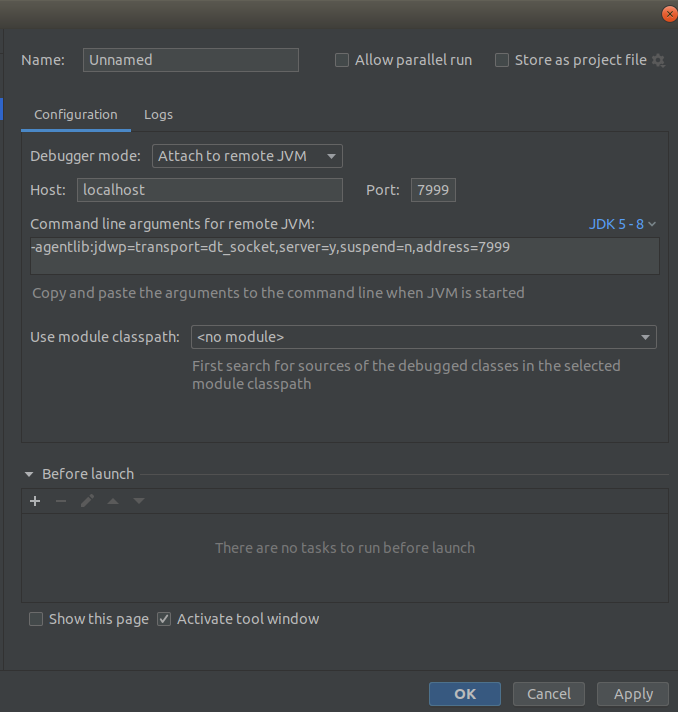
core-1234-wfaw-10061-master1.wflab.io:4444is a remote host with the port opened for debugging. Set the following Tomcat run property:-agentlib:jdwp=transport=dt_socket,server=y,suspend=n,address=4444.
Copy file from remote server
To copy a file from the remote server, execute the following command:
ssh -i ~/.ssh/id_rsa ec2-user@core-15872-v2-wfaw-10061-master1.workfusion.com 'sudo -u wfuser dd if=/opt/workfusion/workspace/workspace.jar' | dd of=~/Downloads/from_remote/ws.jar
Run Ansible playbook
To run an Ansible playbook, do as follows:
Log in as wfuser:
sudo su - wfuserExecute the following commands:
source /opt/workfusion/environment.sh
cd /opt/workfusion/wf_installer
export ANSIBLE_VAULT_PASS=<password here>
export ANSIBLE_PRIVATE_KEY_FILE=id_rsa
export ANSIBLE_REMOTE_USER=wfuser
Install the playbook using the following command:
./install.sh <allowed_tag_name> <playbook_name>where:
allowed_tag_nameis listed ininstall.shin theallowed_actionsvariable.playbook_nameis located in theplaybooksdirectory.
To finish the configuration, run the following command:
./install.sh configure workspace
View useful console commands
Below is a list of useful console commands and their usage examples:
netstat -tulpn | grep LISTENto show ports bound to specific processes.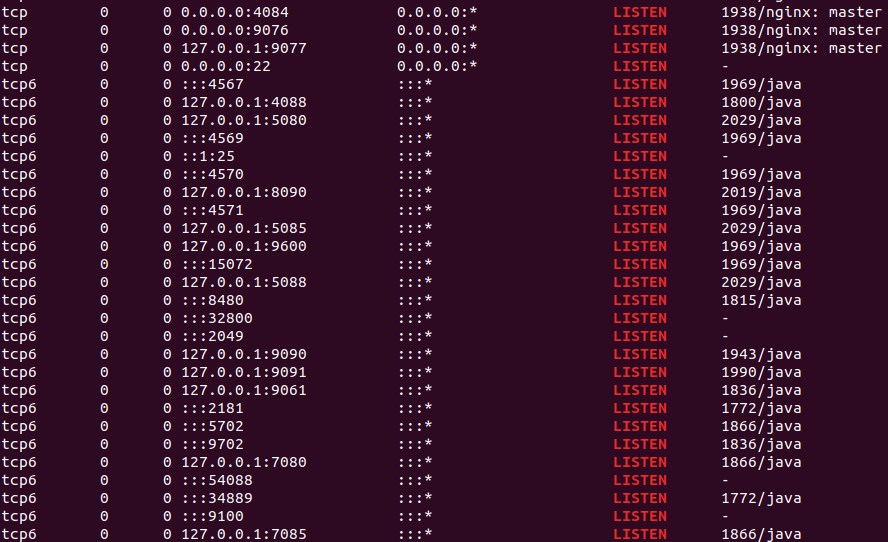
To show the ports bound only to Java processes sorted by PID, for example,
netstat -tulpn | grep LISTEN | grep java | sort -k 7nr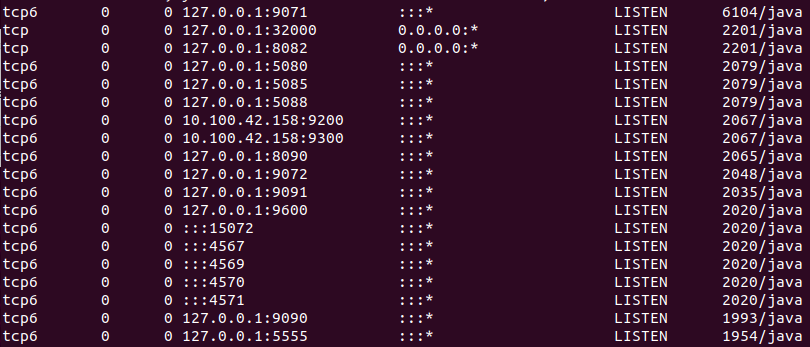
To show Java processes with working directories, for example,
netstat -tulpn | grep LISTEN | grep java | sort -k 7nr | awk '{print $7}' | grep -o '[0-9]*' | uniq | awk -F',' '{ system("pwdx "$1) | getline vpwdx; printf vpwdx}'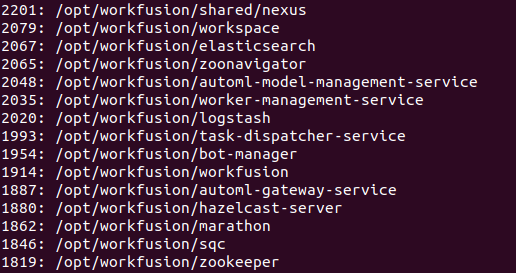
tail -f -n200 /path/to/logto display the last 200 lines of the log.ps -auxto show processes.kill -9 <PID>to kill a process with a specific ID.nohup ./start.sh &to run theshscript in the background.pwdx <PID>to show the current working directory for the process.locate a_word_to_searchto find all files with a specific word. Requires themlocateutility installed.wfmanager <status | stop | start >to manage WorkFusion services on instances.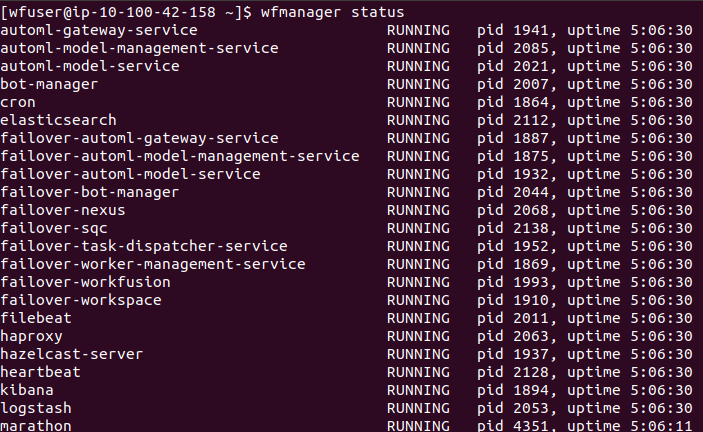
find /root/path -name file_name.extto find a file in a directory.
gunzip -c *.gz | grep "string to be searched"to find a string in GZ files.
Consider useful console utilities
The console utilities below serve the following purposes:
sudo yum install mcinstalls a two-panel file manager for the console. To run, type- mcin the console.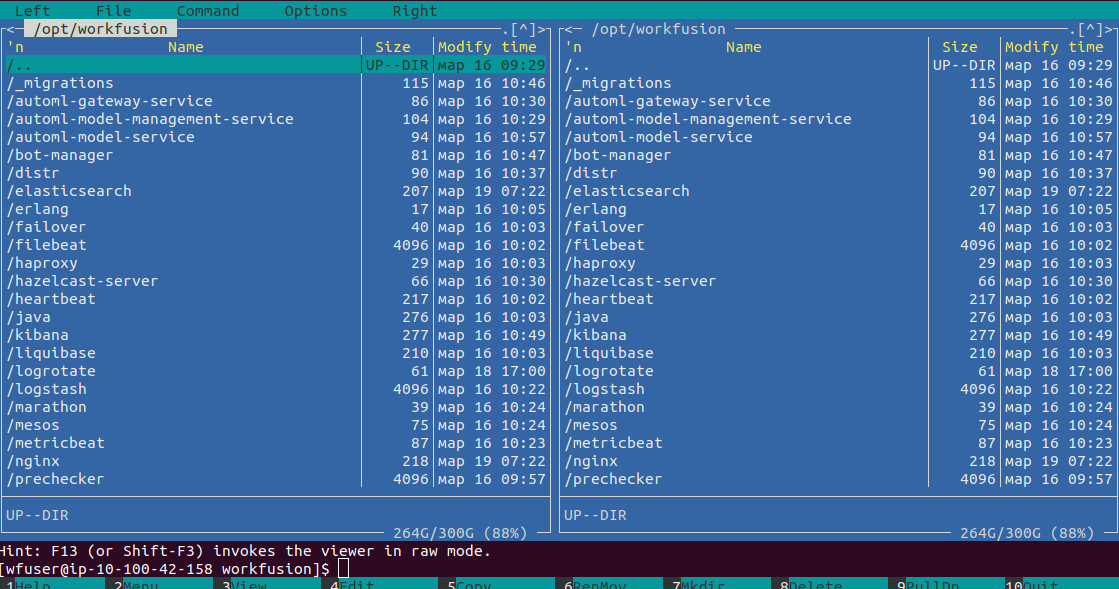
sudo yum install mlocateinstalls a utility to search a string in system files, for example,locate workspace | grep -vE "/workfusion/workspace|workfusion/wf_installer".sudo yum install tree -yinstalls a utility for displaying the directory hierarchy as a tree.