Troubleshoot infrastructure
The document details recommendations of WorkFusion Support on troubleshooting issues related to the Work.AI infrastructure. Below is the sequence of the steps you need to take to locate and resolve an issue.
General investigation sequence
Work.AI contains a lot of components on different servers. See the deployment diagram below.
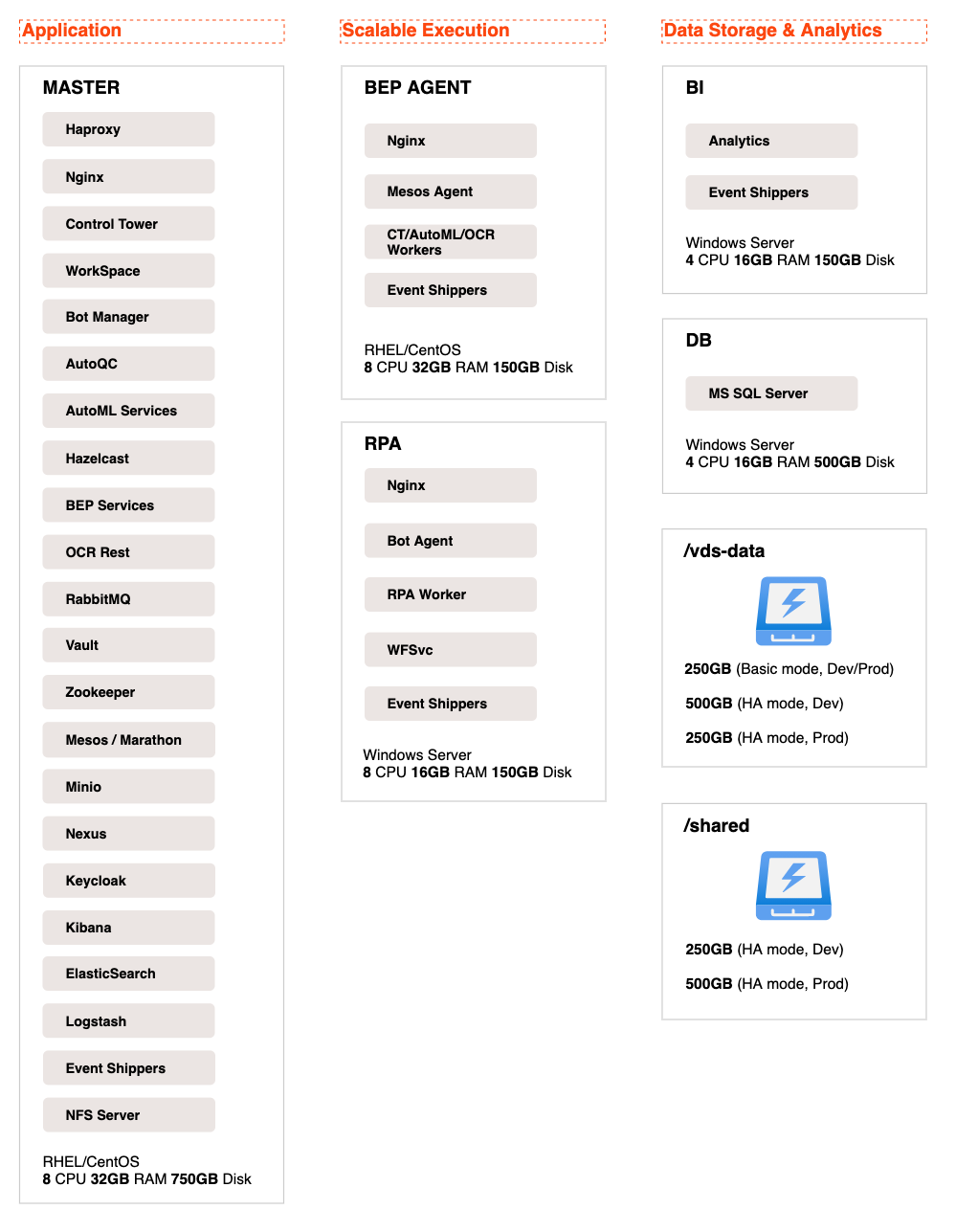
The components have the following startup dependencies:
- MS SQL database
- HAProxy
- Vault and ZooKeeper
- Other services
It means that, before startup, the components check the MS SQL database, as well as Vault and ZooKeeper availability. In case the services are unavailable or crash, such applications as Control Tower (WorkFusion), Task Dispatcher Service, and others will not start.
Also, after startup, Control Tower checks the component statuses. For more details, refer to Configure health checks.
Let's review some issues with services.
Case 1. Control Tower is not accessible
The main entry point to the WorkFusion infrastructure is Control Tower. The component's work depends on the following services:
Front-end service: Nginx and HAproxy
Back-end service: Tomcat
Due to this, you can observe certain issues and errors while reaching the Control Tower user interface. The most common error is as follows:
502 Bad Gateway
The error indicates that the APP server is reachable, but the back-end Tomcat service has issues. In this case, to troubleshoot, connect to the APP server via SSH and check the Control Tower logs. Also, it might be helpful to check the logs for the failover-workfusion service.
Case 2. Control Tower is accessible, but there is an issue with one or more components
In this case, your first step is to find the exact component(s) causing the issue. In fact, various factors can make certain WorkFusion components or target applications non-functional or non-automatable. A reasonable approach is to identify a checklist and automate the validation process as much as possible:
- Connect to Control Tower.
- Find the Installation Integration Testing with ML Master Process Vx Business Process and copy it with the input data included.
- Open the copy, go to the Run tab, and click Run This Process.
From the console on the APP server, you can also launch ML, RPA, and OCR checks without manual steps:
cd PACKAGE_DIR
./install.sh check app -e test_ml=true -e test_ocr=true -e test_rpa=true -e test_ie=true -e test_chrome=true -e test_desktop=true
Components to check
| Component | What to check |
|---|---|
| Data Store | Check all basic operations for Data Stores: create, insert, update, select. |
| S3 | Check put, get, and HTTP access via a generated link. |
| SSL Connection | Check the following SSL connections: WF-WF, WF-S3, WF-OCR, WF-RPA. |
| Secure Storage | Check put and read operations. |
| Manual Task | Check task completion. This guarantees that the license is set up, a connection between WorkFusion and Workspace is established, information extraction is working fine, and documents are loading from S3. |
| OCR Ghost Script | Check the PDF-to-TIFF conversion. |
| OCR Service | Checks TIFF-to-TXT, XML, and HTML conversions. |
| RPA | Check information extraction, FF, Chrome, AutoIt. |
Business Process running flow
Inside Control Tower, all Business Processes are presented as different collections of tasks. Each task is a separate action with specified components, such as OCR, Java code, RPA actions, AutoML execution.
For detailed BEP design, refer to the Explore BEP components article.
Troubleshooting BEP issues
Business Process started but stuck at first step without progress (0/1)
To address the issue, do the following:
- Check that the task has been created and sent to RabbitMQ (the message in
workfusion.out.logorcontrol-tower.log.json). - Check that Task Dispatcher Service, Worker Management Service, Marathon/Mesos, and BEP Agent services are running. Based on the task type, a new Worker should be created. Check this in the Marathon UI.
Business Process step failed with clear reason
For example, the issue could be the S3 step failed with "502 error" (not available).
To address the issue, do the following:
Check the Minio (S3) availability and the status on the APP (INT) server, whether the OCR step failed with 502 error.
Check the status of OCR services and the OCR connection from the APP to the OCR server.
Business Process failed with complex stack trace
It is hard to decide whether the issue is in the Business Process code or within the components (an infrastructure-related issue). Submit a ticket to http://support.workfusion.com with all data you managed to collect and follow further instructions from the Support team.