Configure OCR provider
There are three OCR providers you can choose from:
- ABBYY
- Azure Form Recognition
- Google Vision API
Any response by the Azure and Google Vision OCR providers is converted to the ABBYY output format.
The Azure and Google Vision OCR providers are available only via the Bridge entry point. ABBYY is available via REST API and Bridge.
To select Azure or Google Vision as your OCR provider, use an OCR ETL configuration for your Business Process. For more details, refer to Add OCR step to Business Process | Create Business Process with OCR step.
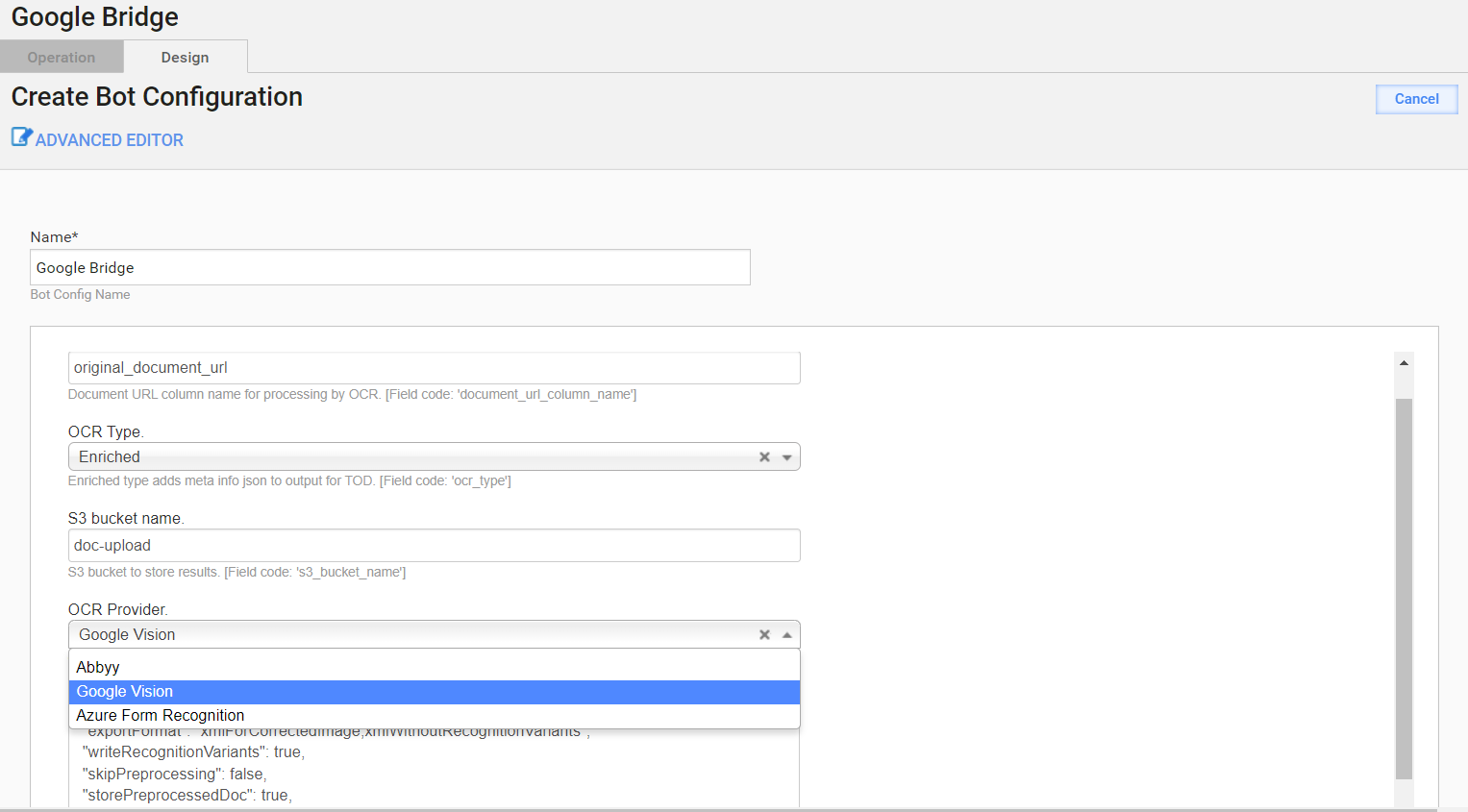
For Google Vision and Azure to work correctly, check their default configuration. The following parameters must be specified:
- OCR Type: Enriched
exportFormat:xmlForCorrectedImage,xmlWithoutRecognitionVariantswriteRecognitionVariants:trueskipPreprocessing:falsestorePreprocessedDoc:truetimeout:60
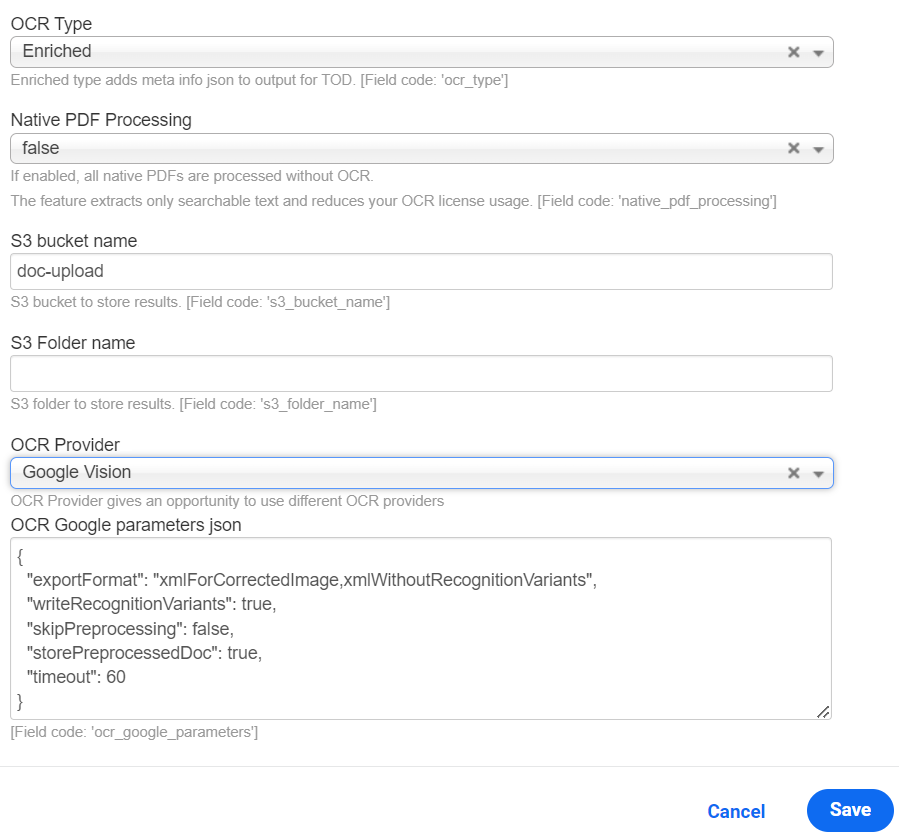
If any of the settings are not configured as above for Google Vision or Azure, OCR throws an exception with the corresponding message.
Set Secrets Vault credentials
To use the Google Vision or Azure OCR provider, you must also set up additional Secrets Vault credentials. Since WorkFusion does not manage Google secret keys and Azure credentials, provide your credentials via the config.yml file.
There are two ways to provide vault credentials for Google and Azure:
ocr_google_key must have a Base64 encoded JSON Google key. Otherwise, there can be issues with different escaping for Ansible. If you pass the key as JSON or separate properties, there can be problems with the private key containing \n new lines and vault values with new lines.
When there is no existing installation, set the following properties in
config.yml:ocr_google_keyocr_azure_passwordocr_azure_endpoint
Otherwise, set (create if needed) the same properties in
config_overrides.ymlon the following path:/opt/workfusion/wf_installer. To override the parameters in the backup, run the following command:./install.sh install installer-backup -e @config_overrides.yml.Execute
./install.sh configure ocr -e @config_overrides.ymlto restart the OCR application with the parameters fromconfig_overrides.yml.
If the above steps cause errors, make sure that the Ansible vault pass and key properties are set by running the following commands:
cd /opt/workfusion/wf_installer

export ANSIBLE_VAULT_PASS=$(cat config_overrides.yml | grep ansible_vault_password | cut -c 25- | tail -1)

export ANSIBLE_PRIVATE_KEY_FILE="id_rsa"