Set accuracy threshold
The article is only applicable to the WorkFusion platform versions up to 10.2.8. Since 10.2.9, the functionality is deprecated.
To set a new accuracy threshold for a model, do as follows:
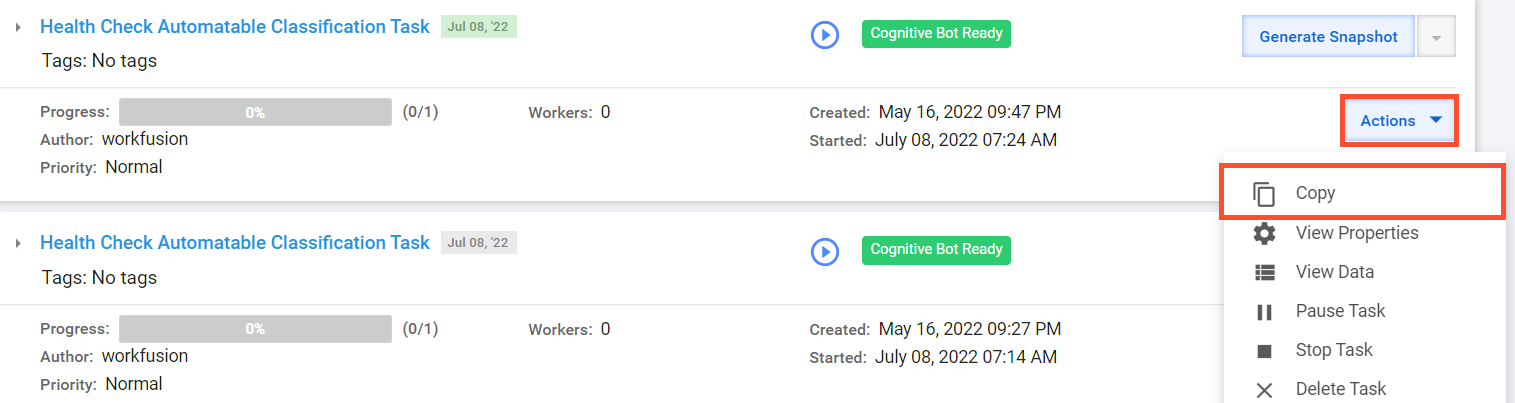
Create an independent copy of the Manual Task (MT) where you want to set a new accuracy threshold:
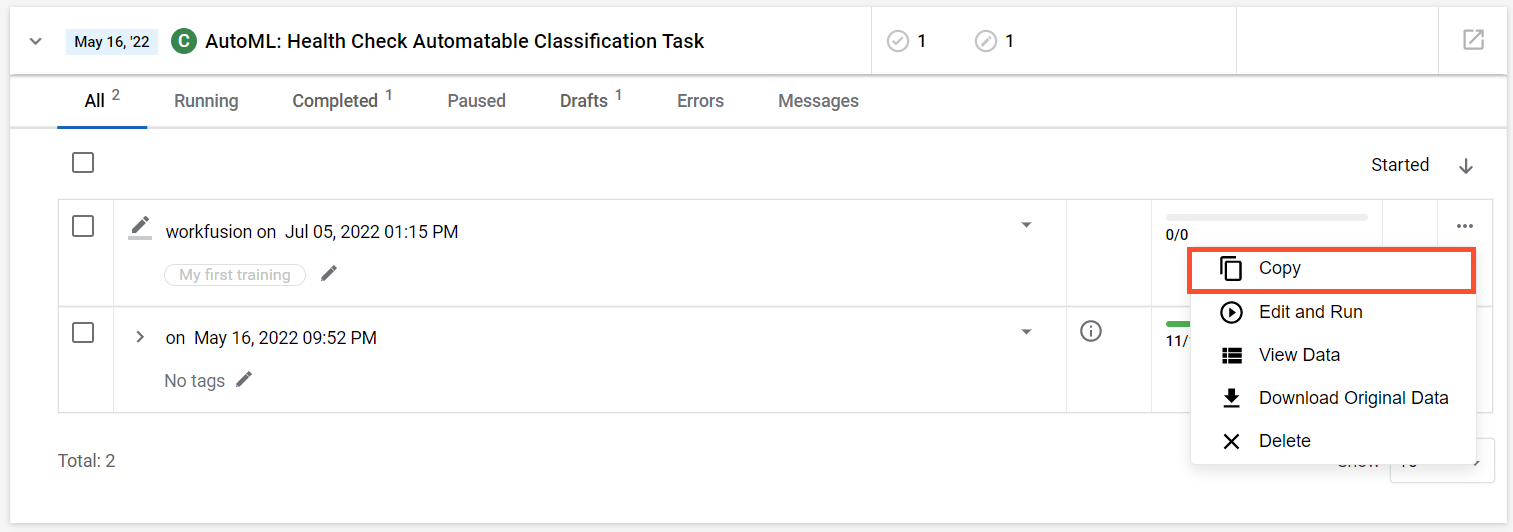
Find the MT, click Actions, and select the Copy option.
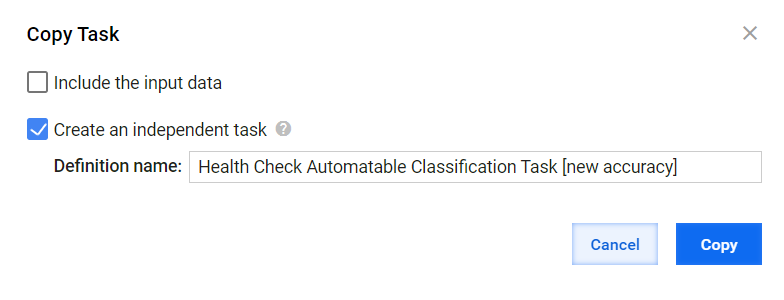
Select Create an independent task, edit the name, and click Copy.
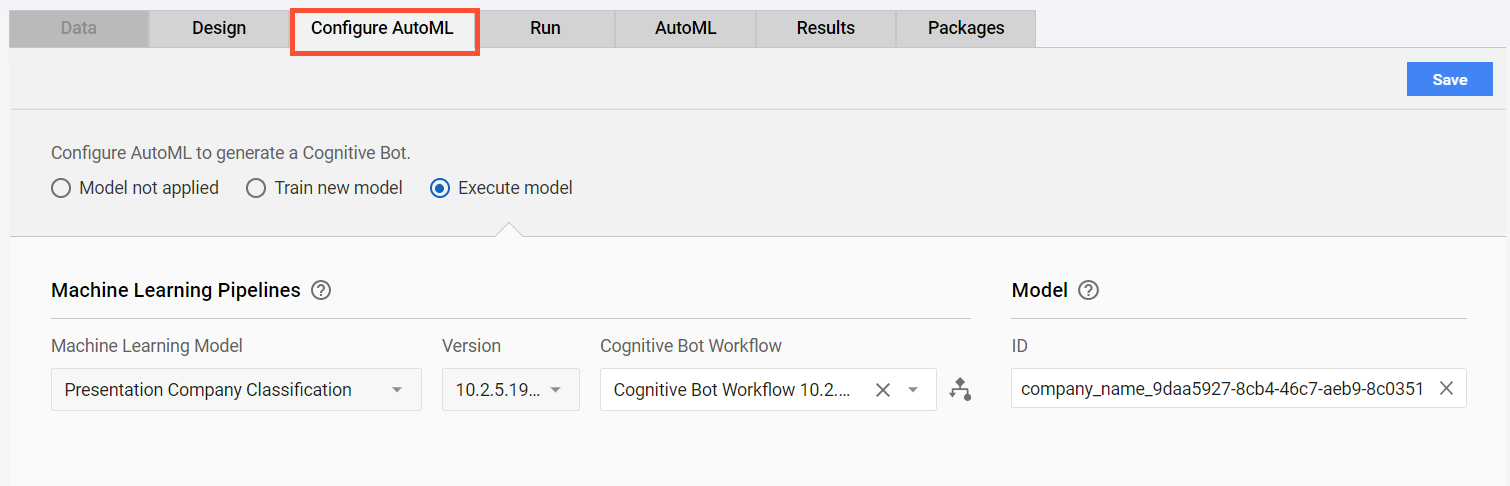
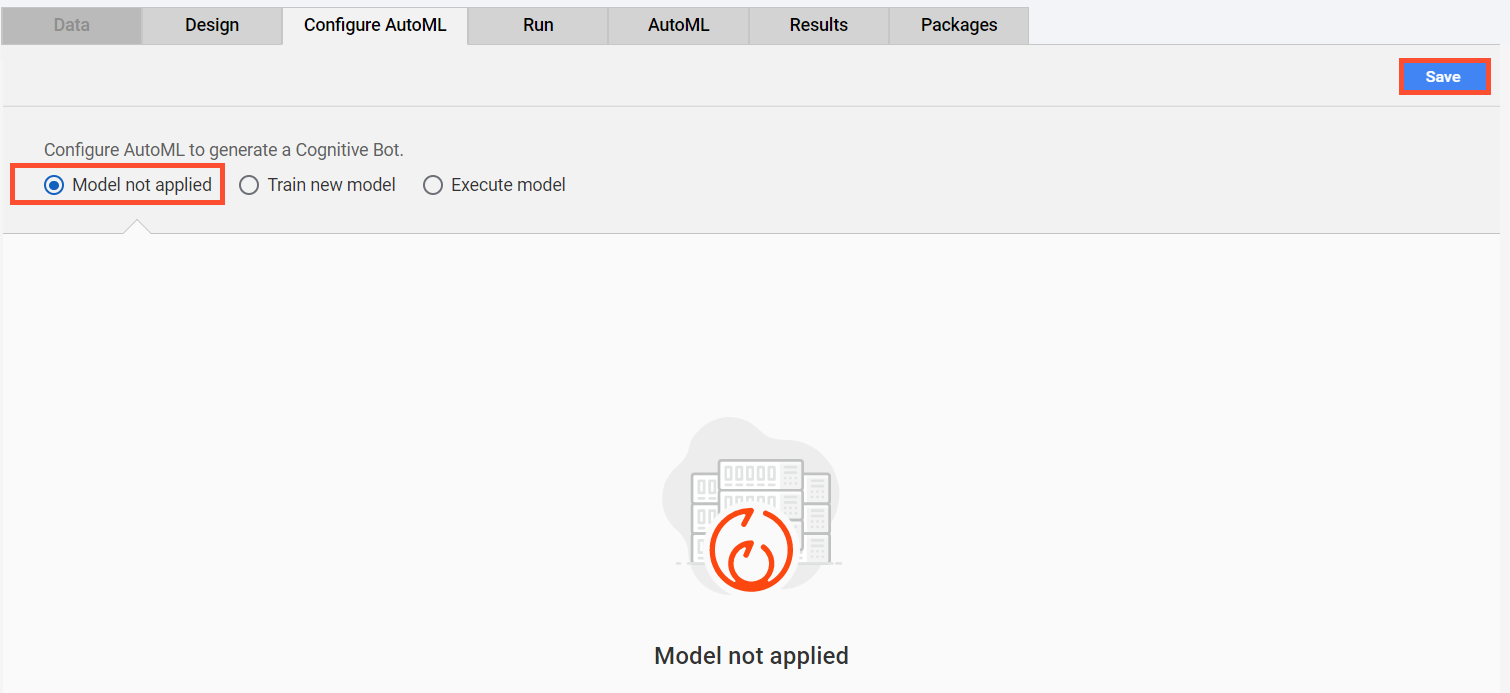
Clear the AutoML configurations and save the MT:
Go to the Configure AutoML tab.
Select Model not applied and click Save.
Apply the AutoML properties once again:
- Select Execute model and configure all fields (as before).
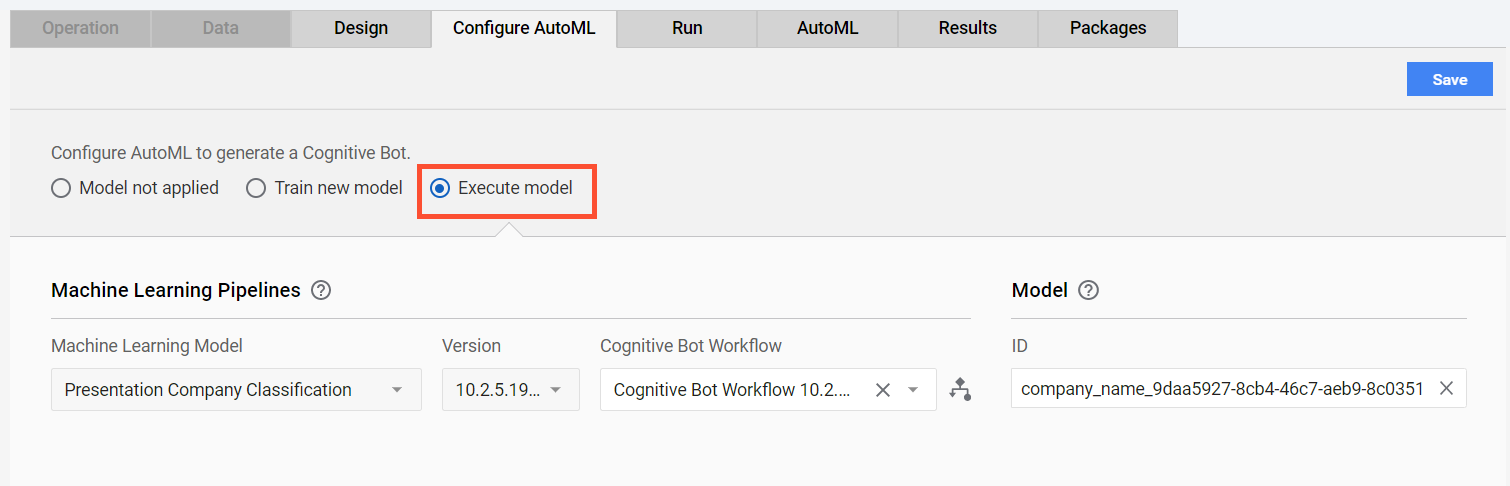
- Save your changes.
- Select Execute model and configure all fields (as before).
Go to Business Processes > View All, choose your Business Process (BP) instance, and create a simple copy.
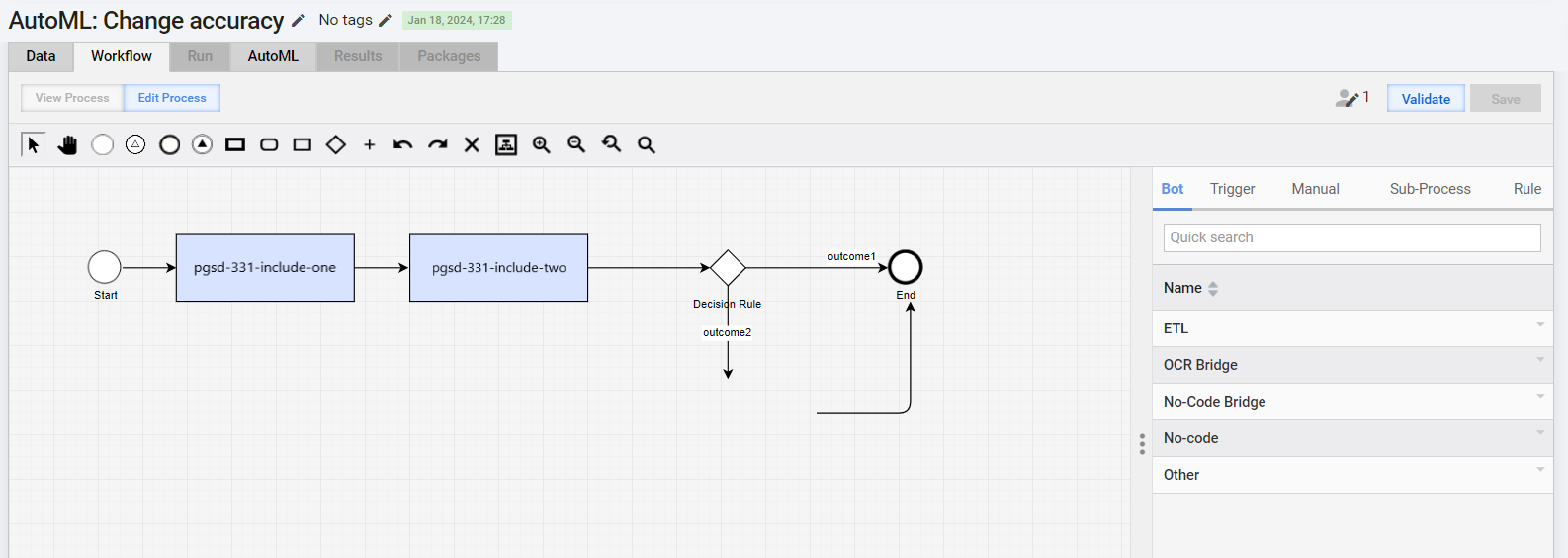
On the Workflow tab, replace the existing AutoML element with the newly created Manual Task.
In the existing workflow, select the AutoML MT element and remove it.
Go to the Manual tab and find the newly created Manual Task.
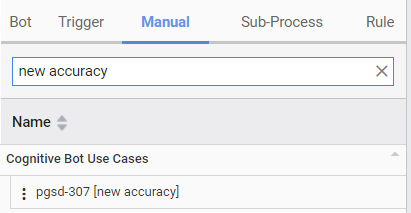
Drag and drop this Manual Task to the workflow.
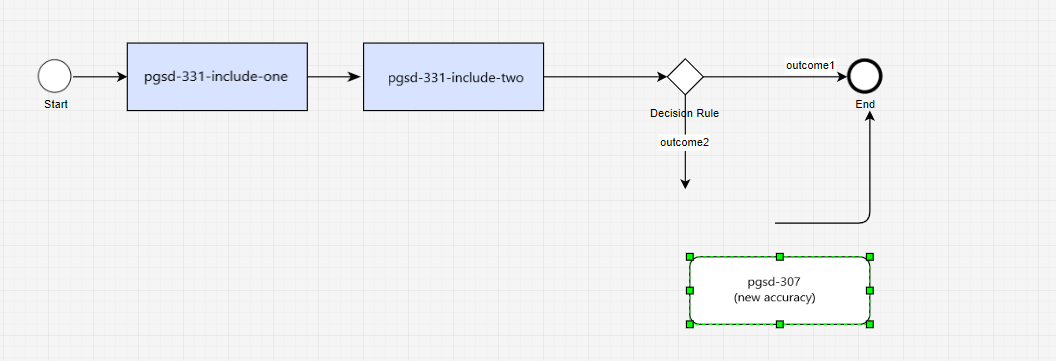
Connect the Manual Task with the other steps and save.
To set a new accuracy threshold, go to the AutoML tab and set the required threshold.
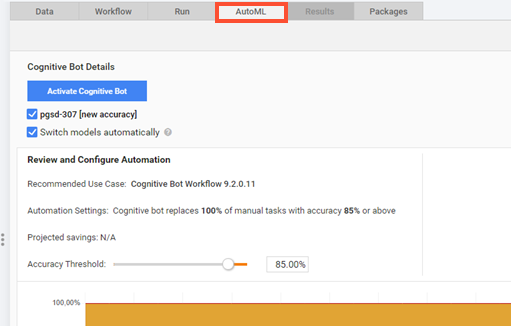
Click Activate Cognitive Bot.