Troubleshoot installation issues
SSL check cannot verify CA certificate
Expand to learn more
Symptoms
An SSL check cannot verify the CA certificate.
SSL check is unable to verify CA certificate
[wfsadmt@wfapp workfusion]$ openssl s_client -showcerts -connect wfbi.example.com:443
...
SSL handshake has read 1698 bytes and written 415 bytes
---
New, TLSv1/SSLv3, Cipher is ECDHE-RSA-AES256-GCM-SHA384
Server public key is 2048 bit
Secure Renegotiation IS supported
Compression: NONE
Expansion: NONE
No ALPN negotiated
SSL-Session:
Protocol : TLSv1.2
Cipher : ECDHE-RSA-AES256-GCM-SHA384
Session-ID: 7DB33295ED365F489D1D953076A04C95D1A9A76E14648526666AD3A0B90FFE5F
Session-ID-ctx:
Master-Key: ECB17FE663720814E973AC3A576A32E217757174CDBC9F39C4E2A423AF6D0E22D45A2809A5AC972D44AE4B627A2627C8
Key-Arg : None

Timeout : 300 (sec)
Verify return code: 21 (unable to verify the first certificate)
Resolution
Add CA.cert to the OpenSSL system main file:
# openssl version -d
OPENSSLDIR: "/etc/pki/tls"

cat CA.cert >> /etc/pki/ca-trust/extracted/pem/tls-ca-bundle.pem

ls -lah /etc/pki/ca-trust/extracted/pem/
lrwxrwxrwx. 1 root root 49 Apr 18 2017 cert.pem -> /etc/pki/ca-trust/extracted/pem/tls-ca-bundle.pem
vds-standalone/vds-master installation fails with kernel.exec-shield
Expand to learn more
Symptoms
During the vds-standalone or vds-master installation, Ansible fails on the Connected with NFS step.
Resolution
Follow the steps below:
Open the
/etc/sysctl.conffile or files in the/etc/sysctl.d/folder.Find the
kernel.exec-shieldoption and change its value to0:kernel.exec-shield=0Upload the options from the
/etc/sysctl.conffile to the Linux kernel once again:sysctl -p /etc/sysctl.confRestart
nfs-server.service:systemctl restart nfs-server.serviceRerun the Ansible installation step:
./install.sh install vds-standalone
VDI installation on RPA Server
Expand to learn more
For VDI installations, you need to maintain RDP sessions active.
Mind that Bot Manager can open an RDP session but for some seconds only, and then the session is disconnected. In this case, you have a unit without an active session—hence, no active UI to make RPA work incorrectly. To avoid opening an RDP connection, start Bot Manager with the noRdpCheck profile:
Go to the Master server where Bot Manager is installed.
In the
/opt/workfusion/bot-manager/run-bot-manager.shfile, change the--spring.profiles.activevalue frommastertonoRdpCheck. After editing, you should have:--spring.profiles.active=production,noRdpCheckSave the changes and restart Bot Manager.
wfmanager restart bot-manager
Single-point installation fails with error "sudo: no tty present"
Expand to learn more
To fix the problem, follow the steps below:
Go to
INSTALL_DIR/wf_installer/.In the
install.shscript, changeexport ANSIBLE_SSH_PIPELINING=truetofalsewith any available text editor.vi install.sh
# the vi editor opens
export ANSIBLE_SSH_PIPELINING=falseSave the changes to the
install.shfile.Continue the installation.
Installation fails on the preinstall step
Expand to learn more
Symptoms
If the installation fails on the Configure sysctl parameters for Elasticsearch step, make sure that the etc/sysctl.conf configuration file contains no invalid parameters.
Resolution
Try to load the sysctl settings by running the following command on the host where you are going to install Elasticsearch:
sudo sysctl -p
The command must finish without errors. Otherwise, edit the /etc/sysctl.conf file and remove invalid settings.
For example, installation fails with the following error:
    TASK [root-steps : Configure sysctl parameters for Elasticsearch: vm.max_map_count=262144] ***
    fatal: [int.mphyEA.com]: FAILED! => changed=false
      msg: |-
        Failed to reload sysctl: vm.max_map_count = 262144
        sysctl: cannot stat /proc/sys/kernel/exec-shield: No such file or directory
As the sysctl settings are loaded from etc/sysctl.conf, the following error appears:
sudo sysctl -p
sysctl: cannot stat /proc/sys/kernel/exec-shield: No such file or directory
To fix the issue, remove kernel.exec-shield=0 from /etc/sysctl.conf. The option exec-shield is always enabled and no longer tunable in RHEL7.
No events in Kibana GUI after environment has been off for several days
Expand to learn more
Elasticsearch has an index policy configured to freeze all indexes after a predefined period (currently, three days). If the environment has been off for more than three days, no new events could be written to frozen indexes, which breaks the message search in the Kibana GUI:
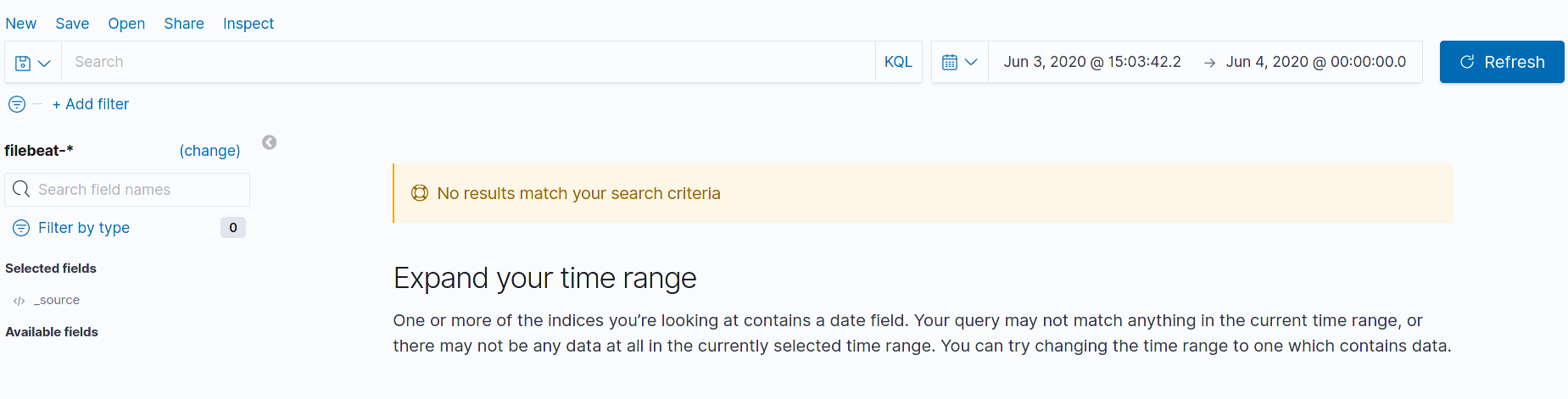
If you see no data in search, verify whether indexes are indeed frozen:
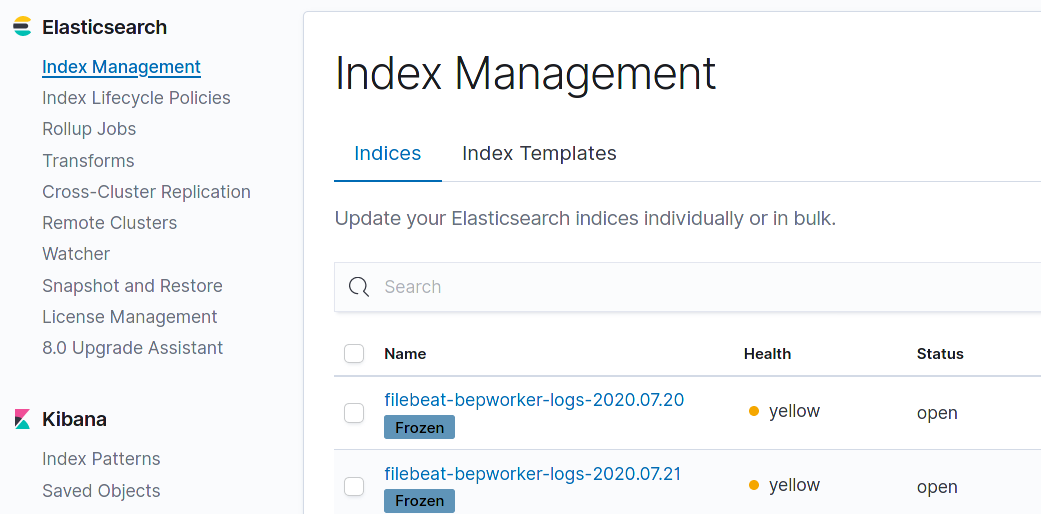
Go to Management > Index Management and find the Filebeat index tagged with the date when your environment was shut down. If it is frozen (see the picture below), unfreeze it.
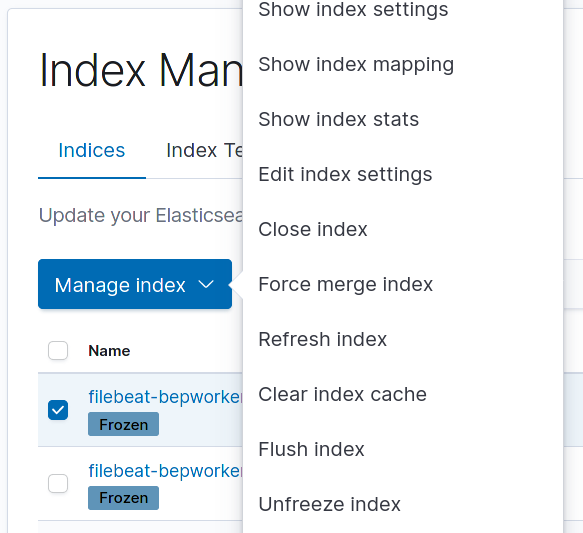
To unfreeze a particular index, select its checkbox, click the appearing Manage Index button, and choose Unfreeze index.
When all services are restarted, one of the Marathon applications cannot be started
Expand to learn more
Symptoms
When all services are stopped and started, one of marathon-apps services cannot be started, whereas in the status output says it is RUNNING.
The first symptom of the issue is the difference in uptime. Whereas most services show similar uptime, there is one that has a higher value:
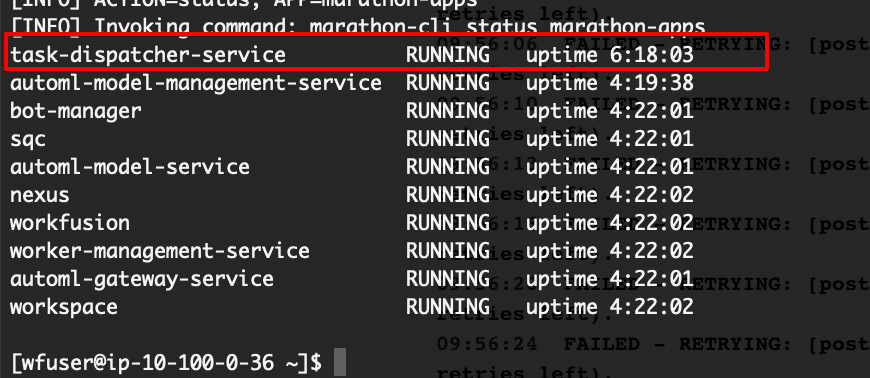
If you observe this behavior after you stopped and started services, check the mesos-agent log file for the following message: Killing un-reregistered executor. Use the Kibana GUI or CLI on each Master server:
cat /opt/workfusion/logs/mesos-agent.log | grep 'Killing un-reregistered executor'
Resolution
If the behavior exists on the particular Master server where such zombie service was found, restart mesos-agent:
wfmanager restart mesos-agent
After that, the uptime for zombie starts counting from 0 again, which indicates that it is now unfrozen.
Restore application removed via Marathon
Expand to learn more
Symptoms
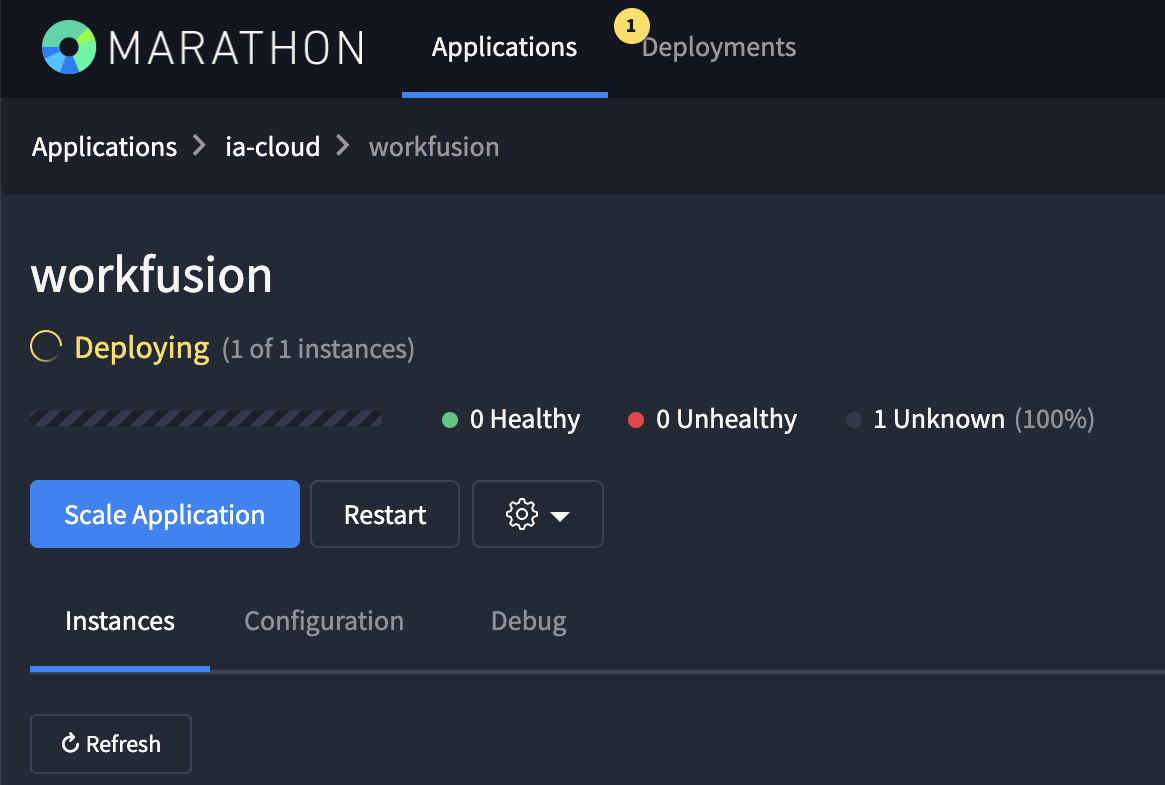
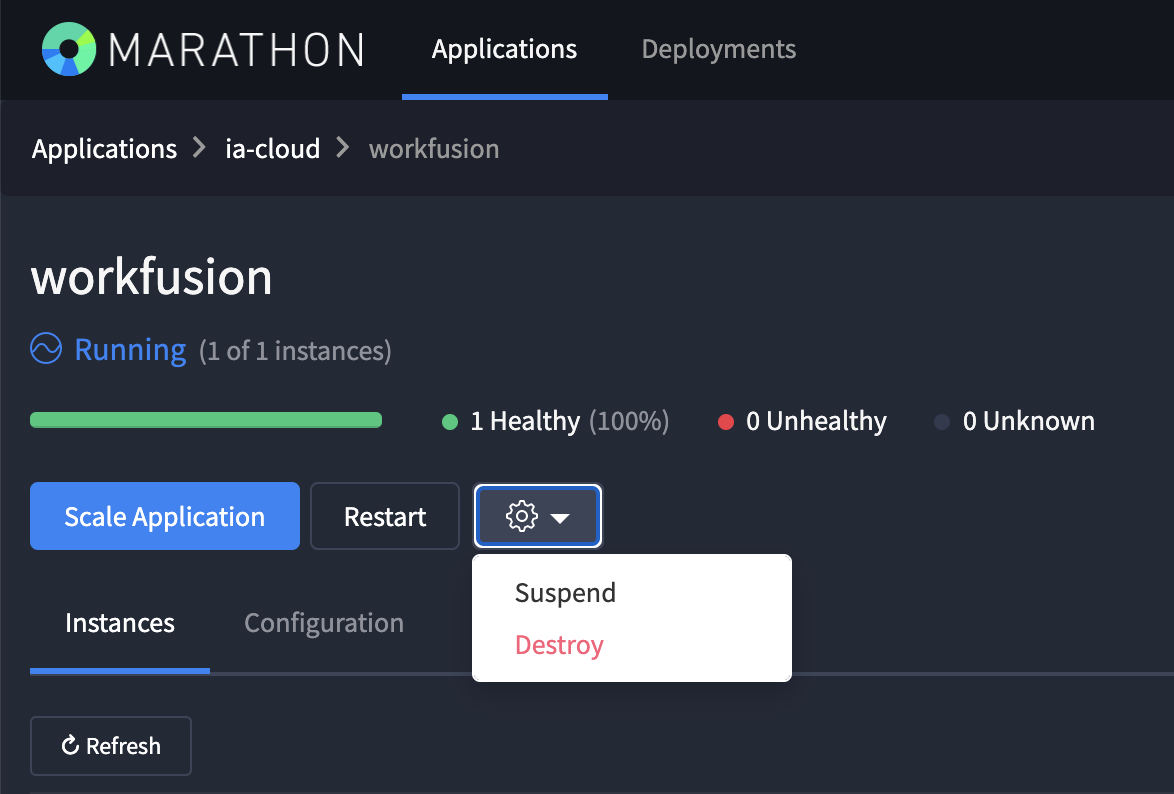
You have accidentally removed an application via the Marathon GUI and want to restore it back.
Resolution
To restore the destroyed application, do the following:
Log in to the Master server via SSH as the application user.
ssh -i <path-to-private-key.pem> <username>@<hostname.master.com>Run the command:
wfmanager deploy <application>
# here, workfusion
Output:
[INFO] ACTION=deploy, APP=workfusion
[INFO] Invoking command: marathon-cli deploy workfusion
{"version":"2020-10-29T09:59:05.432Z","deploymentId":"ce408b61-1baf-4011-85c7-91df658f5b9a"}
As a result, the destroyed application is restored within several minutes.